You are viewing documentation for API version 2026-02-03. The latest version is 2026-06-01.
This guide walks you through the complete process of integrating the fiskaly SIGN IT API for Italian fiscal compliance, using a combination of the fiskaly HUB and API requests. By the end, you will have a fully working System with Records being transmitted to the Agenzia delle Entrate (AdE).
Integration Workflow
Section titled “Integration Workflow”The diagram below illustrates the workflow and highlights the essential steps necessary to successfully complete your integration. Each tile links directly to the matching setup step below.
Steps marked in yellow must be completed directly on HUB, while the remaining steps must be handled via the SIGN IT API. Performing each action in the right context is an important step toward a successful integration.
Prerequisites
Section titled “Prerequisites”You will need a tool to make HTTP requests — such as cURL (command line), Postman, or your own application code. A basic understanding of REST APIs and authentication flows is recommended.
You may also download our Postman collection for SIGN IT, which includes pre-built requests for every step in this guide.
Before getting started, take a look at the overview of what you’ll be configuring.
Step-by-Step Setup
Section titled “Step-by-Step Setup”Register on HUB
Begin by registering on the fiskaly HUB.
For more guidance on getting started, head to our HUB - First steps section.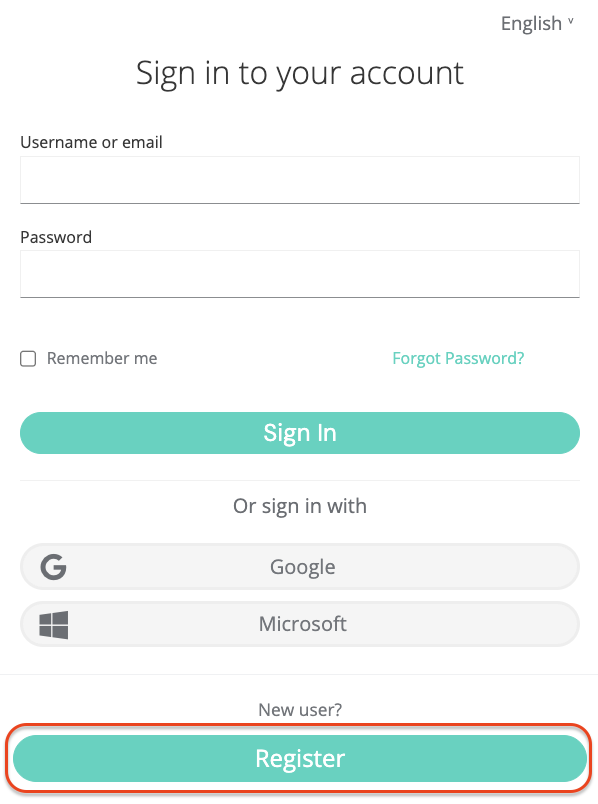
Create Account & Organization
GROUPCreating a fiskaly Account is the first step, after which you can proceed with setting up the first organizational structure for your business and generating your API Key.
The Account represents the PoS provider or a retailer that operates its own PoS system. It is the top-level organization in the structure.
After creating your fiskaly Account, you will be taken to the Organization Selector where you can create your Group. A Group is an intermediate level within an Account that helps you organize multiple Units into logical clusters.
Create API Key
The next step is to generate an API Key for your Organization via HUB within your Group.
You will receive an API Key and API Secret. Save these securely — you will need them to authenticate in the SIGN IT API and create your Organization(s) of type
UNIT(step 5). The API Secret is only shown once. Make sure to save it securely before closing the dialogue.💡TEST vs. LIVE environmentsAPI Keys generated in the TEST environment (
https://test.api.fiskaly.com) will create TEST resources, while those from the LIVE environment (https://live.api.fiskaly.com) will create LIVE resources. For further details, refer to our article on TEST and LIVE environments.
Create Token
Starting from this step, you will be using the SIGN IT API.
Call the createToken endpoint with the API Key and Secret from step 3 to obtain a
bearertoken. Include this token in theAuthorizationheader of steps 5 and 6.curl -X POST https://test.api.fiskaly.com/tokens \ -H "Content-Type: application/json" \ -H "X-Api-Version: 2026-02-03" \ -H "X-Idempotency-Key: $(uuidgen)" \\ -d '{ "content": { "type": "API_KEY", "key": "your_api_key", "secret": "your_api_secret" } }'const response = await fetch( "https://test.api.fiskaly.com/tokens", { method: "POST", headers: { "Content-Type": "application/json", "X-Api-Version": "2026-02-03", "X-Idempotency-Key": crypto.randomUUID(), }, body: JSON.stringify({ content: { type: "API_KEY", key: "your_api_key", secret: "your_api_secret", }, }), } ); const token = await response.json(); const accessToken = token.content.authentication.bearer;Example response (200 OK)
{"content": {"id": "6f1c5c9e-3d9c-4f8c-9f20-7de8f3a91b11","authentication": {"type": "JWT","bearer": "eyJhbGciOiJSUzI1NiIsInR5cCI6IkpXVCJ9...","expires_at": "2026-03-02T12:00:00Z"},"organization": {"id": "b7b6f971-5a3c-4e1e-9f58-2f2a8457bb2d"},"subject": {"id": "2d4a0c2a-c2c9-4e3b-a0e8-b8f7e70d6f33"}}}Create Organization
UNITCreate an Organization of type
UNITvia the createOrganization endpoint. AUNITrepresents a single legal entity (merchant). You will need to create one OrganizationUNITfor each taxpayer representation you manage.Using the
bearertoken generated in Step 4 with the API Key and Secret created for your Group ensures theUNITis correctly nested under that Group in the hierarchy.curl -X POST https://test.api.fiskaly.com/organizations \ -H "Content-Type: application/json" \ -H "X-Api-Version: 2026-02-03" \ -H "X-Idempotency-Key: $(uuidgen)" \ -H "Authorization: Bearer ${ACCESS_TOKEN}" \ -d '{ "content": { "type": "UNIT", "name": "My Retail Store" } }'const response = await fetch( "https://test.api.fiskaly.com/organizations", { method: "POST", headers: { "Content-Type": "application/json", "X-Api-Version": "2026-02-03", "X-Idempotency-Key": crypto.randomUUID(), "Authorization": `Bearer ${accessToken}`, }, body: JSON.stringify({ content: { type: "UNIT", name: "My Retail Store", }, }), } ); const organization = await response.json(); const organizationId = organization.content.id;Example response (201 Created)
{"content": {"id": "9a746f13-0ef7-4a0f-a7df-8e52089c5f3a","state": "ENABLED","type": "UNIT","name": "My Retail Store","organization": {"id": "d4c7b3d1-71f6-45d6-a289-4adf5d54b9c1"}},"metadata": {"trace_identifier": "trace_abc123","api_version": "2026-02-03"}}Create Subject (API Key)
Create a Subject of type
API_KEYfor the OrganizationUNITvia the createSubject endpoint.To associate the Subject (API Key) with your
UNIT, include theX-Scope-Identifierheader set to theidof the OrganizationUNITin your request.curl -X POST https://test.api.fiskaly.com/subjects \ -H "Content-Type: application/json" \ -H "X-Api-Version: 2026-02-03" \ -H "X-Idempotency-Key: $(uuidgen)" \ -H "Authorization: Bearer ${ACCESS_TOKEN}" \ -H "X-Scope-Identifier: ${ORGANIZATION_ID}" \ -d '{ "content": { "type": "API_KEY", "name": "my-api-key-03" } }'const response = await fetch( "https://test.api.fiskaly.com/subjects", { method: "POST", headers: { "Content-Type": "application/json", "X-Api-Version": "2026-02-03", "X-Idempotency-Key": crypto.randomUUID(), "Authorization": `Bearer ${accessToken}`, "X-Scope-Identifier": organizationId, }, body: JSON.stringify({ content: { type: "API_KEY", name: "my-api-key-03", }, }), } ); const subject = await response.json(); // Save the returned key and secret for the next stepExample response (201 Created)
{"content": {"id": "2d4a0c2a-c2c9-4e3b-a0e8-b8f7e70d6f33","state": "ENABLED","type": "API_KEY","name": "my-api-key-03","credentials": {"key": "fsk_unit_abc123","secret": "secret_only_shown_once"}},"metadata": {"trace_identifier": "trace_abc123","api_version": "2026-02-03"}}Create Token
Create a token using the Subject API Key and Secret you just generated. This
bearertoken will be used for all subsequent steps to create resources within the corresponding OrganizationUNIT.curl -X POST https://test.api.fiskaly.com/tokens \ -H "Content-Type: application/json" \ -H "X-Api-Version: 2026-02-03" \ -H "X-Idempotency-Key: $(uuidgen)" \\ -d '{ "content": { "type": "API_KEY", "key": "subject_api_key", "secret": "subject_api_secret" } }'const tokenResponse = await fetch( "https://test.api.fiskaly.com/tokens", { method: "POST", headers: { "Content-Type": "application/json", "X-Api-Version": "2026-02-03", "X-Idempotency-Key": crypto.randomUUID(), }, body: JSON.stringify({ content: { type: "API_KEY", key: "subject_api_key", secret: "subject_api_secret", }, }), } ); const token = await tokenResponse.json(); const unitToken = token.content.authentication.bearer;Example response (200 OK)
{"content": {"id": "3a5b4c61-2e8d-4a9d-9ac1-6df5a4e9138d","authentication": {"type": "JWT","bearer": "eyJhbGciOiJSUzI1NiIsInR5cCI6IkpXVCJ9...","expires_at": "2026-03-02T12:00:00Z"},"organization": {"id": "9a746f13-0ef7-4a0f-a7df-8e52089c5f3a"},"subject": {"id": "2d4a0c2a-c2c9-4e3b-a0e8-b8f7e70d6f33"}},"metadata": {"trace_identifier": "trace_abc123","api_version": "2026-02-03"}}Create Taxpayer
Now you are ready to create the operational parts required for fiscalization in Italy.
Use the createTaxpayer endpoint to add Taxpayer information to the Organization
UNITyou previously created:- Set the Taxpayer as type
COMPANY(legal entity) orINDIVIDUAL(natural person). In both cases, thenameand theaddressmust be provided. - Within the Italian
fiscalizationinformation, the following taxpayer data must be provided:tax_id_number: Italian Fiscal Code (Codice fiscale) of the businessvat_id_number: Italian VAT Number (Partita IVA) of the businesscredentials: PIN, password, and tax ID number of the Fisconline user required to access AdE’s services
curl -X POST https://test.api.fiskaly.com/taxpayers \
  -H "Content-Type: application/json" \
  -H "X-Api-Version: 2026-02-03" \
  -H "X-Idempotency-Key: $(uuidgen)" \
  -H "Authorization: Bearer ${UNIT_TOKEN}" \
  -d '{
    "content": {
      "type": "COMPANY",
      "name": {
        "legal": "La Pizzeria di Mario S.r.l.",
        "trade": "La Pizzeria di Mario"
      },
      "address": {
        "line": {
          "type": "STREET_NUMBER",
          "street": "Via Roma",
          "number": "123"
        },
        "code": "00100",
        "city": "Rome",
        "country": "IT"
      },
      "fiscalization": {
        "type": "IT",
        "tax_id_number": "12345678901",
        "vat_id_number": "12345678901",
        "credentials": {
          "type": "FISCONLINE",
          "pin": "1234567890",
          "password": "MySecurePassword123",
          "tax_id_number": "RSSMRA85M01H501Z"
        }
      }
    }
  }'
const response = await fetch( "https://test.api.fiskaly.com/taxpayers", { method: "POST", headers: { "Content-Type": "application/json", "X-Api-Version": "2026-02-03", "X-Idempotency-Key": crypto.randomUUID(), "Authorization": `Bearer ${unitToken}`, }, body: JSON.stringify({ content: { type: "COMPANY", name: { legal: "La Pizzeria di Mario S.r.l.", trade: "La Pizzeria di Mario", }, address: { line: { type: "STREET_NUMBER", street: "Via Roma", number: "123", }, code: "00100", city: "Rome", country: "IT", }, fiscalization: { type: "IT", tax_id_number: "12345678901", vat_id_number: "12345678901", credentials: { type: "FISCONLINE", pin: "1234567890", password: "MySecurePassword123", tax_id_number: "RSSMRA85M01H501Z", }, }, }, }), } ); const taxpayer = await response.json(); const taxpayerId = taxpayer.content.id;Example response (201 Created)
{"content": {"address": {"city": "Rome","code": "00100","country": "IT","line": {"number": "123","street": "Via Roma","type": "STREET_NUMBER"}},"country": "Italy","created_at": "2026-03-05T14:58:05.729928Z","fiscalization": {"credentials": {"password": "ccf9ac1c","pin": "c775e7b7","tax_id_number": "RSSMRA85M01H501Z","type": "FISCONLINE"},"tax_id_number": "12345678901","type": "IT","vat_id_number": "12345678901"},"id": "019cbe81-8721-7e27-99d9-1bb4a267ba56","locations": [{"description": "Head office location.","type": "HEAD_OFFICE"},{"description": "Branch location.","type": "BRANCH"}],"mode": "INACTIVE","name": {"legal": "La Pizzeria di Mario S.r.l.","trade": "La Pizzeria di Mario"},"state": "ACQUIRED","type": "COMPANY","updated_at": "2026-03-05T14:58:05.729928Z","vat_number": "IT12345678901"}}Once a Taxpayer is created, its
stateis set toACQUIREDby default. To make it fully functional, update the state toCOMMISSIONEDusing the updateTaxpayer endpoint:curl -X PATCH "https://test.api.fiskaly.com/taxpayers/${TAXPAYER_ID}" \ -H "Content-Type: application/json" \ -H "X-Api-Version: 2026-02-03" \ -H "Authorization: Bearer ${UNIT_TOKEN}" \ -d '{ "content": { "state": "COMMISSIONED" } }'await fetch( `https://test.api.fiskaly.com/taxpayers/${taxpayerId}`, { method: "PATCH", headers: { "Content-Type": "application/json", "X-Api-Version": "2026-02-03", "Authorization": `Bearer ${unitToken}`, }, body: JSON.stringify({ content: { state: "COMMISSIONED", }, }), } );Example response (200 OK)
{"content": {"address": {"city": "Rome","code": "00100","country": "IT","line": {"number": "123","street": "Via Roma","type": "STREET_NUMBER"}},"country": "Italy","created_at": "2026-03-05T14:58:05.729928Z","fiscalization": {"credentials": {"password": "ccf9ac1c","pin": "c775e7b7","tax_id_number": "RSSMRA85M01H501Z","type": "FISCONLINE"},"tax_id_number": "12345678901","type": "IT","vat_id_number": "12345678901"},"id": "019cbe81-8721-7e27-99d9-1bb4a267ba56","locations": [{"description": "Head office location.","type": "HEAD_OFFICE"},{"description": "Branch location.","type": "BRANCH"}],"mode": "OPERATIVE","name": {"legal": "La Pizzeria di Mario S.r.l.","trade": "La Pizzeria di Mario"},"state": "COMMISSIONED","type": "COMPANY","updated_at": "2026-03-05T15:02:41.223565Z","vat_number": "IT12345678901"}}📘NoteOnly Fisconline credentials are valid for using SIGN IT lite. The taxpayer must manually do an initial log in to the Revenue Agency’s web portal in order to ensure that the credentials work properly and to accept the terms, conditions and additional clauses provided.
⚠️Credentials renewal requiredFisconline credentials expire every 90 days on the AdE portal, though we recommend renewing them every 60 days as a best practice. Learn how in this article: SIGN IT - How to update the FISCONLINE credentials
For more information, please refer to our Credentials section.
For a detailed Merchant Guide on how to request Fisconline credentials, please contact our sales team.
- Set the Taxpayer as type
Create Location
For each operating business location, you need to create a Location of type
BRANCHvia the createLocation endpoint.curl -X POST https://test.api.fiskaly.com/locations \ -H "Content-Type: application/json" \ -H "X-Api-Version: 2026-02-03" \ -H "X-Idempotency-Key: $(uuidgen)" \ -H "Authorization: Bearer ${UNIT_TOKEN}" \ -d '{ "content": { "type": "BRANCH", "taxpayer": { "id": "your_taxpayer_id" }, "name": "Roma Centro Branch", "address": { "line": { "type": "STREET_NUMBER", "street": "Via Roma", "number": "1" }, "code": "00100", "city": "Roma", "country": "IT" } }, "metadata": { "store_code": "STORE001" } }'const response = await fetch( "https://test.api.fiskaly.com/locations", { method: "POST", headers: { "Content-Type": "application/json", "X-Api-Version": "2026-02-03", "X-Idempotency-Key": crypto.randomUUID(), "Authorization": `Bearer ${unitToken}`, }, body: JSON.stringify({ content: { type: "BRANCH", taxpayer: { id: taxpayerId, }, name: "Roma Centro Branch", address: { line: { type: "STREET_NUMBER", street: "Via Roma", number: "1", }, code: "00100", city: "Roma", country: "IT", }, }, }), } ); const location = await response.json(); const locationId = location.content.id;Example response (201 Created)
{"content": {"address": {"city": "Roma","code": "00100","country": "IT","line": {"number": "1","street": "Via Roma","type": "STREET_NUMBER"}},"created_at": "2026-03-05T15:07:09.776328Z","id": "019cbe89-d450-7501-9928-1e7d94339208","mode": "INACTIVE","name": "Roma Centro Branch","state": "ACQUIRED","systems": [{"description": "Fiscal device (SIGN IT lite).","type": "FISCAL_DEVICE"}],"taxpayer": {"id": "019cbe81-8721-7e27-99d9-1bb4a267ba56"},"type": "BRANCH","updated_at": "2026-03-05T15:07:09.776328Z"},"metadata": {"store_code": "STORE001"}}Once a Location is created, its
stateis set toACQUIREDby default. Update the state toCOMMISSIONEDusing the updateLocation endpoint before proceeding.📘NoteIf the taxpayer operates from a single business location that coincides with the legal address, creating a
Location::BRANCHis not mandatory. ALocation::HEAD_OFFICEis automatically created upon Taxpayer creation and shares the same UUID as the Taxpayer. When the Taxpayer is set toCOMMISSIONED, theLocation::HEAD_OFFICEis automatically set toCOMMISSIONEDas well.Create System (
FISCAL_DEVICE)The createSystem endpoint allows you to create an abstraction of every Electronic Recording System (ERS) used for fiscal operations. Every cash register or point of sale needs to be provided as a new System of type
FISCAL_DEVICE.- A System will be connected to a specific, previously created Location.
- For each System, you must provide
producerandsoftwareinformation to track which device is performing fiscal transactions. For more information, refer to this FAQ article.
curl -X POST https://test.api.fiskaly.com/systems \
  -H "Content-Type: application/json" \
  -H "X-Api-Version: 2026-02-03" \
  -H "X-Idempotency-Key: $(uuidgen)" \
  -H "Authorization: Bearer ${UNIT_TOKEN}" \
  -d '{
    "content": {
      "type": "FISCAL_DEVICE",
      "location": {
        "id": "your_location_id"
      },
      "producer": {
        "type": "MPN",
        "number": "FD-001",
        "details": {
          "name": "My Fiscal Device"
        }
      },
      "software": {
        "name": "My POS Software",
        "version": "1.0.0"
      }
    }
  }'
const response = await fetch( "https://test.api.fiskaly.com/systems", { method: "POST", headers: { "Content-Type": "application/json", "X-Api-Version": "2026-02-03", "X-Idempotency-Key": crypto.randomUUID(), "Authorization": `Bearer ${unitToken}`, }, body: JSON.stringify({ content: { type: "FISCAL_DEVICE", location: { id: locationId, }, producer: { type: "MPN", number: "FD-001", details: { name: "My Fiscal Device", }, }, software: { name: "My POS Software", version: "1.0.0", }, }, }), } ); const system = await response.json(); const systemId = system.content.id;Example response (201 Created)
{"content": {"compliance": {"software": {"name": "My POS Software","version": "1.0.0"}},"created_at": "2026-03-05T13:57:00.016909Z","id": "019cbe49-97f0-7dde-adae-e10fea9d64c9","journal": {"cryptography": {"certificate": {"expires_at": "2029-03-05T13:57:00Z","serial_number": "7E7D991D5D1768AF224A754A3E815537","x509_pem": "-----BEGIN CERTIFICATE-----\nMIIC8jCCAdqgAwIBAgIQfn2ZHV0XaK8iSnVKPoFVNzANBgkqhkiG9w0BAQsFADAT\nMREwDwYDVQQKEwhmaXNrYWx5LjAeFw0yNjAzMDUxMzU3MDBaFw0yOTAzMDUxMzU3\nMDBaMBMxETAPBgNVBAoTCGZpc2thbHkuMIIBIjANBgkqhkiG9w0BAQEFAAOCAQ8A\nMIIBCgKCAQEAzE++CjP6UrE9d4ftaRU50yWWycU1/ql5iLgpFjjBZdXAuay82ely\n11sMfjlL3RJaIkIF8w9VcrnaCnSJLzSihEPcohFF8B9iX+/GLHA9FNHMpRrNBaC/\nMmXv7iuPkOFZDTxueWtkti0BqEE+H3RoCsOkPxzMMQ0UYCtZx9V5i/bXO+Akb8HC\nuq80+73m/DP1WFQgD6d/vwfqr+eM4jZTUiRPyy9W6yBOj02SbFL6Oeop2yDNo7Ws\nhZLoquNgVe9lEHZV2N62AVe1OEXdDzn2BlNvCnlwb9RJCGTVCMQbOsN84EMhpwOG\nsRNHgezSeGhO7aca+/igmiuSW7Uw3YdWWwIDAQABo0IwQDAOBgNVHQ8BAf8EBAMC\nAoQwDwYDVR0TAQH/BAUwAwEB/zAdBgNVHQ4EFgQUn+BqmtpyTeC4wdZNEMYf96hV\ny78wDQYJKoZIhvcNAQELBQADggEBACXaL/EXGW4PnjC+Dj5ZUySE5vtysPUV0Tkw\n4+EtLJUs86itNZgyhQpXfwzvpgj/wL7XA+GAnPqpUbrMOXLawsWGtID8BZHrQRRJ\ny/ZcHRQyIwoHNNl5bbDDNC/icG78GhK+RmdCw3wcVyxABBzpE/CckNn4hltsCqUo\n01eqms+SmY+MBUBj3ec1iVcD0bz/pyMmIQSVfWjKWtHofwUTCkgEm9cKqtyfajzB\ne6bKoScTziojhlCtnEfPb20vtQ+UE183FOG36WfuRV8EtS+3Cgx83yEj8QXVuYcA\nKQAgoPy6/6xHMDkZH3P/XTOfBf8UkZvQy5egibgC6k2wqjxYWtY=\n-----END CERTIFICATE-----\n"},"signature": {"hash": "SHA-256","type": "RSA"}}},"kind": "INTERNAL","location": {"id": "019cbe89-d450-7501-9928-1e7d94339208"},"mode": "INACTIVE","producer": {"details": {"name": "My Fiscal Device"},"number": "FD-001","type": "MPN"},"records": [{"description": "Intention of an upcoming transaction.","type": "INTENTION::TRANSACTION"},{"description": "Receipt transaction information.","type": "TRANSACTION::RECEIPT"},{"description": "Correction of an issued transaction.","type": "TRANSACTION::CORRECTION"},{"description": "Cancellation of an issued transaction.","type": "TRANSACTION::CANCELLATION"}],"software": {"name": "SIGN IT Lite","version": "v1.0.0"},"state": "ACQUIRED","type": "FISCAL_DEVICE","updated_at": "2026-03-05T13:57:00.016909Z","vat_exemptions": [{"code": "NOT_SUBJECT","description": "Not subject (Non soggette)"},{"code": "NOT_TAXABLE","description": "Not taxable (Non imponibili)"},{"code": "CAUSE_1","description": "Exempt (Esenti)"},{"code": "CAUSE_2","description": "Exclusive Art. 15"},{"code": "CAUSE_3","description": "Marginal scheme (Regime del margine)"},{"code": "CAUSE_4","description": "Other (Altre non IVA)"}],"vat_rates": [{"code": "STANDARD","description": "Standard VAT rate","historic": false,"percentage": "22"},{"code": "REDUCED_1","description": "Reduced VAT rate 1","historic": false,"percentage": "10"},{"code": "REDUCED_2","description": "Reduced VAT rate 2","historic": false,"percentage": "5"},{"code": "REDUCED_3","description": "Super-reduced VAT rate","historic": false,"percentage": "4"}]}}Once a System is created, its
stateis set toACQUIREDby default. To create Records, its state must be updated toCOMMISSIONEDusing the updateSystem endpoint.📘Billing noteFor most contracts, Systems are the units used for billing with fiskaly. A
Systembecomes relevant for billing once you change its state fromACQUIREDtoCOMMISSIONEDin the LIVE environment. Resources in the TEST environment are not billed. For the exact billing conditions, please refer to your contract with fiskaly.Create a Record
For each business operation carried out in the System, the createRecord endpoint must be used in two subsequent calls:
- Part A)
INTENTION: records the intention to start aTRANSACTION - Part B)
TRANSACTION: provides the transaction data
Part A) Create the Intention
A Record of type
INTENTIONcontains the association with the System that will carry out the transaction and an Operation of typeTRANSACTION, representing the System’s intent to record a transaction.curl -X POST https://test.api.fiskaly.com/records \ -H "Content-Type: application/json" \ -H "X-Api-Version: 2026-02-03" \ -H "X-Idempotency-Key: $(uuidgen)" \ -H "Authorization: Bearer ${UNIT_TOKEN}" \ -d '{ "content": { "type": "INTENTION", "system": { "id": "your_system_id" }, "operation": { "type": "TRANSACTION" } } }'const intentionResponse = await fetch( "https://test.api.fiskaly.com/records", { method: "POST", headers: { "Content-Type": "application/json", "X-Api-Version": "2026-02-03", "X-Idempotency-Key": crypto.randomUUID(), "Authorization": `Bearer ${unitToken}`, }, body: JSON.stringify({ content: { type: "INTENTION", system: { id: systemId, }, operation: { type: "TRANSACTION", }, }, }), } ); const intention = await intentionResponse.json(); const intentionId = intention.content.id;Example response (201 Created)
{"content": {"file": {"location": "SERVICE"},"id": "019cbe96-8e57-7693-a4ef-4ed89a76ef9b","journal": {"signature": "yrrXNoHGF0YYPVgUWH81tXQYCf6H3BCjTed6YUT2ZvmmRaq8qoZAUOaP8wJI4ipN","signed_at": "2026-03-05T15:21:03.84326335Z"},"mode": "PROCESSING","operation": "{\"type\":\"TRANSACTION\"}","state": "ACCEPTED","system": {"id": "019cbe96-7245-7b49-91d6-ba66a235fc72"},"type": "INTENTION::TRANSACTION"}}Part B) Create the Transaction
A Record of type
TRANSACTIONis associated with the previously createdINTENTIONand can carry out one of the following operations:RECEIPT: Represents the sale of a good or service, including document details (e.g. document number, total amounts including and excluding VAT) and line items (identification of aSALE, description, whether it is aGOODorSERVICE, etc.).CORRECTION: Represents a return process. Contains the same data as aRECEIPToperation, plus a referenceidto the originalRECEIPTdocument.CANCELLATION: Used to invalidate an entire transaction. Requires theidof a previously created record.
curl -X POST https://test.api.fiskaly.com/records \
  -H "Content-Type: application/json" \
  -H "X-Api-Version: 2026-02-03" \
  -H "X-Idempotency-Key: $(uuidgen)" \
  -H "Authorization: Bearer ${UNIT_TOKEN}" \
  -d '{
    "content": {
      "type": "TRANSACTION",
      "record": {
        "id": "your_intention_id"
      },
      "operation": {
        "type": "RECEIPT",
        "document": {
          "number": "1",
          "total_vat": {
            "amount": "2.20",
            "exclusive": "10.00",
            "inclusive": "12.20"
          }
        },
        "entries": [
          {
            "type": "SALE",
            "details": {
              "concept": "GOOD"
            },
            "data": {
              "type": "ITEM",
              "text": "Margherita Pizza",
              "unit": {
                "quantity": "1",
                "price": "12.20"
              },
              "value": {
                "base": "10.00",
                "discount": "0.00"
              },
              "vat": {
                "type": "VAT_RATE",
                "code": "STANDARD",
                "percentage": "22.00",
                "exclusive": "10.00",
                "inclusive": "12.20",
                "amount": "2.20"
              }
            }
          }
        ],
        "payments": [
          {
            "type": "CASH",
            "details": {
              "amount": "12.20"
            }
          }
        ]
      }
    }
  }'
const transactionResponse = await fetch( "https://test.api.fiskaly.com/records", { method: "POST", headers: { "Content-Type": "application/json", "X-Api-Version": "2026-02-03", "X-Idempotency-Key": crypto.randomUUID(), "Authorization": `Bearer ${unitToken}`, }, body: JSON.stringify({ content: { type: "TRANSACTION", intention: { id: intentionId, }, operation: { type: "RECEIPT", document: { number: 1, date: "2026-02-03", total: { amount_incl_vat: "12.20", amount_excl_vat: "10.00", }, }, entries: [ { type: "SALE", description: "Margherita Pizza", category: "GOOD", quantity: 1, unit_price: "10.00", vat_rate: "22.00", amount_incl_vat: "12.20", }, ], }, }, }), } ); const transaction = await transactionResponse.json();Example response (201 Created)
{"content": {"compliance": {"data": "DCW0000/0000-0000","url": "https://ivaservizi.agenziaentrate.gov.it/ser/api/documenti/v1/doc/documenti/00000000/stampa/"},"file": {"location": "SERVICE"},"id": "019cbea1-4775-7b70-9b83-79cac7107266","journal": {"record": {"id": "019cbe96-8e57-7693-a4ef-4ed89a76ef9b"},"signature": "vGQtUR29rogalpYCVIJPnu-3gPLScA5wEEyxrllfviUGvoK2lkLj5bw3OimfvzuP","signed_at": "2026-03-05T15:32:46.594042649Z"},"mode": "FINISHED","operation": "{\"document\":{\"number\":\"1\",\"total_vat\":{\"amount\":\"2.20\",\"exclusive\":\"10.00\",\"inclusive\":\"12.20\"}},\"entries\":[{\"data\":{\"text\":\"Margherita Pizza\",\"type\":\"ITEM\",\"unit\":{\"price\":\"12.20\",\"quantity\":\"1\"},\"value\":{\"base\":\"10.00\",\"discount\":\"0.00\"},\"vat\":{\"amount\":\"2.20\",\"code\":\"STANDARD\",\"exclusive\":\"10.00\",\"inclusive\":\"12.20\",\"percentage\":\"22.00\",\"type\":\"VAT_RATE\"}},\"details\":{\"concept\":\"GOOD\",\"purpose\":\"STANDARD\"},\"type\":\"SALE\"}],\"payments\":[{\"details\":{\"amount\":\"12.20\"},\"type\":\"CASH\"}],\"type\":\"RECEIPT\"}","record": {"id": "019cbe96-8e57-7693-a4ef-4ed89a76ef9b"},"state": "COMPLETED","system": {"id": "019cbe49-97f0-7dde-adae-e10fea9d64c9"},"transmission": {"request": {"data": "e30A","type": "application/json"},"response": {"data": "e30A","type": "application/json"}},"type": "TRANSACTION::RECEIPT"}}Once the transaction is properly recorded and the commercial document information is successfully transmitted to AdE’s web portal (state
COMPLETED, modeFINISHED), thecompliance.datareturned in the API response includes the progressive number assigned by AdE to the commercial document (DCW number) and, if provided, the consumer’s Lottery Code.Note: Should a
REJECTEDorFAILEDstate be returned instead, please refer to our Record States and Modes section for further guidance.📘NoteRecords created in the LIVE environment are transmitted to the Tax Authorities and generate valid commercial documents. Therefore, these documents must always reflect actual transactions.
- Part A)
Next Steps
Section titled “Next Steps”SIGN IT API Reference
Full API documentation for the SIGN IT endpoint — all resources, parameters, and responses.
Connection Loss Handling
Learn how to handle connection loss scenarios and ensure fiscal compliance during outages.
Glossary
Key terms and definitions for the Italian fiscal compliance system.
HUB Guide
Learn how to manage organizations, API keys, and resources through fiskaly HUB.