This guide walks you through the complete process of integrating the fiskaly SIGN FR API for French fiscal compliance, using a combination of the fiskaly HUB and API requests. By the end, you will have a fully working System with Records being signed, journaled, and archived.
Before diving into the setup, here is what you will configure:
Organization
Your ACCOUNT is the top-level structure in fiskaly. GROUP is a required intermediate layer within your ACCOUNT. UNIT organizations represent each Merchant / Taxpayer operating within the Group.
API Key & Secret
Credentials generated in HUB, used to authenticate in the SIGN FR API.
Taxpayer
Representation of a COMPANY or INDIVIDUAL registered with French tax authorities.
Location
A BRANCH representing each physical business location where fiscal operations take place.
System
A FISCAL_DEVICE abstraction of each cash register or POS terminal.
Record
A two-part fiscal record: INTENTION at sale start, then TRANSACTION with the receipt data.
Prerequisites
Section titled “Prerequisites”You need a fiskaly account and access to the fiskaly HUB. If you do not have an account yet, sign up here.
You will also need a tool to make HTTP requests — for example cURL (command line), Postman, or your own application code.
API Keys generated in the TEST environment will create TEST resources, while those from the LIVE environment will create LIVE resources. For further details, refer to our article on TEST and LIVE environments.
Integration Workflow
Section titled “Integration Workflow”The diagram below illustrates the workflow and highlights the essential steps necessary to successfully complete your integration. Each tile links directly to the matching setup step below.
Steps marked in yellow must be completed directly on HUB, while the remaining steps must be handled via the API. Performing each action in the right context is an important step toward a successful integration.
Step-by-Step Setup
Section titled “Step-by-Step Setup”Register on HUB
Begin by registering on the fiskaly HUB.
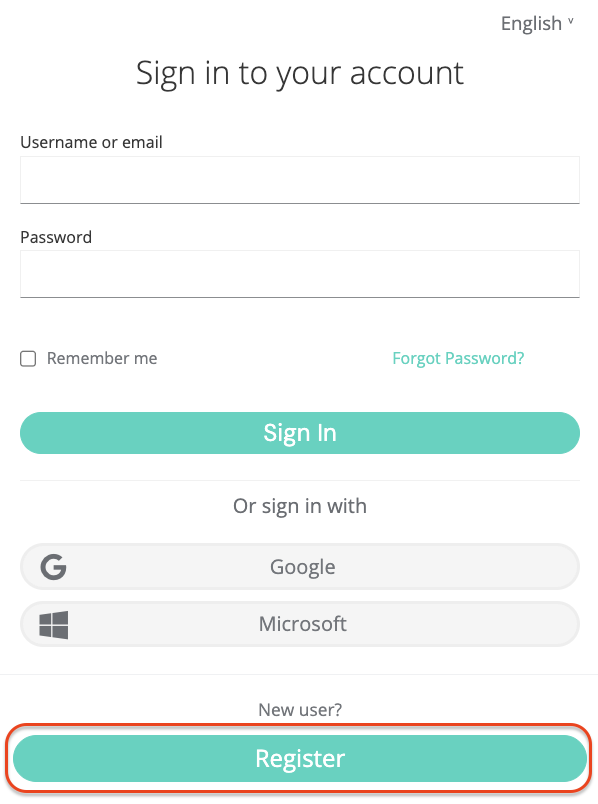
Creating a fiskaly account is the first step, after which you can proceed with setting up the first organizational structure for your business and generating your API Key.
📘Video tutorialTake a look at our video for a step-by-step explanation on how to set up your account and first organization.
Create Account & Group
Continue with creating your Account and first Group using the HUB. In the SIGN FR API, the GROUP is a required intermediate layer within your ACCOUNT, used to organize your UNIT organizations.
Create API Key
The next step is to generate an API Key for your organization via the HUB. This API Key and Secret pair is required to create your Organization(s) of type
UNIT(Step 5).⚠️Store your credentials safelyThe API Secret is only shown once. Make sure to copy and store it in a secure location before closing the dialog.
Starting from the next step, you will be utilizing our SIGN FR API.
Create Token (Management)
Begin using the SIGN FR API through the createToken endpoint. You will need to create a token to authenticate for the next steps.
curl -X POST https://test.api.fiskaly.com/tokens \
  -H "Content-Type: application/json" \
  -H "X-Api-Version: 2026-05-04" \
  -H "X-Idempotency-Key: $(uuidgen)" \\
  -d '{
    "content": {
      "type": "API_KEY",
      "key": "YOUR_API_KEY",
      "secret": "YOUR_API_SECRET"
    }
  }'
const response = await fetch( "https://test.api.fiskaly.com/tokens", { method: "POST", headers: { "Content-Type": "application/json", "X-Api-Version": "2026-05-04", "X-Idempotency-Key": crypto.randomUUID(), }, body: JSON.stringify({ content: { type: "API_KEY", key: "YOUR_API_KEY", secret: "YOUR_API_SECRET", }, }), } ); const token = await response.json(); const accessToken = token.content.authentication.bearer;Example response (200 OK)
{"content": {"id": "tok_abc123","authentication": {"type": "JWT","bearer": "eyJhbGciOiJSUzI1NiIsInR5cCI6IkpXVCJ9...","expires_at": "2026-03-02T12:00:00Z"},"organization": {"id": "YOUR_GROUP_ORG_ID"},"subject": {"id": "sub_abc123"}},"metadata": {"trace_identifier": "trace_abc123","api_version": "2026-05-04"}}Create Organization UNIT
Continue with creating an Organization of type
UNITthrough the createOrganization endpoint. You will need to create one OrganizationUNITfor each of your taxpayer representations.When creating an Organization of type
UNIT, ensure it is associated to the Organization of typeGROUPyou previously created via the HUB. To do this, use the token generated from the API keys created for your Organization of typeGROUP. This reflects the hierarchical structure where the Organization of typeUNITis nested under your Organization of typeGROUP.curl -X POST https://test.api.fiskaly.com/organizations \ -H "Authorization: Bearer YOUR_ACCESS_TOKEN" \ -H "Content-Type: application/json" \ -H "X-Api-Version: 2026-05-04" \ -H "X-Idempotency-Key: YOUR_UNIQUE_UUID" \ -H "X-Scope-Identifier: YOUR_GROUP_ORG_ID" \ -d '{ "content": { "type": "UNIT", "name": "My UNIT Organization" } }'const response = await fetch( "https://test.api.fiskaly.com/organizations", { method: "POST", headers: { "Authorization": `Bearer ${accessToken}`, "Content-Type": "application/json", "X-Api-Version": "2026-05-04", "X-Idempotency-Key": crypto.randomUUID(), "X-Scope-Identifier": "YOUR_GROUP_ORG_ID", }, body: JSON.stringify({ content: { type: "UNIT", name: "My UNIT Organization", }, }), } ); const organization = await response.json();Example response (201 Created)
{"content": {"id": "org_unit_abc123","state": "ENABLED","type": "UNIT","name": "My UNIT Organization","organization": {"id": "YOUR_GROUP_ORG_ID"}},"metadata": {"trace_identifier": "trace_abc123","api_version": "2026-05-04"}}Create Subject API Key
Create a Subject of type
API_KEYthrough the createSubject endpoint. The connection between the Organization of typeUNITand the API Key is established via theX-Scope-Identifier(using theidof the newly created Organization).curl -X POST https://test.api.fiskaly.com/subjects \ -H "Authorization: Bearer YOUR_ACCESS_TOKEN" \ -H "Content-Type: application/json" \ -H "X-Api-Version: 2026-05-04" \ -H "X-Idempotency-Key: YOUR_UNIQUE_UUID" \ -H "X-Scope-Identifier: YOUR_UNIT_ORG_ID" \ -d '{ "content": { "type": "API_KEY" } }'const response = await fetch( "https://test.api.fiskaly.com/subjects", { method: "POST", headers: { "Authorization": `Bearer ${accessToken}`, "Content-Type": "application/json", "X-Api-Version": "2026-05-04", "X-Idempotency-Key": crypto.randomUUID(), "X-Scope-Identifier": "YOUR_UNIT_ORG_ID", }, body: JSON.stringify({ content: { type: "API_KEY", }, }), } ); const subject = await response.json(); const { key, secret } = subject.content.credentials;Example response (201 Created)
{"content": {"id": "sub_abc123","state": "ENABLED","type": "API_KEY","credentials": {"key": "fsk_unit_abc123","secret": "secret_only_shown_once"}},"metadata": {"trace_identifier": "trace_abc123","api_version": "2026-05-04"}}Create Token (UNIT)
Next, create a token that will be used to create resources within the corresponding Organization of type
UNIT.curl -X POST https://test.api.fiskaly.com/tokens \ -H "Content-Type: application/json" \ -H "X-Api-Version: 2026-05-04" \ -H "X-Idempotency-Key: $(uuidgen)" \\ -d '{ "content": { "type": "API_KEY", "key": "YOUR_UNIT_API_KEY", "secret": "YOUR_UNIT_API_SECRET" } }'const response = await fetch( "https://test.api.fiskaly.com/tokens", { method: "POST", headers: { "Content-Type": "application/json", "X-Api-Version": "2026-05-04", "X-Idempotency-Key": crypto.randomUUID(), }, body: JSON.stringify({ content: { type: "API_KEY", key: "YOUR_UNIT_API_KEY", secret: "YOUR_UNIT_API_SECRET", }, }), } ); const token = await response.json(); const accessToken = token.content.authentication.bearer;Example response (200 OK)
{"content": {"id": "tok_unit_abc123","authentication": {"type": "JWT","bearer": "eyJhbGciOiJSUzI1NiIsInR5cCI6IkpXVCJ9...","expires_at": "2026-03-02T12:00:00Z"},"organization": {"id": "org_unit_abc123"},"subject": {"id": "sub_abc123"}},"metadata": {"trace_identifier": "trace_abc123","api_version": "2026-05-04"}}Create Taxpayer
Now you’re ready to create the operational parts required for fiscalization in France. Use the createTaxpayer endpoint to create the representation of a taxpayer:
- Set the Taxpayer as type
COMPANY(legal entity) orINDIVIDUAL(natural person). In both cases, thenameandaddressmust be provided. - Within the French
fiscalizationinformation, provide:tax_id_number: French company identification number (SIREN) issued by INSEEcredentials: French fiscalization portal credentials
Once created, the Taxpayer
stateis set toACQUIRED. Update it toCOMMISSIONEDusing the updateTaxpayer endpoint.# Create Taxpayer curl -X POST https://test.api.fiskaly.com/taxpayers \ -H "Authorization: Bearer YOUR_ACCESS_TOKEN" \ -H "Content-Type: application/json" \ -H "X-Api-Version: 2026-05-04" \ -H "X-Idempotency-Key: YOUR_UNIQUE_UUID" \ -H "X-Scope-Identifier: YOUR_UNIT_ORG_ID" \ -d '{ "content": { "type": "COMPANY", "name": { "legal": "Ma Boulangerie SARL", "trade": "Ma Boulangerie" }, "address": { "line": { "type": "STREET_NUMBER", "street": "Rue de Rivoli", "number": "123" }, "code": "75001", "city": "Paris", "country": "FR" }, "fiscalization": { "type": "FR", "tax_id_number": "123456789", "credentials": { "type": "LNE", "properties": { "legal_form": "SARL", "naf_ape_code": "1071C", "social_capital": "50000" } } } } }' # Commission Taxpayer curl -X PATCH https://test.api.fiskaly.com/taxpayers/YOUR_TAXPAYER_ID \ -H "Authorization: Bearer YOUR_ACCESS_TOKEN" \ -H "Content-Type: application/json" \ -H "X-Api-Version: 2026-05-04" \ -H "X-Scope-Identifier: YOUR_UNIT_ORG_ID" \ -d '{ "content": { "state": "COMMISSIONED" } }'// Create Taxpayer const createResponse = await fetch( "https://test.api.fiskaly.com/taxpayers", { method: "POST", headers: { "Authorization": `Bearer ${accessToken}`, "Content-Type": "application/json", "X-Api-Version": "2026-05-04", "X-Idempotency-Key": crypto.randomUUID(), "X-Scope-Identifier": "YOUR_UNIT_ORG_ID", }, body: JSON.stringify({ content: { type: "COMPANY", name: { legal: "Ma Boulangerie SARL", trade: "Ma Boulangerie", }, address: { line: { type: "STREET_NUMBER", street: "Rue de Rivoli", number: "123", }, code: "75001", city: "Paris", country: "FR", }, fiscalization: { type: "FR", tax_id_number: "123456789", credentials: { type: "LNE", properties: { legal_form: "SARL", naf_ape_code: "1071C", social_capital: "50000", }, }, }, }, }), } ); const taxpayer = await createResponse.json(); // Commission Taxpayer await fetch( `https://test.api.fiskaly.com/taxpayers/${taxpayer.content.id}`, { method: "PATCH", headers: { "Authorization": `Bearer ${accessToken}`, "Content-Type": "application/json", "X-Api-Version": "2026-05-04", "X-Scope-Identifier": "YOUR_UNIT_ORG_ID", }, body: JSON.stringify({ content: { state: "COMMISSIONED", }, }), } );- Set the Taxpayer as type
Create Location
For each operating business location, create a
Locationof typeBRANCHvia the createLocation endpoint.Once created, the Location
stateis set toACQUIRED. Update it toCOMMISSIONEDusing the updateLocation endpoint.# Create Location curl -X POST https://test.api.fiskaly.com/locations \ -H "Authorization: Bearer YOUR_ACCESS_TOKEN" \ -H "Content-Type: application/json" \ -H "X-Api-Version: 2026-05-04" \ -H "X-Idempotency-Key: YOUR_UNIQUE_UUID" \ -H "X-Scope-Identifier: YOUR_UNIT_ORG_ID" \ -d '{ "content": { "type": "BRANCH", "taxpayer": { "id": "YOUR_TAXPAYER_ID" }, "name": "Boutique Paris Centre", "address": { "line": { "type": "STREET_NUMBER", "street": "Rue de Rivoli", "number": "123" }, "code": "75001", "city": "Paris", "country": "FR" } } }' # Commission Location curl -X PATCH https://test.api.fiskaly.com/locations/YOUR_LOCATION_ID \ -H "Authorization: Bearer YOUR_ACCESS_TOKEN" \ -H "Content-Type: application/json" \ -H "X-Api-Version: 2026-05-04" \ -H "X-Scope-Identifier: YOUR_UNIT_ORG_ID" \ -d '{ "content": { "state": "COMMISSIONED" } }'// Create Location const createResponse = await fetch( "https://test.api.fiskaly.com/locations", { method: "POST", headers: { "Authorization": `Bearer ${accessToken}`, "Content-Type": "application/json", "X-Api-Version": "2026-05-04", "X-Idempotency-Key": crypto.randomUUID(), "X-Scope-Identifier": "YOUR_UNIT_ORG_ID", }, body: JSON.stringify({ content: { type: "BRANCH", taxpayer: { id: "YOUR_TAXPAYER_ID", }, name: "Boutique Paris Centre", address: { line: { type: "STREET_NUMBER", street: "Rue de Rivoli", number: "123", }, code: "75001", city: "Paris", country: "FR", }, }, }), } ); const location = await createResponse.json(); // Commission Location await fetch( `https://test.api.fiskaly.com/locations/${location.content.id}`, { method: "PATCH", headers: { "Authorization": `Bearer ${accessToken}`, "Content-Type": "application/json", "X-Api-Version": "2026-05-04", "X-Scope-Identifier": "YOUR_UNIT_ORG_ID", }, body: JSON.stringify({ content: { state: "COMMISSIONED", }, }), } );Create System
The createSystem endpoint allows you to create an abstraction of every device you use to issue receipts. Each cash register or POS needs to be provided as a new System of type
FISCAL_DEVICE.- A System will be connected to a specific, previously created
Locationof typeBRANCH. - For each device, provide product information (MPN, brand, usage start date) and software details.
Once created, the System
stateis set toACQUIRED. Update it toCOMMISSIONEDusing the updateSystem endpoint.# Create System curl -X POST https://test.api.fiskaly.com/systems \ -H "Authorization: Bearer YOUR_ACCESS_TOKEN" \ -H "Content-Type: application/json" \ -H "X-Api-Version: 2026-05-04" \ -H "X-Idempotency-Key: YOUR_UNIQUE_UUID" \ -H "X-Scope-Identifier: YOUR_UNIT_ORG_ID" \ -d '{ "content": { "type": "FISCAL_DEVICE", "location": { "id": "YOUR_LOCATION_ID" }, "producer": { "type": "MPN", "number": "POS-1000", "details": { "name": "My POS Brand" } }, "software": { "name": "My POS Software", "version": "1.0.0" } } }' # Commission System curl -X PATCH https://test.api.fiskaly.com/systems/YOUR_SYSTEM_ID \ -H "Authorization: Bearer YOUR_ACCESS_TOKEN" \ -H "Content-Type: application/json" \ -H "X-Api-Version: 2026-05-04" \ -H "X-Scope-Identifier: YOUR_UNIT_ORG_ID" \ -d '{ "content": { "state": "COMMISSIONED" } }'// Create System const createResponse = await fetch( "https://test.api.fiskaly.com/systems", { method: "POST", headers: { "Authorization": `Bearer ${accessToken}`, "Content-Type": "application/json", "X-Api-Version": "2026-05-04", "X-Idempotency-Key": crypto.randomUUID(), "X-Scope-Identifier": "YOUR_UNIT_ORG_ID", }, body: JSON.stringify({ content: { type: "FISCAL_DEVICE", location: { id: "YOUR_LOCATION_ID", }, producer: { type: "MPN", number: "POS-1000", details: { name: "My POS Brand", }, }, software: { name: "My POS Software", version: "1.0.0", }, }, }), } ); const system = await createResponse.json(); // Commission System await fetch( `https://test.api.fiskaly.com/systems/${system.content.id}`, { method: "PATCH", headers: { "Authorization": `Bearer ${accessToken}`, "Content-Type": "application/json", "X-Api-Version": "2026-05-04", "X-Scope-Identifier": "YOUR_UNIT_ORG_ID", }, body: JSON.stringify({ content: { state: "COMMISSIONED", }, }), } );📘Billing noteFor most contracts, Systems are the units used for billing with fiskaly. A
Systembecomes relevant for billing once you change its state fromACQUIREDtoCOMMISSIONEDin the LIVE environment. Resources in the TEST environment are not billed. For the exact billing conditions, please refer to your contract with fiskaly.- A System will be connected to a specific, previously created
Create Record
Creating a Record in SIGN FR requires two subsequent calls:
- Part A) INTENTION — at the beginning of the sale process
- Part B) TRANSACTION — after the payment process
# Part A) Create Record — INTENTION
curl -X POST https://test.api.fiskaly.com/records \
  -H "Authorization: Bearer YOUR_ACCESS_TOKEN" \
  -H "Content-Type: application/json" \
  -H "X-Api-Version: 2026-05-04" \
  -H "X-Idempotency-Key: YOUR_UNIQUE_UUID_1" \
  -H "X-Scope-Identifier: YOUR_UNIT_ORG_ID" \
  -d '{
    "content": {
      "type": "INTENTION",
      "system": {
        "id": "YOUR_SYSTEM_ID"
      },
      "operation": {
        "type": "TRANSACTION"
      }
    }
  }'

# Part B) Create Record — TRANSACTION
curl -X POST https://test.api.fiskaly.com/records \
  -H "Authorization: Bearer YOUR_ACCESS_TOKEN" \
  -H "Content-Type: application/json" \
  -H "X-Api-Version: 2026-05-04" \
  -H "X-Idempotency-Key: YOUR_UNIQUE_UUID_2" \
  -H "X-Scope-Identifier: YOUR_UNIT_ORG_ID" \
  -d '{
    "content": {
      "type": "TRANSACTION",
      "record": {
        "id": "YOUR_INTENTION_RECORD_ID"
      },
      "operation": {
        "type": "RECEIPT",
        "document": {
          "number": "0001",
          "total_vat": {
            "amount": "2.00",
            "exclusive": "10.00",
            "inclusive": "12.00"
          }
        },
        "entries": [
          {
            "type": "SALE",
            "details": {"concept": "GOOD"},
            "data": {
              "type": "ITEM",
              "text": "Product A",
              "unit": {
                "quantity": "1.00",
                "price": {"inclusive": "12.00", "exclusive": "10.00"}
              },
              "value": {"base": "10.00", "discount": "0.00"},
              "vat": {
                "type": "VAT_RATE",
                "code": "STANDARD",
                "percentage": "20.00",
                "exclusive": "10.00",
                "inclusive": "12.00",
                "amount": "2.00"
              }
            }
          }
        ],
        "payments": [
          {"type": "CASH", "details": {"amount": "12.00"}}
        ]
      }
    }
  }'
// Part A) Create Record — INTENTION const intentionResponse = await fetch( "https://test.api.fiskaly.com/records", { method: "POST", headers: { "Authorization": `Bearer ${accessToken}`, "Content-Type": "application/json", "X-Api-Version": "2026-05-04", "X-Idempotency-Key": crypto.randomUUID(), "X-Scope-Identifier": "YOUR_UNIT_ORG_ID", }, body: JSON.stringify({ content: { type: "INTENTION", system: { id: "YOUR_SYSTEM_ID" }, operation: { type: "TRANSACTION" }, }, }), } ); const intention = await intentionResponse.json(); // Part B) Create Record — TRANSACTION const transactionResponse = await fetch( "https://test.api.fiskaly.com/records", { method: "POST", headers: { "Authorization": `Bearer ${accessToken}`, "Content-Type": "application/json", "X-Api-Version": "2026-05-04", "X-Idempotency-Key": crypto.randomUUID(), "X-Scope-Identifier": "YOUR_UNIT_ORG_ID", }, body: JSON.stringify({ content: { type: "TRANSACTION", record: { id: intention.content.id }, operation: { type: "RECEIPT", document: { number: "0001", total_vat: { amount: "2.00", exclusive: "10.00", inclusive: "12.00", }, }, entries: [ { type: "SALE", details: { concept: "GOOD" }, data: { type: "ITEM", text: "Product A", unit: { quantity: "1.00", price: { inclusive: "12.00", exclusive: "10.00" }, }, value: { base: "10.00", discount: "0.00" }, vat: { type: "VAT_RATE", code: "STANDARD", percentage: "20.00", exclusive: "10.00", inclusive: "12.00", amount: "2.00", }, }, }, ], payments: [{ type: "CASH", details: { amount: "12.00" } }], }, }, }), } ); const transaction = await transactionResponse.json();Once the record is properly created, the data will be signed, journaled, and archived to fulfill the three key fiscal obligations in France.
💡Automate the setupThis entire sequence of requests can be integrated into a “one-click” provisioning solution that requires no manual user interaction. The implementation details are up to you.
Next Steps
Section titled “Next Steps”SIGN FR API Reference
Full API documentation for the SIGN FR endpoint — all resources, parameters, and responses.
Offline Replay Mode
Learn how to handle offline scenarios and replay transactions when connectivity is restored.
Glossary
Key terms and definitions for the French fiscal compliance system.
HUB Guide
Learn how to manage organizations, API keys, and resources through fiskaly HUB.