Trova le risposte a 58 domande frequenti su SIGN ES, organizzate per argomento.
General (11)
TicketBAI - Connection Loss
As long as you’re connected to SIGN ES, you do not need to worry. In case of connection loss to the Spanish Tax Authority server, SIGN ES implements an availability check of the TicketBAI service. The transmission of TicketBAI Files will continue automatically when the service connection is restored.
If you lose connection to us
Sezione intitolata “If you lose connection to us”In case of internet connection problems on the POS system, the Spanish Tax Authorities have established a series of indications to follow. This guidelines vary with the Province.
Even if there’s a connection problem, the taxpayer will issue an invoice for the customer, keeping a copy of it. This invoice has to be part of a specific series according to the incident indicated in Article 17 of the TicketBAI regulation.
The situation will be communicated to the Tax Authorities by sending an email to ticketbai@araba.eus indicating:
-
Identification: Name or company name and VAT Number (NIF)
-
Cause of the incident
-
In the subject of the email, indicate that this corresponds to an issue according to article 17 of the TicketBAI regulation.
As soon as the issue is solved, the issued invoices must be introduced in the TicketBAI software in a correlative way. It’s not necessary to inform the Tax Authority when the issue is resolved.
*Source: *Araba’s FAQs
Bizkaia
Sezione intitolata “Bizkaia”In case of not being able to issue compliant invoices (meaning, with TBAI ID and QR code), the taxpayer must issue an invoice to the customer anyways. The information on these invoices must be sent to the Provincial Council of Bizkaia within the LROE books:
-
LROE for natural persons (Form 140) within the subchapter 1.2 - Income with invoice without guarantor software.
-
LROE for legal persons (Form 240) within the subchapter 1.2 -Invoices issued without guarantor software.
**Note: **Take a look at how to transmit any invoice generated offline through SIGN ES.
The Tax Authority may require the taxpayer to justify the situation. Therefore, the taxpayer must keep and provide the appropriate supporting documentation.
Since the sending of the TicketBAI XML files within the LROE books is not done simultaneously with the transaction, then the situation of short-term internet connection loss should not be an issue in Bizkaia.
*Source: *BATUZ FAQs
Gipuzkoa
Sezione intitolata “Gipuzkoa”Even if there’s a connection problem, the taxpayer will issue an invoice for the customer, keeping a copy of it. This invoice has to be part of a specific series according to the incident indicated in Article 17 of the TicketBAI regulation.
The situation will be communicated to the Tax Authorities by sending an email to ticketbai@gipuzkoa.eus indicating:
-
Identification: Name or company name and VAT Number (NIF)
-
Cause of the incident
-
In the subject of the email, indicate that this corresponds to an issue according to article 17 of the TicketBAI regulation.
If the problem persists for more than 24 hours, the Tax Authority must be notified by submitting a letter to Zergabidea.
As soon as the issue is solved, the issued invoices must be introduced in the TicketBAI software in a correlative way. It’s not necessary to inform the Tax Authority when the issue is resolved.
*Source: *Gipuzkoa’s FAQs
Verifactu - Connection Loss
As long as you’re connected to SIGN ES, you do not need to worry. In case of connection loss to the Spanish Tax Authority server, SIGN ES implements an availability check of the Verifactu service. The transmission of Invoicing Records will continue automatically when the service connection is restored.
Any downtime or transmission issue detected by fiskaly will be notified through our Status page.
Note: We automatically indicate the incident field as Yes if we detect any disconnection issues on our end. SIGN ES API will transmit the XML files as soon as connection to the Tax Authority’s service is restored.
**Important: **The user of the POS system should be notified if there is an internet connection problem or incident that affects transmission to SIGN ES API. Ideally, a message is displayed in the POS indicating this situation.
If you lose connection to us
Sezione intitolata “If you lose connection to us”Even if there’s a connection problem, the taxpayer will issue an invoice for the customer, keeping a copy of it.
In case of internet connection problems on the POS system, the Verifactu Regulation contemplates an indication of any problems with the transmission of issued invoices through an incident field in the XML structure created.
In our SIGN ES API, the incident field is part of the annotations when creating a new invoice. As soon as the connectivity issue is solved, the issued invoices must be introduced through the SIGN ES API software in a correlative way and including this incident field.
Please note that under no circumstance can an invoice be issued without it being transmitted to SIGN ES API.
How to generate the offline QR code?
Sezione intitolata “How to generate the offline QR code?”**Important: **As long as fiskaly’s SIGN ES API is available, you must print invoices using the URL provided in the Invoice Creation Response. This procedure shall only be applicable for offline cases.
According to Verifactu regulation, all invoices must contain a Verifactu QR code. In order to generate the QR code for invoices issued offline, we provide you with the following pseudocode snippet that showcases a possible implementation flow:
GET base_url, nif, number, series, date, total_amountIF series IS NOT EMPTY: SET series_number = CONCAT series, numberELSE: SET series_number = numberSET date_string = DATE_FORMAT date AS "DD-MM-YYYY"SET url_format = "$1?nif=$2&numserie=$3&fecha=$4&importe=$5"SET url = FORMAT url_format WITH $1 = base_url, $2 = nif, $3 = series_number, $4 = date_string, $5 = total_amountSET encoded_url = UTF-8_ENCODE urlThe following aspects have to be considered when generating the URL:
- The URL must keep the order in which the parameters are provided:
Base URL
The base URL for the TEST environment is: https://prewww2.aeat.es/wlpl/TIKE-CONT/ValidarQR
-
The base URL for the LIVE environment is: https://www2.agenciatributaria.gob.es/wlpl/TIKE-CONT/ValidarQR
-
NIF of the taxpayer In SIGN ES API, this corresponds to the field
Create taxpayer > content > issuer > tax_number. -
Invoice series and number In SIGN ES API, this corresponds to the fields
Create an invoice > content > seriesandCreate an invoice > content > numberwhich are concatenated without spaces nor characters in between. If the invoice has no series, only the number is used. -
Total amount of the invoice In SIGN ES API, this corresponds to the field
Create an invoice > content > full_amountwhich must be rounded to 2 decimals (E.g. “121.00” and not “121”). -
All special characters need to be encoded in UTF-8.
-
There should be no blank spaces within the URL.
**Warning: **This should be thoroughly checked during implementation and using the TEST environment, in order to prevent any mismatches between the URL generated in offline scenarios and the URL that fiskaly generates when the system is back online.
In our article on generating the offline QR code for Verifactu, you will find examples to help you test this implementation.
The QR code printed in offline invoices should follow the same guidelines as those printed in online invoices, including the VERI*FACTU compliant text. For more information, please refer to our guide for Verifactu Invoice Compliance.
Where can I find examples for the request bodies?
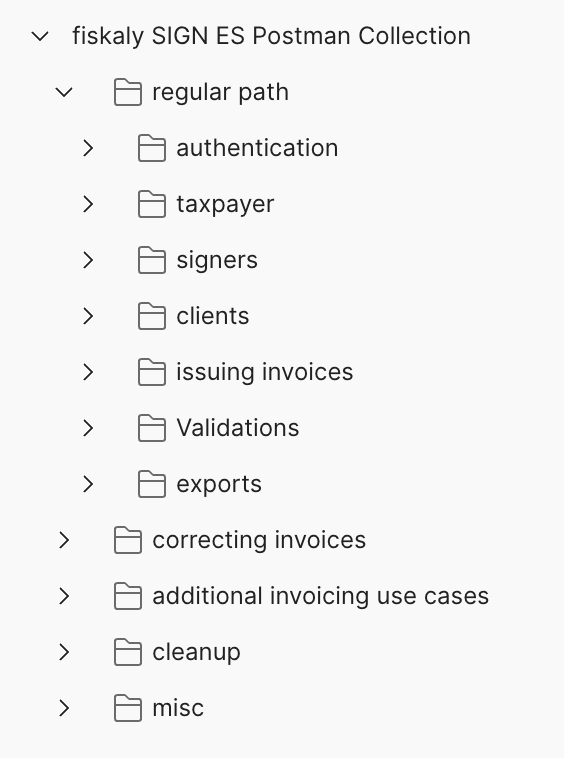
Examples of request bodies are available in the Postman collection, which includes sample payloads for all supported invoice types.
-
Examples for issuing simplified invoices (receipts) are available under regular path → issuing invoices.
-
Correcting invoice examples can be found in correcting invoices.
-
Complete invoice examples are available in the correcting invoices section.
-
Examples for enrichment and remedy flows can be found under additional invoicing use cases.
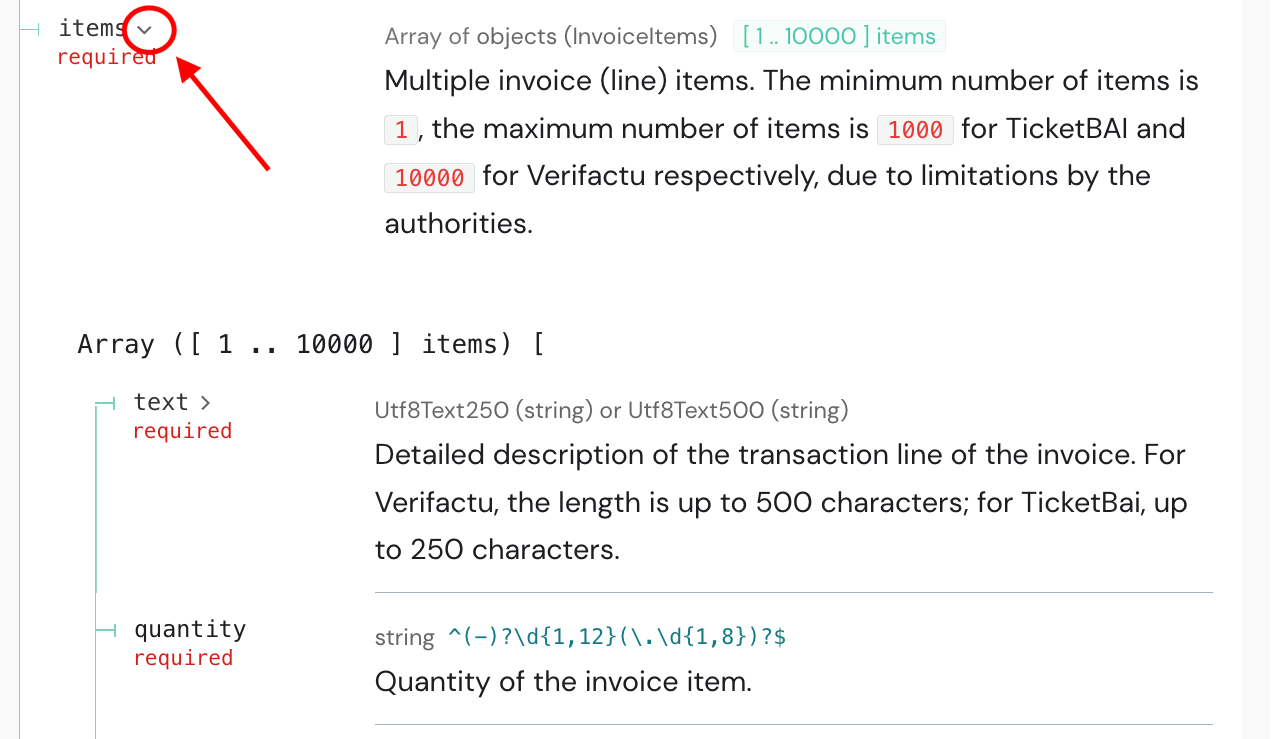
For a complete overview of all available fields (mandatory and optional), including descriptions, the API documentation should be used. By expanding these arrows, the complete request body structure becomes visible.
Verifactu vs. TicketBAI: key implementation differences
In SIGN ES the integration flow is essentially the same for both Verifactu and TicketBAI.
The differences come from territory-specific rules related to (1) how to handle offline/connection-loss scenarios, and (2) the QR placement and mandatory texts on the invoice.
- Offline / connection-loss:
Verifactu: Article
TicketBAI: Article
- QR positioning & compliant texts:
Verifactu: https://workspace.fiskaly.com/sign-es/invoicecompliance-verifactu/
TicketBAI: https://workspace.fiskaly.com/sign-es/invoice-compliance/
How does the Validate Tax Number endpoint work?
The Validate Tax Number endpoint in SIGN ES allows users to verify a NIF against the AEAT database or a VAT number against the VIES service.
We recommend using this endpoint to:
-
Confirm that the recipient of an invoice is correct, helping prevent errors when the invoice is issued and transmitted to the tax authority.
-
Validate data before creating a Taxpayer, ensuring the issuer’s details are correct prior to creating related resources.
NIF Validation (AEAT Service)
-
The NIF validation endpoint only works in Production (LIVE), because the AEAT service does not provide a test environment.
-
When calling this endpoint in TEST, the response will always be:
INVALID -
For integration testing, you can use predefined tax numbers in TEST. Each number simulates a different outcome:
** T00000001** → INVALID_SIMILAR
** T00000002** → VALID
** T00000003** → VALID_REMOVED
** T00000004** → VALID_REVOKED
VAT Number Validation (VIES Service)
- The VAT number validation endpoint (for any EU country other than Spain) works in both TEST and Production (LIVE) environments.
What tax regimes are supported?
In Spain, taxpayers can be registered in one or more tax regimes, depending on the activities they carry out.
The SIGN ES API supports the main Spanish tax regimes required for compliant invoicing under both TicketBAI and Verifactu legislation. When creating an invoice, you must specify the tax regime within the system object of each invoice item in the request body.
Considerations:
The system abstraction in SIGN ES considers the following aspects:
-
Each regulation (TicketBAI and Verifactu) has their own encoding for the special VAT regimes
-
Each territory has their own encoding for the special VAT regimes
-
There are different VAT regimes allowed depending on the vat type applicable in the invoice.
For example, when the vat_type = IPSI in a Verifactu territory, no VAT system is required in the XML structure, therefore SIGN ES allows any VAT system but REGULAR is recommended.
Accepted values for system.type include:
-
REGULAR -
SIMPLIFIED_REGIME -
EQUIVALENCE_SURCHARGE -
EXPORT -
AGRICULTURE -
ANTIQUES -
TRAVEL_AGENCIES -
TRAVEL_AGENCY_MEDIATOR -
OTHER_TAX_IVA -
OTHER_TAX_IGIC -
OTHER_TAX_IPSI -
RENT_PREMISES -
CASH_CRITERIA -
INVESTMENT_GOLD -
SUCCESSIVE_TRANSACTIONS_PENDING_VAT -
RETAIL_TRADERS -
SMALL_PROFESSIONALS -
INTERNAL_IGIC_EXEMPT -
OSS_IOSS
Below is a short overview of each regime, along with official resources from the Spanish Tax Agency for further details.
General scheme (Regular)
Sezione intitolata “General scheme (Regular)”This is the standard VAT regime for most business activities and usually applies to the majority of taxpayers and transactions.
More info: General Scheme
Simplified regime
Sezione intitolata “Simplified regime”Designed for small businesses and self-employed professionals, this system simplifies VAT reporting using fixed quotas.
More info: Simplified system
Equivalence surcharge
Sezione intitolata “Equivalence surcharge”This is a special VAT regime under which suppliers apply a surcharge on items invoiced to the merchants, therefore the retailer or trader is exempt from filing the corresponding VAT returns.
More info: Special system for additional VAT
Exports
Sezione intitolata “Exports”Used for operations involving the export of goods and services. These may be VAT- exempt activities, depending on the destination and legal conditions.
More info: Export
Agriculture
Sezione intitolata “Agriculture”Applicable to owners of agricultural, livestock, forestry or fishing farms, excluding trading companies and other specific use cases.
More information: Agriculture, livestock and fishing (REAGYP)
Antiques
Sezione intitolata “Antiques”Special system for used goods, objects of art, antiques and collector items
More information: Used objects (REBU)
Travel Agency
Sezione intitolata “Travel Agency”Applicable to travel agencies, tour operators and, in general, any businessperson or professional who act on their own behalf with respect to travelers and/or use goods delivered or services provided by other businessmen or professionals during the trip.
More information: Travel Agencies
Travel Agency as Mediators
Sezione intitolata “Travel Agency as Mediators”Applicable to travel agencies that act purely as an intermediary, meaning they are selling services on behalf of other providers. The underlying services are invoiced directly by the provider of those services to the customer.
More information: Travel Agencies as Mediators
Transactions subject to other territorial tax
Sezione intitolata “Transactions subject to other territorial tax”For operations exempt from the territorial tax that apply the tax type of a different Spanish territory.
The SIGN ES API supports OTHER_TAX_IGIC, OTHER_TAX_IPSI, and OTHER_TAX_IVA. Use these when the taxpayer’s commonly applicable tax type is not the one applied to the item. For example, a taxpayer registered in Madrid selling a product subject to IPSI could mark that item as OTHER_TAX_IPSI, provided the taxpayer is under the VAT regime.
Renting of Business Premises
Sezione intitolata “Renting of Business Premises”Applicable to business premise rentals where VAT must be applied (typically at 21%). The taxpayer must be registered for this VAT activity.
More information: Renting of business premises
Cash Criteria
Sezione intitolata “Cash Criteria ”Allows VAT accrual and declaration to be postponed until actual payment is received from the customer, and similarly delays the right to deduct input VAT until the supplier is paid. Applies to both suppliers and customers of the double cash criteria.
More information: Cash Criteria
Investment Gold
Sezione intitolata “Investment Gold”A compulsory regime for transactions involving investment gold, generally VAT-exempt, with restrictions on input VAT deductions.
More information: Investment Gold
Successive Transactions Pending VAT
Sezione intitolata “Successive Transactions Pending VAT ”Used when transactions (such as supplies or leases) occur over time and VAT has not yet been accrued — typically when payment or performance is deferred. The transaction date must reflect the VAT accrual date.
VAT Regime for Small Merchants - Exclusive IGIC
Sezione intitolata “VAT Regime for Small Merchants - Exclusive IGIC”Applies to traders in the Canary Islands who habitually sell movable goods without transformation and where at least 70% of sales are to final consumers.
This VAT regime is only applicable when the vat_type = IGIC.
VAT Regime for Small Professionals (REPEP) - Exclusive IGIC
Sezione intitolata “VAT Regime for Small Professionals (REPEP) - Exclusive IGIC”Designed for small-scale entrepreneurs or professionals under IGIC, exempt from charging IGIC on their invoices. Invoices must include an exemption cause.
This VAT regime is only applicable when the vat_type = IGIC.
VAT Regime for Internal Exempt - Exclusive IGIC
Sezione intitolata “VAT Regime for Internal Exempt - Exclusive IGIC”Covers operations exempt from IGIC under article 25 of Law 19/1994 in the Canary Islands (e.g., certain local supplies of goods and services).
OSS & IOSS
Sezione intitolata “OSS & IOSS”The One-Stop Shop (OSS) and Import One-Stop Shop (IOSS) systems simplify VAT compliance for cross-border B2C transactions within the EU.
-
OSS allows EU businesses to declare and pay VAT on sales to consumers in other EU countries through a single registration.
-
IOSS applies to distance sales of imported goods from outside the EU up to €150.
More information: European Commission - OSS/IOSS Guidance
What are the typical response times for creating an invoice?
When using the createInvoice endpoint, you can expect the following response times:
-
Minimum Response Time: 120ms
-
Average Response Time: 250ms
-
Maximum Response Time: 600ms
These times represent typical performance.
If you consistently experience response times outside of this range, please contact our support team for further assistance.
What does the general workflow look like?
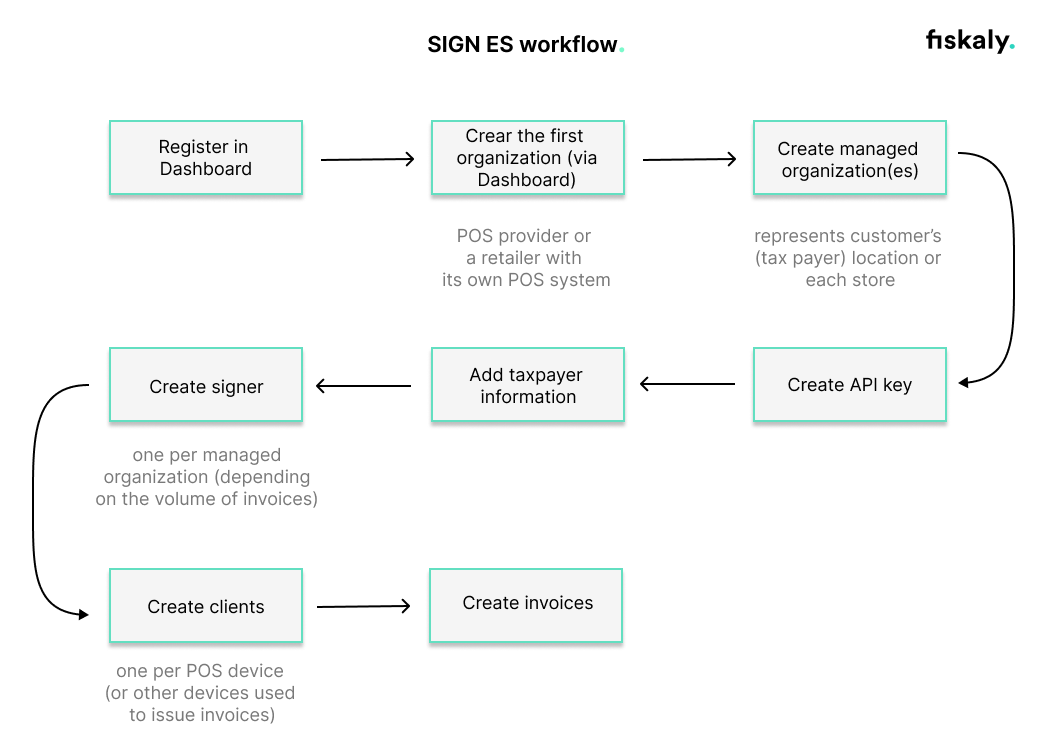
Step 1: Registration Begin by registering on the Dashboard. Creating an account is the first step, after which you can proceed with setting up the organizational structure for your business within our system.
Step 2: Creating your first organization Continue with creating your first organization using the Dashboard. This organization will represent the POS provider or retailer with its own POS system. It is necessary to include the billing address at this stage. This address will only be used for fiskaly’s billing purposes.
Step 3: Managed organizations After establishing your first organization, you will proceed to create managed organizations. Each managed organization represents a customer, enabling you to manage them separately.
Step 4: API key generation The next step is to generate an API key within each managed organization. This can be done via the Dashboard or the createApiKey endpoint of the Management API. This API key and secret pair is required for generating an access token, which is used for all subsequent API calls.
Note that API keys generated in TEST environment will create TEST resources, while those from the LIVE environment will create LIVE resources. For further details, refer to our article on Test and LIVE environment.
Step 5: Taxpayer information You must add the taxpayer’s information to the system via the createTaxpayer endpoint of the SIGN ES API. This is a compliance step to ensure that all invoices generated are in line with tax regulations and contain all the necessary taxpayer details.
Step 6: Signer creation Moving forward, you need to create a Signer via the createSigner endpoint for each managed organization. The signer is responsible for the electronic signature of the invoices. Each signing device requires a certificate.
For TicketBAI compliance, a device certificate is automatically allocated during the creation of a Signer, unless you want to provide your own external device certificate. This certificate can be retrieved from the API call response.
For Verifactu compliance, our electronic certificate is associated with the taxpayer.
**Step 7: Creation of Clients ** The workflow includes creating Clients via the createClient endpoint. You should create a Client for each POS device or any other invoicing device used within your organization.
Step 8: Invoice creation With all the previous steps completed, you are now ready to create invoices. This is the final step where invoices are generated and signed. SIGN ES ensures that all invoices are compliant with TicketBAI in the Basque Country, and Verifactu in the rest of the Spanish territory. Please refer to the invoicing regulations in Spain for additional information about invoice creation.
For more information, we’ve included a video: Organization Structure for Verifactu (includes English subtitles)
Do we have to certify our software or take any other steps in the Basque territories?
We provide all the certificates you need for a compliant operation. Our fiscalization software SIGN ES is registered in the TicketBAI software guarantor register in Araba, Gipuzkoa and Bizkaia, is 100% legally compliant and generates digital signatures for transactions in your POS or invoicing system.
All TicketBAI XML files will be sent indicating fiskaly’s registration information. This is the information you need to show on the POS in case of an audit (available through the SIGN ES API software endpoint).
The only required step to be performed on behalf of the taxpayer is to associate the VAT Number (NIF) with the Device Certificate used. For this, the serial number of the certificate is provided in the response of the create/retrieve a signer in the API. If the taxpayer fails to inform the Device Certificate’s number to the Tax Authority, the mandatory sending of TicketBAI Files will result in rejection.
Is SIGN ES compliant with both TicketBAI and Verifactu?
The fiskaly SIGN ES API guarantees compliance with the TicketBAI legislation in the Basque Country and with Verifactu in the rest of Spain.
Where can I find the API documentation for SIGN ES
The documentation for the fiskaly SIGN ES API can be found on the workspace.
For more information, we’ve included a video: SIGN ES - First steps (includes English subtitles)
Invoices (37)
Correction codes in SIGN ES: When should CORRECTION_1, CORRECTION_2, CORRECTION_3 and CORRECTION_4 be used?
When issuing a **CORRECTING**** invoice** via SIGN ES, it is mandatory to specify a correction code that identifies the legal grounds for the correction. These codes correspond to the provisions of Article 80 of the VAT Act (LIVA – Law 37/1992) and are translated internally into keys R1–R4 in the tax XML (Verifactu, TicketBAI or SII).
Key points regarding the corrective invoice
Sezione intitolata “Key points regarding the corrective invoice”| SIGN ES Code | Key | Reason | Legal basis |
|---|---|---|---|
CORRECTION_1 | R1 | Amount or VAT errors, returns, discounts, rebates, or price changes after the transaction | Art. 80.1, 80.2 and 80.6 LIVA |
CORRECTION_2 | R2 | The recipient has been declared insolvent (bankruptcy) | Art. 80.3 LIVA |
CORRECTION_3 | R3 | The debt is wholly or partially uncollectible | Art. 80.4 LIVA |
CORRECTION_4 | R4 | Any other reason not covered by the above (errors in non-financial data: VAT number, address, description, etc.) | Remaining cases |
Note: In the case of **SIMPLIFIED**** invoices**, SIGN ES automatically assigns key R5, regardless of the correction code specified. |
When to use each correction code
Sezione intitolata “When to use each correction code”CORRECTION_1 (R1) – Financial or tax corrections
Sezione intitolata “CORRECTION_1 (R1) – Financial or tax corrections ”Used when the correction affects amounts, tax quotas, or fiscally relevant elements of the transaction. This is the most common case.
Typical examples:
-
The VAT rate applied was incorrect.
-
Goods or packaging are being returned.
-
Discounts or rebates granted after the transaction are being applied.
-
The agreed price is modified after the transaction.
-
The amount was provisional at the time of issue and the final amount is now known.
CORRECTION_2 (R2) – Insolvency proceedings
Sezione intitolata “CORRECTION_2 (R2) – Insolvency proceedings ”Used exclusively when the invoice recipient has been declared insolvent and the correction is made for this legal reason.
CORRECTION_3 (R3) – Uncollectible debts
Sezione intitolata “CORRECTION_3 (R3) – Uncollectible debts ”Used when the debt arising from the invoice is wholly or partially uncollectible and the legal requirements to modify the taxable base are met.
CORRECTION_4 (R4) – Remaining cases
Sezione intitolata “CORRECTION_4 (R4) – Remaining cases ”Used when the correction does not fit any of the above cases, for example to correct non-monetary data or other aspects not covered by R1, R2, or R3.
Typical examples:
-
The recipient’s tax identification number was incorrect.
-
The address was wrong.
-
The description of the transaction contained errors.
How is the “Operation Classification” (S1, S2, N1, N2) reported in SIGN ES for Verifactu?
In the Verifactu XML, at the breakdown-detail level of each invoice line, there is a field called CalificacionOperacion, which identifies the tax nature of the transaction.
The most common values include:
-
**S1 **– Taxable and non-exempt transaction, without reverse charge
-
S2 – Taxable and non-exempt transaction, with reverse charge
-
N1 – Non-taxable transaction
-
N2 – Transaction not subject to tax due to location rules
Do I need to send S1, S2, N1 or N2 in the API?
Sezione intitolata “Do I need to send S1, S2, N1 or N2 in the API?”No. The SIGN ES API does not expose a dedicated field where you directly send S1, S2, N1, or N2.
Instead, for each line, you must provide the relevant tax category using:
-
type -
cause, where applicable
Based on this information, **SIGN ES internally generates **the corresponding CalificacionOperacion in the Verifactu XML.
Typical mapping used by SIGN ES
Sezione intitolata “Typical mapping used by SIGN ES”S1 – Taxable transaction not subject to exemption, without reverse charge
Sezione intitolata “S1 – Taxable transaction not subject to exemption, without reverse charge”"system": { "category": { "type": "VAT" }}S2 – Taxable transaction not subject to exemption, with reverse charge
Sezione intitolata “S2 – Taxable transaction not subject to exemption, with reverse charge”"system": { "category": { "type": "INVERSE_VAT" }}N1 – Transaction not subject to
Sezione intitolata “N1 – Transaction not subject to”"system": { "category": { "type": "NO_VAT", "cause": "NON_TAXABLE_1" }}N2 – Transaction not subject to localisation rules
Sezione intitolata “N2 – Transaction not subject to localisation rules”"system": { "category": { "type": "NO_VAT", "cause": "NON_TAXABLE_2" }}
**Important: **The final value of CalificacionOperacion does not depend only on a direct label equivalence, but on the overall tax treatment of the line. For that reason, the integration should focus on providing the correct tax category for each line, and SIGN ES will generate the corresponding value internally in the Verifactu XML.
Invoice series and numbering
Invoice numbering must be consecutive within each series. The name of the series is flexible (for example, A, 2026, POS1), but there must be no gaps within the same series.
If there are two POS systems that cannot maintain consecutive numbering between them, it is recommended to use different series to avoid conflicts. For example, POS 1 can issue invoices in series POS1 (POS1-1, POS1-2, …) and POS 2 in series POS2 (POS2-1, POS2-2, …). In this way, each series maintains its own independent consecutive numbering.
SIMPLIFIED and COMPLETE invoices may be issued within the same series or in separate series. Both options are valid, as long as numbering remains consecutive within the chosen series.
A CORRECTING invoice is issued to rectify an already issued invoice. This type of invoice **must be issued using a specific series, **different from the one used for ordinary invoices. Within this series, the numbering must be sequential.
For example, if the original invoice is A-15 and there are no corrective invoices yet, the first corrective invoice could be issued as R-1.
A REMEDY invoice does not create a new invoice but represents a technical correction while preserving the identity of the original invoice. For this reason, a REMEDY must reuse exactly the same series and number values as the original invoice. For example, if the original invoice is A-20, the REMEDY must also be A-20. If athe values do not match, the invoice will be rejected at creation.
An ENRICHMENT invoice is used to complete a SIMPLIFIED invoice by adding recipient information. An ENRICHMENT invoice is issued as a new invoice linked to the simplified one and therefore must have a different number. It may be issued within the same series or in a different series, as long as numbering remains consecutive. For example, if the original simplified invoice is A-20, the enrichment could be issued as A-21 (or E-1 if a separate series is used). From a practical perspective, the ENRICHMENT invoice “replaces” the simplified invoice for the final, complete version of the document, so there is no need to worry about “duplicating” the original invoice.
How to handle tips?
In Spain, tips that are given voluntarily by customers and are not mandatory are generally not part of the VAT taxable base and are not subject to VAT, because they are not treated as payment for the goods or services provided.
Because Verifactu and TicketBAI only require you to send the tax-relevant data of the invoice (bases, VAT amounts, equivalence surcharge, etc.), these voluntary tips do not need to be included in the XML that is sent to AEAT or the Basque tax authorities as long as they are not part of the invoiced price.
However, if you add a mandatory “service charge” or similar amount to the invoice total (i.e. it is not a freely decided tip), then this does form part of the taxable base, is subject to VAT, and should be included in the invoice and therefore in the Verifactu/TicketBAI file.
How does SIGN ES map invoice types to AEAT codes F1, F2, F3 and R1–R5?
In line with the official AEAT definition of the “Tipo de Factura” (Invoice Type) field (codes F1, F2, F3 for invoices and R1–R5 for corrective invoices), SIGN ES applies the following mapping:
Invoice types
Sezione intitolata “Invoice types”-
**SIMPLIFIED**** invoice → F2** (Simplified invoice or full invoice without identification of the recipient, according to Royal Decree 1619/2012). -
**COMPLETE**** invoice → F1** (Complete invoice and “qualified” simplified invoices in which the recipient is identified). -
Enriched invoice (
**ENRICHMENT**) → F3 Used when an invoice is issued to replace simplified invoices that have already been issued and reported. This replacement invoice will “convert” the simplified invoice into a full invoice with the recipients added.
Correcting invoices
Sezione intitolata “Correcting invoices”For **COMPLETE CORRECTING**** invoices**, a pre-defined correcting code must also be provided. We map the code field as follows:
-
"code": "CORRECTION_1"→ R1 -
"code": "CORRECTION_2"→ R2 -
"code": "CORRECTION_3"→ R3 -
"code": "CORRECTION_4"→ R4
When the invoice being corrected is a **SIMPLIFIED**** invoice**, we automatically assign code R5, as defined by AEAT for CORRECTING SIMPLIFIED invoices.
How to indicate the Equivalence Surcharge (Recargo de Equivalencia) in SIGN ES?
The structure to report the Equivalence Surcharge depends on whether the party under this regime is your customer (the issuer) or the invoice recipient.
If it is your customer who is under the Equivalence Surcharge regime, you must use "EQUIVALENCE_SURCHARGE" in system.type. For example:
{ "text": "Product A", "quantity": "2.00", "unit_amount": "100.00", "full_amount": "193.60", "discount": "20.00", "system": { "type": "EQUIVALENCE_SURCHARGE", "category": { "type": "VAT", "rate": "21.00" } }}If, on the other hand, it is the final customer (invoice recipient) who is under the Equivalence Surcharge regime, then don’t use "EQUIVALENCE_SURCHARGE" in system.type, but instead use the additional_vat field inside category:
{ "text": "Product A", "quantity": "2.00", "unit_amount": "100.000", "full_amount": "201.92", "discount": "20.00", "system": { "type": "REGULAR", "category": { "rate": "21.00", "type": "VAT", "additional_vat": { "rate": "5.20", "amount": "8.32" } } }}In this second example, the calculations are:
-
Taxable base of the item:
(unit_amount - discount) * quantity(100 - 20) * 2 = 160 -
Surcharge 5.2%:
160 * 0.052 = 8.32 -
VAT 21%:
160 * 0.21 = 33.60 -
full_amount:160 + 8.32 + 33.60 = 201.92
Can I issue invoices as a third party?
According to Article 5 of the Royal Decree 1619/2012, invoices must always identify the professional or taxpayer responsible for the operation. However, the preparation and issuance of invoices may be delegated to a third party — such as an accountant or fiscal representative — if certain legal and technical requirements are fulfilled. There must be a prior written agreement between both parties.
SIGN ES API allows the issuance of invoices by a third party through an optional third_party taxpayer configuration. This functionality is** only available for Verifactu territories.**
In order to enable the user of SIGN ES API to issue invoices as a third party (on behalf of their clients), the information has to be provided upon creation of a Taxpayer as follows:
-
Taxpayer > issuer > legal_name, tax_number and address: Corresponds to the merchant actually responsible for issuing the invoice or carrying out the operation -
Taxpayer > third_party > legal_name, tax_number and address: Corresponds to the third party who is issuing invoices on behalf of the taxpayer.
When this information is provided, all invoices will be treated as issued by this third party.
When issuing invoices as a third party, please note that a specific social collaboration agreement needs to be signed between fiskaly and said third party, who is registered as well as a social collaborator of the AEAT. Please reach out to equipo@fiskaly.com for more information.
Can I issue an invoice without identifying the recipient?
Yes — under Spanish invoicing regulations, you can issue an invoice without identifying the recipient if the transaction does not legally* *require the recipient’s Tax Identification Number (NIF).
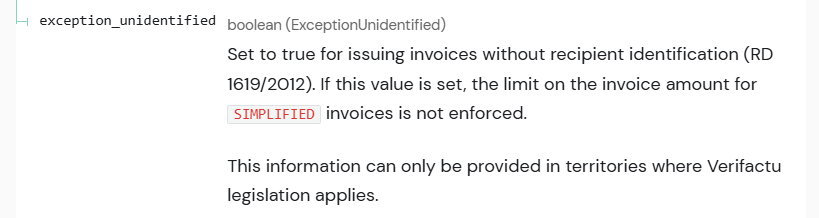
When creating an invoice via the SIGN ES API, you can issue an** invoice without recipient identification** in cases covered by **Article 6.1.d) of the Spanish Invoicing Regulation **(RD 1619/2012).
This is done by setting the field exception_unidentified to true when creating a SIMPLIFIED invoice type.
This is available only in Verifactu territories.
How can I issue a draft (proforma) invoice?
You can issue a draft (proforma) invoice via the SIGN ES API by creating a** non-fiscal document **marked as a draft. This is applicable to simplified or complete draft invoices.
This type of document is not transmitted to the tax authorities (Verifactu or TicketBAI) and is intended for informational purposes only — for example, providing a quote or estimate before finalizing a sale.
To create a draft invoice using the SIGN ES API:
-
Send a request to the Create an invoice endpoint.
-
Indicate an in invoice type
DRAFT -
Provide the same payload structure as for a
SIMPLIFIEDorCOMPLETEinvoice.
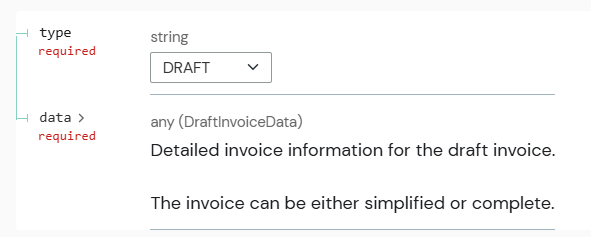
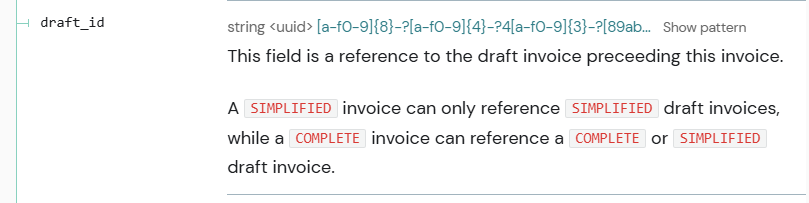
For traceability purposes, we recommend that you link all invoices (simplified/complete) to the draft created beforehand (if any exists). This can be done through the draft_id field, where a uuid of the already generated draft in SIGN ES API can be provided.
TicketBAI: How to declare disbursements (suplidos)
Disbursements are treated as non-taxable operations. In the API, use system.type = NO_VAT and cause = NON_TAXABLE_4.
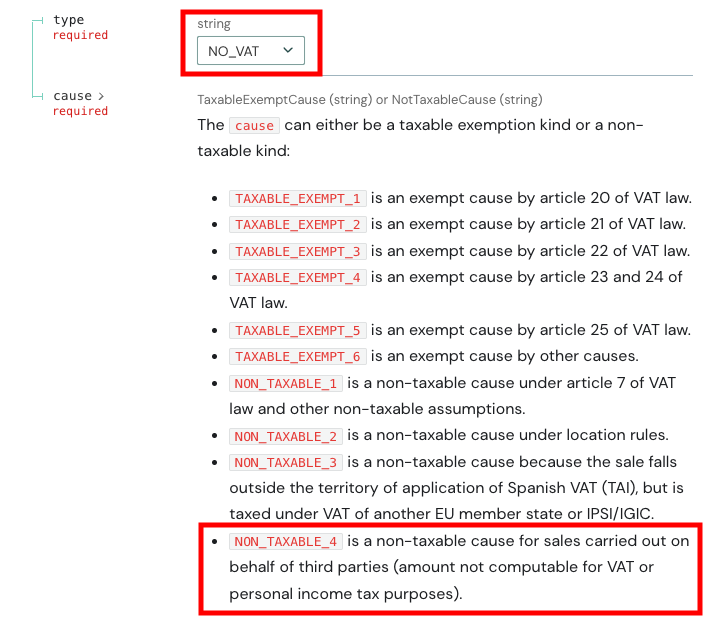
Common case: topping up transport cards (e.g., MUGI)
Example:
{ "text": "MUGI card top-up", "quantity": "1", "unit_amount": "20.00", "full_amount": "20.00", "system": { "type": "REGULAR", "category": { "type": "NO_VAT", "cause": "NON_TAXABLE_4" } } }Recipients schema differences: national vs. international
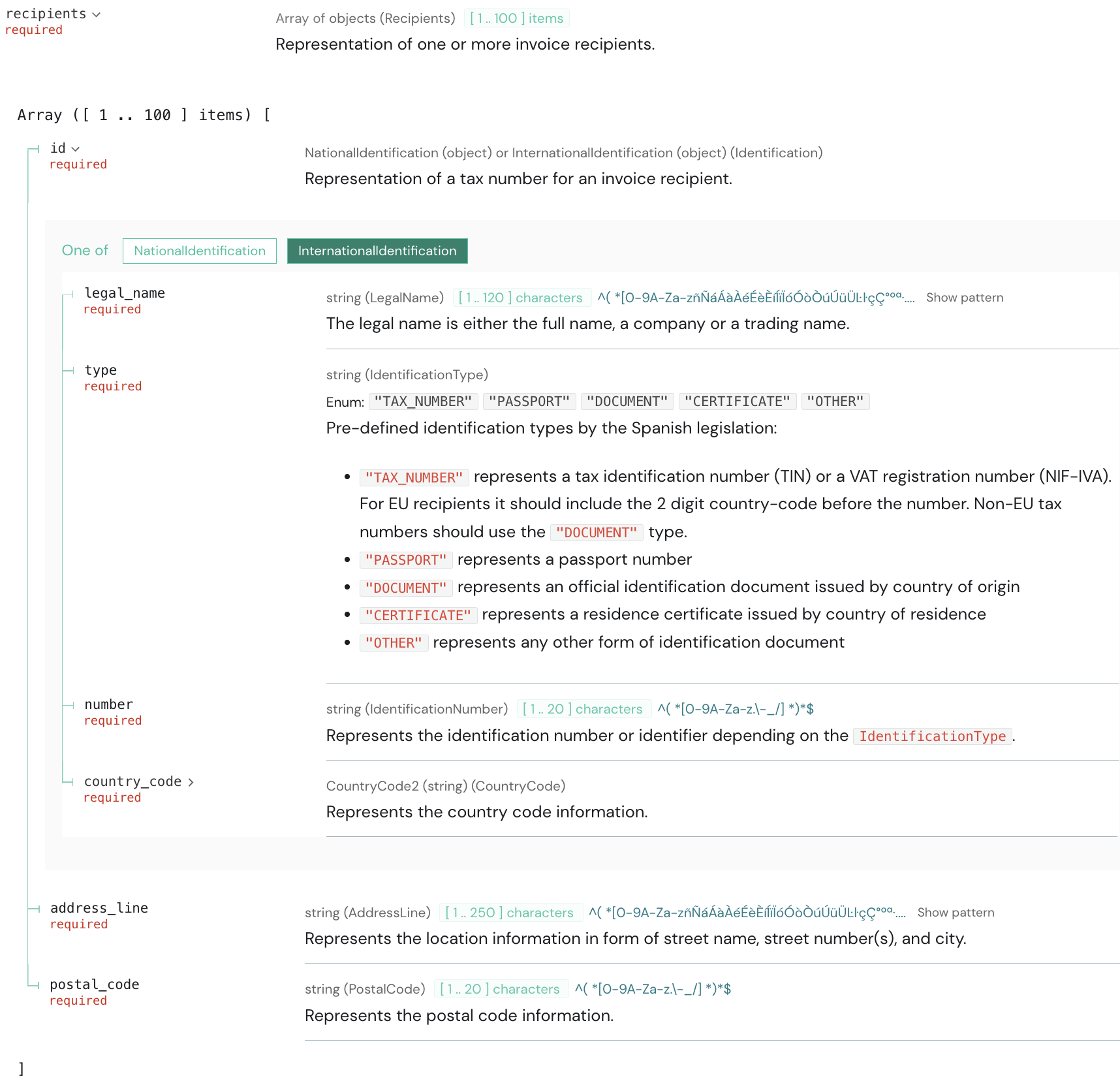
In COMPLETE and ENRICHMENT invoices, the structure of the recipients field changes depending on whether the recipient is national (Spanish) or international (non-Spanish).
- For Spanish recipients, use the object structure
NationalIdentification
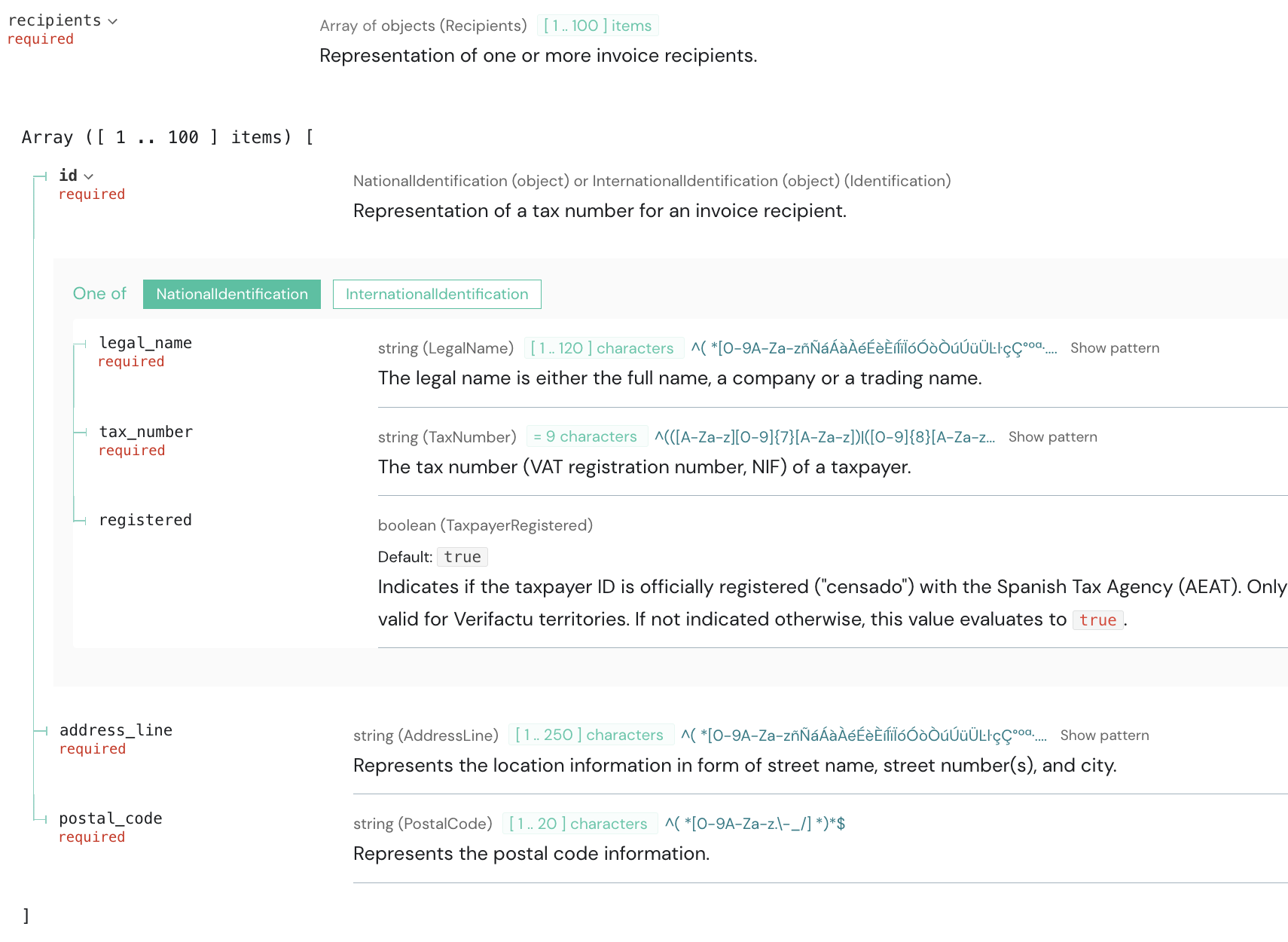
- For non-Spanish recipients, use the object structure
InternationalIdentification
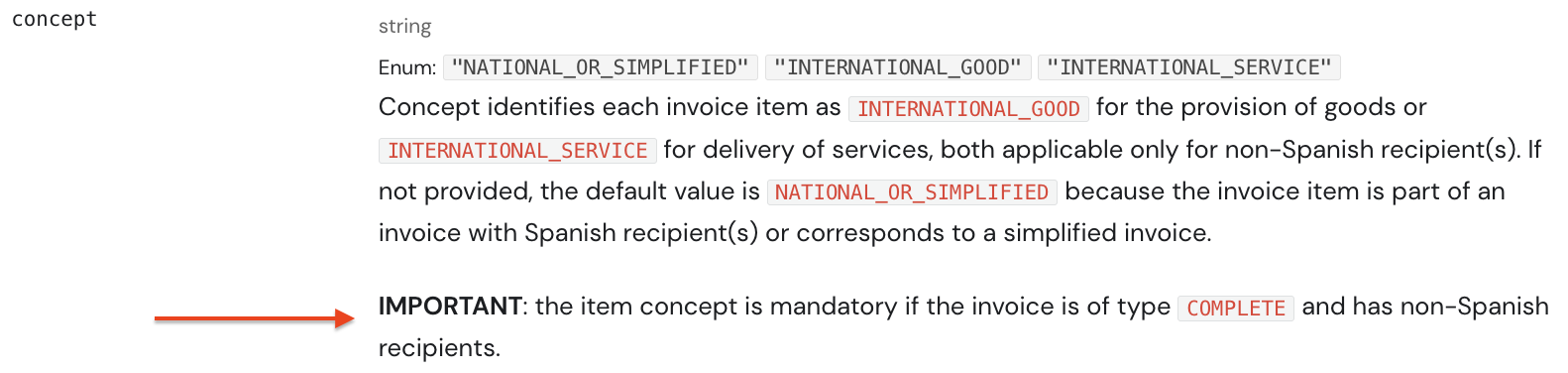
Additionally, when the recipient of a COMPLETE invoice is non-Spanish, each item in the invoice must include the concept field.
Note: If the non-Spanish recipient has a valid Spanish NIF or NIE, even if their tax address is abroad, the NationalIdentification scheme must be used.
The Validate Tax Number endpoint lets you verify the tax numbers of Spanish recipients and recipients in other EU countries before issuing invoices. For more details, see the article How does the Validate Tax Number endpoint work?
Allowed workflows for each invoice type
This article outlines the allowed workflows in SIGN ES by invoice type; see the diagrams for SIMPLIFIED and COMPLETE invoices below:
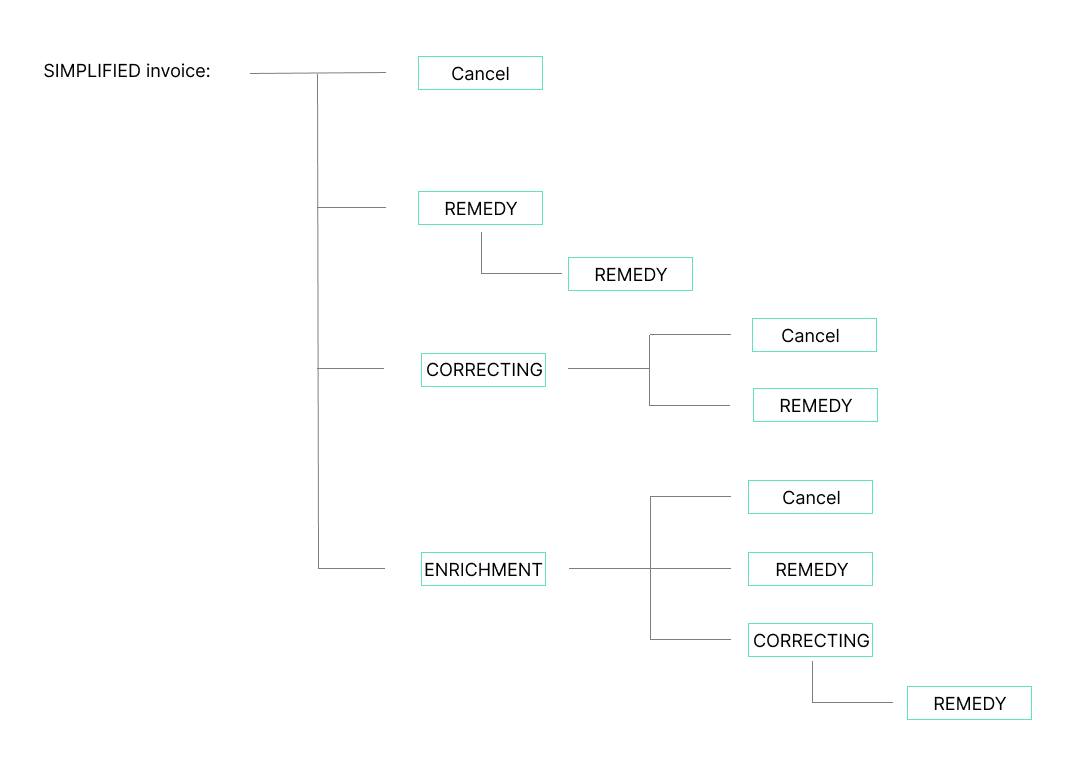
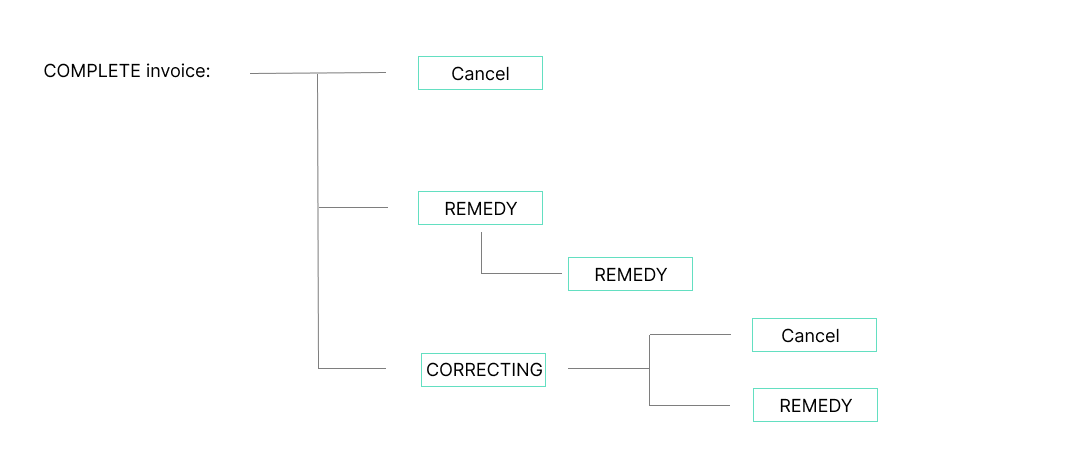
**Cancellation: ** it is permitted only in exceptional circumstances; for instance, where the transaction was not carried out and the end customer has not received the invoice in any form (paper or electronic).
Once the invoice data has been sent, we recommend issuing a CORRECTING invoice rather than cancelling.
The invoice is cancelled using the Update an invoice endpoint.
REMEDY: When an invoice fails the tax authority’s validations (status REQUIRES_CORRECTION or REQUIRES_INSPECTION) and no legal correction is required according to the Spanish Invoicing Regulations, you must issue a REMEDY invoice.
An invoice may be remedied multiple times, until it is accepted by the tax authority.
**CORRECTING: **If an invoice fails the tax authority’s validations (REQUIRES_CORRECTION or REQUIRES_INSPECTION) and **a legal correction is required **according to the Spanish Invoicing Regulations, you must issue a CORRECTING invoice.
**ENRICHMENT: **Adding a recipient to an existing SIMPLIFIED invoice.
When should the annotations field be used?
The annotations field varies depending on the context:
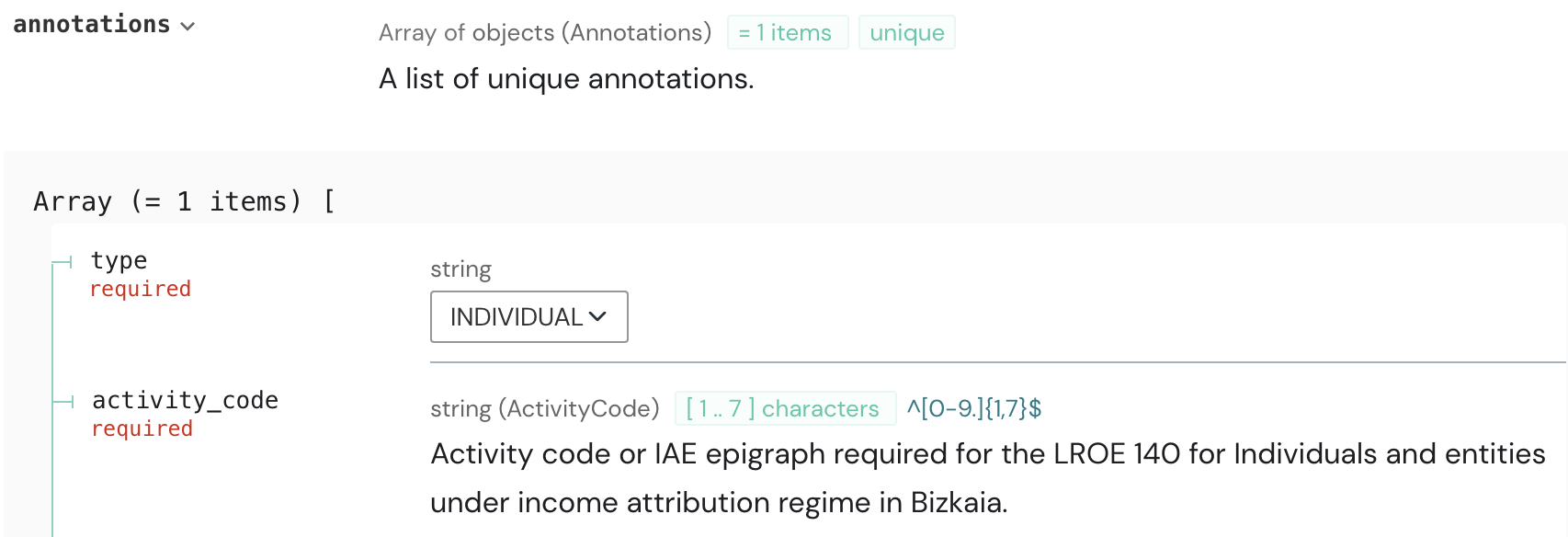
- The
INDIVIDUALtype applies in Bizcaya. It is also mandatory to include theactivity_codefield.
For more information: Compliance TBAI > Sending XML files
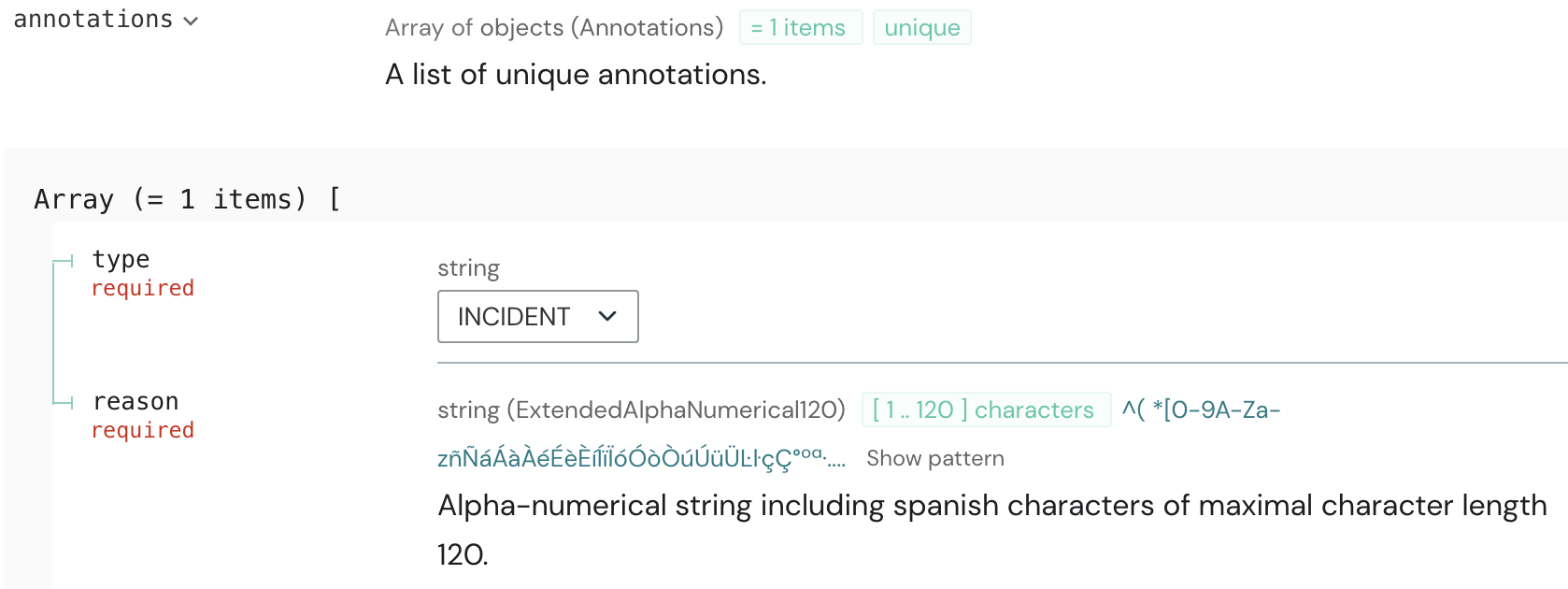
- The
INCIDENTtype is used in Verifactu in OFFLINE mode. It is also mandatory to include thereasonfield.
For more information: Article
How to calculate the full_amount of an item?
The full_amount field for each line (item) must be calculated as follows:
full_amount = (unit_amount * quantity) + VAT
Example:
full_amount = (16.52 * 3) + 10% VAT = 54.52
{ "text": "Sombrero", "quantity": "3", "unit_amount": "16.52", "full_amount": "54.52", "system": { "type": "REGULAR", "category": { "type": "VAT", "rate": "10.0" } } }
How are line-item discounts reflected in the full_amount calculation?
If discounts are applied at the item level, the calculation is performed as follows:
full_amount = ((unit_amount - discount) * quantity) + VAT
The discount is applied per unit, excluding VAT.
Example:
full_amount = ((16.52 - 4.00) * 3) + 21% VAT = 45.45
For more details, see the article: How to apply a discount at the item level and globally
{ "text": "Sombrero", "quantity": "3", "unit_amount": "16.52", "full_amount": "45.45", "discount":"4.00", "system": { "type": "REGULAR", "category": { "type": "VAT" } } }How to apply a discount at the item level and globally?
A discount can be applied at the item level or globally. Below is an example for each case:
Item discount
Line-item discounts are applied directly to each item. When a discount is present the full_amount is calculated as follows:
full_amount = ((unit_amount - discount) * quantity) + VAT
The discount is applied per unit, excluding VAT.
{ "content": { "type": "SIMPLIFIED", "number": "E-3", "text": "Factura de venta de prendas de vestir", "full_amount": "50.45", "items": [ { "text": "Sombrero", "quantity": "3", "unit_amount": "16.52", "full_amount": "45.45", "discount":"4.00", "system": { "type": "REGULAR", "category": { "type": "VAT" } } }, { "text": "Bufanda", "quantity": "1", "unit_amount": "4.13", "full_amount": "5", "system": { "type": "REGULAR", "category": { "type": "VAT" } } } ] }, "metadata": { "metadata1": "metadata1", "metadata2": "metadata2" }}Global discount
Global discounts must be included as an additional line in the invoice, with a negative amount.
{ "content": { "type": "SIMPLIFIED", "number": "E-1", "text": "Factura de venta de prendas de vestir", "full_amount": "980.10", "items": [ { "text": "Zapatos", "quantity": "1", "unit_amount": "300.00", "discount": "90.00", "full_amount": "254.10", "system": { "type": "REGULAR", "category": { "type": "VAT" } } }, { "text": "Chaqueta", "quantity": "1", "unit_amount": "800.0", "full_amount": "968.0", "system": { "type": "REGULAR", "category": { "type": "VAT" } } }, { "text": "Discount", "quantity": "1", "unit_amount": "-200.0", "full_amount": "-242.0", "system": { "type": "REGULAR", "category": { "type": "VAT" } } } ] }, "metadata": { "metadata1": "metadata1", "metadata2": "metadata2" }}How should a global discount be represented when multiple VAT rates apply?
A separate global discount line must be created for each VAT rate. If no VAT rate is provided, a default rate of 21% is applied.
{ "text": "Discount", "quantity": "1", "unit_amount": "-200.0", "full_amount": "-242.0", "system": { "type": "REGULAR", "category": { "type": "VAT" } }},{ "text": "Discount", "quantity": "1", "unit_amount": "-100.0", "full_amount": "-100.0", "system": { "type": "REGULAR", "category": { "type": "NO_VAT", "cause": "TAXABLE_EXEMPT_1" } }}How to issue a Rappel invoice?
A Rappel invoice is issued when, after a defined period, the customer qualifies for a volume-based discount. At the end of that period, a new invoice applies the discount against the total of the previously invoiced transactions, thereby adjusting the taxable base and VAT. Rappel invoices are a type of CORRECTING invoice under Article 15.6 of the Spanish Invoicing Regulations.
How do I issue one with SIGN ES?
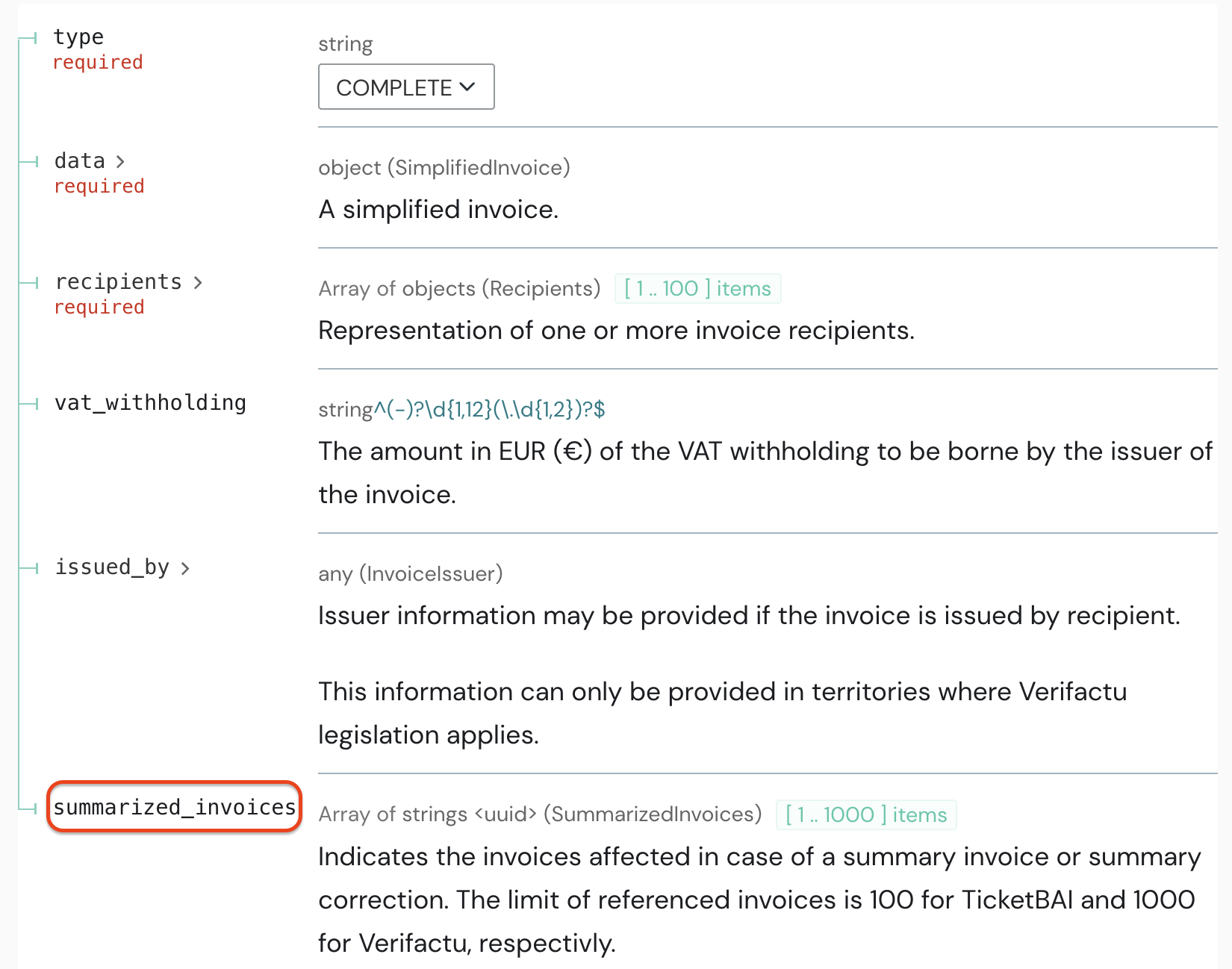
With the SIGN ES API, issue a CORRECTING invoice (sub-type COMPLETE) and use the field summarized_invoices to list the UUIDs of the previously issued SIMPLIFIED or COMPLETE invoices that will be corrected. This does not modify the original XML files; a new XML is always created.
Territory limits (how many invoices can I reference)?
TicketBAI: up to 100 referenced invoices Verifactu: up to 1,000 referenced invoices
How to issue a Summary (Recapitulative) invoice
A Summary invoice is issued to the same recipient to recap multiple transactions carried out within a month. At the end of the month, this Summary invoice substitutes (for VAT purposes) the original invoices. This type of invoice is regulated by Article 13 of the Spanish Invoicing Regulations.
How do I issue one with SIGN ES?
With the SIGN ES API, you can create a Summary (Recapitulative) COMPLETE invoice that replaces multiple SIMPLIFIED invoices. When creating the new COMPLETE invoice, use the field summarized_invoices to list the UUIDs of the previously issued SIMPLIFIED invoices that will be reported to the authorities as “substituted.” This does not modify the original XML files; a new XML is always created.
Territory limits (how many invoices can I reference?)
-
TicketBAI: up to 100 referenced invoices
-
Verifactu: up to 1.000 referenced invoices
Verifactu: Are disbursements and withholdings included on the invoice total?
No. Verifactu only transmits data relevant for VAT, so disbursements (suplidos) and income-tax withholdings (retenciones/IRPF) are not sent to AEAT.
In Verifactu, the vat_withholding field is inactive.
When the QR code is scanned, the total shown may differ from the amount actually paid:
-
Suplidos increase the amount paid but are not included in the Verifactu total.
-
Retenciones de IRPF reduce the amount paid but are not included in the Verifactu total.
Therefore, it is recommended to include a clear explanatory note on the invoice—whether printed or electronic—such as the following:
“El importe total remitido a la AEAT (visible al escanear el QR) no incluye suplidos ni retenciones. El importe total a pagar se indica en esta factura.”
(The total amount submitted to the AEAT (visible when scanning the QR code) does not include * disbursements or withholdings. The total amount payable is shown on this invoice.)*
The Tax Agency also displays a clarifying message when the QR code is scanned to avoid confusion:

What to do if the recipient’s tax number (NIF) is not registered?
SIGN ES includes the field registered for the national identification of invoice recipients, which indicates whether the taxpayer ID (NIF) is officially registered (“censado”) with the Spanish Tax Agency (AEAT).
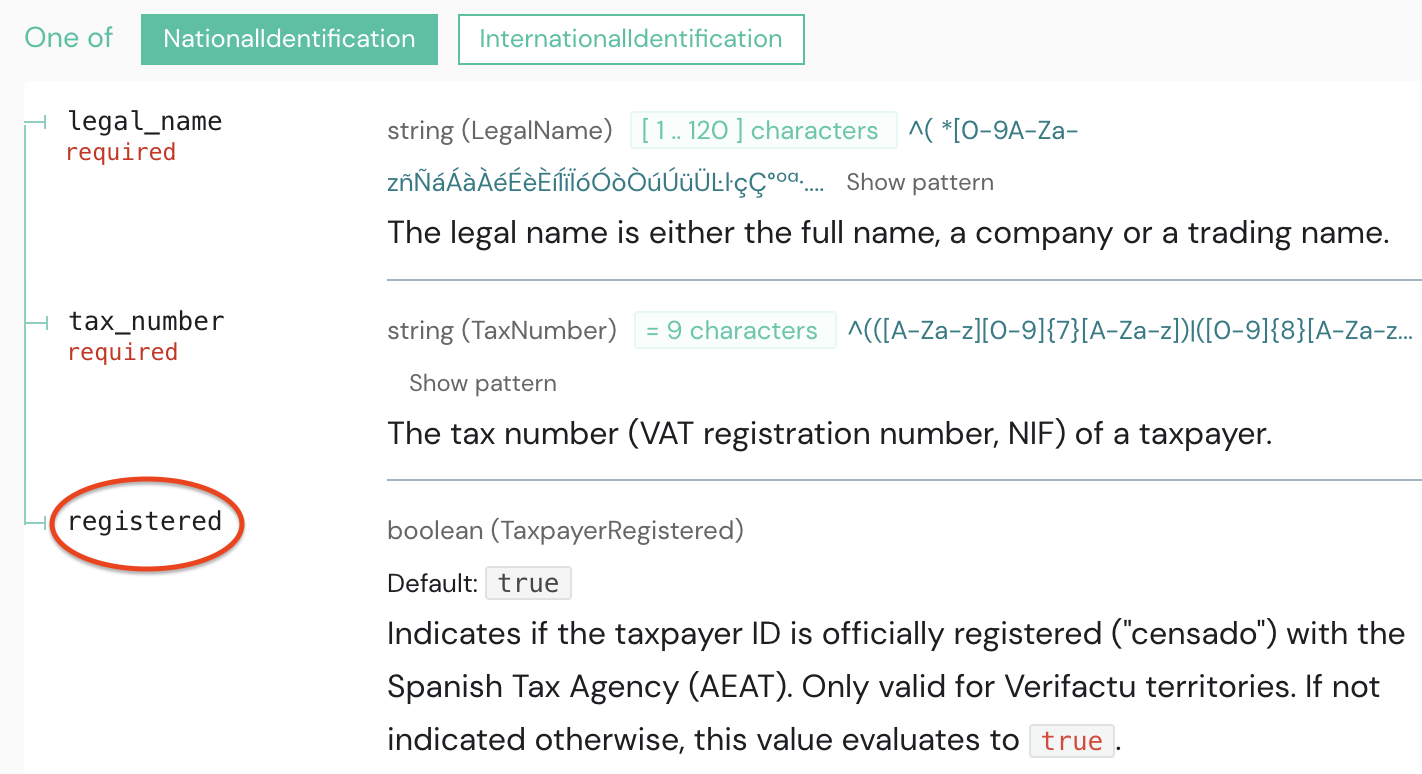
In Verifactu territories, it is possible to issue an invoice with type “07 - Not registered” (07 - No censado) when it is known that the NIF is correct, but it has not yet been registered or processed by the AEAT.
In this case, submitting an invoice with registered = false in the national recipient will result in a state of accepted with errors on the AEAT’s validation, indicating that the NIF has not been identified on their end.
**What to do next? **
After the registration process is completed (approximately 48 hours), the invoice should be resent as a REMEDY invoice, this time indicating registered = true.
-
If the NIF was correctly registered, the
REMEDYshould result in a successful transmission, without errors. -
If there is a problem with the NIF (for example, if an incorrect number was provided), the issue cannot be fixed by a
REMEDY. In this case, you will need to issue aCORRECTINGinvoice to resolve the problem.
How does invoicing by recipient work?
Invoicing by recipient is supported in Spain through the SIGN ES API, but only for transactions that fall under the VERI*FACTU system.
This functionality is not available in regions covered by the TicketBAI system, which includes the Basque provinces of Álava, Bizkaia, and Gipuzkoa.
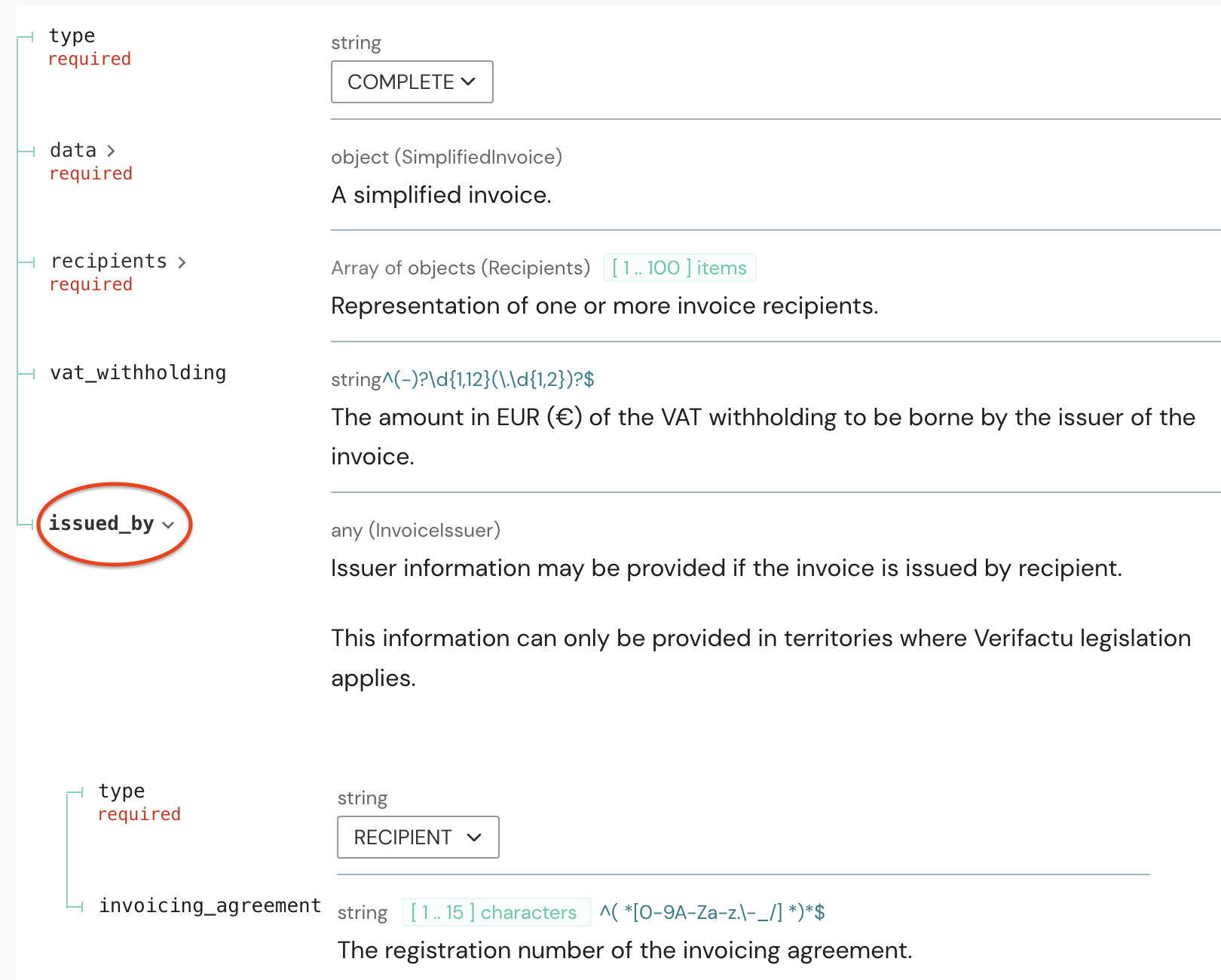
When creating an invoice of type COMPLETE, or when submitting any related corrections, you must include the issued_by block.
-
type(required): This must be set toRECIPIENT. When selected, the Verifactu XML is generated according to the legal and technical requirements for recipient-issued invoices. -
invoicing_agreement(optional): If there is a formal agreement between the supplier and the recipient, you may include its registration number in this field.
Important: In this scenario, the recipient indicated in the invoice is the taxpayer who is legally required to issue the invoice. This means the customer is responsible for the invoice—not the supplier.
How to use the tax_base field for special VAT regimes?
In some special VAT regimes—such as Antiques (REBU) — VAT is charged only on the profit margin, not on the full selling price.
When this happens, the normal formula unit_amount × quantity doesn’t match the taxable base, so you must specify that base explicitly with the tax_base field.
Let’s take this example:
| Purchase price | 400€ | What you paid for the item |
| Selling price | 600€ | What the customer pays |
| Profit margin | 200€ | 600 - 400 = 200 |
| VAT rate | 21% | VAT rate |
| VAT due | 42€ | 21% of 200 = 42 |
tax_base to report | 200€ | Margin subject to VAT |
How does this look like in the SIGN ES API?
full_amount = (unit_amount × quantity) + VAT
Here, VAT is 21 % of the margin (€200), not of the selling price.
Example payload:
"content": { "type": "SIMPLIFIED", "number": "12", "series": "E", "text": "example invoice", "full_amount": "642.00", "items": [ { "text": "Mueble", "quantity": "1", "unit_amount": "600", "full_amount": "642.00", "system": { "type": "ANTIQUES", "tax_base": "200.00", "category": { "type": "VAT" } } } ] }When should the “coupon” field be used?
The boolean field "coupon" is optional and should only be used in correcting invoices of the following types:
-
COMPLETE CORRECTING invoices with
"code": "CORRECTION_1" -
SIMPLIFIED CORRECTING invoices
This field is set to true when the merchant applies a discount to the customer, but the discount is not covered by the merchant — instead, it is later reimbursed by the manufacturer.
For example: a customer returns a defective product. The merchant applies a discount of €121 (100 + 21% VAT), and later receives a reimbursement of €100 net from the manufacturer. In this case, the corrective invoice would include "coupon": "true".
This indicates that the discount was funded by a third party (the manufacturer), and is not a commercial discount granted directly by the seller.
How to generate the offline QR code for Verifactu?
For a complete explanation on how to generate the QR code in offline scenarios, please refer to our Guide. Below, you will find a few examples to help you compare your implementation with what fiskaly generates when the data is submitted.
EXAMPLE 1:
url = https://prewww2.aeat.es/wlpl/TIKE-CONT/ValidarQR tax_number = B43752210 number = E-12345 series = issued_at = 2025/04/23 14:55 full_amount = 123.45
EXAMPLE 2:
url = https://www2.agenciatributaria.gob.es/wlpl/TIKE-CONT/ValidarQR tax_number = B88752210 number = A-321 series = 1/25 issued_at = 2025/01/05 08:35 full_amount = 567
result = https://www2.agenciatributaria.gob.es/wlpl/TIKE-CONT/ValidarQR?nif=B88752210&numserie=1%2F25A-321&fecha=05-01-2025&importe=567.00
When to use a REMEDY invoice or a CORRECTING invoice?
Invoices with the status REQUIRES_INSPECTION or REQUIRES_CORRECTION can result either in a REMEDY or a CORRECTING invoice, depending on the nature of the issue.
The REMEDY type is used to correct invoice data that does not require a legal correction. Typically, these are errors that do not affect the end customer - for example, incorrect field mapping, rounding differences, or other issues resulting from an integration error. In such cases, the invoice delivered to the customer is already correct, and the correction is purely between the taxpayer and the tax authority.
On the other hand, CORRECTING invoices (facturas rectificativas) must be issued in situations like item returns, incorrect recipient details, or any other error that does impact the customer, since the invoice they received contains incorrect information.
What information from the API response should be printed on the invoice?
In this article, we outline the key elements that must be included in issued invoices to comply with Verifactu and TicketBAI regulations.
Verifactu
Invoices issued under Verifactu must include:
-
A** QR code** containing the validation URL. This must be accompanied by the label “QR tributario”, clearly indicating its purpose as a fiscal QR code.
-
A** compliant text** indicating the invoice was issued in Verifactu Mode. One of the following texts must be used: “VERIFACTU”*, or “Factura verificable en la sede electrónica de la AEAT”
Additional guidelines regarding the compliant text, validation URL, and QR code, including their required dimensions and placement within the invoice, are detailed in the Verifactu Invoice Compliance section of the SIGN ES guide.
TicketBAI
Invoices issued under TicketBAI must include:
-
A** QR code** containing the validation URL.
-
A** TBAI code**, which uniquely identifies the invoice for compliance tracking. This code is shown in the
tbaifield of the API response when the invoice is created.
Further details about the validation URL, QR code, and identifier code, including their required dimensions and placement within the invoice, can be found in the TicketBAI Invoice Compliance section of the SIGN ES guide.
How to identify invoice issues in REQUIRES_INSPECTION or REQUIRES_CORRECTION registration status?
The first step to identify issues with an invoice in REQUIRES_INSPECTION or REQUIRES_CORRECTION status is to access the retrieveInvoice endpoint.
This endpoint allows you to retrieve detailed information about the invoice, including the validations that have been applied during the transmission process.
These validations will provide specific details on which aspects of the invoice have caused the error.
Some of the most common errors can be: invalid tax identification numbers (NIF), incorrect calculations in line items, and rounding errors in the amounts provided.
What actions should I take if the final registration state of the invoice remains PENDING?
If the registration status is still PENDING after retrieving the invoice via the retrieveInvoice endpoint, it indicates that the connection to the Spanish Tax Authority server has been lost.
No action is required on your end. SIGN ES includes an availability check for the TicketBAI service, and the transmission of TicketBAI files will automatically resume once the service connection is restored.
How can I check the final registration status of the invoice?
When using the createInvoice endpoint, the registration status in the response will always be PENDING.
To confirm whether the invoice was successfully registered, the invoice must be retrieved again via the retrieveInvoice endpoint.
Ideally, the registration status will be REGISTERED, which would indicate that it has been successfully sent and registered with the tax agency without errors.
How long to wait before retrieving the invoice
For Verifactu, we recommend waiting approximately 70 seconds before calling the retrieveInvoice endpoint. For TicketBAI, a delay of 1-2 seconds is typically sufficient.
Correcting invoices - what’s the difference between the SUBSTITUTION and DIFFERENCES methods?
With the DIFFERENCES method, amounts can be positive or negative—negative for returns and positive when adding items to the same invoice. In this case, the correcting invoice either subtracts or adds to the original invoice, meaning both the original and the correcting invoice remain valid.
With the SUBSTITUTION method, the correcting invoice replaces the original one, and the tax agency considers only the correcting invoice valid.
Example: Final invoice should include 2 coca colas and 2 pastas
INV 2024-001 CORR 2024-001 (SUBSTITUTION method)
1 coca cola 2 coca cola 1 pasta 2 pasta 20€ taxable amount 40€ taxable amount 4,2€ VAT (21%) 8,4€ VAT (21%) 24,2€ Total 48,2€ Total
INV 2024-002 CORR 2024-002 (DIFFERENCES method)
3 coca cola -1 coca cola 3 pasta -1 pasta 60€ taxable amount 20€ taxable amount * * 12,6€ VAT (21%) -4,2€ VAT (21%) 72,6€ Total -24,2€ Total
Both methods are valid, and you can find examples of each in our Postman collection.
Example: Full refund Original invoice
"full_amount": "24.20","items": [ { "text": "T-shirt", "quantity": "1", "unit_amount": "20", "full_amount": "24.20", "system": { "type": "REGULAR", "category": { "type": "VAT" } } } ]
CORRECTING invoice (SUBSTITUTION method)
"full_amount": "0","items": [ { "text": "T-shirt", "quantity": "0", "unit_amount": "20", "full_amount": "0", "system": { "type": "REGULAR", "category": { "type": "VAT" } } } ]
CORRECTING invoice (DIFFERENCES method)
"full_amount": "-24.20""items": [ { "text": "T-shirt", "quantity": "-1", "unit_amount": "20", "full_amount": "-24.20", "system": { "type": "REGULAR", "category": { "type": "VAT" } } } ]How to correct an invoice that has already been corrected?
When you need to correct an invoice that has already undergone a previous correction, follow these steps:
**Initial Invoice Creation **(S1): You create an invoice, let’s refer to it as S1. During the review, you notice there is an error in this invoice, and that a correction is required according to the Invoicing Regulations in Spain.
First Corrective Invoice (R1): To address the error, you create a corrective invoice, let’s refer to it as R1. In the id field of R1, you include the identifier of the original invoice S1.
If you later discover another error in R1, that once again requires a correction by law, proceed to the next step.
Second Corrective Invoice (R2): Create another corrective invoice, now referred to as R2. In the id field of R2, you must include the identifier of the first corrective invoice R1.
This process ensures that each correction is properly linked to the previous invoice.
How to calculate the IRPF Income Amount on an invoice? (Bizkaia - Individuals)
For individuals in Bizkaia, the submission of sub-chapter 1.1 of the LROE (Model 140) “Income with issued invoices with guarantor software” includes the additional and optional field of income_tax_amount.
This field should only be completed when the issued invoice has an IRPF retention and the VAT base is different from the IRPF income.
How to calculate it?
To calculate the IRPF retention, it is necessary to know the applicable percentage. The calculation involves multiplying this percentage by the taxable base and dividing by 100, then subtracting the result from the taxable base.
For example, on an invoice of 1,000€ (before taxes), a 21% VAT (210€) would be added and a 15% IRPF retention (150€) subtracted, resulting in a total to be collected of 1,060€.
In this case, the invoice registered by TicketBAI in SIGN ES will indicate:
-
unit_amount: 1.000€
-
full_amount: 1.210€
-
income_tax_amount: 1000€ (without VAT or withholding)
-
vat_withholding: 150€
To find out how to reflect the income_tax_amount in corrective invoices, you can refer to question 228 in the FAQs of Bizkaia.
How to proceed with invoices with state REQUIRES_INSPECTION in Bizkaia?
When an invoice issued through the TicketBAI system is rejected in subchapter 1.1, SIGN ES will show the state REQUIRES_INSPECTION. In this cases, it is likely that the files need to be resubmitted to Bizkaia Tax Authority’s system, as long as a correcting invoice is not required according to the invoicing regulation in Spain. Depending on the situation, this can be done either by re-sending of subchapter 1.1 for invoices issued with guarantor software or via subchapter 1.2 for invoices issued without guarantor software.
SIGN ES enables the re-sending of invoices in the REGISTERED, REQUIRES_CORRECTION, and REQUIRES_INSPECTION registration state via REMEDY invoices through subchapters 1.1. and 1.2. The re-sending of invoices with PENDING and STORED registration state is not allowed. These invoices are either awaiting submission by SIGN ES or stored because transmission to the tax authority is not required.
Resubmitting via subchapter 1.1 is possible if,
-
the error is due to incorrect data introduced in the fields of the
annotationsblock -
the device certificate was either not registered or was incorrectly registered by the taxpayer at the time of transmission
When should an invoice be re-submitted via subchapter 1.2?
-
subchapter 1.1 was rejected, and re-sending through 1.1 is not an possible
-
invoices were issued in an offline scenario
-
the issuing device is broken, and the information cannot be retrieved
How are invoices uploaded to the BATUZ platform?
To access the platform, you need to visit the following link: https://www.batuz.eus/es/inicio

Select the corresponding model 140 or 240:
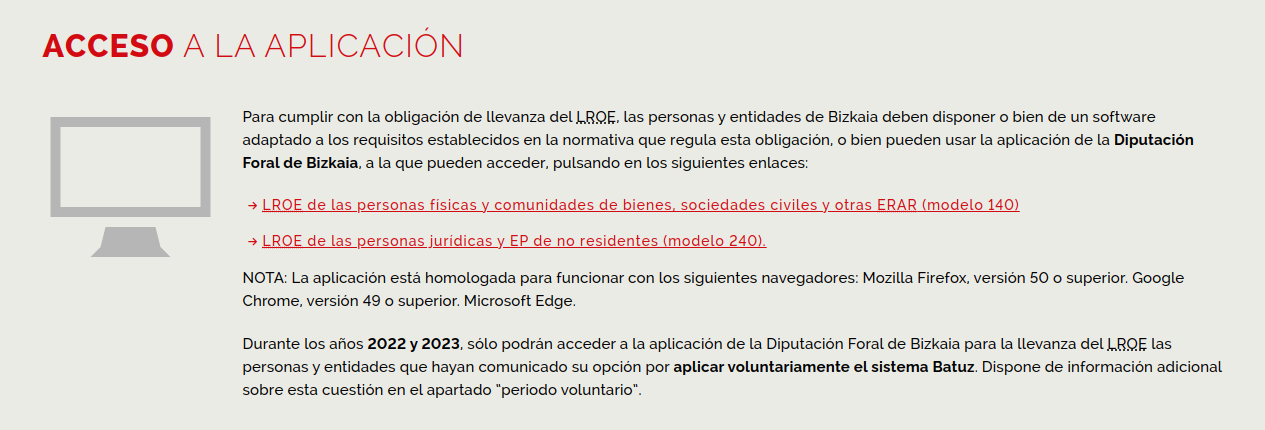
After logging in, select ‘Facturas emitidas’, then add a new invoice to be issued without a guarantor software (subsection 1.2) and upload the information of the corrected invoice.
Do delivery notes have to be issued through the TicketBAI/Verifactu system?
No.
Although delivery notes are commercial documents that serve as proof of delivery of a good or service, they do not exempt from the obligation to issue an invoice. It will be the invoice of the operation and not the delivery note that must be generated and sent in compliance with the requirements established by TicketBAI.
How to handle credit notes?
Credit notes are required to be handled as CORRECTING invoices. These should have their own referencing system (series) distinct from the normal invoicing system. When creating a correcting invoice it is essential to make a reference to the original invoice to which they are related.
What is the process for a refund?
The refund process is handled via the correction invoice in SIGN ES, utilizing either the SUBSTITUTION or DIFFERENCES correction method. By default, SIGN ES uses the SUBSTITUTION method for corrections.
In the context of retail transactions, the typical procedure involves the issuance of a correcting invoice to ensure that the financial transaction is accurately adjusted. In any correction invoice, the correction cause must be clearly indicated. It is essential to use a pre-defined code as outlined in the Spanish regulations (VAT Law). For simplified correction invoices, SIGN ES assigns the correction code by default.
What do I have to do if the transaction was not carried out?
For a terminated transaction that was already registered in SIGN ES but was not carried out, and the invoice was not given to the customer a cancellation should be applied via the SIGN ES API functionality updateInvoice, as stated in the Spanish invoicing regulation (Royal Decree 1619/2012, of November 30)
By performing a cancellation, the state of an invoice is changed and a new synchronization to the tax authority is started, in order to cancel the already registered invoice. Once an invoice is cancelled, the same number and series number can’t be used again.
How to correct a simplified invoice with a complete one?
A correcting invoice has the structure of either a simplified or a complete invoice, depending on the correcting invoice you desired to issue. When the correcting invoice is a complete one, it contains the structure of the simplified invoice plus the recipient information. Additionally, a correction code is required.
Use the following steps to “upgrade” or correct a simplified invoice with a complete one:
To correct a SIMPLIFIED into a COMPLETE invoice the type CORRECTING has to be indicated. Then, a reference to the already created SIMPLIFIED invoice using its id must be made. The correction invoice data will be type COMPLETE in which case the recipient information and the correction codeneed to be added as mentioned before.
Clients (2)
How to deactivate a Client resource?
A Client** can only be deactivated via the API** using the updateClient endpoint. To deactivate the Client, send the following request body:
{ "content": { "state": "DISABLED" }}Important: Deactivation is irreversible. Once a Client is set to DISABLED, it cannot be re-enabled. If needed in the future, a new Client resource must be created.
Can I create Clients in the fiskaly dashboard and link them there to Signers?
We do not offer this functionality.
Our dashboard is mainly for visualization purposes. You can manage users, create API Keys, and have an overview of the system and its signers and clients, among other information.
Signers (3)
How do I get a fiskaly certificate allocated when creating the Signer?
To have a fiskaly certificate automatically allocated to a Signer, follow these steps:
-
Create the managed organization and taxpayer for your customer.
-
Generate a UUID on your side for the Signer (this will be the
signer_id). -
Call the
createSignerendpoint with:
The UUID in the URL of the request.
- An empty JSON object
{}as the request body (do not provide any external certificate).
Example:
PUT /api/v1//signers/d6625823-41a0-449a-b2e2-9e3ef5cf1c18 HTTP/1.1Host: test.es.sign.fiskaly.comContent-Type: application/jsonAccept: application/jsonAuthorization: ••••••Content-Length: 2
{}
In this case, SIGN ES will automatically allocate:
- a fiskaly-managed electronic certificate for both Verifactu and TicketBAI
How many Signers do I need to create?
In most cases, creating just one Signer per managed organization is enough.
On average, a Signer operates with a latency of about 250 milliseconds per request, which translates to processing roughly 4–5 invoices per second, or around 240–300 invoices per minute. This capacity is usually more than sufficient for standard invoicing needs.
The performance ranges observed are as follows: minimum latency is around 120 ms, the average latency is about 250 ms, and the maximum latency can reach approximately 600 ms.
When should you consider creating more Signers?
If your invoicing volume regularly exceeds the capacity of a Single signer, we recommend setting up additional Signers.
Can I create Signers in the fiskaly dashboard?
We do not offer this functionality.
Our dashboard is mainly for visualization purposes. You can manage users, create API Keys, and have an overview of the system and it’s signers and clients, among other information.
Taxpayers (3)
How to use the endpoints for the social collaboration agreement?
We provide all the endpoints you need for a compliant solution. SIGN ES API will require all the necessary information to fill out the social collaboration annex, according to the template provided by the authorities in the Resolution of December 18th, 2024.
The Annex 1 is the model of representation between taxpayers and software providers, by which the taxpayer authorizes fiskaly to transmit Verifactu invoicing records to the Spanish Tax Authority. The information required changes depending if the Taxpayer is a COMPANY or an INDIVIDUAL.
Step by step with SIGN ES API
- Ensure you have provided all the information in the **Create taxpayer **endpoint:
Taxpayer’s legal name (legal_name)
-
Taxpayer’s NIF (
tax_number) -
Taxpayer’s legal address (
address). If the address is missing, you can use the Update a taxpayer endpoint to provide it. -
Use the Generate agreement endpoint to trigger the creation of the document. If any information is missing, you will see this in the response from the API.
For INDIVIDUAL taxpayer type, no additional information is needed.
- For COMPANY taxpayer type, we need the information of the legal representative*:*
Representative’s name (full_name)
-
Representative’s NIF (
tax_number) -
Representative’s address (
address) -
Obtain the filled out PDF for the agreement in the successful response to the Generate agreement endpoint.
-
The taxpayer needs to electronically sign the PDF (e.g. through VALIDe platform online or through the desktop app AutoFirma).
-
Upload the electronically signed agreement through SIGN ES Upload signed agreement endpoint.
If the information of the taxpayer and/or the legal representative is modified, a new agreement must be uploaded.
SIGN ES API will always return the latest valid agreement through the Retrieve agreement endpoint.
What information is fiskaly validating in an uploaded agreement?
When you submit a PDF through the Upload signed agreement endpoint, fiskaly verifies the following:
-
Taxpayer details match The agreement must contain the same name and tax number as the Taxpayer submitting it.
-
fiskaly’s signature is present The PDF must include fiskaly’s electronic signature as provided in the originally generated agreement.
-
Second signature present The document must also contain a second electronic signature, associated with the NIF of the individual signing the agreement.
If any of these conditions are not met, the upload will fail and return an error:
cannot be recognized as a valid agreement
-
The uploaded file is not a PDF (e.g. an image, video, etc.), or
-
The uploaded file is a PDF, but it’s not the one generated by fiskaly.
too few signatures
As we require at least 2 signatures on the agreement, this error appears if:
-
The file was uploaded without being signed, or
-
The fiskaly e-signature was removed, leaving only your signature.
missing fiskaly seal
- The first signature in the document is not fiskaly’s.
signature does not match representative NIF
- The non-fiskaly signature does not match the representative’s NIF on the agreement.
cannot parse document
- The document is not a valid PDF file.
signature {n} is invalid
- The n-th signature failed the DSS service validation.
When and how should I disable a taxpayer?
The taxpayer resource cannot be deleted, but it can be disabled instead. This can be useful in cases where a taxpayer was created by mistake in the LIVE environment, or as part of offboarding when the managed organization is no longer in use.
When a taxpayer is disabled, no new clients or signers can be created under it. However, existing metadata remains accessible if needed.
Before disabling the taxpayer, all associated signers and clients must also be disabled. Otherwise, the request will not be accepted. Once that is done, you can call the PATCH /taxpayer endpoint with "state": "DISABLED" in the request body.
Keep in mind that disabling a taxpayer is permanent and cannot be reversed.
What happens if the taxpayer information needs to be modified?
You can only modify the taxpayer information sending a PUT request when there are no resources (clients, signers) enabled. Once the resources are created this information can no longer be modified.
This is due to the ongoing communication with the tax authority. When validating invoices, the taxpayer is checked against the tax authority to confirm that their information is correct and that they are registered in the corresponding province. Name, NIF and territory should not be changed once this process has started.
To avoid any problems (such as issuing invoices with wrong registration information), it is recommended that the integrator provides a checking mechanism to confirm the provided taxpayer information.
If there is any future change in the taxpayer information, a new managed_organization with new resources should be created.
Authentication (1)
What does the authentication process look like?
Authentication is initially done via API Key and API Secret created in the managed organization.
You will receive an access_token which is valid for 24 hours and a refresh_token which is valid for 48 hours. You can use this to re-authenticate on an ongoing basis.
If you run into a 401 response, simply re-authenticate via API Key and Secret.
Re-authentication should not happen on every request as this would unnecessarily delay the checkout process.
For requests on the authentication endpoints we recommend a timeout of 3-4 seconds.
Errors and Status codes (1)
What happens in case of internet connection issues?
Connection to the Tax Authority is lost
As long as you are connected to SIGN ES, you do not need to worry. In case of connection loss to the Spanish Tax Authority server, SIGN ES implements an availability check of the TicketBAI/Verifactu service. The transmission of TicketBAI/Verifactu Files will continue automatically as soon as the service connection is restored.
If you lose connection to fiskaly
In case of internet connection problems on the POS system, the Spanish Tax Authorities have established a series of indications to follow. These guidelines vary by Province in the Basque Country.
For Verifactu, you can check the specific requirements in our article on connection loss.