FAQ
Trouvez les réponses à 36 questions fréquentes sur SIGN IT, organisées par thème.
Records (19)
How to represent mandatory cash rounding
Since January 1, 2018, 1 and 2 cent coins are no longer produced.
Under Italian law (DL n. 50/2017), the total amount due, if paid entirely in cash, must be rounded to the nearest €0.05:
-
€0.01–€0.02 → rounded down to €0.00
-
€0.03–€0.04 → rounded up to €0.05
-
€0.06–€0.07 → rounded down to €0.05
-
€0.08–€0.09 → rounded up to €0.10
This rule applies only if the payment is made entirely in cash.
The “Documento Commerciale Online” web procedure on which SIGN IT lite is based technically tolerates a discrepancy of up to €0.02 between the document total and the payment total.
Rounding down
The difference (€0.01 / €0.02) is recorded as a discount at payment level: payments[type=CASH].details.discount
Example: if total_vat.inclusive is €23.02, the cash amount due is €23
"payments": [ { "type": "CASH", "details": { "amount": "23.00", "discount: "0.02" } } ]
**Rounding up **
The difference (€0.01 / €0.02) is added to the payment amount: payments[type=CASH].details.amount
Example: if total_vat.inclusive is €23.09, the cash amount due is €23.10
"payments": [ { "type": "CASH", "details": { "amount": "23.10" } } ]How to locate a commercial document in the AdE portal
Taxpayers can locate a specific commercial document in the AdE (Agenzia delle Entrate) portal in two ways:
**Using the ****compliance.url**
After a successful submission, the API response includes a compliance.url. Opening this link and authenticating with their credentials will bring the user to the corresponding PDF document generated in the AdE portal.
Searching manually in the Fatture e Corrispettivi portal
-
Log in to the Fatture e Corrispettivi portal.
-
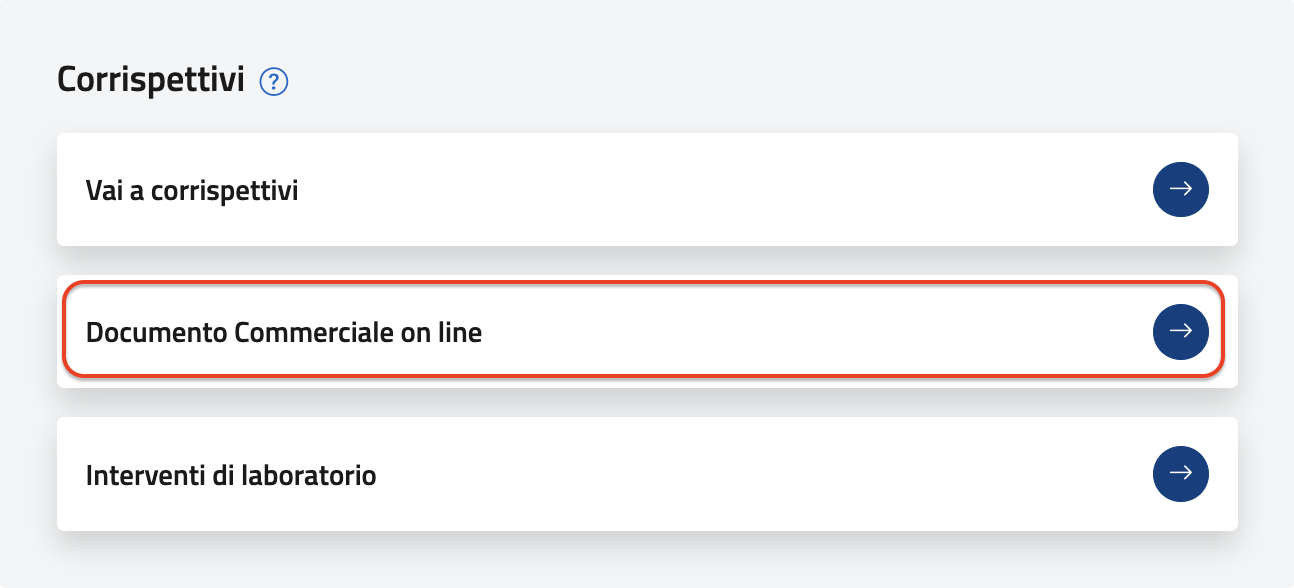
Scroll to the Corrispettivi section and select Documento Commerciale Online.
-
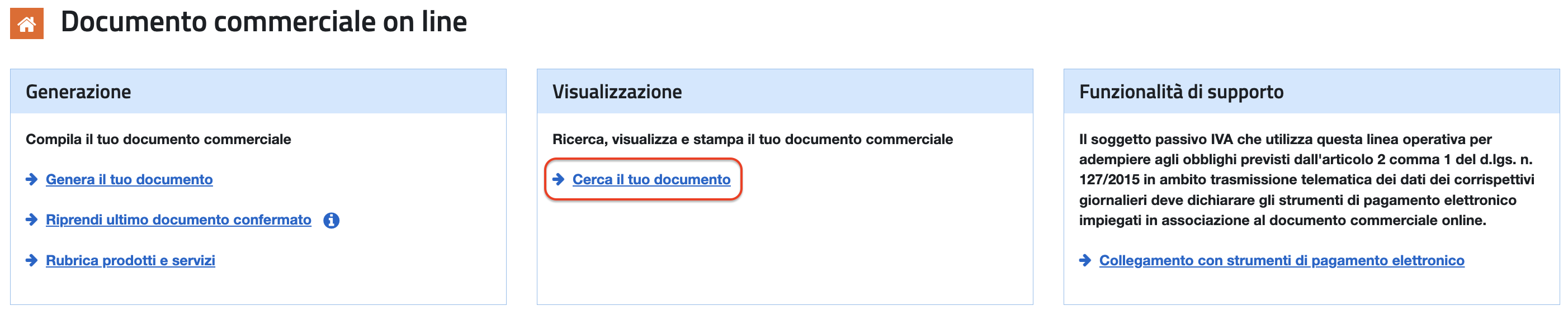
On the next page, click Cerca il tuo documento.
-
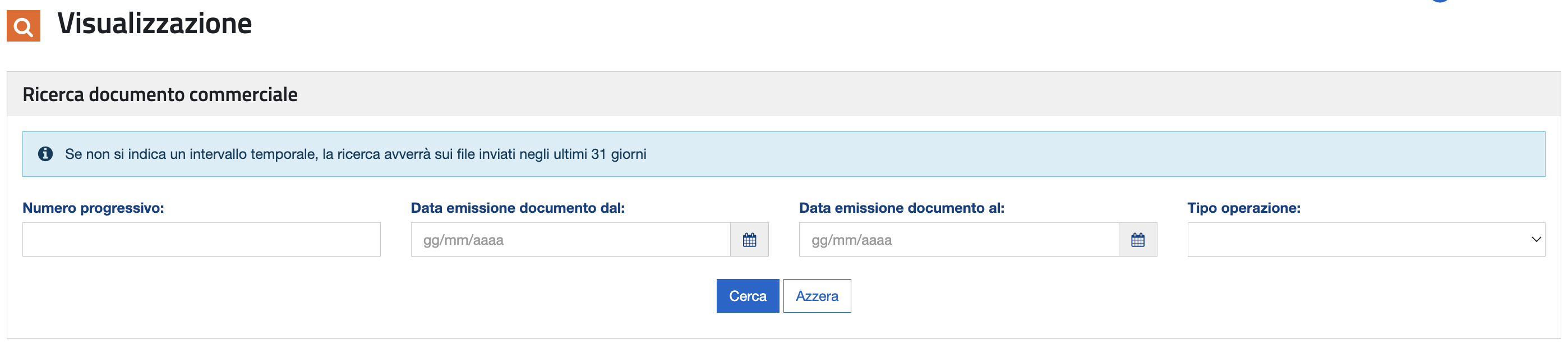
Apply the desired filters, such as: - Submission date or date range - Operation type - Progressive number (DCW)* *
If no time range is specified, the search will be performed on files submitted within the last 31 days.
Error Handling Guide
The attached guide provides an overview of common errors when sending records via SIGN IT lite and how to resolve them. It addresses errors returned by the POST /records endpoint (record submission), including both HTTP-level issues and application-level failures.
How to identify the error?
Check the logs field in the API response. Example:
{ "state": "FAILED", "logs": [ { "severity": "ERROR", "message": "Authentication error: ADE portal has not responded successfully" } ]}The error message prefix (e.g. Authentication error, Validation error, Submission error, etc.) determines the error category.
| Category | Meaning | Retry? |
|---|---|---|
| Safe to retry* | The receipt was not submitted to AdE as the error occurred before the receipt reached the AdE submission endpoint. | Yes, with a new idempotency key |
| Requires verification | The receipt may have been submitted to AdE as the error occurred during or after the receipt submission attempt to AdE. | Verify on the AdE portal first. If the receipt does not appear, retry with a new idempotency key |
| If you encounter an unknown or HTTP 500 error, please email dev-support@fiskaly.com and include sufficient details so we can investigate and advise on the next steps. |
HTTP 503 error is returned in case of a transient infrastructure unavailability. It is always safe to retry with a new idempotency key. If this error persist beyond 1–2 minutes, the infrastructure may be experiencing extended pressure. Log the transaction in your emergency register and contact dev-support@fiskaly.com if the issue does not resolve.
*Compliance note: Fiscal transactions are expected to be reported in real time. Delays or retries may introduce compliance risks and may not meet regulatory requirements.
fiskaly provides technical tooling but does not guarantee compliance, which remains the customer’s responsibility. Any retry or recovery process should follow legally permitted timeframes and local regulations. Please refer to the guide for further details.
Note: Some error prefixes — specifically Entity validation error and fiscalization invalid — can also occur during taxpayer commissioning. In that context, the remediation is simpler: update the Taxpayer data based on the error message and retry the commissioning.
How to represent discounts
Entry-level discount
Section intitulée « Entry-level discount »This is a commercial discount applied to a specific entry and reduces its taxable base. VAT is recalculated on the reduced base.
Field used: entries[].data.value.discount (positive value)
VAT impact: VAT is reduced
"entries": [ { "type": "SALE", "details": { "concept": "GOOD" }, "data": { "type": "ITEM", "text": "Prod A", "unit": { "quantity": "1.00", "price": "9.00" }, "value": { "base": "8.18181818", "discount": "1.00" }, "vat": { "type": "VAT_RATE", "code": "REDUCED_1", "percentage": "10.00", "exclusive": "7.27272727", "inclusive": "8.00", "amount": "0.72727273" } } }Note: While partial discounts can be applied at the entry-level, a 100% discount must be represented as a GIFT. Learn how in the following article: How to represent a complimentary item (GIFT)
Cart-wide discount This discount applies to the entire transaction. It must be distributed proportionally across all taxable entries and, from a fiscal perspective, behaves like multiple entry-level discounts. Each affected entry receives a calculated portion of the total discount, and VAT is recalculated on the reduced taxable bases.
Field used: entries[].data.value.discount (positive value, proportionally distributed)
VAT impact: VAT is reduced
Payment-level discount
This is not a commercial discount but a payment adjustment. The taxable base and VAT of the entries remain unchanged, and taxes must still be calculated and paid on the full receipt amount.
This type of discount only reduces the amount actually collected (payments[].details.amount).
Field used: payments[].details.discount (positive value)
VAT impact: VAT is NOT reduced
"payments": [ { "type": "CASH", "details": { "amount":"60.00", "discount":"3.00" } } ]For further details, please refer to the following article: Value calculations and decimal rounding
Note: fiskaly is not allowed to provide tax advice. For tax-related questions, contact your tax advisor, tax auditor, or lawyer.
How to handle meal voucher payments
When meal vouchers are used as a payment method, they must be reported as follows:
payments[].type > CARD
payments[].kind > TICKET
payments[].number = currently, the API requires the meal voucher identifier in this field. A placeholder value (e.g. "****") can also be used.
If multiple meal vouchers are used, each voucher must be reported as a separate payment entry within the payments array. The API will then aggregate these entries and submit the total number of vouchers to AdE.
**Example: **20 EUR payment using two meal vouchers and a debit card
"payments": [ { "type": "CARD", "kind": "TICKET", "number": "1234", "details": { "amount": "5.00" } }, { "type": "CARD", "kind": "TICKET", "number": "1235", "details": { "amount": "5.00" } }, { "type": "CARD", "kind": "DEBIT", "number": "****", "details": { "amount": "10.00" } } ]When should CANCELLATION be used?
The operation type CANCELLATION is used when a commercial document needs to be invalidated.
This applies in cases such as an incorrect amount or number of items, a duplicate issuance, or any other error identified after the commercial document has been created.
The incorrect record must be cancelled as a whole; individual entries cannot be cancelled independently.
To issue a CANCELLATION document in SIGN IT:
-
create a Record of type
INTENTION, followed by a -
Record of type
TRANSACTIONwith operation typeCANCELLATION. Here, you must reference both the ID of theINTENTIONcreated in step 1 and the ID of the originalTRANSACTIONyou want to cancel.
{ "content": { "type": "TRANSACTION", "record": { "id": "{{recordIntentionIdB1}}" }, "operation": { "type": "CANCELLATION", "record": { "id": "{{recordTransactionIdB0}}" } } }}A CANCELLATION is different from a CORRECTION, which is generally used for returns or refunds.
Although no formal legal deadline exists for cancelling a transaction, it is advisable to do so as promptly as possible.
Note: The cancelled document should be recorded as negative, non-taxable revenue in the next available VAT liquidation. fiskaly is not allowed to provide tax advice. For guidance on your specific situation, please consult your accountant.
How to handle returns (CORRECTION)
A TRANSACTION of type CORRECTION is used to record any return process.
Steps to follow
operation.record.id → ID of the original RECEIPT transaction
entries[].type → RETURN
entries[].details.number *→ *Entry number of the original receipt line for which the return is issued
entries[].data.text *→ *Must exactly match the description of the original entry
- Specify the actual quantity returned and update all related values accordingly. Only positive values are allowed. For additional details, refer to Value calculations and decimal rounding.
Example
Original TRANSACTION of type RECEIPT: sale of 1 Jacket and 2 T-shirts
{ "content": { "type": "TRANSACTION", "record": { "id": "{{recordIntentionIdC0}}" }, "operation": { "type": "RECEIPT", "document": { "number": "INV-12345", "total_vat": { "amount": "18.03278689", "exclusive": "81.96721311", "inclusive": "100" } }, "entries": [ { "type": "SALE", "details": { "concept": "GOOD" }, "data": { "type": "ITEM", "text": "Jacket", "unit": { "quantity": "1", "price": "50.00" }, "value": { "base": "40.98360656" }, "vat": { "type": "VAT_RATE", "code": "STANDARD", "percentage": "22.00", "exclusive": "40.98360656", "inclusive": "50.00", "amount": "9.01639344" } } }, { "type": "SALE", "details": { "concept": "GOOD" }, "data": { "type": "ITEM", "text": "T-shirt", "unit": { "quantity": "2", "price": "25.00" }, "value": { "base": "40.98360655" }, "vat": { "type": "VAT_RATE", "code": "STANDARD", "percentage": "22.00", "exclusive": "40.98360655", "inclusive": "50.00", "amount": "9.01639345" } } } ], "customer": { "type": "EXTERNAL" }, "payments": [ { "type": "CASH", "details": { "amount": "100" } } ] } }}- Return of goods with refund of the paid price
**Partial Refund Scenario **
TRANSACTION of type CORRECTION: return of 1 T-shirt
{ "content": { "type": "TRANSACTION", "record": { "id": "{{recordIntentionIdC1}}" }, "operation": { "type": "CORRECTION", "record": { "id": "{{recordTransactionIdC0}}" }, "data": { "type": "RECEIPT", "document": { "number": "INV-16789", "series": "C", "total_vat": { "amount": "4.50819672", "exclusive": "20.49180327", "inclusive": "25.000" } }, "entries": [ { "type": "RETURN", "details": { "concept": "GOOD", "number": "2" }, "data": { "type": "ITEM", "text": "T-shirt", "unit": { "quantity": "1", "price": "25.00" }, "value": { "base": "20.49180327" }, "vat": { "type": "VAT_RATE", "code": "STANDARD", "percentage": "22.00", "exclusive": "20.49180327", "inclusive": "25.00", "amount": "4.50819672" } } } ], "customer": { "type": "EXTERNAL" }, "payments": [ { "type": "CASH", "details": { "amount": "25.00" } } ] } } }}Full Refund Scenario For a full refund of the entire receipt, all entries from the original receipt must be listed with their corresponding values.
- Exchange Scenario: Returning Item A and Purchasing Item B To ensure technical compliance and avoid validation errors, the recommended approach is:
-
Issue a
CORRECTIONtransaction to certify the return of Item A -
Issue a
RECEIPTtransaction to certify the sale of Item B
- Scenario: Returning Item A and Issuing a Purchase Voucher This scenario can be handled by:
-
Issuing a
CORRECTIONtransaction to certify the return of Item A -
Issuing a
RECEIPTtransaction for the sale of a voucher (single-purpose or multi-purpose, depending on the applicable tax treatment)
Note: fiskaly is not allowed to provide tax advice. For tax-related questions, contact your tax advisor, tax auditor, or lawyer.
How to handle outstanding payments
The payment type OUTSTANDING is used to report uncollected amounts (“corrispettivo non riscosso”). It applies when goods or services have already been delivered, but the customer has not yet paid.
In this case, the transaction is considered completed, while the payment is pending and will be settled later.
To correctly record an outstanding payment:
-
Set
payments[].type: "OUTSTANDING" -
Add
payments[].conceptand specify whether the transaction payment concerns aGOODor aSERVICE.
Example of outstanding payment for a good
{ "content": { "type": "TRANSACTION", "record": { "id": "{{recordIntentionIdA}}" }, "operation": { "type": "RECEIPT", "document": { "number": "INV-12345", "total_vat": { "amount": "18.03278689", "exclusive": "81.96721311", "inclusive": "100.00" } }, "entries": [ { "type": "SALE", "details": { "concept": "GOOD" }, "data": { "type": "ITEM", "text": "Product XYZ", "unit": { "quantity": "1", "price": "100.00" }, "value": { "base": "81.96721311" }, "vat": { "type": "VAT_RATE", "code": "STANDARD", "percentage": "22.00", "exclusive": "81.96721311", "inclusive": "100.00", "amount": "18.03278689" } } } ], "customer": { "type": "EXTERNAL" }, "payments": [ { "type": "OUTSTANDING", "details": { "amount": "100.00" }, "concept": "GOOD" } ] } }}For GOOD, no additional receipt is required. The initial document issued with payment status OUTSTANDING is sufficient. Upon collection, it is sufficient to retain or reference the proof of payment.
Warning: For SERVICE, since the VAT taxable event occurs upon collection of payment, the appropriate treatment may depend on how the initial document was issued and transmitted. To avoid any risk of double reporting, we strongly recommend confirming the correct approach with a fiscal advisor.
Note: fiskaly is not allowed to provide tax advice. For tax-related questions, contact your tax advisor, tax auditor, or lawyer.
Value calculations and decimal rounding
The Tax Agency requires the input of unit.quantity, unit.price, vat.type/code/percentage, and value.discount to calculate the other values. Only 2 decimal places are allowed for these values.
Line (entry) level
vat.amount and vat.inclusive are rounded to the 8th decimal place.
value.base and vat.exclusive are not mapped to the AdE portal, but we recommend computing them consistently with the logic described above to ensure that vat.amount is calculated accurately.
Document totals level
total_vat.amount: the value provided via SIGN IT lite is recalculated and overwritten by the AdE portal as the sum of the line-level VAT amounts. This value is rounded by AdE (in the background) to the 8th decimal place.
payments[].amount, payments[].discount, and total_vat.inclusive values are rounded to 2 decimal places.
The value provided via SIGN IT lite for total_vat.inclusive is ignored by the AdE portal, as it is calculated directly by AdE based on the individual entries.
total_vat.exclusive: the value provided via SIGN IT lite is ignored by the AdE portal, as it is calculated directly by AdE based on the individual entries.
| API Field | Definition | Formula |
value.base | Total amount of the entry (VAT excluded) before discounts | (unit.price x unit.quantity) ÷ (1 + (vat.percentage ÷ 100)) Note: unit.price is VAT included |
vat.inclusive | Total amount of the entry (VAT included) after discounts, if applicable. | (unit.price x unit.quantity) - value.discount Note: unit.price is VAT included |
vat.exclusive | Total amount of the entry (VAT excluded) after discounts. This is the net taxable base on which VAT is calculated. | vat.inclusive ÷ (1 + (vat.percentage ÷ 100)) |
vat.amount | VAT amount | vat.inclusive - vat.exclusive |
| Following these guidelines will help you avoid: |
-
Validation WARNING
"Validation checks failed.. Reasons: Received total VAT amount XXX is not equal to Tax Agency computed total VAT amount XXX", and -
Record transmission failures with validation ERROR
"Validation checks failed.. Reasons: La somma delle tipologie di pagamento non risulta uguale al Totale complessivo"
Payload example
{ "content": { "type": "TRANSACTION", "record": { "id": "{{recordIntentionIdA}}" }, "operation": { "type": "RECEIPT", "document": { "number": "INV-12346", "total_vat": { "amount": "1.15104322", "exclusive": "9.19895678", "inclusive": "10.35" } }, "entries": [ { "type": "SALE", "details": { "concept": "GOOD" }, "data": { "type": "ITEM", "text": "Prod A", "unit": { "quantity": "1.00", "price": "9.00" }, "value": { "base": "8.18181818", "discount": "1.00" }, "vat": { "type": "VAT_RATE", "code": "REDUCED_1", "percentage": "10.00", "exclusive": "7.27272727", "inclusive": "8.00", "amount": "0.72727273" } } }, { "type": "SALE", "details": { "concept": "GOOD" }, "data": { "type": "ITEM", "text": "Prod B", "unit": { "quantity": "2.00", "price": "1.20" }, "value": { "base": "1.96721311", "discount": "0.05" }, "vat": { "type": "VAT_RATE", "code": "STANDARD", "percentage": "22.00", "exclusive": "1.92622951", "inclusive": "2.35", "amount": "0.42377049" } } } ], "customer": { "type": "EXTERNAL" }, "payments": [ { "type": "CASH", "details": { "amount": "10.35" } } ] } }}Single-purpose vouchers: issuance and redemption
When a single-purpose voucher is sold or issued, VAT is applied immediately because the nature of the goods or services and their applicable VAT treatment are already known. Taxation occurs at the time of issuance, not at redemption.
From a technical perspective, the correct approach for issuing and redeeming single-purpose vouchers with SIGN IT lite is as follows.
Voucher issuance
-
Assign the voucher a name in
entries[].data.text -
Include the applicable VAT in
entries[].data.vat
{ "content": { "type": "TRANSACTION", "record": { "id": "{{recordIntentionIdA}}" }, "operation": { "type": "RECEIPT", "document": { "number": "INV-123456", "total_vat": { "amount": "18.03278689", "exclusive": "81.96721311", "inclusive": "100.00" } }, "entries": [ { "type": "SALE", "details": { "concept": "GOOD" }, "data": { "type": "ITEM", "text": "Voucher for service XYZ - Nr. 2345", "unit": { "quantity": "1", "price": "100.00" }, "value": { "base": "81.96721311" }, "vat": { "type": "VAT_RATE", "code": "STANDARD", "percentage": "22.00", "exclusive": "81.96721311", "inclusive": "100", "amount": "18.03278689" } } } ], "customer": { "type": "EXTERNAL" }, "payments": [ { "type": "CASH", "details": { "amount":"100.00" } } ] } }}Voucher Redemption
Section intitulée « Voucher Redemption »The payment type VOUCHER is not enabled in SIGN IT lite. However, from a technical perspective, it is possible to record the single-purpose voucher as a line-level discount.
Scenario 1 – Voucher covers part of the purchase
Example 1A €100 voucher used for the purchase of a €200 good → remaining €100 paid via another payment method.
-
Specify the good being purchased.
-
Include the applicable VAT in
entries[].data.vat -
Record the voucher as a discount at the entry level. As a result, VAT is computed solely on the residual taxable base (
vat.exclusive), net of the voucher amount. The VAT attributable to the voucher-covered portion was already settled at voucher issuance.
{ "content": { "type": "TRANSACTION", "record": { "id": "{{intentionId}}" }, "operation": { "type": "RECEIPT", "document": { "number": "INV-12345", "total_vat": { "exclusive": "81.96721311", "inclusive": "100", "amount": "18.03278689" } }, "entries": [ { "type": "SALE", "details": { "concept": "GOOD" }, "data": { "type": "ITEM", "text": "Product XYZ", "unit": { "quantity": "1", "price": "200.00" }, "value": { "base": "163.93442623", "discount": "100.00" }, "vat": { "type": "VAT_RATE", "code": "STANDARD", "percentage": "22.00", "exclusive": "81.96721311", "inclusive": "100", "amount": "18.03278689" } } } ], "customer": { "type": "EXTERNAL" }, "payments": [ { "type": "CASH", "details": { "amount": "100.00" } } ] } }}Example 1B €100 voucher used for the purchase of a €90 good and a €20 good → remaining €10 paid via another payment method.
-
Specify the goods being purchased.
-
Include the applicable VAT in
entries[].data.vat -
Distribute the voucher as a line-level discount across the two entries, keeping each discount below the
unit.price.
Note: The AdE portal does not allow value.discount to be equal or higher than the total line amount (unit.price x unit.quantity), otherwise it returns a Validation Error. To avoid this issue, a possible technical representation for this example would be:
- For the €90 entry, enter €89.99 as
value.discount - For the €20 entry, enter €10.01 as
value.discount
{ "content": { "type": "TRANSACTION", "record": { "id": "{{intentionId}}" }, "operation": { "type": "RECEIPT", "document": { "number": "INV-12345", "total_vat": { "exclusive": "8.19672131", "inclusive": "10.00", "amount": "1.80327869" } }, "entries": [ { "type": "SALE", "details": { "concept": "GOOD" }, "data": { "type": "ITEM", "text": "Product A", "unit": { "quantity": "1", "price": "90.00" }, "value": { "base": "73.77049180", "discount": "89.99" }, "vat": { "type": "VAT_RATE", "code": "STANDARD", "percentage": "22.00", "exclusive": "0.00819672", "inclusive": "0.01", "amount": "0.00180328" } } }, { "type": "SALE", "details": { "concept": "GOOD" }, "data": { "type": "ITEM", "text": "Product B", "unit": { "quantity": "1", "price": "20.00" }, "value": { "base": "8.18032787", "discount": "10.01" }, "vat": { "type": "VAT_RATE", "code": "STANDARD", "percentage": "22.00", "exclusive": "8.18852459", "inclusive": "9.99", "amount": "1.80147541" } } } ], "customer": { "type": "EXTERNAL" }, "payments": [ { "type": "CASH", "details": { "amount": "10.00" } } ] } }}Scenario 2 – Voucher covers the entire purchase Example: €100 voucher used for the purchase of a €100 good → no additional payment required.
-
Specify the good being purchased.
-
Include the applicable VAT in
entries[].data.vat -
Record the voucher as a discount at the entry level.
Note: The AdE portal does not allow value.discount to be equal or higher than the total line amount (unit.price x unit.quantity), otherwise it returns a Validation Error. To avoid this issue, if the voucher covers the full line price exactly — as in this scenario —, you may use the following technical workaround to satisfy the portal’s validation:
- Add €0.01 to
unit.priceOR reducevalue.discountby €0.01 to create a small gap between the two values. - Then recover that cent by applying a €0.01 discount at payment level via
details.discount. This keeps the customer’s net amount correct while satisfying the portal’s validation.
{ "content": { "type": "TRANSACTION", "record": { "id": "{{intentionId}}" }, "operation": { "type": "RECEIPT", "document": { "number": "INV-12345", "total_vat": { "exclusive": "0.00819672", "inclusive": "0.01", "amount": "0.00180328" } }, "entries": [ { "type": "SALE", "details": { "concept": "GOOD" }, "data": { "type": "ITEM", "text": "Product XYZ", "unit": { "quantity": "1", "price": "100.01" }, "value": { "base": "81.97540984", "discount": "100.00" }, "vat": { "type": "VAT_RATE", "code": "STANDARD", "percentage": "22.00", "exclusive": "0.00819672", "inclusive": "0.01", "amount": "0.00180328" } } } ], "customer": { "type": "EXTERNAL" }, "payments": [ { "type": "CASH", "details": { "amount": "0.00", "discount": "0.01" } } ] } }}Note: The €0.01 adjustment introduced to satisfy the AdE portal’s validation in Scenario 2 means that a small, non-zero VAT amount will be reported, even when the voucher fully covers the purchase. If this is undesirable, VAT_EXEMPTION can be used as a technical alternative to VAT_RATE, resulting in zero VAT reported. Either way, as this decision has VAT reporting implications, we recommend confirming the right approach with your tax consultant.
Please note: fiskaly is not allowed to provide tax advice. Please contact your tax advisor, tax auditor or lawyer for tax-related questions.
Multi-purpose vouchers: issuance and redemption
When a multi-purpose voucher is sold or issued, no VAT is applied. Taxation, if applicable, takes place only upon redemption, when the actual supply of goods or services determines the taxable base.
From a technical perspective, the correct approach for issuing and redeeming multi-purpose vouchers with SIGN IT lite is as follows.
Voucher issuance
-
Assign the voucher a name in
entries[].data.text -
Set
vat.type: VAT_EXEMPTIONandvat.code: NOT_SUBJECT
{ "content": { "type": "TRANSACTION", "record": { "id": "{{recordIntentionIdA}}" }, "operation": { "type": "RECEIPT", "document": { "number": "INV-12345", "total_vat": { "amount": "0.00", "exclusive": "100.00", "inclusive": "100.00" } }, "entries": [ { "type": "SALE", "details": { "concept": "GOOD" }, "data": { "type": "ITEM", "text": "Voucher XYZ", "unit": { "quantity": "1", "price": "100.00" }, "value": { "base": "100.00" }, "vat": { "type": "VAT_EXEMPTION", "code": "NOT_SUBJECT" } } } ], "customer": { "type": "EXTERNAL" }, "payments": [ { "type": "CASH", "details": { "amount":"100.00" } } ] } }}Voucher Redemption
The payment type VOUCHER is not enabled in SIGN IT lite. However, from a technical perspective, it is possible to redeem a multi-purpose voucher by following the steps below.
-
Specify the
vatdetails that apply to the good or service provided. -
Record the voucher as a
discountat the payment level.
Scenario 1 – Voucher covers the entire purchase Example: €100 voucher used for a €100 purchase → no additional payment required
{ "content": { "type": "TRANSACTION", "record": { "id": "{{recordIntentionIdA}}" }, "operation": { "type": "RECEIPT", "document": { "number": "INV-123456", "total_vat": { "amount": "18.03278689", "exclusive": "81.96721311", "inclusive": "100.00" } }, "entries": [ { "type": "SALE", "details": { "concept": "GOOD" }, "data": { "type": "ITEM", "text": "Product XYZ", "unit": { "quantity": "1", "price": "100.00" }, "value": { "base": "81.96721311" }, "vat": { "type": "VAT_RATE", "code": "STANDARD", "percentage": "22.00", "exclusive": "81.96721311", "inclusive": "100", "amount": "18.03278689" } } } ], "customer": { "type": "EXTERNAL" }, "payments": [ { "type": "CASH", "details": { "amount":"0.00", "discount":"100.00" } } ] } }}Scenario 2 – Voucher covers part of the purchase Example: €100 voucher used for a €120 purchase → remaining €20 paid via another payment method (e.g. cash)
{ "content": { "type": "TRANSACTION", "record": { "id": "{{recordIntentionIdA}}" }, "operation": { "type": "RECEIPT", "document": { "number": "INV-123456", "total_vat": { "amount": "21.63934426", "exclusive": "98.36065574", "inclusive": "120.00" } }, "entries": [ { "type": "SALE", "details": { "concept": "GOOD" }, "data": { "type": "ITEM", "text": "Product XYZ", "unit": { "quantity": "1", "price": "120.00" }, "value": { "base": "98.36065574" }, "vat": { "type": "VAT_RATE", "code": "STANDARD", "percentage": "22.00", "exclusive": "98.36065574", "inclusive": "120", "amount": "21.63934426" } } } ], "customer": { "type": "EXTERNAL" }, "payments": [ { "type": "CASH", "details": { "amount":"20.00", "discount":"100.00" } } ] } }}Accounting consideration: The issuance of a multi-purpose voucher (MPV) should not be recognized as revenue, but rather as a liability toward the customer until the voucher is redeemed. Revenue is recognized only when the voucher is used and the related goods or services are provided. As this involves accounting considerations, we recommend reviewing it with your accountant to ensure the correct treatment and to avoid both the issuance and redemption being recorded as income.
Please note: fiskaly is not allowed to provide tax advice. Please contact your tax advisor, tax auditor or lawyer for tax-related questions.
Can I obtain the generated record PDF via API?
Yes — since API version SIGN IT 2025-08-12, you can. You can find more details in this article: Key changes in SIGN IT 2025-08-12
After a Record of type TRANSACTION is successfully created (state: COMPLETED, mode: FINISHED), you can retrieve the official AdE record PDF by calling the retrieveRecord endpoint with the compliance-artifact query parameter:
GET {{apiBaseUrl}}/records/{{recordTransactionIdA}}**?compliance-artifact**
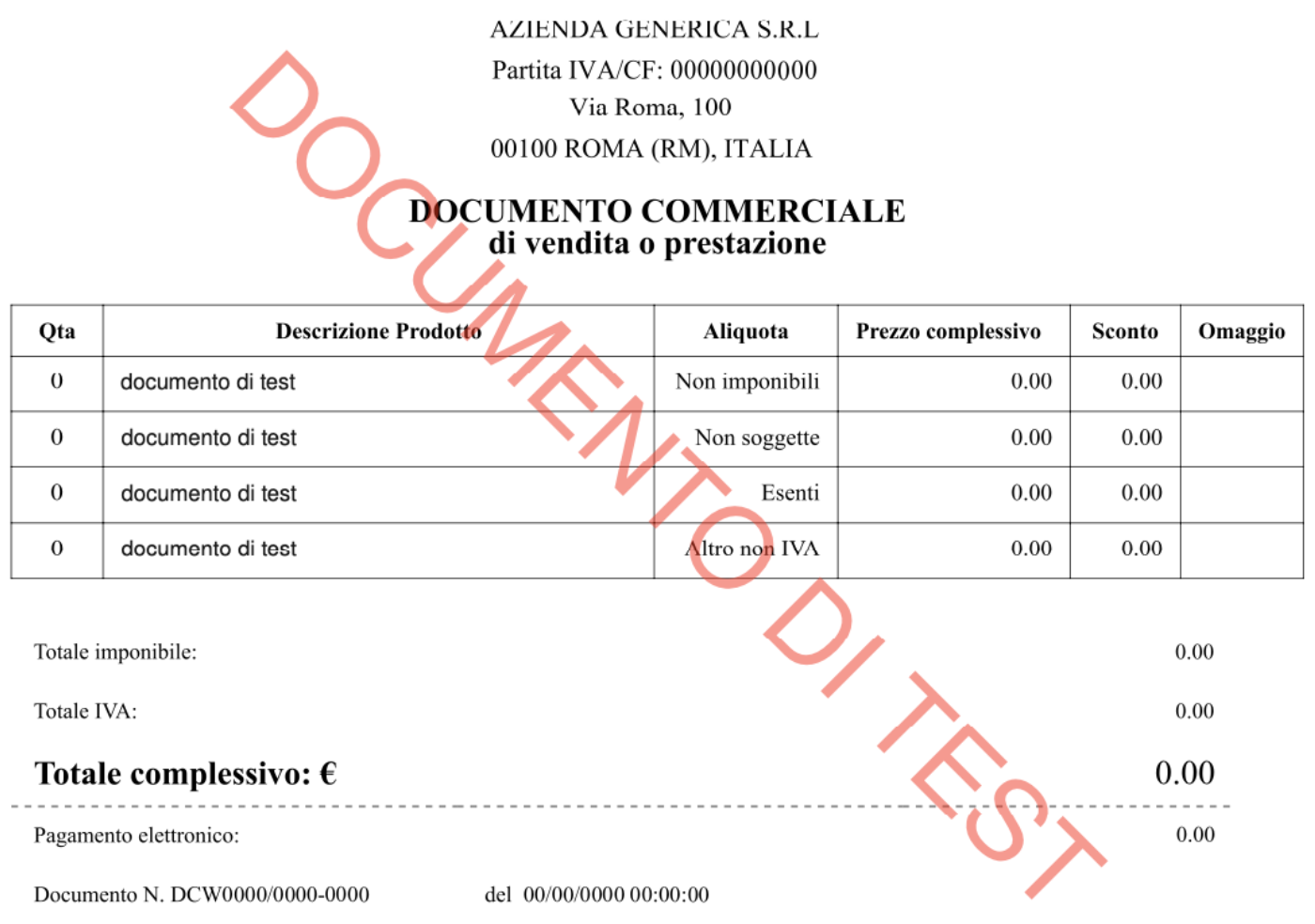
The response includes the PDF as a Base64-encoded string at compliance.artifact.data. After decoding, this is how it appears in the TEST environment (A4 format).
Note: In the TEST environment, only a sample PDF is generated, and it does not reflect the actual values submitted. The correct data will only be displayed in the LIVE environment.
What’s different from version 2024-10-31?
-
In version** 2024-10-31**: The record PDF is only available to the taxpayer via
compliance.urlreturned in the creation response after they log in to the Fatture e Corrispettivi portal with Fisconline credentials. -
In following versions: The record PDF is still available at
compliance.url, and can also be returned by retrieving the record with acompliance-artifactquery parameter. This makes it easier to store, print, or deliver the exact AdE-issued record, without requiring the taxpayer to log in to the Fatture e Corrispettivi portal.
How to report tips
From a technical perspective, tips are not subject to VAT and do not count as part of the taxable business revenue, provided they are voluntary and clearly separated from the payment for the good/service.
Technically, while cash tips do not need to be fiscalized, electronic tips require specific handling to ensure they are not mistakenly treated as taxable amount.
If a tip is included in the total card payment without being distinguished from the cost of the good/service, the entire amount will be treated as fiscal revenue (“corrispettivo”) and therefore subject to VAT.
To exclude the tip from VAT calculations, this distinction should be reflected in the fiscal document by submitting a separate line item (entry) of type SALE for the tip with:
-
a clear description, e.g.
"Voluntary tip" -
the appropriate VAT exemption (N2 - Not subject):
"VAT EXEMPTION" > "NOT SUBJECT"
Use case (at the restaurant) and payload below:
- Service total: 48 EUR
- Electronic tip: 2 EUR
{ "content": { "type": "TRANSACTION", "record": { "id": "{{recordIntentionIdA}}" }, "operation": { "type": "RECEIPT", "document": { "number": "INV-12345", "total_vat": { "amount": "8.65573770", "exclusive": "41.34426230", "inclusive": "50.00" } }, "entries": [ { "type": "SALE", "details": { "concept": "SERVICE" }, "data": { "type": "ITEM", "text": "Restaurant service", "unit": { "quantity": "1", "price": "48.00" }, "value": { "base": "39.34426230" }, "vat": { "type": "VAT_RATE", "code": "STANDARD", "percentage": "22.00", "exclusive": "39.34426230", "inclusive": "48.00", "amount": "8.65573770" } } }, { "type": "SALE", "details": { "concept": "SERVICE" }, "data": { "type": "ITEM", "text": "Voluntary tip", "unit": { "quantity": "1", "price": "2.00" }, "value": { "base": "2.00" }, "vat": { "type": "VAT_EXEMPTION", "code": "NOT_SUBJECT" } } } ], "customer": { "type": "EXTERNAL" }, "payments": [ { "type": "CARD", "details": { "amount":"50.00" }, "number": "****", "kind": "CREDIT" } ] } }}Please note: fiskaly is not allowed to provide tax advice. Please contact your tax advisor, tax auditor or lawyer for tax-related questions.
Difference between document.number and AdE progressive number
When creating a record of type TRANSACTION, the operation.document.number and operation.document.series fields refer to the taxpayer’s own internal document numbering system. These values must be generated by the taxpayer based on their specific business context and do not correspond to the progressive number returned by AdE in the API response.
The Progressive Number (DCW/number) is a unique identifier automatically assigned by the Revenue Agency (Agenzia delle Entrate) when a document is successfully transmitted through the “Fatture e Corrispettivi” (Invoices and Fees) portal.
This number is included in the successful response after creating a Record of type TRANSACTION, and can be found in the compliance.data field.
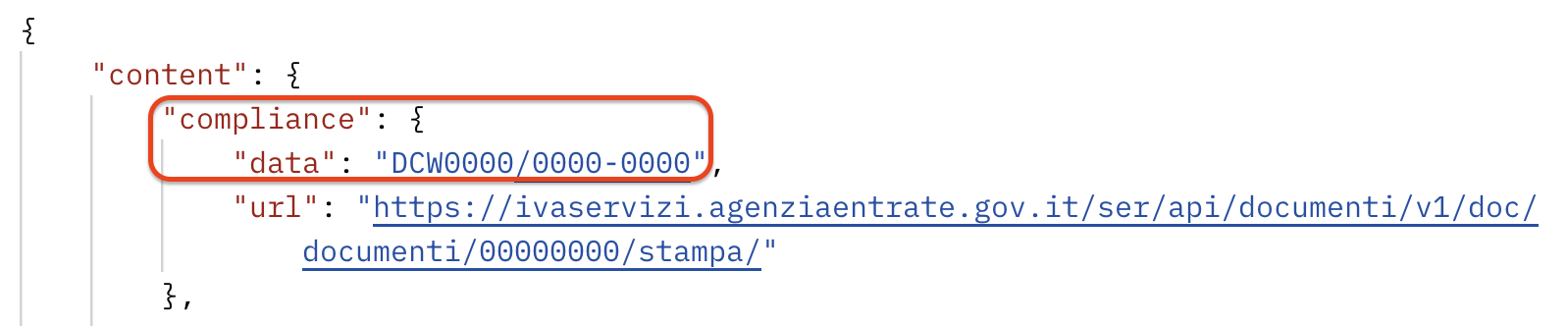
When a customer requests the receipt, is it necessary to specify that it was issued through a cloud-based solution and not an RT?
Section intitulée « When a customer requests the receipt, is it necessary to specify that it was issued through a cloud-based solution and not an RT? »No, it’s not necessary to specify the issuing method on the receipt. The Progressive Number assigned by the Agenzia delle Entrate (DCW/number) is sufficient to uniquely identify and validate the receipt. This number confirms that the document was correctly submitted via the “Documento Commerciale Online” web procedure.
What data is provided in the compliant document response?
When you successfully create a record of type TRANSACTION using SIGN IT lite, the response includes:
-
The progressive number (DCW-number), generated by the Italian Revenue Agency (Agenzia delle Entrate) and used to uniquely identify the document.
-
The compliance URL that enables the taxpayer to view/download the PDF document they have issued after logging in to the “Fatture e Corrispettivi” portal (Invoices and Receipts).
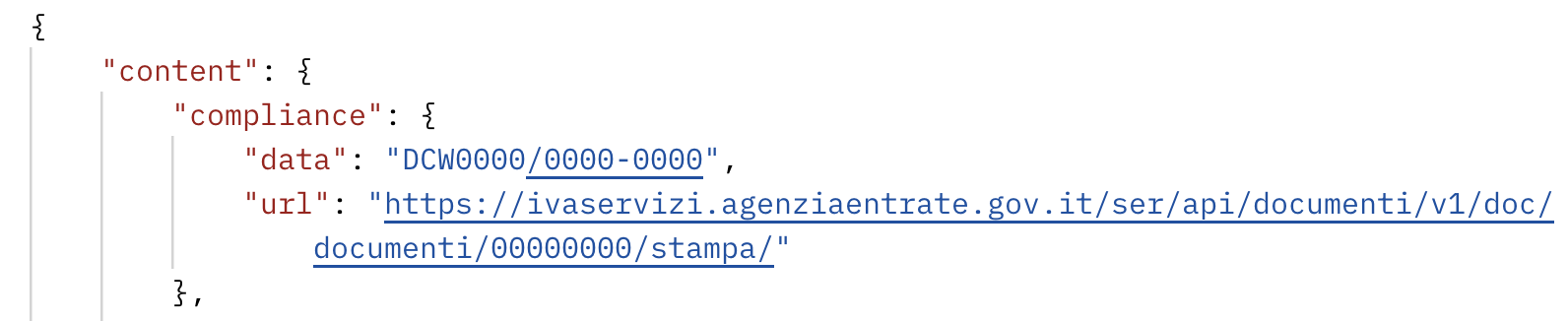
Note: If the end customer requests a courtesy receipt, it is sufficient to include the progressive number assigned to the document by AdE (compliance.data).
Why do I get a “401 Unauthorized” Error when clicking the link?
Section intitulée « Why do I get a “401 Unauthorized” Error when clicking the link? »This error occurs because the document is not publicly accessible. Access is limited to the taxpayer who generated that specific commercial document.
To open the link successfully, the merchant must first log in to the “Fatture e Corrispettivi” portal using their credentials.
Note: With SIGN IT API versions 2025-08-12 and 2026-02-03, it is also possible to retrieve the PDF document (compliance.artifact) as generated in the “Fatture e Corrispettivi” portal directly via an API call. See this article for details: Can I obtain the generated record PDF via API?
How to represent a complimentary item (GIFT)
When a merchant provides goods or services free of charge, tax authorities usually require the VAT to be calculated based on the original value of those goods or services. Therefore, such transactions must include all relevant VAT details, even if the customer is not paying for the product.
The correct way to represent a complimentary item in SIGN IT is as follows:
-
Enter the full price and VAT details at the entry-level, as if the item were sold at full value.
-
Indicate the item’s nature by setting the
entries[].details.purposefield to"GIFT"
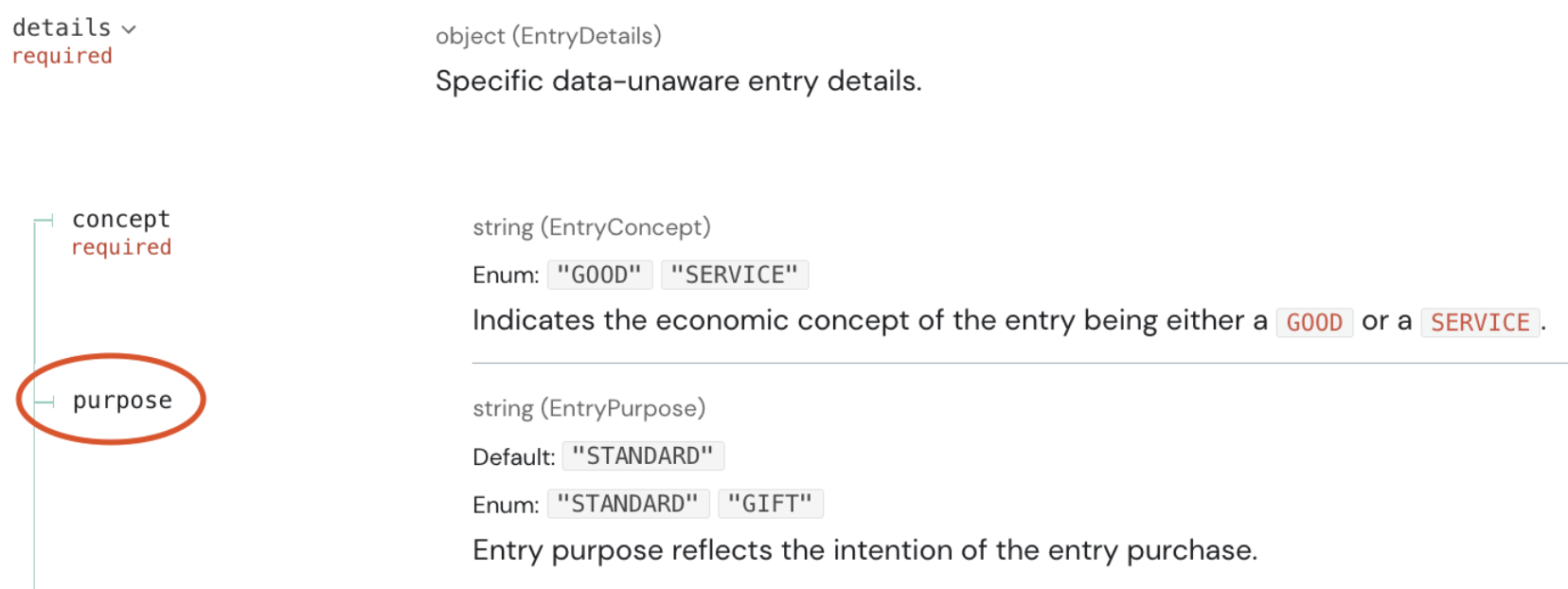
While partial discounts can be applied normally at the entry-level, a 100% discount must be represented as a GIFT. This ensures proper VAT handling and avoids compliance issues.
Below is an example representing an item offered free of charge ("GIFT").
{ "type": "SALE", "data": { "type": "ITEM", "text": "Product XYZ", "unit": { "quantity": "1", "price": "50" }, "value": { "base": "40.983607" }, "vat": { "type": "VAT_RATE", "code": "STANDARD", "percentage": "22.00", "amount": "9.016393", "exclusive": "40.983607", "inclusive": "50" } }, "details": { "concept": "GOOD", "purpose": "GIFT", "number": "1", "description": "Product XYZ" }}How to integrate the Lottery Code in SIGN IT
At the moment, there are two types of lotteries in Italy: deferred and instant. Sign IT lite only supports the deferred lottery, while our full solution will support both types.
Consumers can get their personal lottery code on the official Receipt Lottery website and must provide that code to the merchant if they want to participate in the lottery. This is only allowed in case of cashless payments.
When creating a TRANSACTION record of type RECEIPT and CORRECTION in the SIGN IT createRecord endpoint, you can include the lottery code provided by the consumer in the customer.code field.
CANCELLATION records, this information is directly derived from the original receipt referenced by the cancellation document.
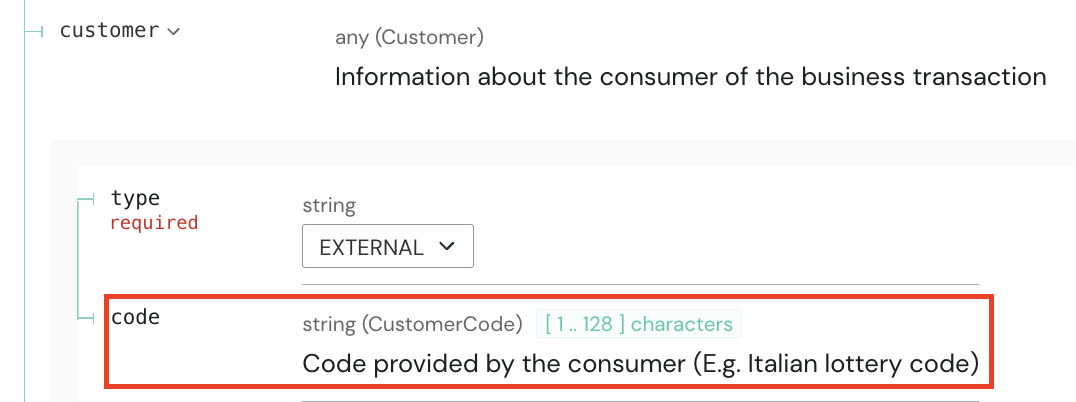
When a lottery code is transmitted, it is appended to the commercial document number (DCW) within the compliance.data, separated by a comma. Example: "DCW2026/1234-0001,NB7A1235"
In the official AdE PDF (retrievable via API), these values are displayed separately as:
Documento N.CODICE LOTTERIA DEL CLIENTE
In a future API version, we may introduce an improved compliance rendering mechanism.
For additional details and background information, refer to the “Receipt Lottery” section of the SIGN IT Guide.
Which VAT rates and treatments can be used in Italy?
This article provides a detailed mapping of VAT rates and VAT treatments applicable in Italy when using SIGN IT, including exemptions and cases outside the scope of VAT.
VAT_RATE > STANDARD = Italian 22%
VAT_RATE > REDUCED_1 = Italian 10%
VAT_RATE > REDUCED_2 = Italian 5%
VAT_RATE > REDUCED_3 = Italian 4%
VAT_EXEMPTION > NOT_SUBJECT = Italian N2: Non soggette
VAT_EXEMPTION > NOT_TAXABLE = Italian N3: Non imponibili
VAT_EXEMPTION > CAUSE_1 = Italian N1: Escluse ex art 15
VAT_EXEMPTION > CAUSE_2 = Italian N4: Esenti
VAT_EXEMPTION > CAUSE_3 = Italian N5: Regime del margine
VAT_EXEMPTION > CAUSE_4 = Italian N6: Altro non IVA
What to do if the card number is not stored?
If a card number has not been stored, you can simply use "****" in the number field.
Example:
"payments": [ { "type": "CARD", "details": { "amount": "100.00" }, "number": "****", "kind": "CREDIT" }]General (13)
What’s the pagination limit?
In the list endpoints, the limit query parameter is used to control pagination by defining how many results are returned in a single response. This helps manage response size, optimize performance, and retrieve large datasets incrementally.
Example GET request: {{apiBaseUrl}}/assets**?limit=5**

The response includes a pagination.next field, which contains the endpoint to be used in the next request to retrieve the subsequent page of results.
New Resource Terminology
This article explains the organizational structure and resource terminology introduced in SIGN IT 2026-02-03 and maintained in all subsequent versions, and how it compares to earlier versions.
Organizational structure:
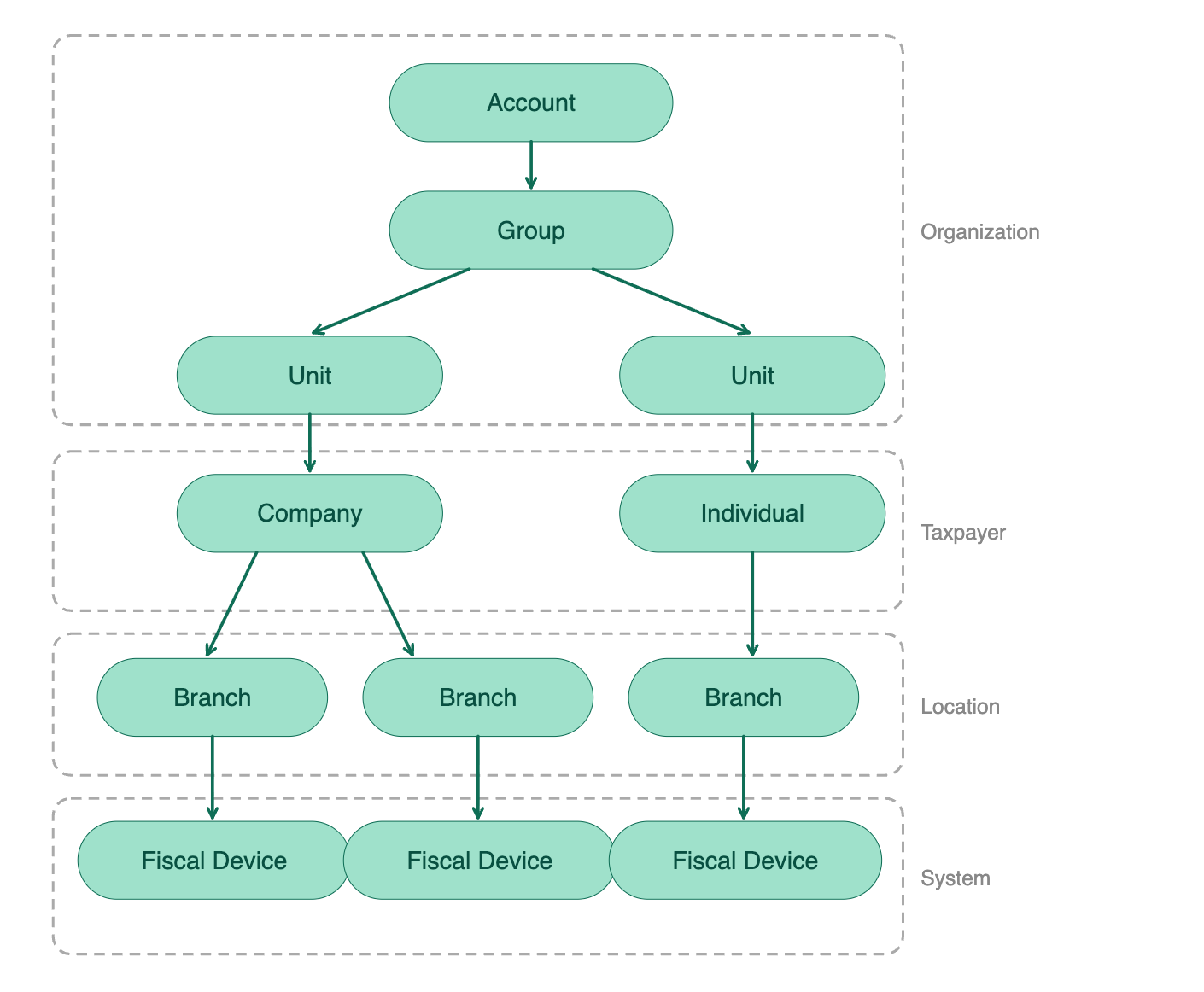
From SIGN IT 2026-02-03 onwards, every reference in API paths, schemas, parameters, and responses reflects two key renames:
| Change | Up to SIGN IT 2025-08-12 | From SIGN IT 2026-02-03 onwards |
| Asset ➜ Organization | ||
| Top-level structure | Asset::TENANT represents the PoS provider or a retailer that operates its own PoS system. | Organization::ACCOUNT the top-level structure in fiskaly. Represents your company and holds your users, organizations, products, and billing. |
| Intermediate layer | Asset::GROUP optional intermediate layer used to group multiple Asset resources of type UNIT. | Organization::GROUP required intermediate layer within an ACCOUNT, used to organize multiple UNIT into logical clusters (e.g., one GROUP per country). A single GROUP per ACCOUNT is sufficient if no further structuring is needed. |
| Merchant | Asset::UNIT represents a merchant (managed organization nested under either the TENANT or the GROUP, depending on the structure) | Organization::UNIT represents a merchant / taxpayer operating within the GROUP (and its associated ACCOUNT). |
| Entity ➜ Taxpayer and Location | ||
| Taxpayer data | Entity::COMPANY / INDIVIDUAL | Taxpayer::COMPANY / INDIVIDUAL |
Represents a particular UNIT with the relevant taxpayer data. | ||
| Operating address | Entity::LOCATION | Location::BRANCH |
| Represents the operating address of a legal entity’s business premises or establishment. |
Note: When a Taxpayer is created, a Location::HEAD_OFFICE is automatically generated with the same ID. If the business has only one operating location and it matches the taxpayer’s legal address, you can link the System directly to the ID of the Taxpayer/HEAD_OFFICE without creating a separate BRANCH with identical details.
To learn more about the other changes introduced with SIGN IT 2026-02-03 please refer to: Key changes in SIGN IT 2026-02-03
Key changes in SIGN IT 2026-02-03
Below is an overview of the key changes introduced in the latest SIGN IT API version (SIGN IT 2026-02-03)
Key changes from version 2025-08-12 to 2026-02-03
Section intitulée « Key changes from version 2025-08-12 to 2026-02-03 »New required X-Api-Version Header The latest version is 2026-02-03.
**New resource - **Location::BRANCH
- Replaces the previous
Entity::LOCATIONresource. - Represents each operating business location.
- Creation is not mandatory if there is only one operating business location and it corresponds to the taxpayer’s legal address.
Note: Upon Taxpayer creation, a Location::HEAD_OFFICE is automatically created and shares the same ID as the Taxpayer.
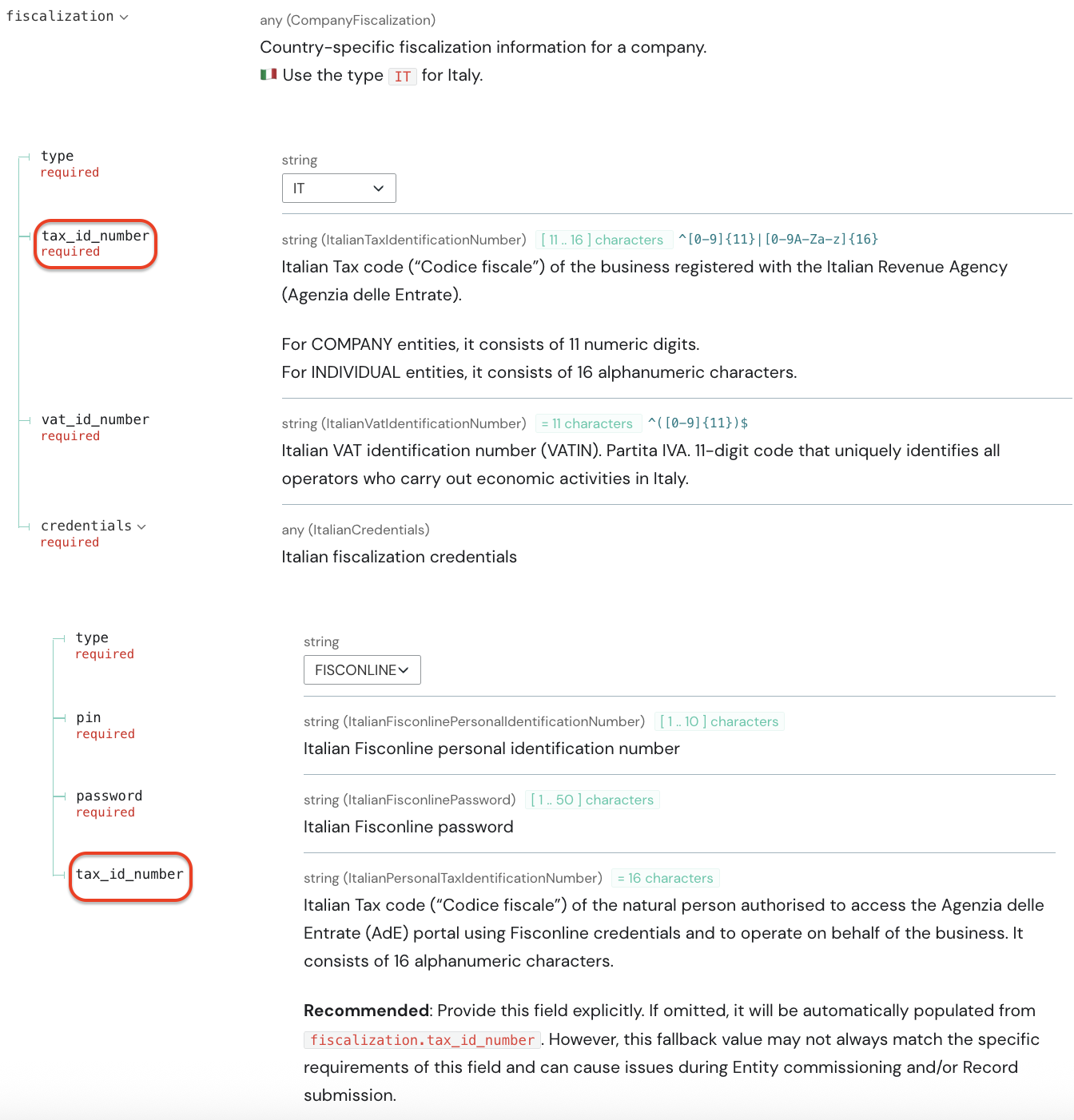
fiscalization.credentials.tax_id_number is now a required field.
Updated Resource Terminology
To improve clarity and consistency, some resources have been renamed:
Asset::UNIT → Organization::UNIT
Entity::COMPANY/INDIVIDUAL → Taxpayer::COMPANY/INDIVIDUAL
Entity::LOCATION → Location::BRANCH
As part of this update, the corresponding endpoints have been updated as follows:
/organizations (previously /assets)
/taxpayers/locations (previously grouped under the /entities resource and endpoint, now split into two distinct resources with dedicated endpoints)
See this article for details: New Resource Terminology
Key changes in SIGN IT 2025-08-12
With the release of the latest version of the SIGN IT API, SIGN IT 2025-08-12, some important changes have been introduced.
The documentation for SIGN IT 2025-08-12 is part of our **Unified API (UAPI). **Please note that this documentation already covers both France and Italy.
Key changes from version 2024-10-31 to 2025-08-12
Base URL
The new version uses the Unified API sub-domain:** **
TEST: test.api.fiskaly.com
LIVE: live.api.fiskaly.com
Required **X-Api-Version** Header
This header is now mandatory, and the latest version is 2025-08-12.
Records Structure Change
The details field in the Records has been moved one level deeper: from content.details to content.operation.details
Record PDF Retrieval
It is now possible to retrieve the Record PDF (compliance.artifact) as generated in the *Fatture e Corrispettivi *portal. See this article for details: Can I obtain the generated record PDF via API?
**New Entity field – ****fiscalization.credentials.tax_id_number**
This new tax_id_number field allows taxpayers to differentiate between the tax ID of the business and that of the Fisconline user (the person authorized to operate on behalf of the business and holding the Fisconline credentials). This supports new AdE authentication flows that previously resulted in Transmission error: unsupported Agenzia delle Entrate (AdE) flow
Both fields are supported in POST /entities and PATCH /entities.
Attached to this article, you will find a PDF that provides a detailed explanation of the Entity fields required for fiscalization.
Do I need to display a QR code?
No, a QR code is not required when using SIGN IT lite.
Displaying a QR code is only mandatory if you are using a physical fiscal cash register (Registratore Telematico – RT).
When using SIGN IT lite, receipts are generated directly through the AdE’s online portal using the “Documento commerciale online” web procedure. This ensures that transaction data is transmitted immediately and securely to the tax authorities.
The fiscal validity and compliance of the receipt are guaranteed by its digital creation and registration within the AdE systems.
For guidance on how merchants should proceed during an audit, see this article: SIGN IT - How to handle an audit with SIGN IT lite?
Is the dashboard available for SIGN IT?
Currently, the Dashboard does not feature a dedicated section for SIGN IT. However, we are working on a new Dashboard that will include SIGN IT data.
In the meantime, all relevant SIGN IT data remains accessible and traceable via the Italian Revenue Agency’s portal (Agenzia delle Entrate), where each taxpayer can review their own information and records.
To understand which actions must currently be completed in the Dashboard and when to transition to SIGN IT, we recommend referring to the step-by-step guide.
Functionalities currently supported in the Dashboard for SIGN IT
Create first organization Once you register on the Dashboard, you’ll receive an activation link via email. Click the link to verify your email address, and you’ll be redirected to create your organization.
**Manage user access for the first organization **(Settings → User Management) If you are the admin of the first organization, you can invite or remove users from your organization.
**Create and delete API keys **(Settings → API Keys → CREATE API KEY) If you are the admin or an invited user of the first organization, you can create and delete API Keys. These are required to generate access tokens within the SIGN IT API (createToken endpoint).
View first organization details (“ℹ” icon) If you are the admin or an invited user of the first organization, you can access the name, ID, address, and tax information of the first organization.
**Update first organization data **(“ℹ” icon → Edit) If you are the admin of the first organization, you can edit the address and tax information of the first organization.
**View managed organizations **(Settings → Organization Management)
If you are the admin or an invited user of the first organization, you can see the names and IDs of the managed organizations (UNIT) linked to your first organization.
Access the Status Page (Status) View real-time updates on service incidents and scheduled maintenance.
**Access the Support Page **(Support) Explore FAQs articles and/or contact our Product Education Team (dev-support@fiskaly.com).
How to check if FISCONLINE credentials are valid
Note: Validation against real data only occurs in the LIVE environment.
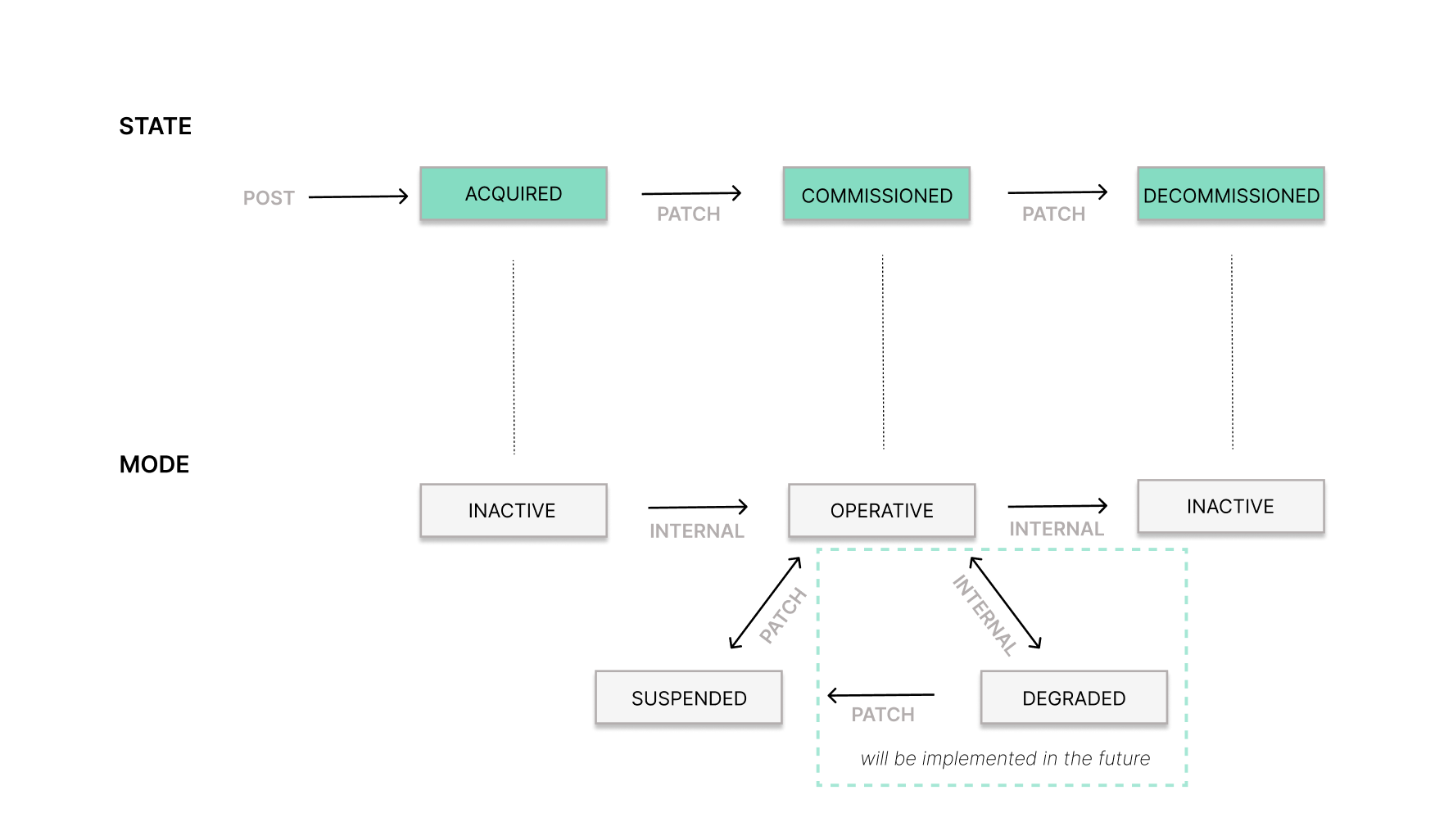
An initial validation of the credentials is already performed when the Taxpayer (formerly, Entity Company or Individual) state is updated from ACQUIRED to COMMISSIONED. If the credentials are valid, the Taxpayer mode will change to OPERATIVE.
Additionally, you can manually trigger a validation by changing the Taxpayer mode from OPERATIVE → SUSPENDED → OPERATIVE using the updateTaxpayer endpoint (formerly, updateEntity).
If the credentials are valid, the Taxpayer mode will switch to OPERATIVE. If invalid, it will remain SUSPENDED and it will be necessary to update the FISCONLINE credentials.
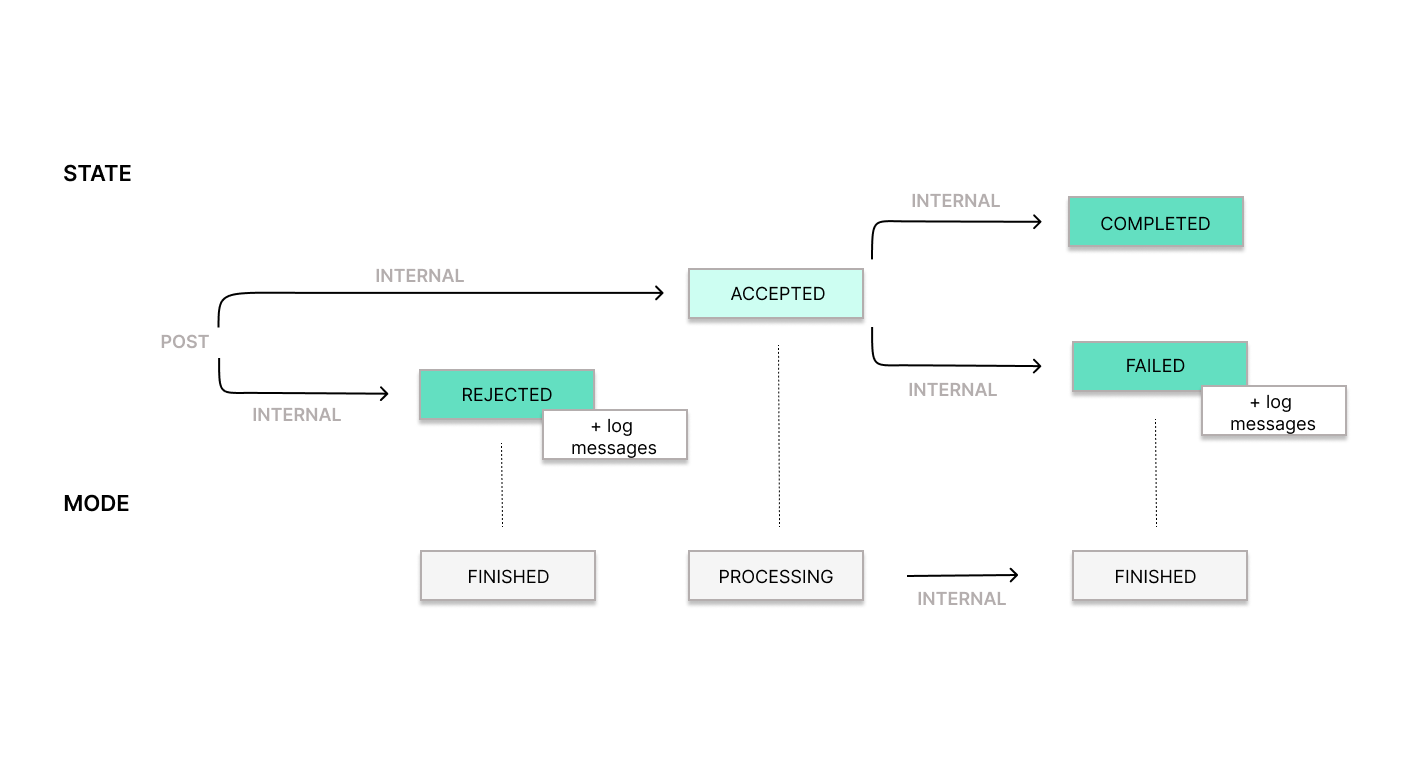
Later, when you create a Record, we perform another credential check. If the credentials are no longer valid, the mode of the Record will be set to FINISHED, but its state will be FAILED with an error message in the logs.
Note: If Record creation fails due to invalid credentials, the Taxpayer’s mode will not automatically change to DEGRADED at this time. However, this behavior is planned to be implemented in the future.
TEST and LIVE environments
All fiskaly Accounts start in the TEST environment by default. The TEST environment provides full API functionality with sandbox data, allowing you to build and validate your integration before going to production. Any API Key generated within this setting enables the creation of resources exclusively for testing purposes.
When you are ready to process real transactions, you need to activate the LIVE environment.
Note: TEST and LIVE are fully separate: organizations and resources created in TEST do not exist in LIVE. You will need to create new organizations and resources in the LIVE environment, including a new API Key, as TEST API Keys do not authenticate against production endpoints.
Activating the LIVE environment in HUB
To enable the LIVE environment, click the “Go LIVE” option at the top of the page in the HUB.

While your request is being processed, the banner displays a “LIVE access pending” badge. In addition you will see a group in your test environment named “AccountName-LIVE”. This will be your future LIVE organisation, and no action from your side is required. Once your account has been approved and activated, you will gain access to the LIVE environment.
Switching between environments
Once LIVE is activated, you can switch between TEST and LIVE at any time directly in HUB.

Note: Once your Organization operates in a LIVE environment, there is no requirement to disable test resources. The TEST environment remains fully accessible. The next step is to switch to the LIVE environment and create your production resources:
-
Access the new “AccountName-LIVE” Group that mirrors your production structure
-
Generate a new LIVE API Key — TEST API Keys do not work in LIVE
Important: Records sent in the LIVE environment should always reflect actual business transactions.
If you’re still using the fiskaly Dashboard
The instructions below apply to the legacy Dashboard interface.
The first organization created in the Dashboard will only have a TEST environment. There is the possibility to enable the LIVE environment, as indicated by the button positioned at the top left under your organization’s name:

In order to set your first Organization LIVE, we require the Organization ID, along with the completion of the contractual agreement. Once we activate the LIVE environment, you will notice that the “ENABLE LIVE” button turns into a toggle, allowing users to switch between the TEST and LIVE environment:

It is important to highlight that once your organization operates in a LIVE environment, there is no requirement to disable test resources. The TEST environment remains accessible. TEST and LIVE resources are seamlessly supported, allowing for a smooth transition without the need to deactivate any resources.
Note: If you have not yet migrated to HUB, you can follow these steps. Migrating to HUB does not require recreating any existing resources — your current TEST and LIVE setup carries over automatically.
How to handle an audit with SIGN IT lite?
In case of an audit by the Guardia di Finanza, it is important to inform the authorities that SIGN IT lite, unlike traditional cash registers, uses the “Documento Commerciale Online” service provided by the Italian Revenue Agency (Agenzia delle Entrate), which records all receipts issued.
This link provides access to an official response (“Interpello”) from the Revenue Agency confirming the validity of transmitting electronic receipts via external software that uses the “Documento Commerciale Online” functionality.
Instructions for verifying receipts transmitted to the Italian Revenue Agency
Section intitulée « Instructions for verifying receipts transmitted to the Italian Revenue Agency »-
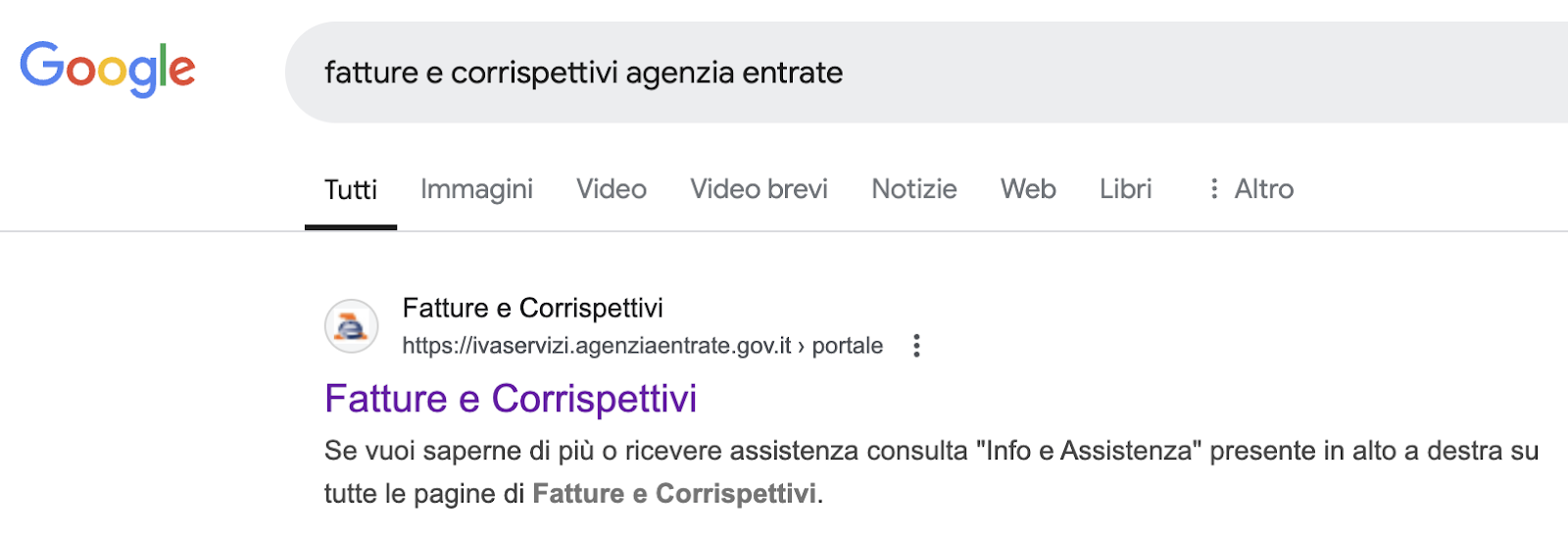
Search for “Agenzia Entrate Fatture e Corrispettivi” using any search engine, or go directly to: https://ivaservizi.agenziaentrate.gov.it/portale/
-
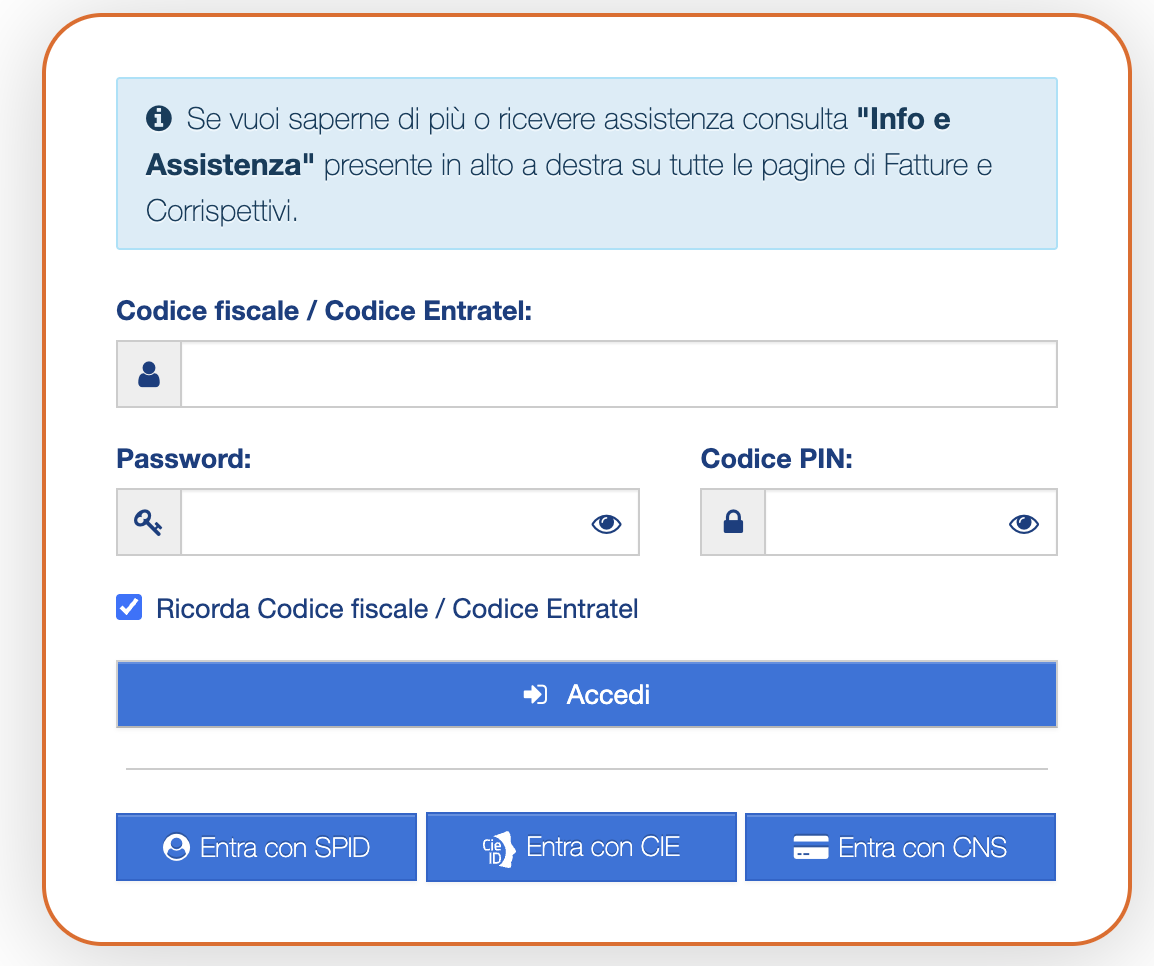
Log in using your FISCONLINE credentials.
-
Once accepted the data privacy notice, make sure you are in the correct “Cassetto fiscale” (tax drawer), with activity linked to the appropriate VAT number.
-
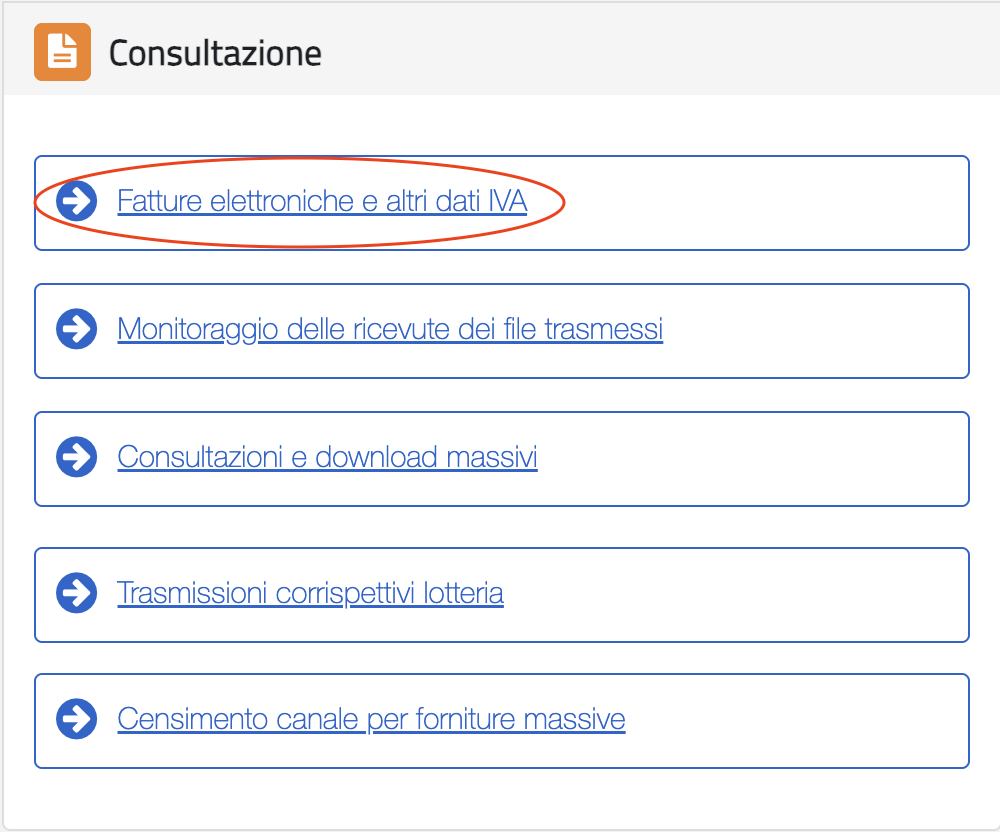
Scroll down to the “Consultazione” (Consultation) section, then click on “Fatture elettroniche e altri dati IVA” (Electronic invoices and other VAT data).
-
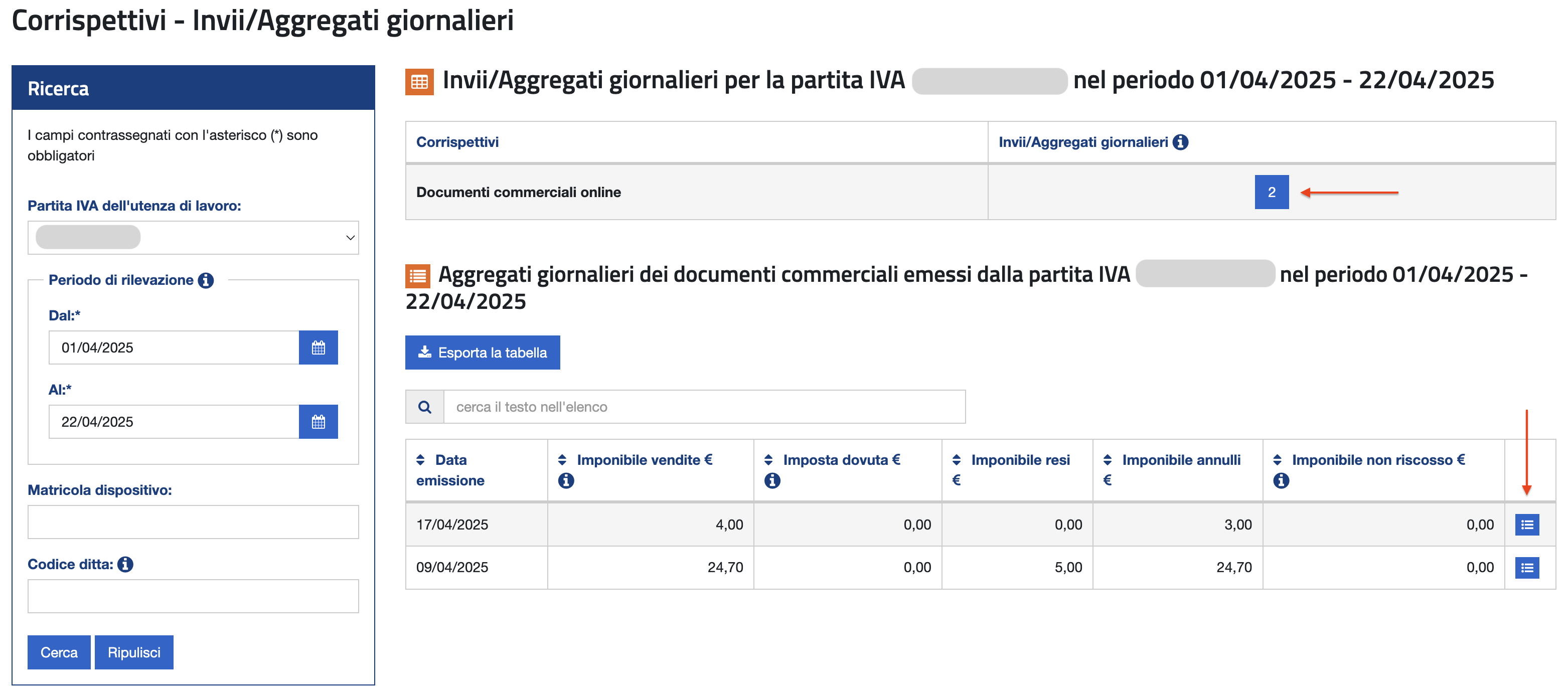
From the top menu, choose “Corrispettivi” (Receipts), then click on “Invii/Aggregati giornalieri” (Daily Submissions/Aggregates).
-
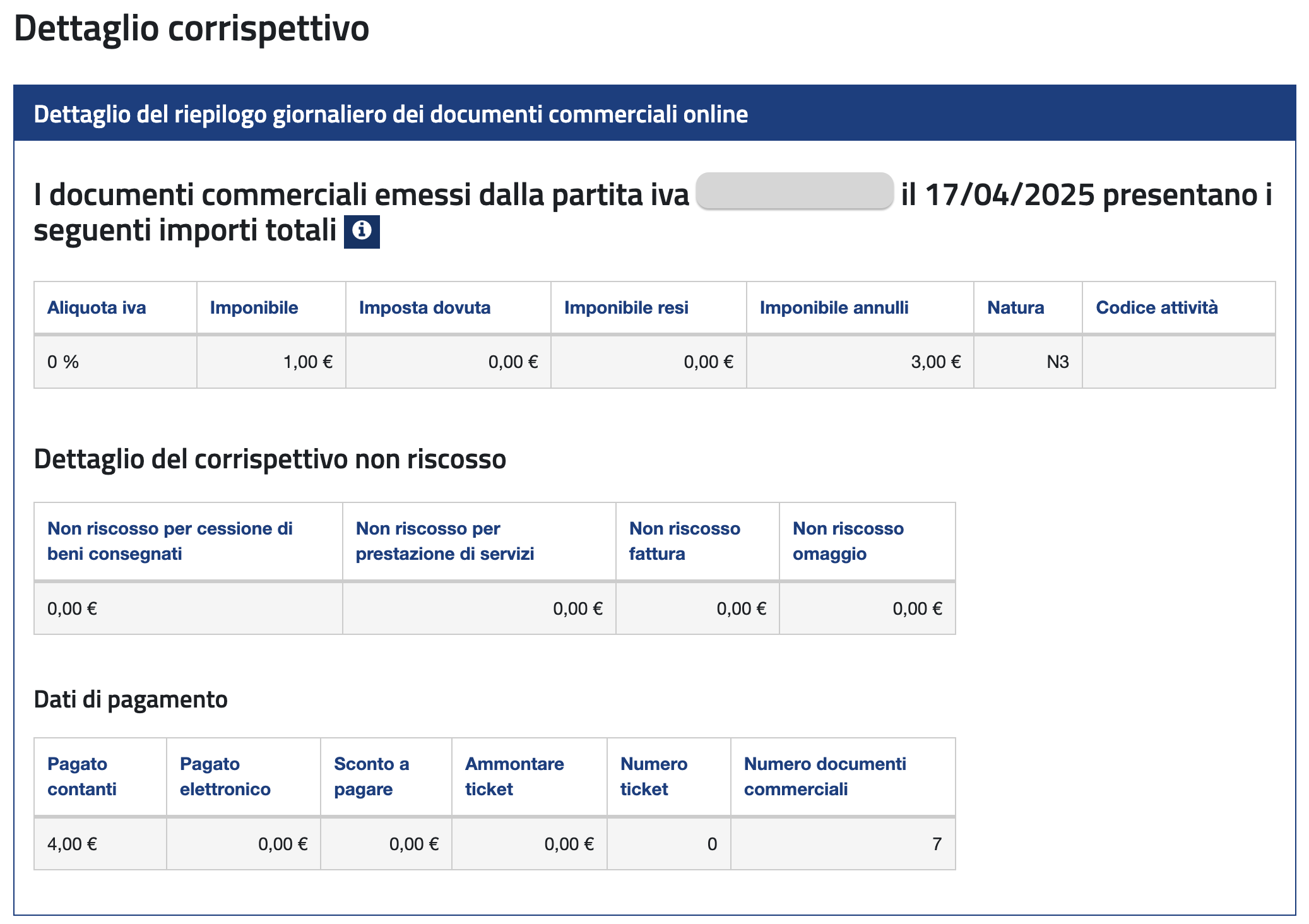
Ensure that the daily totals for transmitted receipts are visible.
-
By clicking on the number shown in “Invii/Aggregati giornalieri”, you can view and print the detailed breakdown of each submission.


What to do in case of connectivity issues?
If a connection issue on your side prevents access to our API, or if the ‘Invoices and Receipts’ portal is temporarily unavailable, transactions cannot be transmitted to the Italian Revenue Agency. If the retry fails, compliance can easily be ensured by following these steps:
-
Provide the customer with a simple paper document as recommended by the Italian tax authority. This should serve as a temporary receipt for the transaction.
-
Ensure compliance by issuing an electronic invoice via AdE’s SdI (“Sistema di Interscambio”) within 12 days of the transaction.
To issue the electronic invoice, follow this process:
-
Issue a receipt with a note indicating the portal was unavailable at the time of the transaction, e.g. “Portal unavailable.”
-
Record the following details:
Date and time of issue
-
Consecutive invoice number
-
Consumer’s name, surname, and fiscal code
-
Merchant’s VAT number and legal name
-
Total transaction amount (before and after VAT)
-
Transmit the recorded data using an e-invoice system within the specified 12-day period.
By following this procedure, compliance with Italian regulations is ensured even if connectivity issues occur.
Note: The offline scenario will be fully supported through SIGN IT in its full version.
What does X-Idempotency-Key refer to?
Idempotency ensures that repeated identical requests produce the same result, even if they are retried due to network issues, timeouts, or other temporary issues. This behavior prevents duplicate resource creation or unintended side effects in APIs that accept POST or PATCH requests.
The X-Idempotency-Key HTTP header plays a central role in implementing idempotency. Integrators use this header to uniquely identify requests, enabling the API to track and manage their outcomes across retries.
For additional information, please consult the dedicated Idempotency section in the API documentation.
With the latest API update on March 18, 2026, a new response header, X-Idempotency-Replayed, has been introduced for all POST and PATCH requests. This header allows integrators to clearly distinguish between retried requests ("true") and newly processed requests ("false"), improving transparency and simplifying debugging.
For more details, please refer to our blog article: Unified API Update: Enhanced Idempotency Handling.
What does X-Scope-Identifier refer to?
The X-Scope-Identifier header plays a crucial role when creating a Subject. It defines the context (scope) in which the Subject is created, ensuring the API_KEY you are generating is connected to a specific Organization UNIT (formerly, Asset UNIT).
Note: If this header is omitted, the following error message will be displayed:
"message": "The request functionality is not implemented yet. ['Subject::API_KEY' creation not supported for none 'Organization::UNIT' scopes]"
**Other use case **
Section intitulée « **Other use case ** »Only applicable to legacy versions. Not relevant for the latest version (SIGN IT 2026-02-03).
If you’re using the Groups structure (see article: SIGN IT – How to add an additional level to an Asset structure), set the X-Scope-Identifier header to the ID of the corresponding Asset GROUP. This ensures that the Assets UNIT are nested under the corresponding Asset GROUP.
Note: If this header is omitted, the Asset UNITwill be associated with the main organization (Asset TENANT) by default via the authorization token.
Systems (1)
What to enter in the “producer” field if the POS is software-only?
Even if the POS (Point of Sale) does not include any hardware components, the API still requires both the producer and software fields to be filled out when creating the System.
In such cases, you can simply provide software-related information in the producer field as well:
-
The
typefield must always be set to"MPN". -
The
numberfield can contain a software identifier, such as a SKU or a unique internal code, to comply with the API requirements. -
In the
details.name, you can enter the name of the POS software.
Taxpayers & Locations (2)
What fiscalization data should be provided when creating a Taxpayer
A Taxpayer (formerly “Entity”) provides a particular Organization UNIT (formerly “Asset UNIT”) with the relevant taxpayer data, and consists of two main parts:
Taxpayer information (type: COMPANY / INDIVIDUAL, name and address), and
Country-specific fiscalization details (fiscalization). For Italy, these include:
-
The business tax id number (Codice Fiscale) and vat id number (Partita IVA), and
-
The tax identification number and Fisconline credentials of the authorized user — i.e., the individual who is entitled to operate on behalf of the business and holds Fisconline credentials.
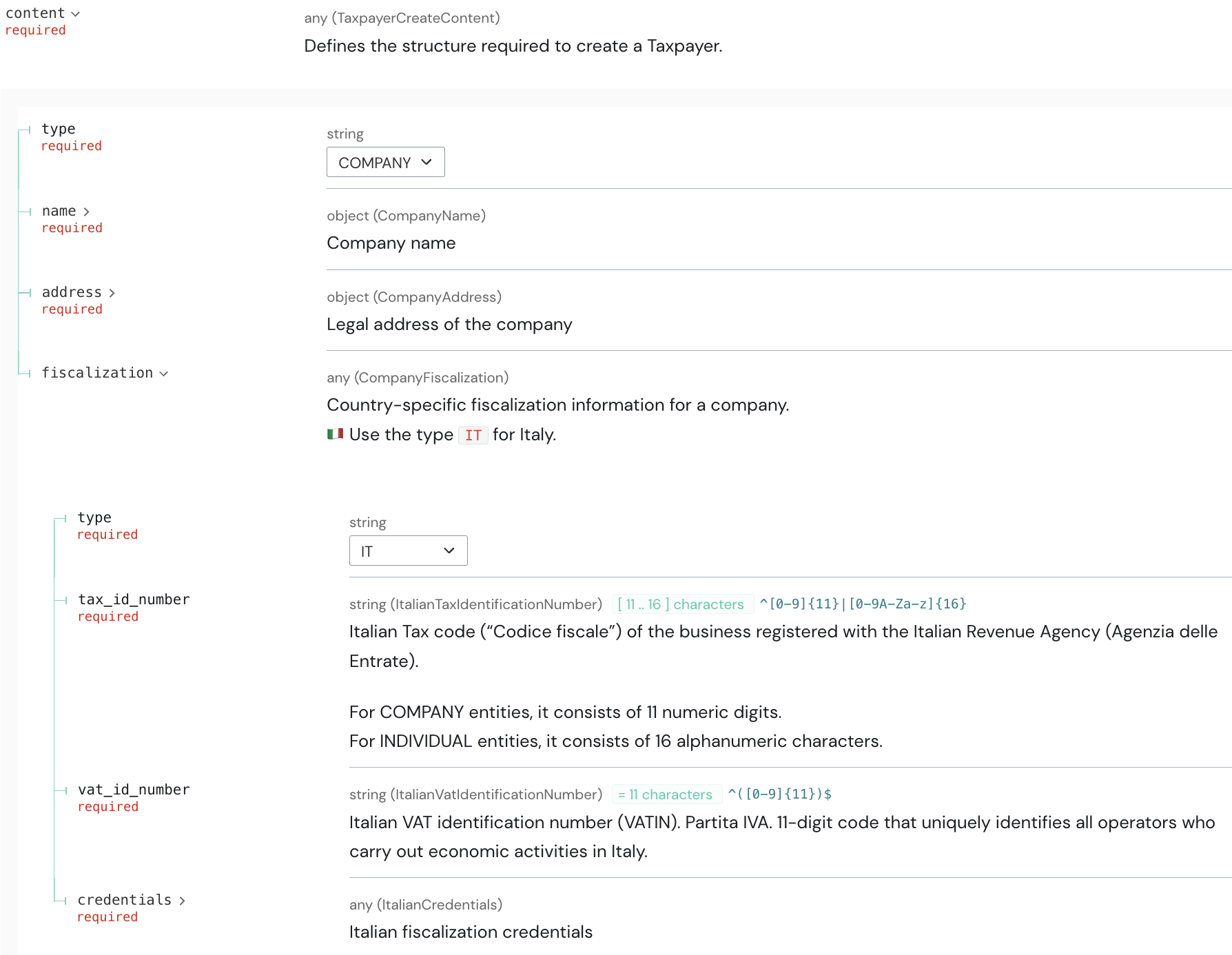
Learn more here: Key changes in SIGN IT 2025-08-12 SIGN IT lite Authentication Flow Field Explainer
For a detailed Merchant Guide on how to request Fisconline credentials, please contact your fiskaly Sales representative.
How to update the FISCONLINE credentials
Fisconline credentials on the AdE portal expire every 90 days.
To ensure uninterrupted service, the Fisconline user authorised to act on behalf of the business must update the password before it expires by following the steps below (we recommend doing this every 60 days):
-
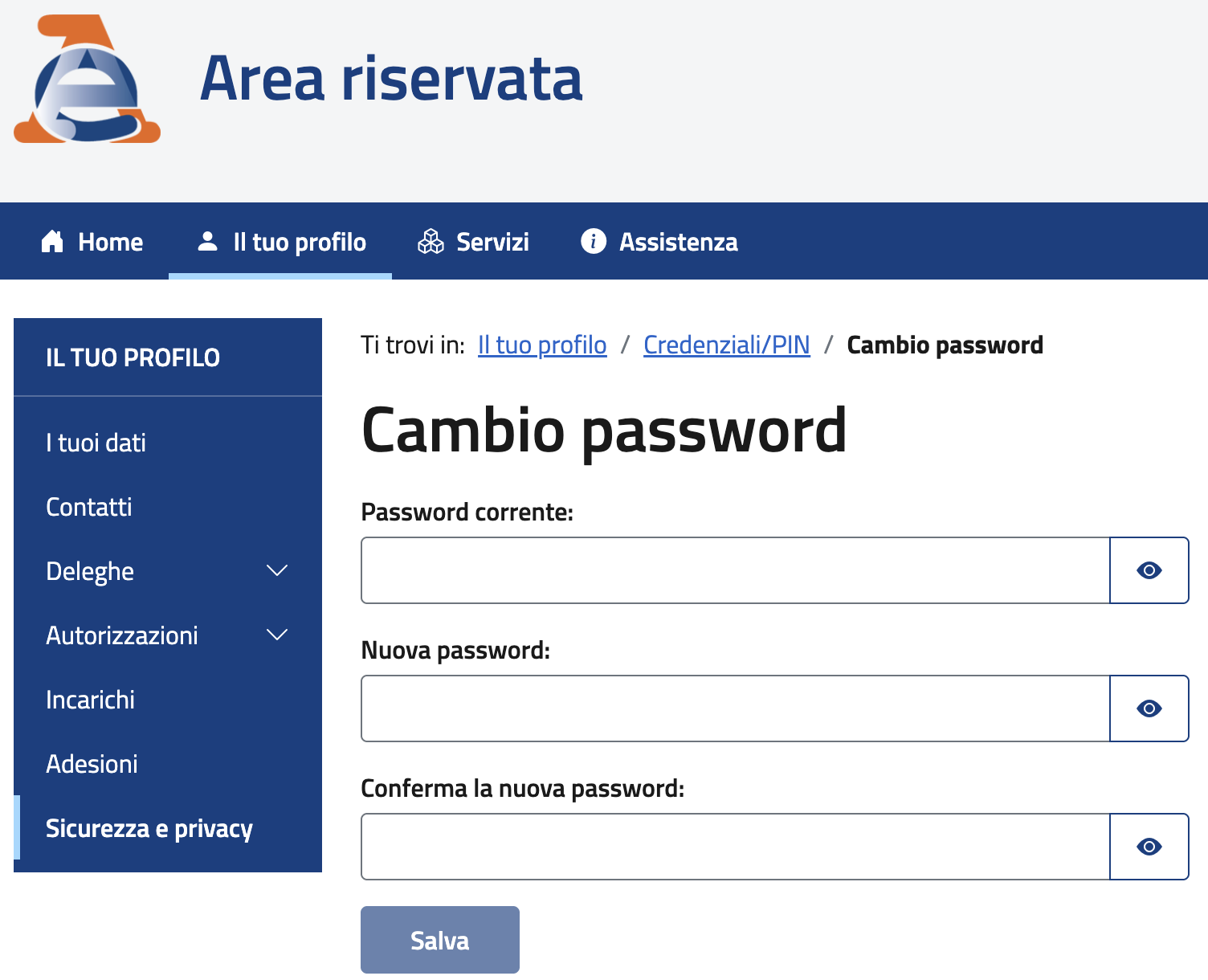
Access the AdE’s Area Riservata (Reserved Area) with Fisconline credentials and navigate to: Il tuo profilo / Sicurezza e Privacy / Cambio password.
-
Enter the current password, a new secure password and confirm submission of the form.
Once the password has been successfully updated on the AdE portal, send the updated credentials via the API by following the steps below:
-
Set the
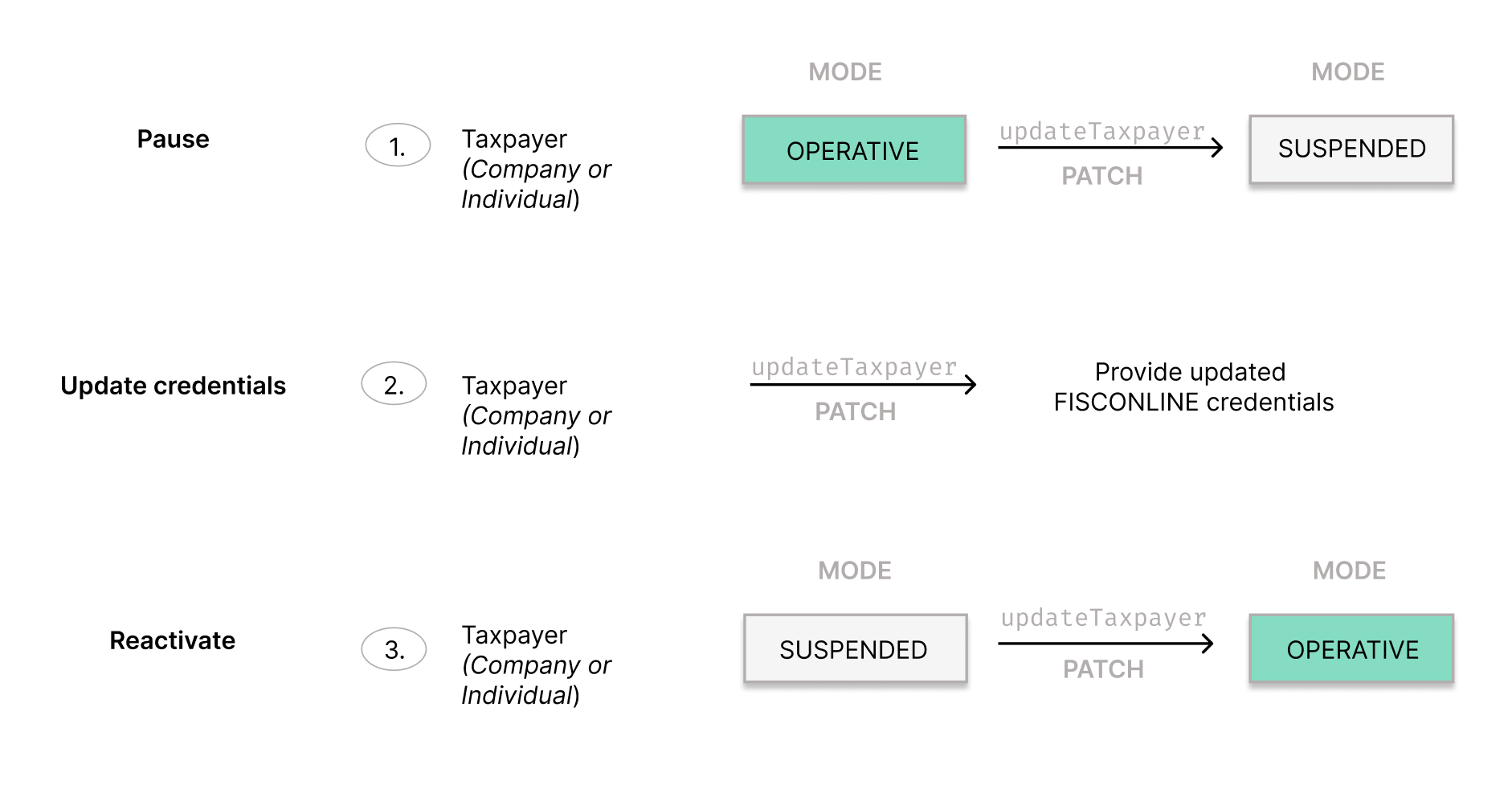
modeof the Taxpayer (formerly, Entity Company or Individual) toSUSPENDEDusing the updateTaxpayer (formerly, updateEntity) endpoint. -
Use the updateTaxpayer (formerly, updateEntity) endpoint to update the credentials. Send the full
fiscalizationblock in the request body, repeating the existing data and changing only thepassword. -
Finally, set the
modeof the Taxpayer (formerly, Entity Company or Individual) back toOPERATIVEusing the updateTaxpayer (formerly, updateEntity) endpoint.
Organizations (1)
How to add an additional level to an Asset structure
This content is applicable only to legacy versions. A dedicated article for the latest version (SIGN IT 2026-02-03) will be available soon.
The API integration must include the creation of your main organization (created via the fiskaly dashboard), and Asset(s) UNIT representing each of your clients (created via the SIGN IT API).
However, if your Asset structure requires more flexibility, you can introduce an optional intermediate layer called **Asset ****GROUP**. This allows you to organize multiple Assets UNIT into logical groupings based on your preferred structure.
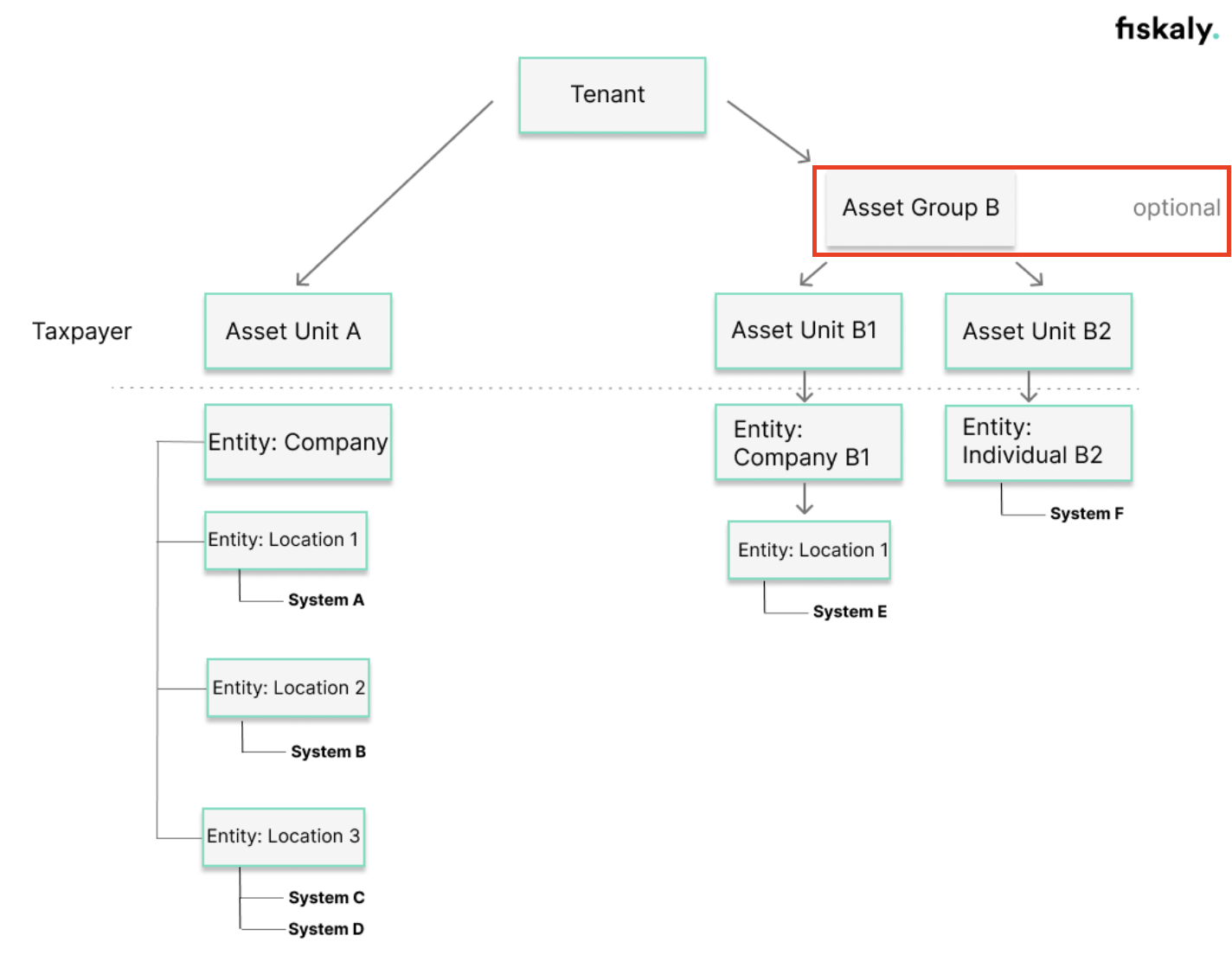
How to implement this new structure
Section intitulée « How to implement this new structure »Download the attached Postman collection, which includes the endpoints required for creating and managing Assets GROUP.
-
Create an Asset
GROUP- you will get its ID returned in thecontent.idfield of the response. -
Create Assets
UNIT, and link them to the AssetGROUPpreviously created by setting theX-Scope-Identifierheader to the AssetGROUPID.

Note: If the X-Scope-Identifier header is not provided, the Asset UNIT will be associated with the main organization (Asset TENANT) by default via the authorization token.
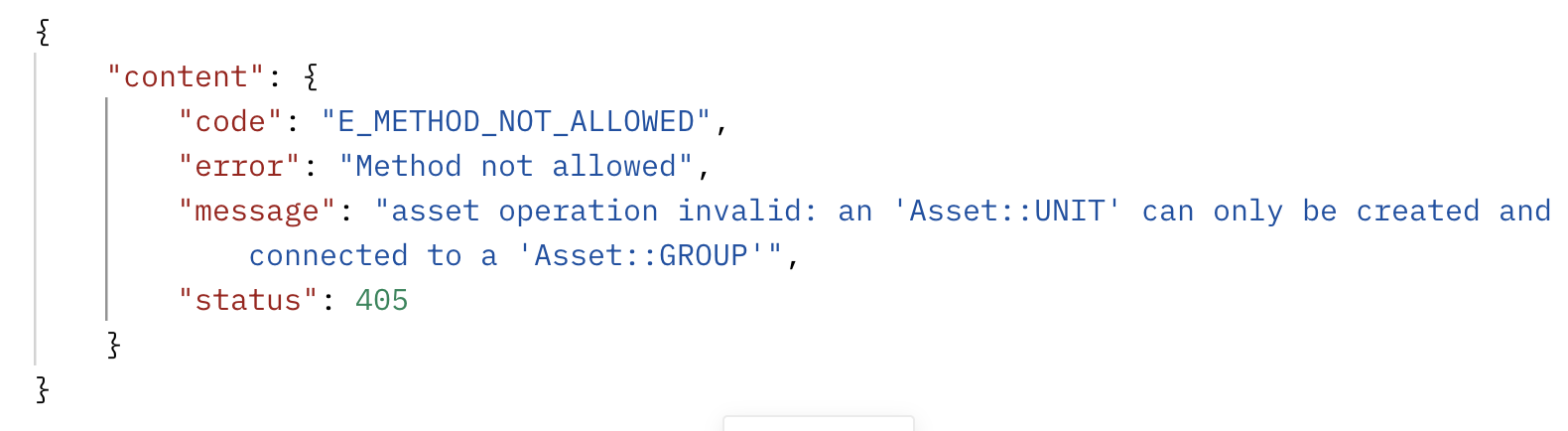
Important: In case the header is mistakenly set to another Asset UNIT ID instead of an Asset GROUP ID, the request will fail, and the response will clearly state that Assets UNIT can only be associated with Assets GROUP.
Was this page helpful?