Sie sehen die Dokumentation für API-Version 2026-06-01.
Dieser Leitfaden führt Sie durch den vollständigen Prozess der Integration der fiskaly SIGN IT API für die italienische Steuerkonformität, unter Verwendung einer Kombination aus fiskaly HUB und API-Anfragen. Am Ende werden Sie ein vollständig funktionierendes System haben, mit dem Records an die Agenzia delle Entrate (AdE) übermittelt werden.
Integrationsworkflow
Abschnitt betitelt „Integrationsworkflow“Das folgende Diagramm veranschaulicht den Workflow und hebt die wesentlichen Schritte hervor, die für eine erfolgreiche Integration erforderlich sind. Jede Kachel verweist direkt auf den entsprechenden Einrichtungsschritt unten.
Die gelb markierten Schritte müssen direkt im HUB abgeschlossen werden, während die übrigen Schritte über die SIGN IT API durchgeführt werden müssen. Die korrekte Durchführung jeder Aktion im richtigen Kontext ist ein wichtiger Schritt für eine erfolgreiche Integration.
Voraussetzungen
Abschnitt betitelt „Voraussetzungen“Sie benötigen ein Tool für HTTP-Anfragen — z. B. cURL (Befehlszeile), Postman oder Ihren eigenen Anwendungscode. Grundlegende Kenntnisse über REST-APIs und Authentifizierungsabläufe werden empfohlen.
Sie können auch unsere Postman-Sammlung für SIGN IT herunterladen, die vorgefertigte Anfragen für jeden Schritt in diesem Leitfaden enthält.
Werfen Sie vor dem Start einen Blick auf die Übersicht der Elemente, die Sie konfigurieren werden.
Schrittweise Einrichtung
Abschnitt betitelt „Schrittweise Einrichtung“Bei HUB registrieren
Registrieren Sie sich zunächst im fiskaly HUB.
Weitere Anleitungen für den Einstieg finden Sie in unserem Abschnitt HUB - Erste Schritte.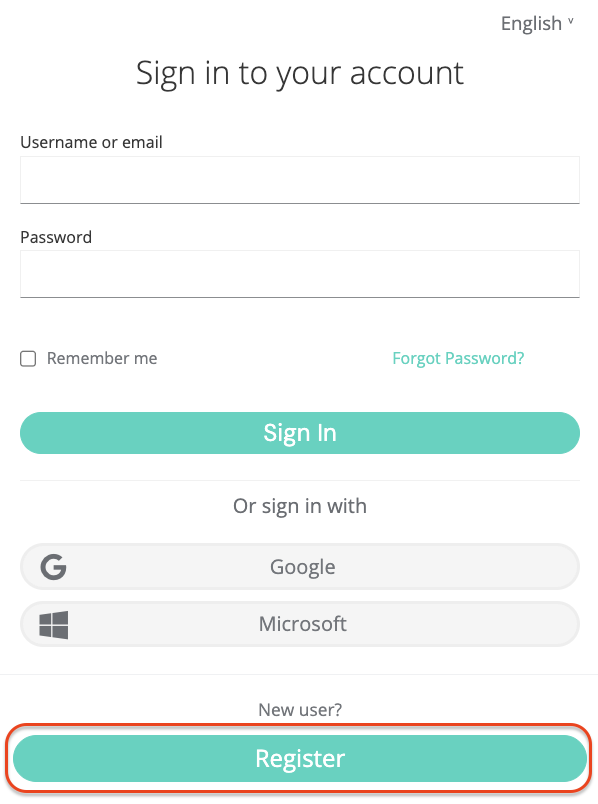
Account & Organization
GROUPerstellenDas Erstellen eines fiskaly Accounts ist der erste Schritt, danach können Sie mit der Einrichtung der ersten Organisationsstruktur für Ihr Unternehmen und der Generierung Ihres API Keys fortfahren.
Der Account repräsentiert den POS-Anbieter oder einen Einzelhändler, der sein eigenes POS-System betreibt. Er ist die übergeordnete Organisation in der Struktur.
Nach dem Erstellen Ihres fiskaly Accounts gelangen Sie zur Organisationsauswahl, wo Sie Ihre Group erstellen können. Eine Group ist eine Zwischenebene innerhalb eines Accounts, die Ihnen hilft, mehrere Units in logische Cluster zu organisieren.
API Key erstellen
Der nächste Schritt ist die Generierung eines API Keys für Ihre Organisation über den HUB innerhalb Ihrer Group.
Sie erhalten einen API Key und ein API Secret. Speichern Sie diese sicher — Sie benötigen sie zur Authentifizierung in der SIGN IT API und zur Erstellung Ihrer Organisation(en) vom Typ
UNIT(Schritt 5). Das API Secret wird nur einmal angezeigt. Stellen Sie sicher, dass Sie es sicher speichern, bevor Sie den Dialog schließen.💡TEST- vs. LIVE-UmgebungenAPI Keys, die in der TEST-Umgebung generiert werden (
https://test.api.fiskaly.com), erstellen TEST-Ressourcen, während jene aus der LIVE-Umgebung (https://live.api.fiskaly.com) LIVE-Ressourcen erstellen. Weitere Details finden Sie in unserem Artikel zu TEST- und LIVE-Umgebungen.
Token erstellen
Ab diesem Schritt verwenden Sie die SIGN IT API.
Rufen Sie den createToken-Endpoint mit dem API Key und Secret aus Schritt 3 auf, um ein
bearer-Token zu erhalten. Fügen Sie dieses Token in denAuthorization-Header der Schritte 5 und 6 ein.curl -X POST https://test.api.fiskaly.com/tokens \ -H "Content-Type: application/json" \ -H "X-Api-Version: 2026-06-01" \ -H "X-Idempotency-Key: $(uuidgen)" \\ -d '{ "content": { "type": "API_KEY", "key": "your_api_key", "secret": "your_api_secret" } }'const response = await fetch( "https://test.api.fiskaly.com/tokens", { method: "POST", headers: { "Content-Type": "application/json", "X-Api-Version": "2026-06-01", "X-Idempotency-Key": crypto.randomUUID(), }, body: JSON.stringify({ content: { type: "API_KEY", key: "your_api_key", secret: "your_api_secret", }, }), } ); const token = await response.json(); const accessToken = token.content.authentication.bearer;Beispielantwort (200 OK)
{"content": {"id": "6f1c5c9e-3d9c-4f8c-9f20-7de8f3a91b11","authentication": {"type": "JWT","bearer": "eyJhbGciOiJSUzI1NiIsInR5cCI6IkpXVCJ9...","expires_at": "2026-03-02T12:00:00Z"},"organization": {"id": "b7b6f971-5a3c-4e1e-9f58-2f2a8457bb2d"},"subject": {"id": "2d4a0c2a-c2c9-4e3b-a0e8-b8f7e70d6f33"}}}Organization
UNITerstellenErstellen Sie eine Organisation vom Typ
UNITüber den createOrganization-Endpoint. EineUNITrepräsentiert eine einzelne juristische Person (Händler). Sie müssen eine OrganisationUNITfür jede von Ihnen verwaltete Steuerpflichtigendarstellung erstellen.Die Verwendung des in Schritt 4 generierten
bearer-Tokens mit dem API Key und Secret, der für Ihre Group erstellt wurde, stellt sicher, dass dieUNITkorrekt unter dieser Group in der Hierarchie eingebettet ist.curl -X POST https://test.api.fiskaly.com/organizations \ -H "Content-Type: application/json" \ -H "X-Api-Version: 2026-06-01" \ -H "X-Idempotency-Key: $(uuidgen)" \ -H "Authorization: Bearer ${ACCESS_TOKEN}" \ -d '{ "content": { "type": "UNIT", "name": "My Retail Store" } }'const response = await fetch( "https://test.api.fiskaly.com/organizations", { method: "POST", headers: { "Content-Type": "application/json", "X-Api-Version": "2026-06-01", "X-Idempotency-Key": crypto.randomUUID(), "Authorization": `Bearer ${accessToken}`, }, body: JSON.stringify({ content: { type: "UNIT", name: "My Retail Store", }, }), } ); const organization = await response.json(); const organizationId = organization.content.id;Beispielantwort (201 Erstellt)
{"content": {"id": "9a746f13-0ef7-4a0f-a7df-8e52089c5f3a","state": "ENABLED","type": "UNIT","name": "My Retail Store","organization": {"id": "d4c7b3d1-71f6-45d6-a289-4adf5d54b9c1"}},"metadata": {"trace_identifier": "trace_abc123","api_version": "2026-06-01"}}Subject (API Key) erstellen
Erstellen Sie ein Subject vom Typ
API_KEYfür die OrganisationUNITüber den createSubject-Endpoint.Um den Subject (API Key) mit Ihrer
UNITzu verknüpfen, fügen Sie denX-Scope-Identifier-Header mit deridder OrganisationUNITin Ihre Anfrage ein.curl -X POST https://test.api.fiskaly.com/subjects \ -H "Content-Type: application/json" \ -H "X-Api-Version: 2026-06-01" \ -H "X-Idempotency-Key: $(uuidgen)" \ -H "Authorization: Bearer ${ACCESS_TOKEN}" \ -H "X-Scope-Identifier: ${ORGANIZATION_ID}" \ -d '{ "content": { "type": "API_KEY", "name": "my-api-key-03" } }'const response = await fetch( "https://test.api.fiskaly.com/subjects", { method: "POST", headers: { "Content-Type": "application/json", "X-Api-Version": "2026-06-01", "X-Idempotency-Key": crypto.randomUUID(), "Authorization": `Bearer ${accessToken}`, "X-Scope-Identifier": organizationId, }, body: JSON.stringify({ content: { type: "API_KEY", name: "my-api-key-03", }, }), } ); const subject = await response.json(); // Save the returned key and secret for the next stepBeispielantwort (201 Erstellt)
{"content": {"id": "2d4a0c2a-c2c9-4e3b-a0e8-b8f7e70d6f33","state": "ENABLED","type": "API_KEY","name": "my-api-key-03","credentials": {"key": "fsk_unit_abc123","secret": "secret_only_shown_once"}},"metadata": {"trace_identifier": "trace_abc123","api_version": "2026-06-01"}}Token erstellen
Erstellen Sie einen Token mit dem Subject API Key und Secret, den Sie gerade generiert haben. Dieser
bearer-Token wird für alle nachfolgenden Schritte verwendet, um Ressourcen innerhalb der entsprechenden OrganisationUNITzu erstellen.curl -X POST https://test.api.fiskaly.com/tokens \ -H "Content-Type: application/json" \ -H "X-Api-Version: 2026-06-01" \ -H "X-Idempotency-Key: $(uuidgen)" \\ -d '{ "content": { "type": "API_KEY", "key": "subject_api_key", "secret": "subject_api_secret" } }'const tokenResponse = await fetch( "https://test.api.fiskaly.com/tokens", { method: "POST", headers: { "Content-Type": "application/json", "X-Api-Version": "2026-06-01", "X-Idempotency-Key": crypto.randomUUID(), }, body: JSON.stringify({ content: { type: "API_KEY", key: "subject_api_key", secret: "subject_api_secret", }, }), } ); const token = await tokenResponse.json(); const unitToken = token.content.authentication.bearer;Beispielantwort (200 OK)
{"content": {"id": "3a5b4c61-2e8d-4a9d-9ac1-6df5a4e9138d","authentication": {"type": "JWT","bearer": "eyJhbGciOiJSUzI1NiIsInR5cCI6IkpXVCJ9...","expires_at": "2026-03-02T12:00:00Z"},"organization": {"id": "9a746f13-0ef7-4a0f-a7df-8e52089c5f3a"},"subject": {"id": "2d4a0c2a-c2c9-4e3b-a0e8-b8f7e70d6f33"}},"metadata": {"trace_identifier": "trace_abc123","api_version": "2026-06-01"}}Taxpayer erstellen
Jetzt sind Sie bereit, die operativen Teile zu erstellen, die für die Fiskalisierung in Italien erforderlich sind.
Verwenden Sie den createTaxpayer-Endpoint, um Steuerpflichtigendaten der zuvor erstellten Organisation
UNIThinzuzufügen:- Legen Sie den Taxpayer als Typ
COMPANY(juristische Person) oderINDIVIDUAL(natürliche Person) fest. In beiden Fällen müssennameundaddressangegeben werden. - Innerhalb der italienischen
fiscalization-Informationen müssen folgende Steuerpflichtigendaten angegeben werden:tax_id_number: Italienischer Steuercode (Codice fiscale) des Unternehmensvat_id_number: Italienische Umsatzsteuer-Identifikationsnummer (Partita IVA) des Unternehmenscredentials: PIN, Passwort und Steuer-ID-Nummer des Fisconline-Benutzers, die für den Zugang zu den AdE-Diensten erforderlich sind
curl -X POST https://test.api.fiskaly.com/taxpayers \
  -H "Content-Type: application/json" \
  -H "X-Api-Version: 2026-06-01" \
  -H "X-Idempotency-Key: $(uuidgen)" \
  -H "Authorization: Bearer ${UNIT_TOKEN}" \
  -d '{
    "content": {
      "type": "COMPANY",
      "name": {
        "legal": "La Pizzeria di Mario S.r.l.",
        "trade": "La Pizzeria di Mario"
      },
      "address": {
        "line": {
          "type": "STREET_NUMBER",
          "street": "Via Roma",
          "number": "123"
        },
        "code": "00100",
        "city": "Rome",
        "country": "IT"
      },
      "fiscalization": {
        "type": "IT",
        "tax_id_number": "12345678901",
        "vat_id_number": "12345678901",
        "credentials": {
          "type": "FISCONLINE",
          "pin": "1234567890",
          "password": "MySecurePassword123",
          "tax_id_number": "RSSMRA85M01H501Z"
        }
      }
    }
  }'
const response = await fetch( "https://test.api.fiskaly.com/taxpayers", { method: "POST", headers: { "Content-Type": "application/json", "X-Api-Version": "2026-06-01", "X-Idempotency-Key": crypto.randomUUID(), "Authorization": `Bearer ${unitToken}`, }, body: JSON.stringify({ content: { type: "COMPANY", name: { legal: "La Pizzeria di Mario S.r.l.", trade: "La Pizzeria di Mario", }, address: { line: { type: "STREET_NUMBER", street: "Via Roma", number: "123", }, code: "00100", city: "Rome", country: "IT", }, fiscalization: { type: "IT", tax_id_number: "12345678901", vat_id_number: "12345678901", credentials: { type: "FISCONLINE", pin: "1234567890", password: "MySecurePassword123", tax_id_number: "RSSMRA85M01H501Z", }, }, }, }), } ); const taxpayer = await response.json(); const taxpayerId = taxpayer.content.id;Beispielantwort (201 Erstellt)
{"content": {"address": {"city": "Rome","code": "00100","country": "IT","line": {"number": "123","street": "Via Roma","type": "STREET_NUMBER"}},"country": "Italy","created_at": "2026-03-05T14:58:05.729928Z","fiscalization": {"credentials": {"password": "ccf9ac1c","pin": "c775e7b7","tax_id_number": "RSSMRA85M01H501Z","type": "FISCONLINE"},"tax_id_number": "12345678901","type": "IT","vat_id_number": "12345678901"},"id": "019cbe81-8721-7e27-99d9-1bb4a267ba56","locations": [{"description": "Head office location.","type": "HEAD_OFFICE"},{"description": "Branch location.","type": "BRANCH"}],"mode": "INACTIVE","name": {"legal": "La Pizzeria di Mario S.r.l.","trade": "La Pizzeria di Mario"},"state": "ACQUIRED","type": "COMPANY","updated_at": "2026-03-05T14:58:05.729928Z","vat_number": "IT12345678901"}}Sobald ein Taxpayer erstellt wurde, wird sein
statestandardmäßig aufACQUIREDgesetzt. Um ihn vollständig funktionsfähig zu machen, aktualisieren Sie den Status aufCOMMISSIONEDmit dem updateTaxpayer-Endpoint:curl -X PATCH "https://test.api.fiskaly.com/taxpayers/${TAXPAYER_ID}" \ -H "Content-Type: application/json" \ -H "X-Api-Version: 2026-06-01" \ -H "Authorization: Bearer ${UNIT_TOKEN}" \ -d '{ "content": { "state": "COMMISSIONED" } }'await fetch( `https://test.api.fiskaly.com/taxpayers/${taxpayerId}`, { method: "PATCH", headers: { "Content-Type": "application/json", "X-Api-Version": "2026-06-01", "Authorization": `Bearer ${unitToken}`, }, body: JSON.stringify({ content: { state: "COMMISSIONED", }, }), } );Beispielantwort (200 OK)
{"content": {"address": {"city": "Rome","code": "00100","country": "IT","line": {"number": "123","street": "Via Roma","type": "STREET_NUMBER"}},"country": "Italy","created_at": "2026-03-05T14:58:05.729928Z","fiscalization": {"credentials": {"password": "ccf9ac1c","pin": "c775e7b7","tax_id_number": "RSSMRA85M01H501Z","type": "FISCONLINE"},"tax_id_number": "12345678901","type": "IT","vat_id_number": "12345678901"},"id": "019cbe81-8721-7e27-99d9-1bb4a267ba56","locations": [{"description": "Head office location.","type": "HEAD_OFFICE"},{"description": "Branch location.","type": "BRANCH"}],"mode": "OPERATIVE","name": {"legal": "La Pizzeria di Mario S.r.l.","trade": "La Pizzeria di Mario"},"state": "COMMISSIONED","type": "COMPANY","updated_at": "2026-03-05T15:02:41.223565Z","vat_number": "IT12345678901"}}📘NoteNur Fisconline-Zugangsdaten sind für die Nutzung von SIGN IT lite gültig. Der Steuerpflichtige muss sich manuell einmalig im Webportal der Steuerbehörde anmelden, um sicherzustellen, dass die Zugangsdaten korrekt funktionieren und um den Bedingungen, Konditionen und zusätzlichen Klauseln zuzustimmen.
⚠️Erneuerung der Zugangsdaten erforderlichFisconline-Zugangsdaten laufen alle 90 Tage im AdE-Portal ab, wir empfehlen jedoch als Best Practice eine Erneuerung alle 60 Tage. Erfahren Sie wie in diesem Artikel: SIGN IT - How to update the FISCONLINE credentials
Weitere Informationen finden Sie in unserem Abschnitt Zugangsdaten.
Eine detaillierte Händlerleitfaden zur Beantragung von Fisconline-Zugangsdaten erhalten Sie bei unserem Vertriebsteam.
- Legen Sie den Taxpayer als Typ
Location erstellen
Für jeden operativen Geschäftsstandort müssen Sie eine Location vom Typ
BRANCHüber den createLocation-Endpoint erstellen.curl -X POST https://test.api.fiskaly.com/locations \ -H "Content-Type: application/json" \ -H "X-Api-Version: 2026-06-01" \ -H "X-Idempotency-Key: $(uuidgen)" \ -H "Authorization: Bearer ${UNIT_TOKEN}" \ -d '{ "content": { "type": "BRANCH", "taxpayer": { "id": "your_taxpayer_id" }, "name": "Roma Centro Branch", "address": { "line": { "type": "STREET_NUMBER", "street": "Via Roma", "number": "1" }, "code": "00100", "city": "Roma", "country": "IT" } }, "metadata": { "store_code": "STORE001" } }'const response = await fetch( "https://test.api.fiskaly.com/locations", { method: "POST", headers: { "Content-Type": "application/json", "X-Api-Version": "2026-06-01", "X-Idempotency-Key": crypto.randomUUID(), "Authorization": `Bearer ${unitToken}`, }, body: JSON.stringify({ content: { type: "BRANCH", taxpayer: { id: taxpayerId, }, name: "Roma Centro Branch", address: { line: { type: "STREET_NUMBER", street: "Via Roma", number: "1", }, code: "00100", city: "Roma", country: "IT", }, }, }), } ); const location = await response.json(); const locationId = location.content.id;Beispielantwort (201 Erstellt)
{"content": {"address": {"city": "Roma","code": "00100","country": "IT","line": {"number": "1","street": "Via Roma","type": "STREET_NUMBER"}},"created_at": "2026-03-05T15:07:09.776328Z","id": "019cbe89-d450-7501-9928-1e7d94339208","mode": "INACTIVE","name": "Roma Centro Branch","state": "ACQUIRED","systems": [{"description": "Fiscal device (SIGN IT lite).","type": "FISCAL_DEVICE"}],"taxpayer": {"id": "019cbe81-8721-7e27-99d9-1bb4a267ba56"},"type": "BRANCH","updated_at": "2026-03-05T15:07:09.776328Z"},"metadata": {"store_code": "STORE001"}}Sobald eine Location erstellt wurde, wird ihr
statestandardmäßig aufACQUIREDgesetzt. Aktualisieren Sie den Status aufCOMMISSIONEDmit dem updateLocation-Endpoint, bevor Sie fortfahren.📘NoteWenn der Steuerpflichtige von einem einzigen Geschäftsstandort aus operiert, der mit der rechtlichen Adresse übereinstimmt, ist das Erstellen einer
Location::BRANCHnicht zwingend erforderlich. EineLocation::HEAD_OFFICEwird automatisch bei der Taxpayer-Erstellung angelegt und teilt sich die UUID mit dem Taxpayer. Wenn der Taxpayer aufCOMMISSIONEDgesetzt wird, wird dieLocation::HEAD_OFFICEautomatisch ebenfalls aufCOMMISSIONEDgesetzt.System (
FISCAL_DEVICE) erstellenDer createSystem-Endpoint ermöglicht Ihnen die Erstellung einer Abstraktion jedes elektronischen Aufzeichnungssystems (ERS), das für steuerliche Vorgänge verwendet wird. Jede Kasse oder jedes Point-of-Sale-System muss als neues System vom Typ
FISCAL_DEVICEbereitgestellt werden.- Ein System wird mit einer bestimmten, zuvor erstellten Location verknüpft.
- Für jedes System müssen Sie
producer- undsoftware-Informationen angeben, um nachzuverfolgen, welches Gerät steuerliche Transaktionen durchführt. Weitere Informationen finden Sie in diesem FAQ-Artikel.
curl -X POST https://test.api.fiskaly.com/systems \
  -H "Content-Type: application/json" \
  -H "X-Api-Version: 2026-06-01" \
  -H "X-Idempotency-Key: $(uuidgen)" \
  -H "Authorization: Bearer ${UNIT_TOKEN}" \
  -d '{
    "content": {
      "type": "FISCAL_DEVICE",
      "location": {
        "id": "your_location_id"
      },
      "producer": {
        "type": "MPN",
        "number": "FD-001",
        "details": {
          "name": "My Fiscal Device"
        }
      },
      "software": {
        "name": "My POS Software",
        "version": "1.0.0"
      }
    }
  }'
const response = await fetch( "https://test.api.fiskaly.com/systems", { method: "POST", headers: { "Content-Type": "application/json", "X-Api-Version": "2026-06-01", "X-Idempotency-Key": crypto.randomUUID(), "Authorization": `Bearer ${unitToken}`, }, body: JSON.stringify({ content: { type: "FISCAL_DEVICE", location: { id: locationId, }, producer: { type: "MPN", number: "FD-001", details: { name: "My Fiscal Device", }, }, software: { name: "My POS Software", version: "1.0.0", }, }, }), } ); const system = await response.json(); const systemId = system.content.id;Beispielantwort (201 Erstellt)
{"content": {"compliance": {"software": {"name": "My POS Software","version": "1.0.0"}},"created_at": "2026-03-05T13:57:00.016909Z","id": "019cbe49-97f0-7dde-adae-e10fea9d64c9","journal": {"cryptography": {"certificate": {"expires_at": "2029-03-05T13:57:00Z","serial_number": "7E7D991D5D1768AF224A754A3E815537","x509_pem": "-----BEGIN CERTIFICATE-----\nMIIC8jCCAdqgAwIBAgIQfn2ZHV0XaK8iSnVKPoFVNzANBgkqhkiG9w0BAQsFADAT\nMREwDwYDVQQKEwhmaXNrYWx5LjAeFw0yNjAzMDUxMzU3MDBaFw0yOTAzMDUxMzU3\nMDBaMBMxETAPBgNVBAoTCGZpc2thbHkuMIIBIjANBgkqhkiG9w0BAQEFAAOCAQ8A\nMIIBCgKCAQEAzE++CjP6UrE9d4ftaRU50yWWycU1/ql5iLgpFjjBZdXAuay82ely\n11sMfjlL3RJaIkIF8w9VcrnaCnSJLzSihEPcohFF8B9iX+/GLHA9FNHMpRrNBaC/\nMmXv7iuPkOFZDTxueWtkti0BqEE+H3RoCsOkPxzMMQ0UYCtZx9V5i/bXO+Akb8HC\nuq80+73m/DP1WFQgD6d/vwfqr+eM4jZTUiRPyy9W6yBOj02SbFL6Oeop2yDNo7Ws\nhZLoquNgVe9lEHZV2N62AVe1OEXdDzn2BlNvCnlwb9RJCGTVCMQbOsN84EMhpwOG\nsRNHgezSeGhO7aca+/igmiuSW7Uw3YdWWwIDAQABo0IwQDAOBgNVHQ8BAf8EBAMC\nAoQwDwYDVR0TAQH/BAUwAwEB/zAdBgNVHQ4EFgQUn+BqmtpyTeC4wdZNEMYf96hV\ny78wDQYJKoZIhvcNAQELBQADggEBACXaL/EXGW4PnjC+Dj5ZUySE5vtysPUV0Tkw\n4+EtLJUs86itNZgyhQpXfwzvpgj/wL7XA+GAnPqpUbrMOXLawsWGtID8BZHrQRRJ\ny/ZcHRQyIwoHNNl5bbDDNC/icG78GhK+RmdCw3wcVyxABBzpE/CckNn4hltsCqUo\n01eqms+SmY+MBUBj3ec1iVcD0bz/pyMmIQSVfWjKWtHofwUTCkgEm9cKqtyfajzB\ne6bKoScTziojhlCtnEfPb20vtQ+UE183FOG36WfuRV8EtS+3Cgx83yEj8QXVuYcA\nKQAgoPy6/6xHMDkZH3P/XTOfBf8UkZvQy5egibgC6k2wqjxYWtY=\n-----END CERTIFICATE-----\n"},"signature": {"hash": "SHA-256","type": "RSA"}}},"kind": "INTERNAL","location": {"id": "019cbe89-d450-7501-9928-1e7d94339208"},"mode": "INACTIVE","producer": {"details": {"name": "My Fiscal Device"},"number": "FD-001","type": "MPN"},"records": [{"description": "Intention of an upcoming transaction.","type": "INTENTION::TRANSACTION"},{"description": "Receipt transaction information.","type": "TRANSACTION::RECEIPT"},{"description": "Correction of an issued transaction.","type": "TRANSACTION::CORRECTION"},{"description": "Cancellation of an issued transaction.","type": "TRANSACTION::CANCELLATION"}],"software": {"name": "SIGN IT Lite","version": "v1.0.0"},"state": "ACQUIRED","type": "FISCAL_DEVICE","updated_at": "2026-03-05T13:57:00.016909Z","vat_exemptions": [{"code": "NOT_SUBJECT","description": "Not subject (Non soggette)"},{"code": "NOT_TAXABLE","description": "Not taxable (Non imponibili)"},{"code": "CAUSE_1","description": "Exempt (Esenti)"},{"code": "CAUSE_2","description": "Exclusive Art. 15"},{"code": "CAUSE_3","description": "Marginal scheme (Regime del margine)"},{"code": "CAUSE_4","description": "Other (Altre non IVA)"}],"vat_rates": [{"code": "STANDARD","description": "Standard VAT rate","historic": false,"percentage": "22"},{"code": "REDUCED_1","description": "Reduced VAT rate 1","historic": false,"percentage": "10"},{"code": "REDUCED_2","description": "Reduced VAT rate 2","historic": false,"percentage": "5"},{"code": "REDUCED_3","description": "Super-reduced VAT rate","historic": false,"percentage": "4"}]}}Sobald ein System erstellt wurde, wird sein
statestandardmäßig aufACQUIREDgesetzt. Um Records zu erstellen, muss sein Status mit dem updateSystem-Endpoint aufCOMMISSIONEDaktualisiert werden.📘AbrechnungshinweisFür die meisten Verträge sind Systeme die Abrechnungseinheiten bei fiskaly. Ein
Systemwird abrechnungsrelevant, sobald sich sein Status in der LIVE-Umgebung vonACQUIREDzuCOMMISSIONEDändert. Ressourcen in der TEST-Umgebung werden nicht abgerechnet. Die genauen Abrechnungsbedingungen entnehmen Sie bitte Ihrem Vertrag mit fiskaly.Record erstellen
Für jeden im System durchgeführten Geschäftsvorgang muss der createRecord-Endpoint in zwei aufeinanderfolgenden Aufrufen verwendet werden:
- Teil A)
INTENTION: erfasst die Absicht, eineTRANSACTIONzu starten - Teil B)
TRANSACTION: liefert die Transaktionsdaten
Teil A) Intention erstellen
Ein Record vom Typ
INTENTIONenthält die Verknüpfung mit dem System, das die Transaktion durchführt, sowie eine Operation vom TypTRANSACTION, die die Absicht des Systems darstellt, eine Transaktion zu erfassen.curl -X POST https://test.api.fiskaly.com/records \ -H "Content-Type: application/json" \ -H "X-Api-Version: 2026-06-01" \ -H "X-Idempotency-Key: $(uuidgen)" \ -H "Authorization: Bearer ${UNIT_TOKEN}" \ -d '{ "content": { "type": "INTENTION", "system": { "id": "your_system_id" }, "operation": { "type": "TRANSACTION" } } }'const intentionResponse = await fetch( "https://test.api.fiskaly.com/records", { method: "POST", headers: { "Content-Type": "application/json", "X-Api-Version": "2026-06-01", "X-Idempotency-Key": crypto.randomUUID(), "Authorization": `Bearer ${unitToken}`, }, body: JSON.stringify({ content: { type: "INTENTION", system: { id: systemId, }, operation: { type: "TRANSACTION", }, }, }), } ); const intention = await intentionResponse.json(); const intentionId = intention.content.id;Beispielantwort (201 Erstellt)
{"content": {"file": {"location": "SERVICE"},"id": "019cbe96-8e57-7693-a4ef-4ed89a76ef9b","journal": {"signature": "yrrXNoHGF0YYPVgUWH81tXQYCf6H3BCjTed6YUT2ZvmmRaq8qoZAUOaP8wJI4ipN","signed_at": "2026-03-05T15:21:03.84326335Z"},"mode": "PROCESSING","operation": "{\"type\":\"TRANSACTION\"}","state": "ACCEPTED","system": {"id": "019cbe96-7245-7b49-91d6-ba66a235fc72"},"type": "INTENTION::TRANSACTION"}}Teil B) Transaktion erstellen
Ein Record vom Typ
TRANSACTIONwird mit der zuvor erstelltenINTENTIONverknüpft und kann eine der folgenden Operationen durchführen:RECEIPT: Repräsentiert den Verkauf einer Ware oder Dienstleistung, einschließlich Dokumentdetails (z. B. Dokumentnummer, Gesamtbeträge mit und ohne MwSt.) und Einzelposten (Identifikation einesSALE, Beschreibung, ob es sich um einGOODoderSERVICEhandelt, usw.).CORRECTION: Repräsentiert einen Rückgabeprozess. Enthält dieselben Daten wie eineRECEIPT-Operation, plus eine Referenz-idauf das ursprünglicheRECEIPT-Dokument.CANCELLATION: Wird verwendet, um eine gesamte Transaktion zu stornieren. Erfordert dieideines zuvor erstellten Records.
curl -X POST https://test.api.fiskaly.com/records \
  -H "Content-Type: application/json" \
  -H "X-Api-Version: 2026-06-01" \
  -H "X-Idempotency-Key: $(uuidgen)" \
  -H "Authorization: Bearer ${UNIT_TOKEN}" \
  -d '{
    "content": {
      "type": "TRANSACTION",
      "record": {
        "id": "your_intention_id"
      },
      "operation": {
        "type": "RECEIPT",
        "document": {
          "number": "0001"
        },
        "breakdown": [
          {
            "type": "VAT_RATE",
            "code": "STANDARD",
            "percentage": "22.00",
            "exclusive": "20.00",
            "inclusive": "24.40",
            "amount": "4.40"
          },
          {
            "type": "VAT_RATE",
            "code": "REDUCED_1",
            "percentage": "10.00",
            "exclusive": "0.54545455",
            "inclusive": "0.60",
            "amount": "0.05454545"
          }
        ],
        "totals": {
          "vat": {
            "amount": "4.45454545",
            "exclusive": "20.54545455",
            "inclusive": "25.00"
          }
        },
        "entries": [
          {
            "type": "SALE",
            "details": {
              "concept": "GOOD"
            },
            "data": {
              "type": "ITEM",
              "text": "Margherita pizza",
              "unit": {
                "quantity": "2.00",
                "price": {
                  "inclusive": "12.20",
                  "exclusive": "10.00"
                }
              },
              "value": {
                "base": "20.00",
                "discount": "0.00"
              },
              "vat": {
                "type": "VAT_RATE",
                "code": "STANDARD",
                "percentage": "22.00",
                "exclusive": "20.00",
                "inclusive": "24.40",
                "amount": "4.40"
              }
            }
          },
          {
            "type": "SALE",
            "details": {
              "concept": "SERVICE"
            },
            "data": {
              "type": "ITEM",
              "text": "Service ABC",
              "unit": {
                "quantity": "1.00",
                "price": {
                  "inclusive": "0.60",
                  "exclusive": "0.54545455"
                }
              },
              "value": {
                "base": "0.54545455",
                "discount": "0.00"
              },
              "vat": {
                "type": "VAT_RATE",
                "code": "REDUCED_1",
                "percentage": "10.00",
                "exclusive": "0.54545455",
                "inclusive": "0.60",
                "amount": "0.05454545"
              }
            }
          }
        ],
        "payments": [
          {
            "type": "CASH",
            "details": {
              "amount": "25.00"
            }
          }
        ]
      }
    }
  }'
const transactionResponse = await fetch( "https://test.api.fiskaly.com/records", { method: "POST", headers: { "Content-Type": "application/json", "X-Api-Version": "2026-06-01", "X-Idempotency-Key": crypto.randomUUID(), "Authorization": `Bearer ${unitToken}`, }, body: JSON.stringify({ content: { type: "TRANSACTION", record: { id: intentionId, }, operation: { type: "RECEIPT", document: { number: "0001", }, breakdown: [ { type: "VAT_RATE", code: "STANDARD", percentage: "22.00", exclusive: "20.00", inclusive: "24.40", amount: "4.40", }, { type: "VAT_RATE", code: "REDUCED_1", percentage: "10.00", exclusive: "0.54545455", inclusive: "0.60", amount: "0.05454545", }, ], totals: { vat: { amount: "4.45454545", exclusive: "20.54545455", inclusive: "25.00", }, }, entries: [ { type: "SALE", details: { concept: "GOOD", }, data: { type: "ITEM", text: "Margherita pizza", unit: { quantity: "2.00", price: { inclusive: "12.20", exclusive: "10.00", }, }, value: { base: "20.00", discount: "0.00", }, vat: { type: "VAT_RATE", code: "STANDARD", percentage: "22.00", exclusive: "20.00", inclusive: "24.40", amount: "4.40", }, }, }, { type: "SALE", details: { concept: "SERVICE", }, data: { type: "ITEM", text: "Service ABC", unit: { quantity: "1.00", price: { inclusive: "0.60", exclusive: "0.54545455", }, }, value: { base: "0.54545455", discount: "0.00", }, vat: { type: "VAT_RATE", code: "REDUCED_1", percentage: "10.00", exclusive: "0.54545455", inclusive: "0.60", amount: "0.05454545", }, }, }, ], payments: [ { type: "CASH", details: { amount: "25.00", }, }, ], }, }, }), } ); const transaction = await transactionResponse.json();Beispielantwort (201 Erstellt)
{"content": {"compliance": {"data": "DCW0000/0000-0000","url": "https://ivaservizi.agenziaentrate.gov.it/ser/api/documenti/v1/doc/documenti/00000000/stampa/"},"file": {"location": "SERVICE"},"id": "019cbea1-4775-7b70-9b83-79cac7107266","journal": {"record": {"id": "019cbe96-8e57-7693-a4ef-4ed89a76ef9b"},"signature": "vGQtUR29rogalpYCVIJPnu-3gPLScA5wEEyxrllfviUGvoK2lkLj5bw3OimfvzuP","signed_at": "2026-03-05T15:32:46.594042649Z"},"mode": "FINISHED","operation": "{\"document\":{\"number\":\"1\",\"total_vat\":{\"amount\":\"2.20\",\"exclusive\":\"10.00\",\"inclusive\":\"12.20\"}},\"entries\":[{\"data\":{\"text\":\"Margherita Pizza\",\"type\":\"ITEM\",\"unit\":{\"price\":\"12.20\",\"quantity\":\"1\"},\"value\":{\"base\":\"10.00\",\"discount\":\"0.00\"},\"vat\":{\"amount\":\"2.20\",\"code\":\"STANDARD\",\"exclusive\":\"10.00\",\"inclusive\":\"12.20\",\"percentage\":\"22.00\",\"type\":\"VAT_RATE\"}},\"details\":{\"concept\":\"GOOD\",\"purpose\":\"STANDARD\"},\"type\":\"SALE\"}],\"payments\":[{\"details\":{\"amount\":\"12.20\"},\"type\":\"CASH\"}],\"type\":\"RECEIPT\"}","record": {"id": "019cbe96-8e57-7693-a4ef-4ed89a76ef9b"},"state": "COMPLETED","system": {"id": "019cbe49-97f0-7dde-adae-e10fea9d64c9"},"transmission": {"request": {"data": "e30A","type": "application/json"},"response": {"data": "e30A","type": "application/json"}},"type": "TRANSACTION::RECEIPT"}}Sobald die Transaktion korrekt erfasst und die Handelsdokumentdaten erfolgreich an das Webportal der AdE übermittelt wurden (Status
COMPLETED, ModusFINISHED), enthält die in der API-Antwort zurückgegebenecompliance.datadie von der AdE dem Handelsdokument zugewiesene Progressive Number (DCW-Nummer) und, falls angegeben, den Lotteriecode des Käufers.Hinweis: Sollte stattdessen der Status
REJECTEDoderFAILEDzurückgegeben werden, lesen Sie bitte unseren Abschnitt Record-Zustände und -Modi für weitere Anleitungen.📘NoteIn der LIVE-Umgebung erstellte Records werden an die Steuerbehörden übermittelt und erzeugen gültige Handelsdokumente. Daher müssen diese Dokumente stets tatsächliche Transaktionen widerspiegeln.
- Teil A)
Nächste Schritte
Abschnitt betitelt „Nächste Schritte“SIGN IT API-Referenz
Vollständige API-Dokumentation für den SIGN IT-Endpoint — alle Ressourcen, Parameter und Antworten.
Behandlung von Verbindungsverlusten
Erfahren Sie, wie Sie Szenarien mit Verbindungsverlust behandeln und die Steuerkonformität bei Ausfällen sicherstellen.
Glossar
Schlüsselbegriffe und Definitionen für das italienische Steuerkonformitätssystem.
HUB-Leitfaden
Erfahren Sie, wie Sie Organisationen, API Keys und Ressourcen über fiskaly HUB verwalten.