Encuentre respuestas a 39 preguntas frecuentes sobre SIGN IT, organizadas por tema.
Taxpayers & Locations (4)
Can I update the Taxpayer data?
address** and **fiscalization
A Taxpayer’s address and fiscalization (incl. credentials) can be updated as long as the resource is in the ACQUIRED state, or in the COMMISSIONED state with mode SUSPENDED.
-
If your Taxpayer is in
ACQUIREDstate, simply callupdateTaxpayerwith the updated data. -
If your Taxpayer is in state
COMMISSIONED, first suspend the resource (mode: "SUSPENDED"), make the update, then re-activate it (mode: "OPERATIVE").
For details on updating credentials specifically, see this article: SIGN IT - How to update the FISCONLINE credentials
type** and **name
Unlike other fields, a Taxpayer’s type and name can only be modified while the resource is in the ACQUIRED state. Once the state changes to COMMISSIONED, these fields can no longer be updated.
In that case, you can proceed as follows:
-
Create a new Taxpayer under the same Organization
UNIT. The resource will be in theACQUIREDstate by default. -
If you have existing Locations assigned to the old Taxpayer:
If they’re in state COMMISSIONED, update them to mode SUSPENDED via updateLocation
-
If they’re in state
ACQUIRED, skip directly to step 3 -
Assign the existing Locations (if any) to the new Taxpayer ID via
updateLocation.
{ "content": { "taxpayer": { "id": "{{taxpayerId}}" } }}-
Update the old Taxpayer from state
COMMISSIONEDtoDECOMMISSIONEDviaupdateTaxpayer. -
Update the new Taxpayer from state
ACQUIREDtoCOMMISSIONEDviaupdateTaxpayer. -
Update the existing Locations (if any) to mode
OPERATIVE:
If they were suspended in step 2, set them back to mode OPERATIVE via updateLocation
- If they’re still in state
ACQUIRED, simply update them to stateCOMMISSIONEDwhenever you’re ready.
Note: If you have any Systems in state COMMISSIONED, they’ll remain unusable until their associated Location(s) and/or Taxpayer are in state COMMISSIONED / mode OPERATIVE. There’s no action to take on the System itself as it already points to the correct Location ID — just wait for the steps above to be completed correctly.
Metadata
Sección titulada «Metadata»A Taxpayer’s metadata remains fully updatable, regardless of the resource’s state and mode.
What is DEGRADED mode and how to recover
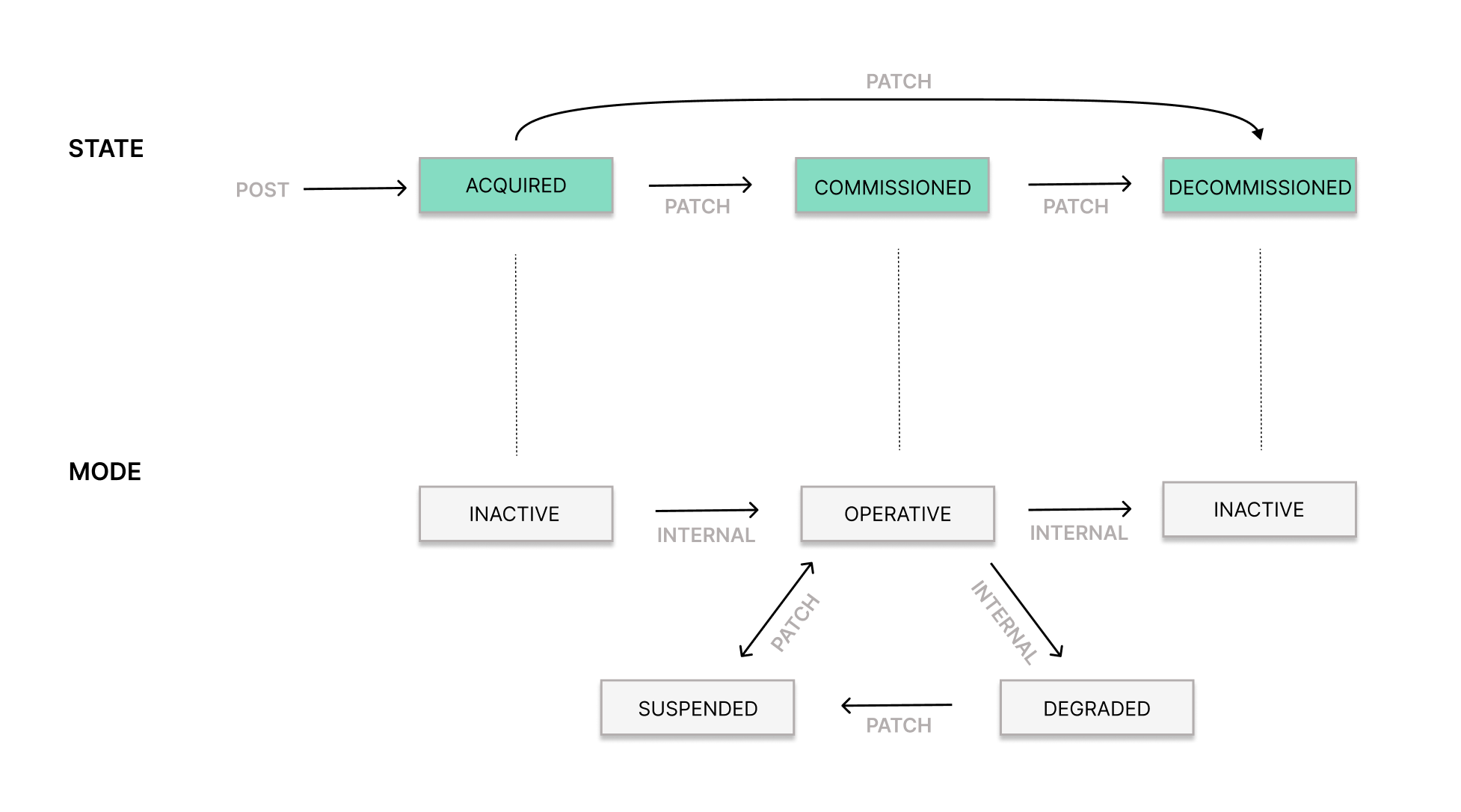
What is DEGRADED mode
Sección titulada «What is DEGRADED mode»When a record submission fails due to a **persistent Fisconline credential error **in the LIVE environment, the Taxpayer’s mode automatically switches from OPERATIVE to DEGRADED.
All further record submissions are immediately blocked until the Fisconline credentials are fixed and the Taxpayer is manually restored to OPERATIVE.
Note: For now, this change only affects SIGN IT version 2026-06-01, effective June 19.
It will be rolled out to all previous API versions over the next 3 months. To help you prepare, starting June 19 you can simulate the expired credentials scenario in the TEST environment across all API versions — including those prior to 2026-06-01. Learn how at the end of this article.
What triggers itThe first record submission in the LIVE environment that fails with one of the following** 3** authentication errors:
| **Error ** | Cause |
Authentication error: Fisconline credentials expired | Password has exceeded the 90-day lifecycle |
Authentication error: Invalid credentials | Wrong username, PIN, or password |
Authentication error: authentication failed due to multiple failed intents with wrong credentials - please reset and update them | Account locked after repeated failed login attempts |
| When triggered: |
-
The triggering record returns
FAILED, with the specific authentication error indicating the root cause captured in the record’slogs. -
The Taxpayer mode automatically switches from
OPERATIVEtoDEGRADED -
All subsequent record submissions immediately return a
405 Method not allowederror —"record operation invalid: cannot create new record of '<TYPE>::<OPERATION>', legal entity is not in mode 'OPERATIVE'".
How to recoverThe recovery flow is as follows:
-
PATCHthe Taxpayer toSUSPENDEDmode -
Update or reset credentials in the AdE portal, according to the scenario
-
PATCHthe Taxpayer to provide valid credentials -
PATCHthe Taxpayer back toOPERATIVEmode
To simulate the expired credentials scenario in the TEST environment, send the record with the header: X-Taxpayer-Credentials-Expired: true
This header causes the record to act as the triggering record, forcing the credential-expiration path so you can observe the full DEGRADED mode behavior described above and test your integration’s response before it goes live on your version.
Learn more about the key changes in SIGN IT 2026-06-01.
What fiscalization data should be provided when creating a Taxpayer
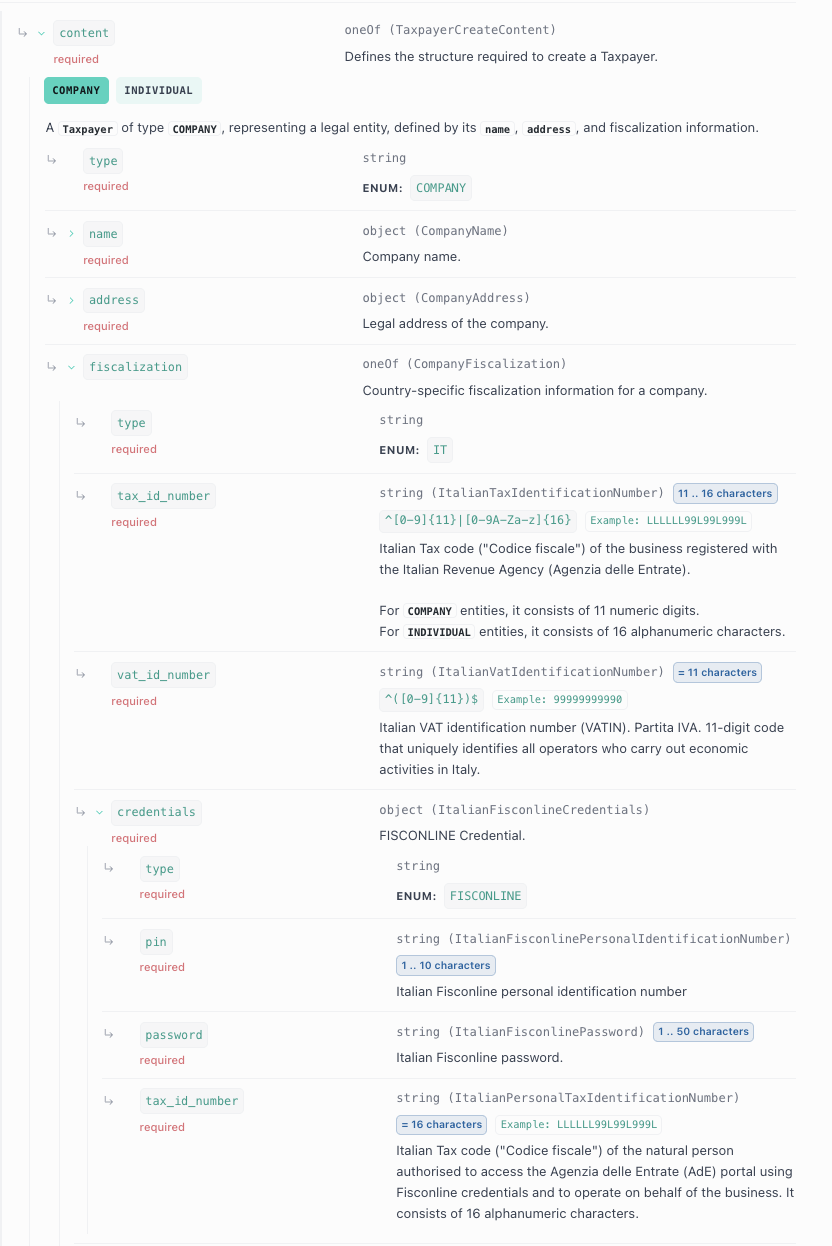
A Taxpayer (formerly “Entity COMPANY / INDIVIDUAL”) provides a particular Organization UNIT (formerly “Asset UNIT”) with the relevant taxpayer data, and consists of two main parts:
-
Taxpayer information (
type: COMPANY / INDIVIDUAL,nameandaddress), and -
Country-specific fiscalization details (
fiscalization). For Italy, these include: -
The business tax id number (Codice Fiscale) and vat id number (Partita IVA), and
-
The Fisconline credentials (personal tax id, pin and password) of the authorized user — i.e., the individual who is entitled to operate on behalf of the business and holds Fisconline credentials.
How to update the FISCONLINE credentials
Fisconline credentials on the AdE portal expire every 90 days. The 90-day validity of the Fisconline password starts from when it was last updated on the AdE portal, which doesn’t necessarily match the moment it was communicated to fiskaly via API.
To ensure uninterrupted service, the Fisconline user authorised to act on behalf of the business must update the password on the AdE portal by following the steps below (we recommend doing this every 60 days):
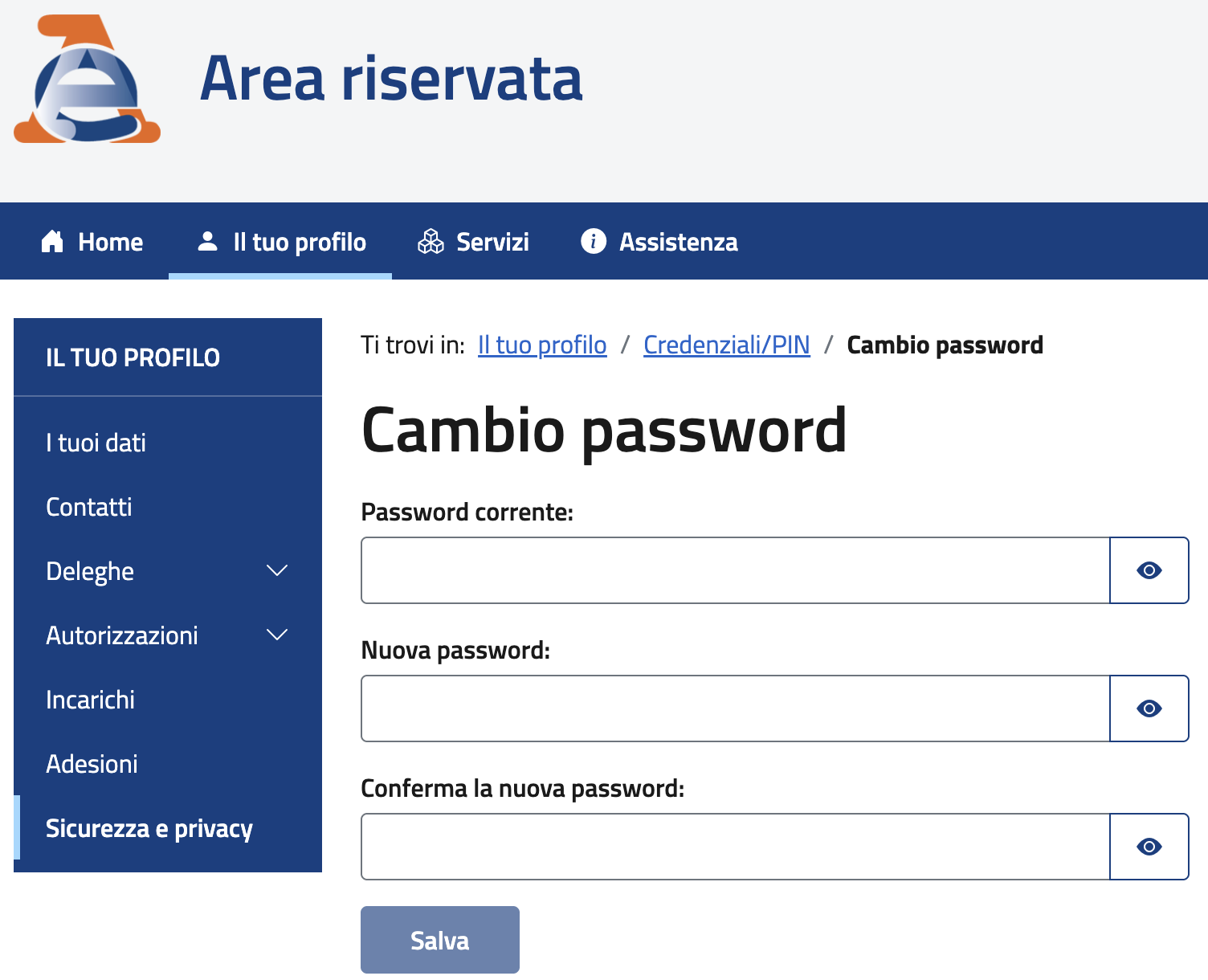
-
Access the AdE’s Area Riservata with Fisconline credentials and navigate to: Il tuo profilo / Sicurezza e Privacy / Cambio password.
-
Enter the current password, a new secure password and confirm submission of the form.
Note: If you don’t remember your current password, you will need to reset it on the AdE portal. Once the password has been successfully updated on the AdE portal, send the updated credentials via the API by following the steps below:
-
Set the
modeof the Taxpayer from toSUSPENDEDusing the updateTaxpayer (formerly, updateEntity) endpoint. -
Use the updateTaxpayer (formerly, updateEntity) endpoint to update the credentials. Send the full
fiscalizationblock in the request body, repeating the existing data and changing only thepassword. -
Finally, set the
modeof the Taxpayer back toOPERATIVEusing the updateTaxpayer (formerly, updateEntity) endpoint.
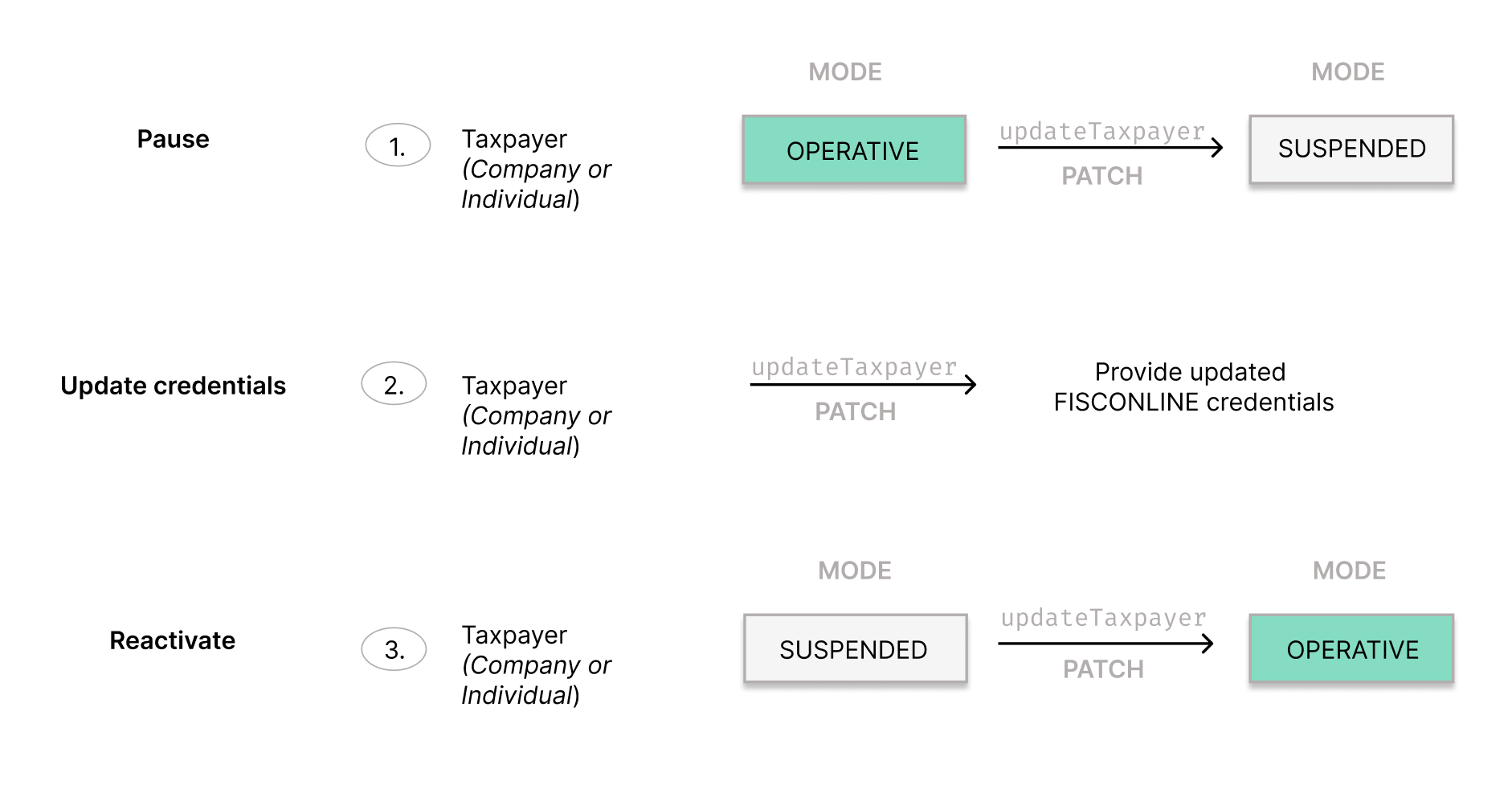
**Important update: **This recovery flow also applies when the starting mode is DEGRADED and not OPERATIVE. DEGRADED mode is triggered automatically when a record submission fails due to expired, invalid, or locked credentials, and is being introduced in version 2026-06-01 on June 19, rolling out to all legacy versions over the next 3 months. Learn more: What is DEGRADED mode and how to recover
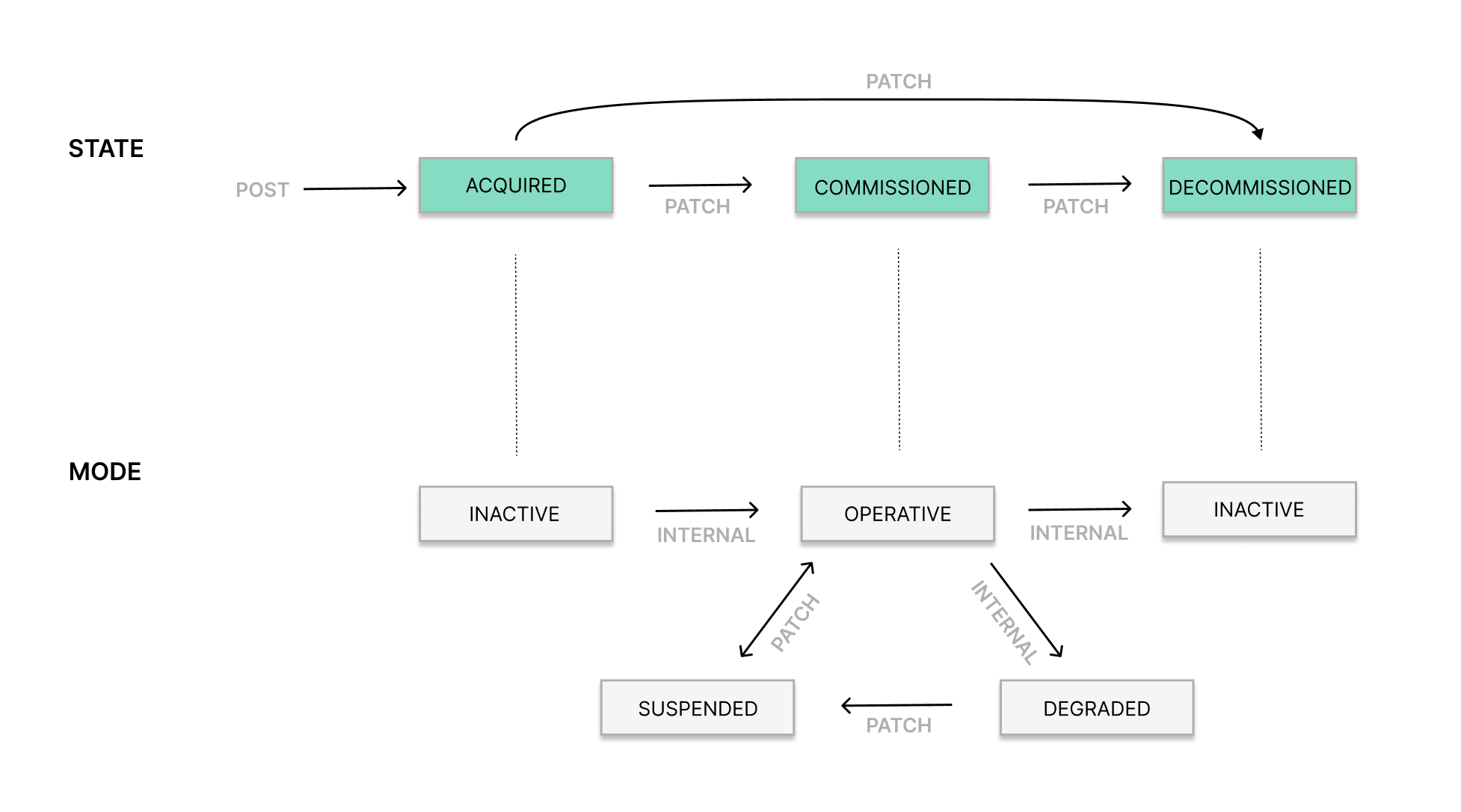
COMMISSIONED state — as shown in the diagram, the corresponding Taxpayer mode (either OPERATIVE or DEGRADED) must be set to SUSPENDED before updating any information.
If the Taxpayer is still in ACQUIRED state, it has not been activated yet, so you can update its information directly via the updateTaxpayer endpoint without changing its mode.
General (14)
Key changes in SIGN IT 2026-06-01
Below is an overview of the key changes introduced in SIGN IT 2026-06-01.
-
New required X-Api-Version Header The latest version is 2026-06-01.
-
Introduced
DEGRADED**mode for Taxpayers **(from June 19) When a persistent Fisconline credential error is detected at record submission, the Taxpayer automatically transitions fromOPERATIVEtoDEGRADEDand further submissions are blocked until the issue is resolved. Learn more: What is DEGRADED mode and how to recover -
**Structure change for
RECEIPTandCORRECTION** -
New required
totals.vatfield (at operation level) replacing the oldtotal_vat(at document level). The semantics are the same as before: it contains the aggregate VAT amount, the VAT-exclusive subtotal, and the VAT-inclusive grand total.
Former versions
"operation": { "type": "RECEIPT", "document": { "number": "REC-001", "total_vat": { "amount": "4.45454545", "exclusive": "20.54545455", "inclusive": "25.00" } }, "entries": [...], "payments": [...]}From version 2026-06-01
"operation": { "type": "RECEIPT", "document": { "number": "REC-001" }, "totals": { "vat": { "amount": "4.45454545", "exclusive": "20.54545455", "inclusive": "25.00" } }, "entries": [...] "payments": [...]}-** New required **breakdown field.
It contains the same VAT values as totals.vat, but broken down by VAT rate. This is especially useful when a transaction includes items with different VAT rates.
"operation": { "type": "RECEIPT", "breakdown": [ { "type": "VAT_RATE", "code": "STANDARD", "percentage": "22.00", "amount": "4.40", "exclusive": "20.00", "inclusive": "24.40" }, { "type": "VAT_RATE", "code": "REDUCED_1", "percentage": "10.00", "amount": "0.05454545", "exclusive": "0.54545455", "inclusive": "0.60" }]}
unit.priceis now an object with two fields —inclusiveandexclusive— instead of a single string value (inclusive only). This change provides greater clarity on tax-inclusive and tax-exclusive pricing.
Former versions
"entries": [ { "type": "SALE", "data": { "type": "ITEM", "text": "Margherita pizza", "unit": { "quantity": "2", "price": "12.20" }From version 2026-06-01
"entries": [ { "type": "SALE", "data": { "type": "ITEM", "text": "Margherita pizza", "unit": { "quantity": "2", "price": { "inclusive": "12.20", "exclusive": "10.00" } }- New
INVOICEvalue added to theconceptfield onOUTSTANDINGpayments. Set this value for “ongoing service provisions with invoice issuance at the end of the period”.
"payments": [ { "type": "OUTSTANDING", "details": { "amount": "2.00" }, "concept": "INVOICE" } ]
- E-INVOICE for Italy is now available (B2B e-invoice sending and receiving, B2C e-invoice sending). Further details are available here: E-INVOICE IT for SIGN IT customers
What’s the pagination limit?
In the list endpoints, the limit query parameter is used to control pagination by defining how many results are returned in a single response. This helps manage response size, optimize performance, and retrieve large datasets incrementally.
Example GET request: {{apiBaseUrl}}/records**?limit=5**

The response includes a pagination.next field, which contains the endpoint to be used in the next request to retrieve the subsequent page of results.
New Resource Terminology
This article explains the organizational structure and resource terminology introduced in SIGN IT 2026-02-03 and maintained in all subsequent versions, and how it compares to earlier versions.
Organizational structure:
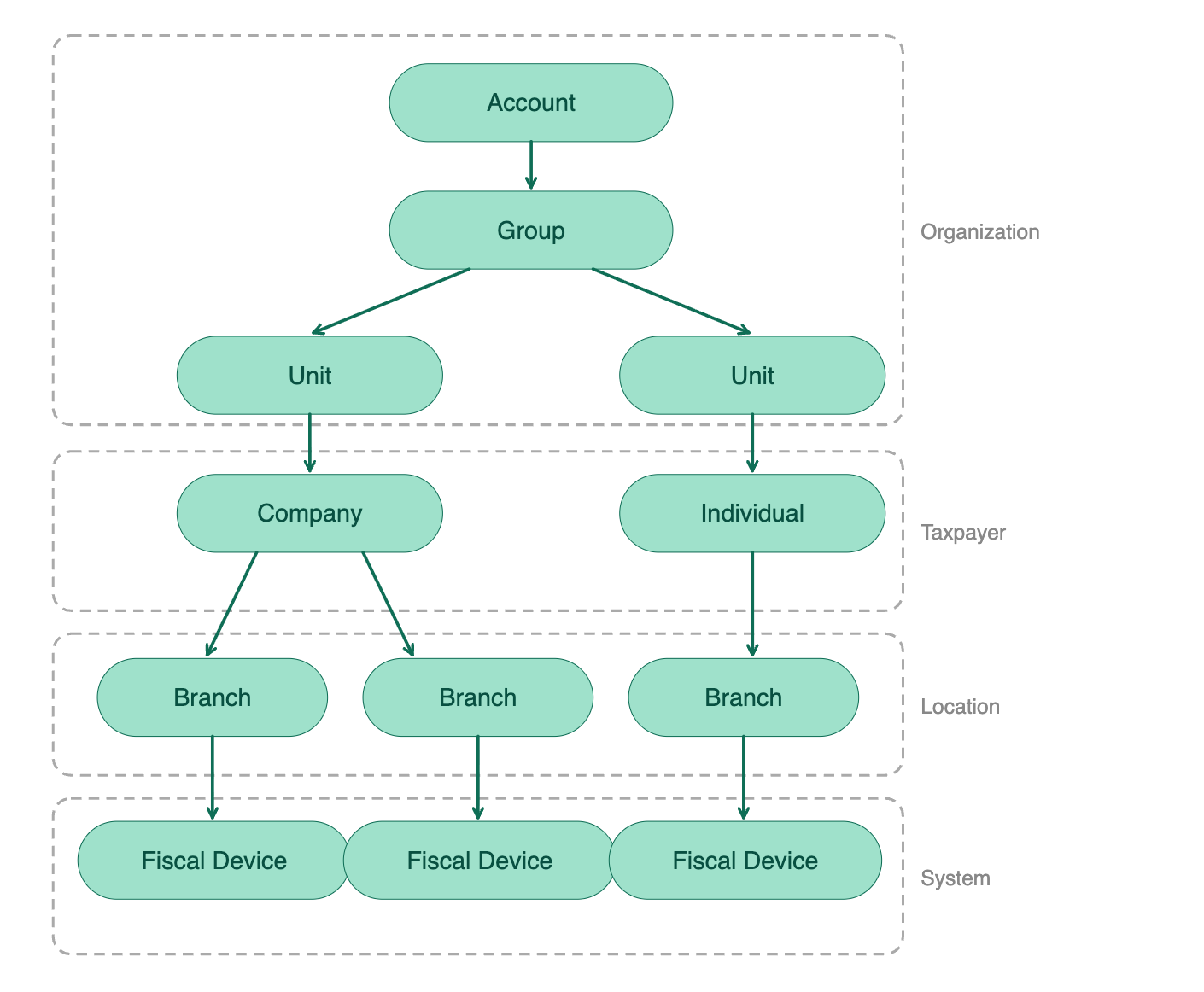
From SIGN IT 2026-02-03 onwards, every reference in API paths, schemas, parameters, and responses reflects two key renames:
| Change | Up to SIGN IT 2025-08-12 | From SIGN IT 2026-02-03 onwards |
| Asset ➜ Organization | ||
| Top-level structure | Asset::TENANT represents the PoS provider or a retailer that operates its own PoS system. | Organization::ACCOUNT the top-level structure in fiskaly. Represents your company and holds your users, organizations, products, and billing. |
| Intermediate layer | Asset::GROUP optional intermediate layer used to group multiple Asset resources of type UNIT. | Organization::GROUP required intermediate layer within an ACCOUNT, used to organize multiple UNIT into logical clusters (e.g., one GROUP per country). A single GROUP per ACCOUNT is sufficient if no further structuring is needed. |
| Merchant | Asset::UNIT represents a merchant (managed organization nested under either the TENANT or the GROUP, depending on the structure) | Organization::UNIT represents a merchant / taxpayer operating within the GROUP (and its associated ACCOUNT). |
| Entity ➜ Taxpayer and Location | ||
| Taxpayer data | Entity::COMPANY / INDIVIDUAL | Taxpayer::COMPANY / INDIVIDUAL |
Represents a particular UNIT with the relevant taxpayer data. | ||
| Operating address | Entity::LOCATION | Location::BRANCH |
| Represents the operating address of a legal entity’s business premises or establishment. |
Note: When a Taxpayer is created, a Location::HEAD_OFFICE is automatically generated with the same ID. If the business has only one operating location and it matches the taxpayer’s legal address, you can link the System directly to the ID of the Taxpayer/HEAD_OFFICE without creating a separate BRANCH with identical details.
To learn more about the other changes introduced with SIGN IT 2026-02-03 please refer to: Key changes in SIGN IT 2026-02-03
Key changes in SIGN IT 2026-02-03
Below is an overview of the key changes introduced in SIGN IT 2026-02-03.
Key changes from version 2025-08-12 to 2026-02-03
Sección titulada «Key changes from version 2025-08-12 to 2026-02-03»-
New required X-Api-Version Header The latest version is 2026-02-03.
-
**New resource - **
Location::BRANCH -
Replaces the previous
Entity::LOCATIONresource. -
Represents each operating business location.
-
Creation is not mandatory if there is only one operating business location and it corresponds to the taxpayer’s legal address.
Note: Upon Taxpayer creation, a Location::HEAD_OFFICE is automatically created and shares the same ID as the Taxpayer.
-
fiscalization.credentials.tax_id_numberis now a required field. -
Updated Resource Terminology To improve clarity and consistency, some resources have been renamed:
Asset::UNIT→Organization::UNITEntity::COMPANY/INDIVIDUAL→Taxpayer::COMPANY/INDIVIDUALEntity::LOCATION→Location::BRANCH
As part of this update, the corresponding endpoints have been updated as follows:
/organizations (previously /assets)
/taxpayers/locations (previously grouped under the /entities resource and endpoint, now split into two distinct resources with dedicated endpoints)
See this article for details: New Resource Terminology
Key changes in SIGN IT 2025-08-12
The release of SIGN IT 2025-08-12 brings key changes and marks the debut of our Unified API.
The documentation for this version now applies to both France and Italy.
Key changes from version 2024-10-31 to 2025-08-12
-
Base URL The new version uses the Unified API sub-domain:** ** TEST:
test.api.fiskaly.comLIVE:live.api.fiskaly.com -
Required
**X-Api-Version**Header This header is now mandatory:2025-08-12. -
Records Structure Change The
detailsfield in the Records has been moved one level deeper: fromcontent.detailstocontent.operation.details -
Record PDF Retrieval It is now possible to retrieve the Record PDF (
compliance.artifact) as generated in the “Fatture e Corrispettivi”* *portal. See this article for details: Can I obtain the generated record PDF via API? -
**New Entity field – **
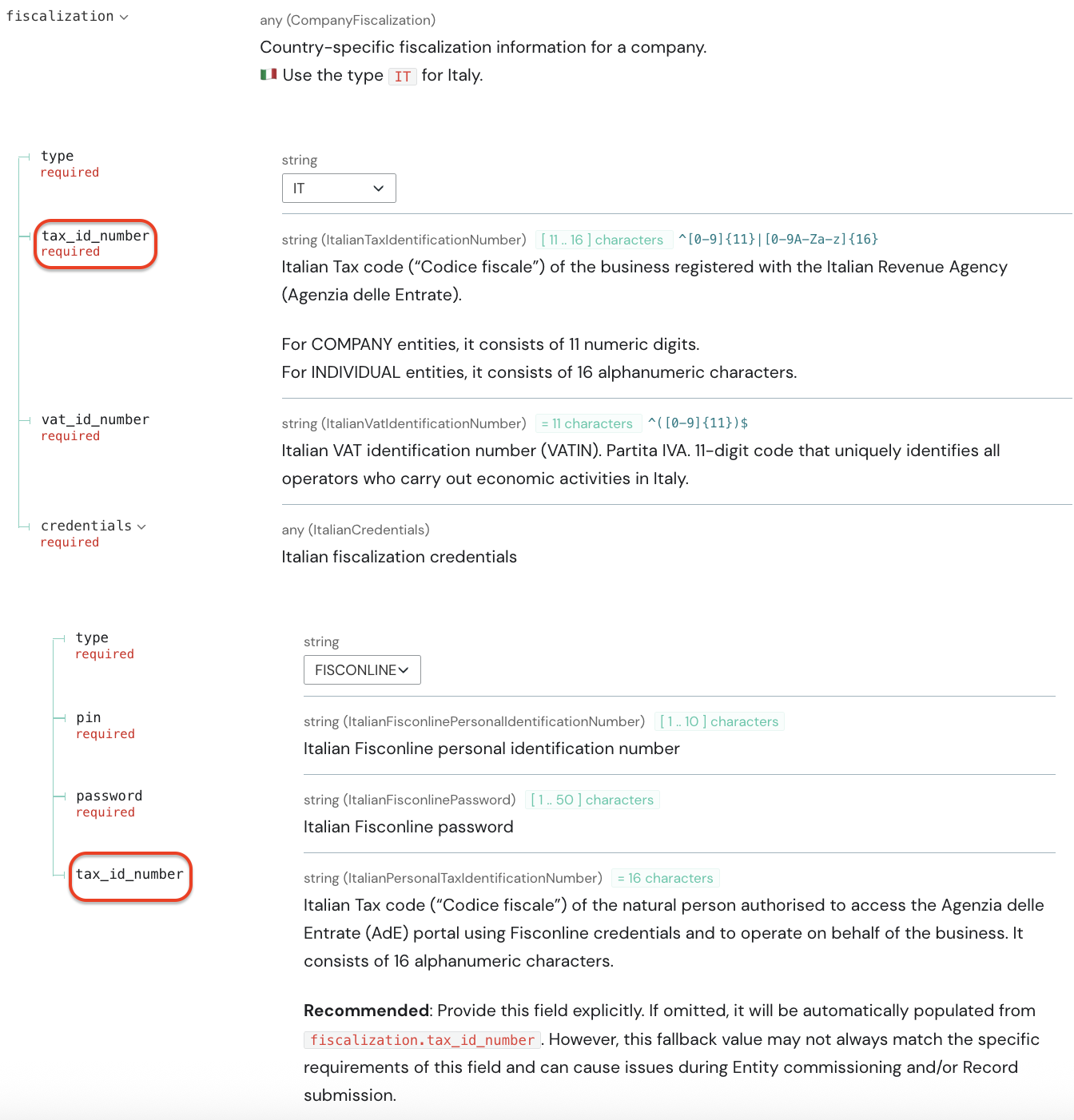
**fiscalization.credentials.tax_id_number**This newtax_id_numberfield allows taxpayers to differentiate between the tax ID of the business and that of the Fisconline user (the person authorized to operate on behalf of the business and holding the Fisconline credentials). This supports new AdE authentication flows that previously resulted inTransmission error: unsupported Agenzia delle Entrate (AdE) flow
Both fields are supported in POST /entities and PATCH /entities.
Attached to this article, you will find a PDF that provides a detailed explanation of the Entity fields required for fiscalization.
Do I need to display a QR code?
No, a QR code is not required when using SIGN IT lite.
Displaying a QR code is only mandatory if you are using a physical fiscal cash register (Registratore Telematico – RT).
When using SIGN IT lite, receipts are generated directly through the AdE’s online portal using the “Documento commerciale online” web procedure. This ensures that transaction data is transmitted immediately and securely to the tax authorities.
The fiscal validity and compliance of the receipt are guaranteed by its digital creation and registration within the AdE systems.
For guidance on how merchants should proceed during an audit, see this article: SIGN IT - How to handle an audit with SIGN IT lite?
HUB, the new dashboard
fiskaly HUB is the new web interface that replaces the previous fiskaly Dashboard and is now the central place for managing your SIGN IT integration.
This article explains what is handled in HUB and what remains API-driven, from a SIGN IT perspective. For HUB itself, we maintain a complete HUB guide: each section below links to the corresponding topic there, where you will find the full details and screenshots.
To understand the full integration workflow and when to perform each step, we recommend referring to the SIGN IT integration guide.
Note: If you previously used the fiskaly Dashboard, HUB is its successor. It provides a unified structure for Accounts, Groups, and Units, along with improved navigation, Organization management, API Key handling, and access to fiskaly services in both TEST and LIVE environments. This article explains the main differences between the terminology used on Dashboard and the one used on HUB: SIGN IT - New Resource Terminology
What you can do in HUB for SIGN IT
Account and access
Register at hub.fiskaly.com to receive your activation email — the link is valid for 5 minutes. If you already have an account on Dashboard, just log in to HUB with the same credentials. Once logged in, you can create your Account, invite users, assign roles, and generate API Keys.
→ First steps · Glossary
Selecting your scope (Navigation panel → Organizations → Select)
Everything you see in HUB depends on which organization you are currently viewing. The organization card at the top of the sidebar always shows where you are; click it to open that organization’s detail page, or use Organizations in the navigation panel to open the organization selector and switch.
What is available depends on the level you select:
-
Account — company details and the “What’s New” section with maintenance notices and release updates. Soon to come: your plans and billing insight.
-
Group — manage the Units below it, invite users, and generate API Keys
-
Unit — the SIGN IT data for that Taxpayer, plus its API Keys, users, and available product overview.
→ HUB menu · Switch organizations
Managing Users (Navigation panel → Users)
Invite or remove users at Account, Group, or Unit level, depending on where the user should have access. At Account level you also assign roles — Owner, Admin, Billing, and Regular user — through policies, optionally with an expiry date for temporary access.
→ User management · Roles & Role assignment
API Keys (Navigation panel → API Keys)
Created at Group or Unit level depending on your integration, and required to generate access tokens within the SIGN IT API (createToken endpoint). API Keys are environment-specific: a TEST Key only creates test resources; a LIVE Key only creates production resources.
Organization management (Navigation panel → Organizations)
A dedicated page shows the full hierarchy of Groups and Units belonging to your Account. If you use Groups, Units are shown within the Group structure.
Each Group and Unit also has a detail page where you can view and edit the organization’s name, address, and logo.
SIGN IT monitoring
Once an Organization UNIT is created and configured via the API it appears in the SIGN IT section in HUB, which follows the same hierarchy as a drill-down from the Taxpayer inward:
-
The Overview gives you an immediate read on the operational health of the Taxpayer: its current state and mode and how many Systems are commissioned under it. From there,
-
Locations lets you see where those Systems are physically deployed and confirm each Location is running as expected. Clicking into a Location narrows the view to its
-
Systems, where you can monitor each System’s activity — including the number of Records issued and its software details.
-
Records sit at the most granular level, giving you a status log of every fiscal transaction across all Locations and Systems belonging to the Organization UNIT.
All fiscal records successfully transmitted also remain accessible and traceable by the Taxpayer via the Italian Revenue Agency’s portal (Agenzia delle Entrate), where each taxpayer can independently review their own fiscal records.
Your SIGN IT resources are always shown at Unit level, since each Unit corresponds to one Taxpayer. If you are looking for Locations, Systems, or Records and the SIGN IT section looks empty, check that you have selected the right Unit rather than the Account or a Group.
For API-based retrieval, you can still list all Assets via the SIGN IT ListAssets endpoint. To retrieve Units belonging to a specific Group, include the header:
X-Scope-Identifier: {GROUP_ID}
Going LIVE
When you are ready to process real transactions, the Account Owner clicks “Go Live” in the Test Mode banner at the top of HUB. After confirming your company details, our Sales team follows up to complete the contractual process. Once LIVE is activated, you can switch between the TEST and LIVE environments in HUB.
→ Switch to LIVE environment & SIGN IT - TEST and LIVE environments
Help and status
The top navigation bar provides a Help menu with direct access to our developer documentation, the support center, and contact support. You can also switch the HUB interface language there — HUB is available in English, German, Spanish, Italian, and French.

-
HUB replaces the old Dashboard and supports all SIGN IT-related setup functions.
-
Organizational structure, user access, and API Keys are fully managed within HUB today.
-
Taxpayers, Locations, Systems, and Records are monitored in HUB; the fiscal content of the records is reviewed on the AdE portal.
-
Units (Taxpayers) continue to be created and managed via the SIGN IT API.
How to check if FISCONLINE credentials are valid
Note: Validation against real data only occurs in the LIVE environment.
-
An initial validation of the credentials is already performed when the Taxpayer’s state is updated from
ACQUIREDtoCOMMISSIONEDin the LIVE environment. If the credentials are valid, the Taxpayer mode will change toOPERATIVE. -
Additionally, you can manually trigger a validation by changing the Taxpayer mode from
OPERATIVE→SUSPENDED→OPERATIVEin the LIVE environment using theupdateTaxpayerendpoint (formerly, updateEntity). If the credentials are valid, the Taxpayer mode will switch toOPERATIVE. If invalid, it will remainSUSPENDEDand you will need to update the FISCONLINE credentials. -
Later, when you create a
TRANSACTIONrecord in the LIVE environment, we perform another credential check. If authentication to the AdE portal fails due to expired, invalid, or locked credentials, the record will be set toFINISHEDmode /FAILEDstate, and an Authentication Error message will appear in thelogsindicating the exact root cause.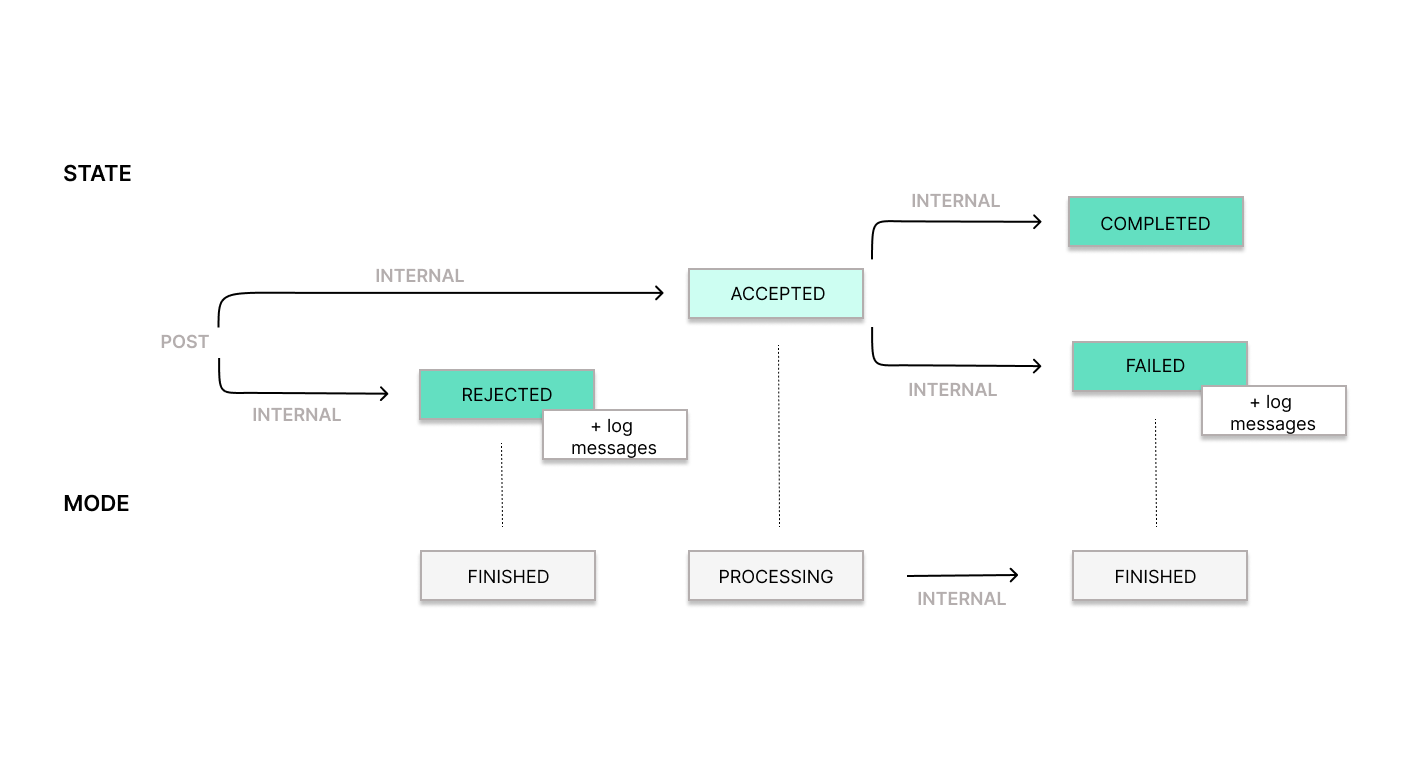
DEGRADED, blocking further record submissions until the Fisconline credentials are fixed and the Taxpayer is manually restored toOPERATIVE.
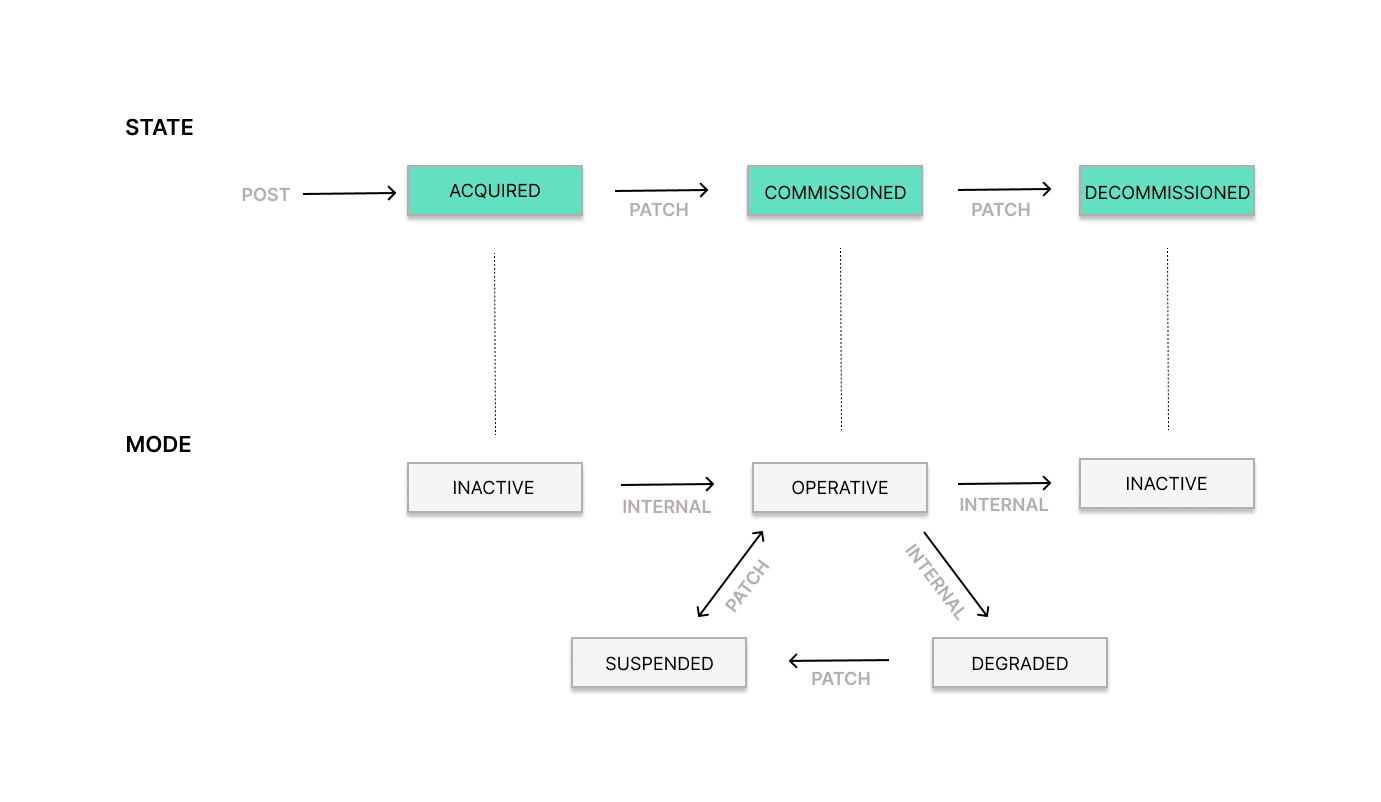
Note: The DEGRADED mode is being introduced in version 2026-06-01 on June 19, and will roll out to all legacy versions over the next 3 months.
If you decide to stay on your current version, you can already simulate this behavior well before it lands on your version by sending a record with the X-Taxpayer-Credentials-Expired: true header. For more details: What is DEGRADED mode and how to recover
TEST and LIVE environments
All fiskaly Accounts start in the TEST environment by default. The TEST environment provides full API functionality with sandbox data, allowing you to build and validate your integration before going to production. Any API Key generated within this setting enables the creation of resources exclusively for testing purposes.
When you are ready to process real transactions, you need to activate the LIVE environment.
Note: TEST and LIVE are fully separate: organizations and resources created in TEST do not exist in LIVE. You will need to create new organizations and resources in the LIVE environment, including a new API Key, as TEST API Keys do not authenticate against production endpoints.
Activating the LIVE environment in HUB
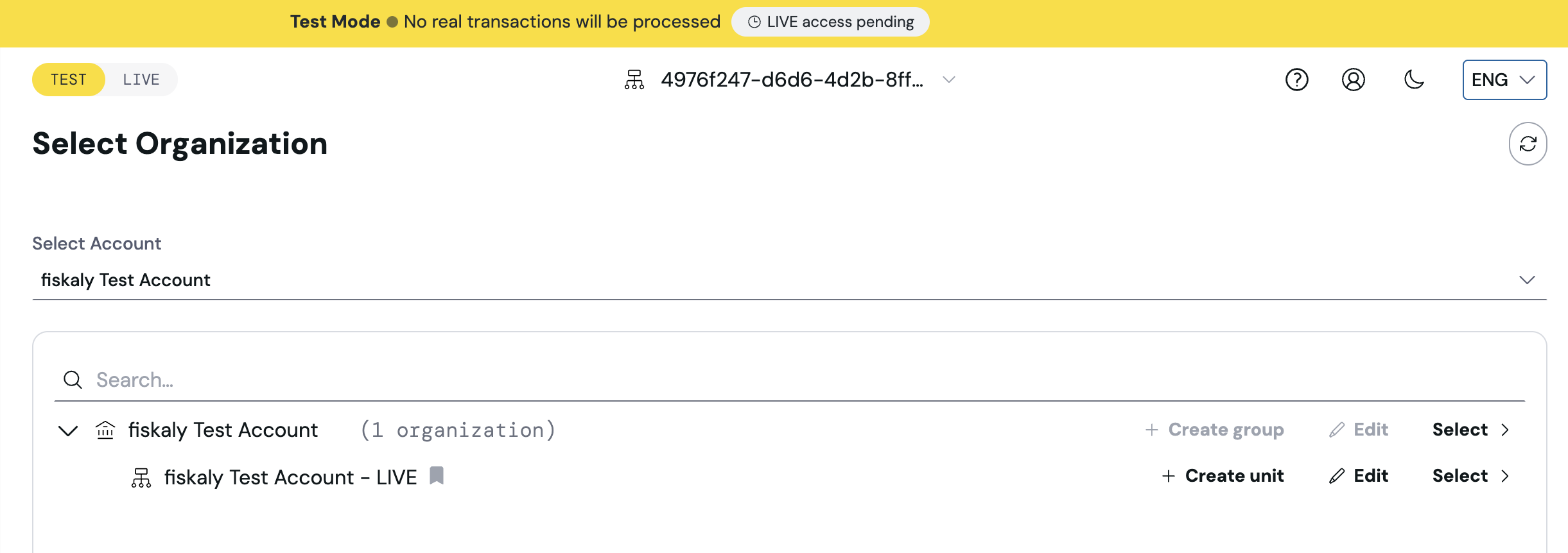
To enable the LIVE environment, click the “Go LIVE” option at the top of the page in the HUB.

While your request is being processed, the banner displays a “LIVE access pending” badge.

-
the activation banner disappears
-
the LIVE environment becomes accessible and
-
the Group AccountName-LIVE will appear in the LIVE environment.
Switching between environments
TEST and LIVE are independent environments, each accessible through its own URL. Once LIVE is activated, the TEST/LIVE buttons at the top left of HUB allow switching between the two environments at any time.

Note: Once your Organization operates in a LIVE environment, there is no requirement to disable test resources. The TEST environment remains fully accessible. The next step is to switch to the LIVE environment by clicking on the LIVE button and then create your production resources.
Creating LIVE resources
-
Access the new “AccountName-LIVE” Group in LIVE.
-
Generate a new LIVE API Key — TEST API Keys do not work in LIVE.
-
Recreate the subsequent resources in LIVE via SIGN IT API, following the configuration sequence described in the SIGN IT integration guide. Resources from TEST do not transfer to LIVE.
Important: Records sent in the LIVE environment should always reflect actual business transactions.
If you’re still using the fiskaly Dashboard
You can keep using our legacy Dashboard interface in TEST, but we recommend migrating to HUB, since it offers a unified view of your Account, Groups, and resources across all fiskaly solutions, clearer navigation between TEST and LIVE environments, and access to the latest features and improvements, while the Dashboard is no longer being actively developed.
To set your first Organization LIVE, complete the activation process described above in HUB. Our Activating LIVE Access Guide provides further details on the steps involved.
The legacy Dashboard does not support LIVE activation anymore — this step is required to be completed through HUB.
Note: If you have not yet migrated to HUB, you can follow these steps. Migrating to HUB does not require recreating any existing resources — your current TEST and LIVE setup carries over.
How to handle an audit with SIGN IT lite?
In case of an audit by the Guardia di Finanza, it is important to inform the authorities that SIGN IT lite, unlike traditional cash registers, uses the “Documento Commerciale Online” service provided by the Italian Revenue Agency (Agenzia delle Entrate), which records all receipts issued.
This link provides access to an official response (“Interpello”) from the Revenue Agency confirming the validity of transmitting electronic receipts via external software that uses the “Documento Commerciale Online” functionality.
Instructions for verifying receipts transmitted to the Italian Revenue Agency
Sección titulada «Instructions for verifying receipts transmitted to the Italian Revenue Agency»-
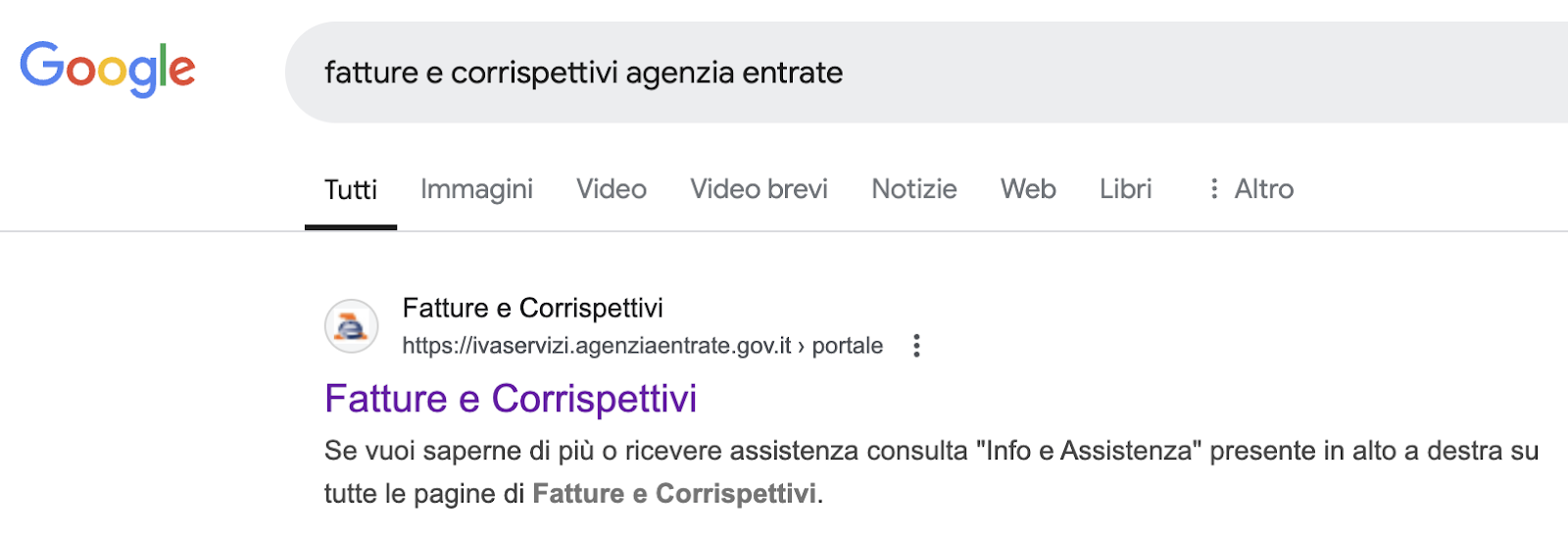
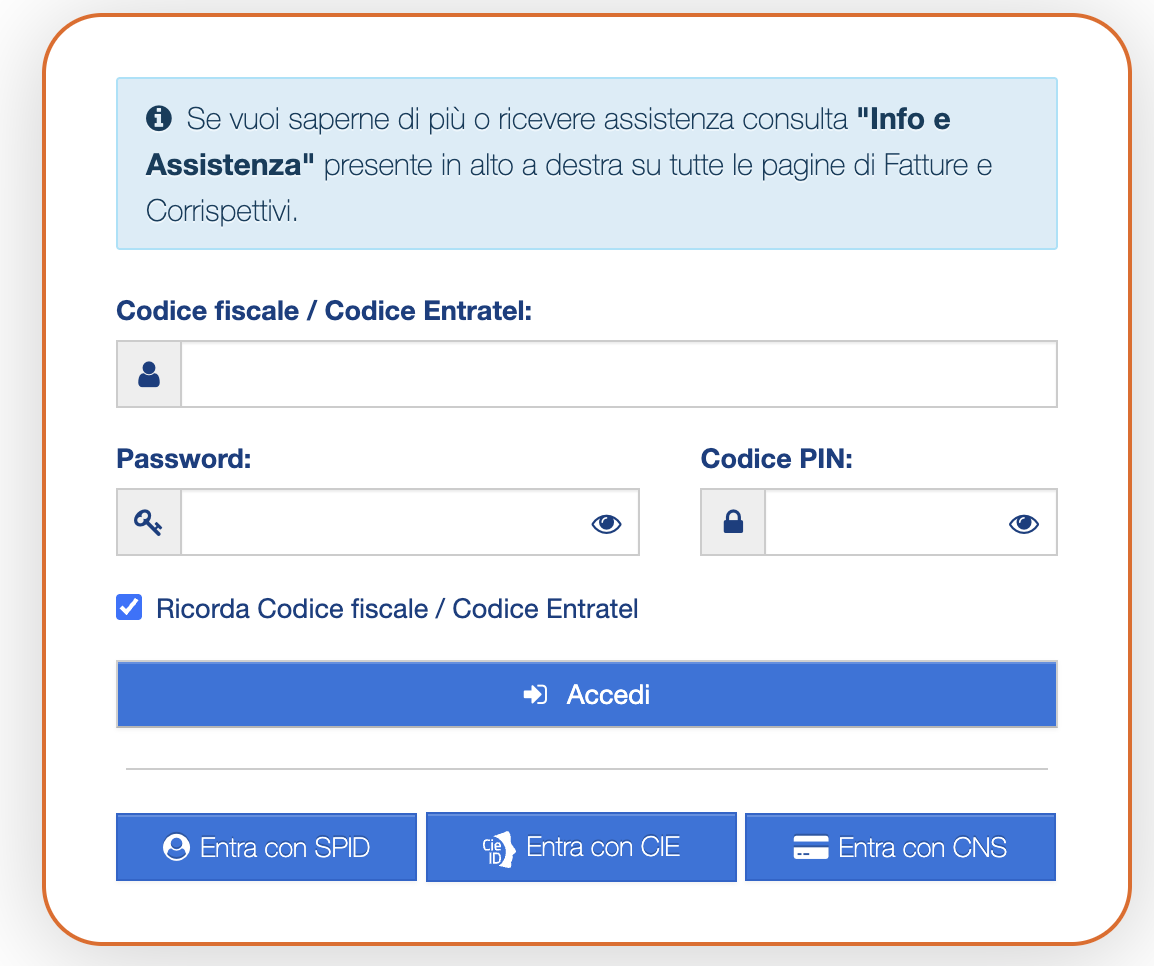
Search for “Agenzia Entrate Fatture e Corrispettivi” using any search engine, or go directly to: https://ivaservizi.agenziaentrate.gov.it/portale/
-
Log in using your FISCONLINE credentials.
-
Once accepted the data privacy notice, make sure you are in the correct “Cassetto fiscale” (tax drawer), with activity linked to the appropriate VAT number.
-
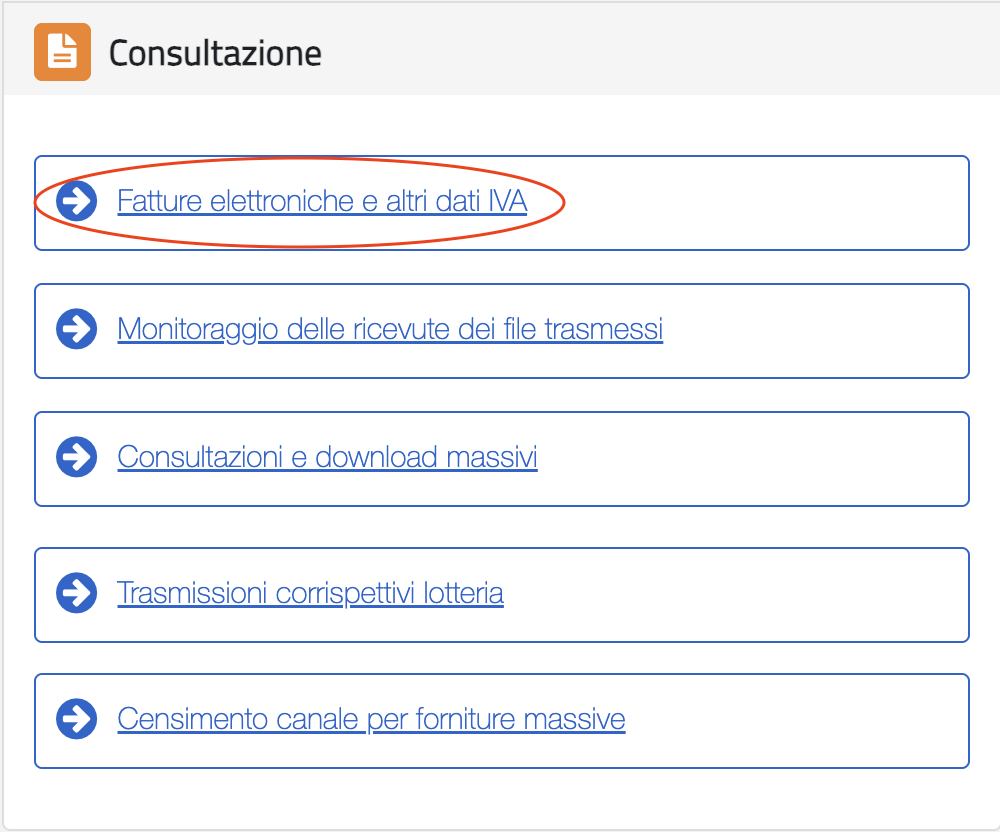
Scroll down to the “Consultazione” (Consultation) section, then click on “Fatture elettroniche e altri dati IVA” (Electronic invoices and other VAT data).
-
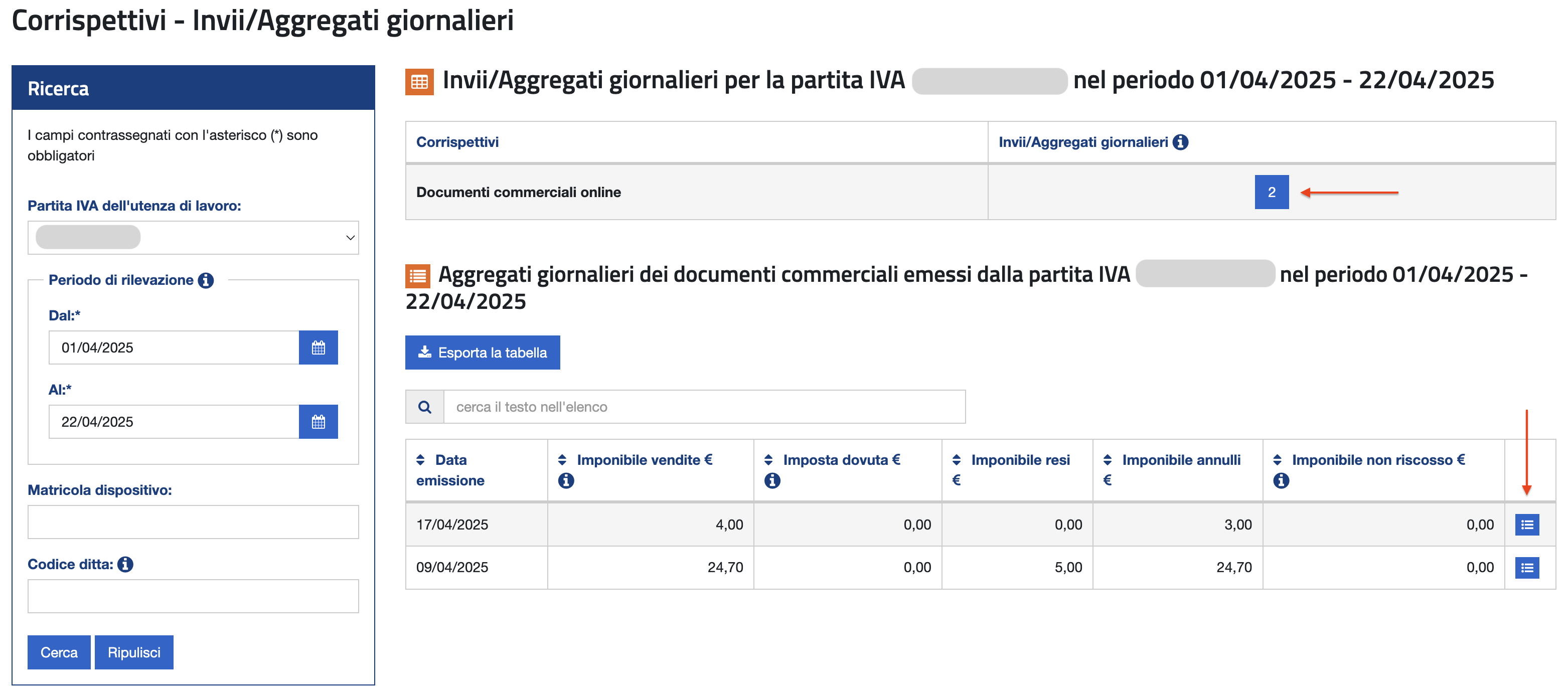
From the top menu, choose “Corrispettivi” (Receipts), then click on “Invii/Aggregati giornalieri” (Daily Submissions/Aggregates).
-
Ensure that the daily totals for transmitted receipts are visible.
-
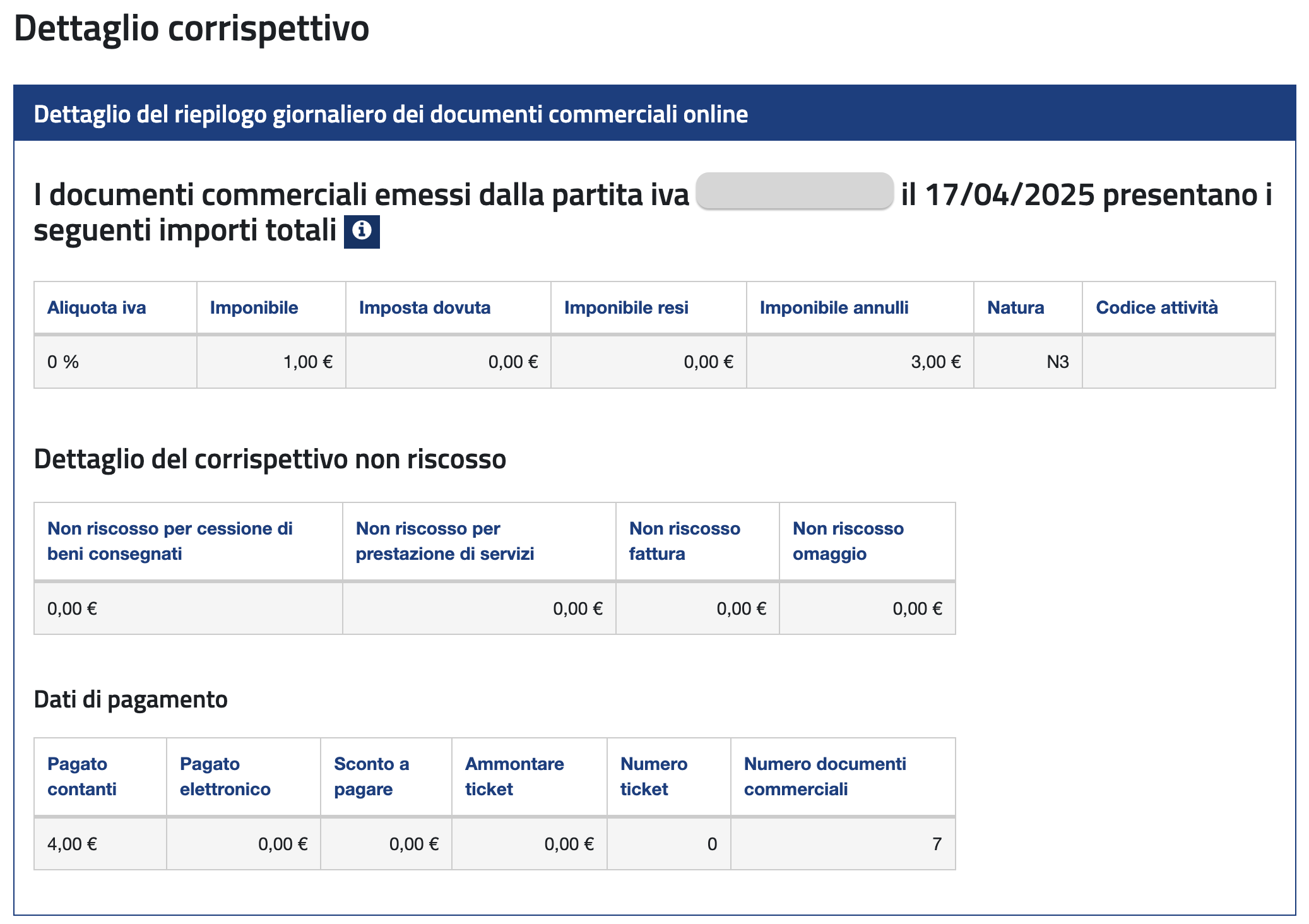
By clicking on the number shown in “Invii/Aggregati giornalieri”, you can view and print the detailed breakdown of each submission.


To search for a specific “Documento Commerciale” in the “Fatture e Corrispettivi” portal, please refer to the following article: How to locate a commercial document in the AdE portal
What to do in case of connectivity issues?
If a connection issue on your side prevents access to our API, or if the ‘Invoices and Receipts’ portal is temporarily unavailable, transactions cannot be transmitted to the Italian Revenue Agency. If the retry fails, compliance can easily be ensured by following these steps:
-
Provide the customer with a simple paper document as recommended by the Italian tax authority. This should serve as a temporary receipt for the transaction.
-
Issue an electronic invoice within 12 days of the transaction in order to ensure compliance. The invoice can be issued via E-INVOICE IT, via an electronic invoicing system already available to you or directly via SdI (“Sistema di Interscambio”).
To issue the electronic invoice, follow this process:
-
Issue a receipt with a note indicating the portal was unavailable at the time of the transaction, e.g. “Portal unavailable.”
-
Record the following details:
Date and time of issue
-
Consecutive invoice number
-
Consumer’s name, surname, and fiscal code
-
Merchant’s VAT number and legal name
-
Total transaction amount (before and after VAT)
-
Transmit the recorded data using an e-invoice system within the specified 12-day period.
By following this procedure, compliance with Italian regulations is ensured even if connectivity issues occur.
Note: The offline scenario will be fully supported through SIGN IT in its full version.
What does X-Idempotency-Key refer to?
The X-Idempotency-Key HTTP header plays a central role in implementing idempotency.
Idempotency ensures that repeated identical requests produce the same result, even if they are retried due to network issues, timeouts, or other temporary issues. This behavior prevents duplicate resource creation or unintended side effects in APIs that accept POST or PATCH requests.
Integrators use the X-Idempotency-Key header to uniquely identify requests, enabling the API to track and manage their outcomes across retries.
For additional information, please consult the dedicated Idempotency section in the API documentation.
With an API update on March 18, 2026, a new response header, X-Idempotency-Replayed, has been introduced for POST and PATCH requests. This header allows integrators to clearly distinguish between retried requests ("true") and newly processed requests ("false"), improving transparency and simplifying debugging.
For more details, please refer to our blog article: Unified API Update: Enhanced Idempotency Handling.
What does X-Scope-Identifier refer to?
The X-Scope-Identifier header plays a crucial role when creating a **Subject **for the Organization UNIT (formerly, Asset UNIT).
It defines the scope in which the Subject is created, ensuring that the generated API_KEY is tied to a specific Organization UNIT.
Note: If this header is omitted, the following error message will be displayed:
"message": "The request functionality is not implemented yet. ['Subject::API_KEY' creation not supported for none 'Organization::UNIT' scopes]"
**Other use case **
Sección titulada «**Other use case **»See article: How to add an additional level to your structure
Records (19)
How to represent mandatory cash rounding
Since January 1, 2018, 1 and 2 cent coins are no longer produced.
Under Italian law (DL n. 50/2017), the total amount due, if paid entirely in cash, must be rounded to the nearest €0.05:
-
€0.01–€0.02 → rounded down to €0.00
-
€0.03–€0.04 → rounded up to €0.05
-
€0.06–€0.07 → rounded down to €0.05
-
€0.08–€0.09 → rounded up to €0.10
This rule applies only if the payment is made entirely in cash.
- Rounding down
The difference (€0.01 / €0.02) is recorded as a discount at payment level:
payments[type=CASH].details.discount
Example: if total_vat.inclusive is €23.02, the cash amount due is €23
"payments": [ { "type": "CASH", "details": { "amount": "23.00", "discount: "0.02" } } ]Note: The “Documento Commerciale Online” web procedure on which SIGN IT lite is based technically tolerates a discrepancy of up to €0.02 between the document total and the payment total. While it would therefore be technically possible to represent only 23.00 in the example above, including the discount is more consistent with the approach defined in the traditional RT technical specifications.
- **Rounding up **
The difference (€0.01 / €0.02) is added to the payment amount:
payments[type=CASH].details.amount
Example: if total_vat.inclusive is €23.09, the cash amount due is €23.10
"payments": [ { "type": "CASH", "details": { "amount": "23.10" } } ]How to locate a commercial document in the AdE portal
Taxpayers can locate a specific commercial document in the AdE (Agenzia delle Entrate) portal in two ways:
-
**Using the **
**compliance.url**If the transmission of theRecord::TRANSACTIONreturned aCOMPLETEDstate andFINISHEDmode, the API response includes acompliance.url. Opening this link and authenticating with their credentials will bring the Taxpayer to the corresponding PDF document generated in the AdE portal. -
Searching manually in the “Fatture e Corrispettivi” portal
-
Log in to the Fatture e Corrispettivi portal.
-
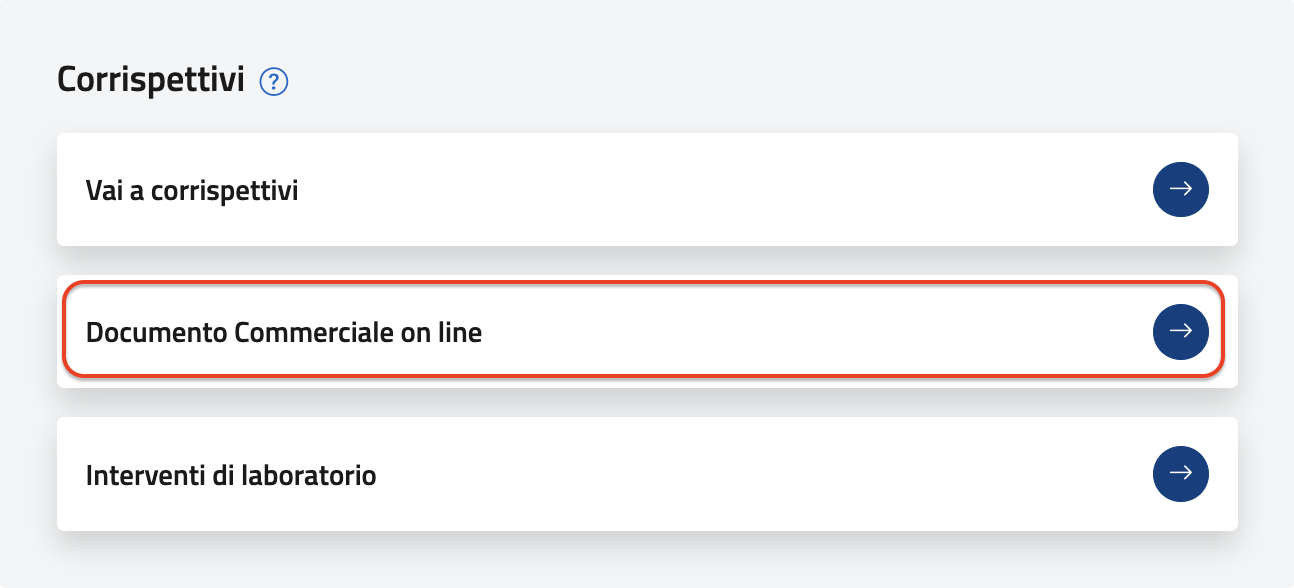
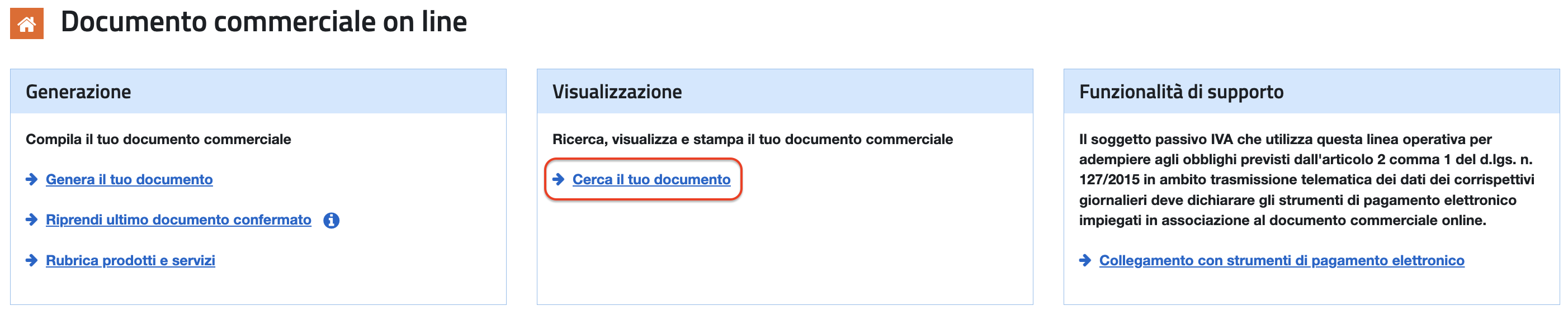
Scroll to the “Corrispettivi” section and select “Documento Commerciale Online”.
-
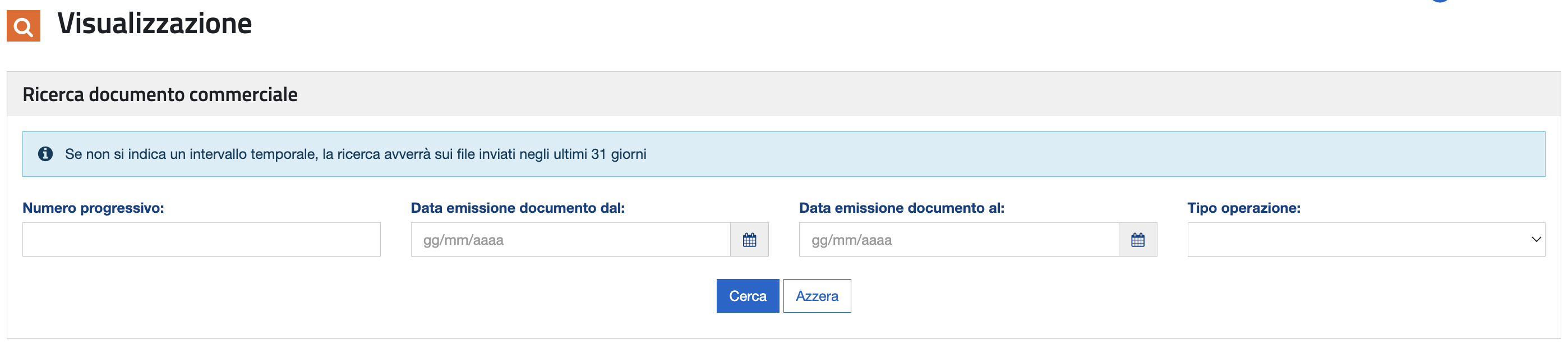
On the next page, click “Cerca il tuo documento”.
-
Apply the desired filters, such as: - Submission date or date range - Operation type - Progressive number (DCW)* *
If no time range is specified, the search will be performed on files submitted within the last 31 days.
Error Handling Guide
The attached guide provides an overview of common errors when sending records via SIGN IT lite and how to resolve them. It addresses errors returned by the POST /records endpoint (record submission), including both HTTP-level issues and application-level failures.
How to identify the error?
Check the logs field in the API response. Example:
{ "state": "FAILED", "logs": [ { "severity": "ERROR", "message": "Authentication error: ADE portal has not responded successfully" } ]}The error message prefix (e.g. Authentication error, Validation error, Submission error, etc.) determines the error category.
| Category | Meaning | Retry? |
|---|---|---|
| Safe to retry* | The receipt was not submitted to AdE as the error occurred before the receipt reached the AdE submission endpoint. | Yes, with a new idempotency key |
| Requires verification | The receipt may have been submitted to AdE as the error occurred during or after the receipt submission attempt to AdE. | Verify on the AdE portal first. If the receipt does not appear, retry with a new idempotency key |
| If you encounter an unknown or HTTP 500 error, please email dev-support@fiskaly.com and include sufficient details so we can investigate and advise on the next steps. |
HTTP 503 error is returned in case of a transient infrastructure unavailability. It is always safe to retry with a new idempotency key. If this error persist beyond 1–2 minutes, the infrastructure may be experiencing extended pressure. Log the transaction in your emergency register and contact dev-support@fiskaly.com if the issue does not resolve.
*Compliance note: Fiscal transactions are expected to be reported in real time. Delays or retries may introduce compliance risks and may not meet regulatory requirements.
fiskaly provides technical tooling but does not guarantee compliance, which remains the customer’s responsibility. Any retry or recovery process should follow legally permitted timeframes and local regulations. Please refer to the guide for further details.
Note: Some error prefixes — specifically Entity validation error and fiscalization invalid — can also occur during taxpayer commissioning. In that context, the remediation is simpler: update the Taxpayer data based on the error message and retry the commissioning.
How to represent discounts
Entry-level discount
Sección titulada «Entry-level discount»This is a commercial discount applied to a specific entry and reduces its taxable base. VAT is recalculated on the reduced base.
Field used: entries[].data.value.discount (positive value)
VAT impact: VAT is reduced
"entries": [ { "type": "SALE", "details": { "concept": "GOOD" }, "data": { "type": "ITEM", "text": "Prod A", "unit": { "quantity": "1.00", "price": { "inclusive": "9.00", "exclusive": "8.18181818" } }, "value": { "base": "8.18181818", "discount": "1.00" }, "vat": { "type": "VAT_RATE", "code": "REDUCED_1", "percentage": "10.00", "exclusive": "7.27272727", "inclusive": "8.00", "amount": "0.72727273" } } }]Note: This payload reflects the entries structure introduced in API version 2026-06-01. If you’re integrating against a legacy version, use the flat *unit.price* string format (e.g. “price”: “9.00”) instead of the { *inclusive*, *exclusive* } object shown here.
Important: While partial discounts can be applied at the entry-level, a 100% discount must be represented as a GIFT. Learn how in the following article: How to represent a complimentary item (GIFT)
Cart-wide discount This discount applies to the entire transaction. It must be distributed proportionally across all taxable entries and, from a fiscal perspective, behaves like multiple entry-level discounts. Each affected entry receives a calculated portion of the total discount, and VAT is recalculated on the reduced taxable bases.
Field used: entries[].data.value.discount (positive value, proportionally distributed)
VAT impact: VAT is reduced
Payment-level discount
This is not a commercial discount but a payment adjustment. The taxable base and VAT of the entries remain unchanged, and taxes must still be calculated and paid on the full receipt amount.
This type of discount only reduces the amount actually collected (payments[].details.amount).
Field used: payments[].details.discount (positive value)
VAT impact: VAT is NOT reduced
"payments": [ { "type": "CASH", "details": { "amount":"60.00", "discount":"3.00" } } ]For further details, please refer to the following article: Value calculations and decimal rounding
Note: fiskaly is not allowed to provide tax advice. For tax-related questions, contact your tax advisor, tax auditor, or lawyer.
How to handle meal voucher payments
When meal vouchers are used as a payment method, they must be reported as follows:
-
payments[].type>CARD -
payments[].kind>TICKET -
payments[].number= currently, the API requires the meal voucher identifier in this field. A placeholder value (e.g."****") can also be used.
If multiple meal vouchers are used, each voucher must be reported as a separate payment entry within the payments array. The API will then aggregate these entries and submit the total number of vouchers to AdE.
**Example: **20 EUR payment using two meal vouchers and a debit card
"payments": [ { "type": "CARD", "kind": "TICKET", "number": "1234", "details": { "amount": "5.00" } }, { "type": "CARD", "kind": "TICKET", "number": "1235", "details": { "amount": "5.00" } }, { "type": "CARD", "kind": "DEBIT", "number": "****", "details": { "amount": "10.00" } } ]When should CANCELLATION be used?
The operation type CANCELLATION is used when a commercial document needs to be invalidated.
This applies in cases such as an incorrect amount or number of items, a duplicate issuance, or any other error identified after the commercial document has been created.
The incorrect record must be cancelled as a whole; individual entries cannot be cancelled independently.
To issue a CANCELLATION document in SIGN IT:
-
create a Record of type
INTENTION, followed by a -
Record of type
TRANSACTIONwith operation typeCANCELLATION. Here, you must reference both the ID of theINTENTIONcreated in step 1 and the ID of the originalTRANSACTIONyou want to cancel.
{ "content": { "type": "TRANSACTION", "record": { "id": "{{cancellationIntentionId}}" }, "operation": { "type": "CANCELLATION", "record": { "id": "{{cancelReceiptId}}" } } }}Although no formal legal deadline exists for cancelling a transaction, it is advisable to do so as promptly as possible.
A CANCELLATION differs from a CORRECTION, which is used for returns. Not sure which one to use? Check out our article: How to handle returns (CORRECTION)
Note: The cancelled document should be recorded as negative, non-taxable revenue in the next available VAT liquidation. fiskaly is not allowed to provide tax advice. For guidance on your specific situation, please consult your accountant.
How to handle returns (CORRECTION)
A TRANSACTION of type CORRECTION is used to record any return process.
This operation differs from a CANCELLATION, which is used to invalidate an existing RECEIPT. Not sure which one to use? Check out our article: When should CANCELLATION be used?
Steps to follow
-
operation.record.id→ ID of the originalRECEIPTtransaction -
entries[].type→RETURN -
entries[].details.number*→ *Entry number of the original receipt line for which the return is issued -
entries[].data.text*→ *Must exactly match the description of the original entry -
Specify the actual quantity returned and update all related values accordingly. Only positive values are allowed. For additional details, refer to Value calculations and decimal rounding.
Note*: The following payloads reflect the structure changes introduced with API version 2026-06-01. If you’re integrating against a legacy version: replace totals.vat field (at operation level) with the old total_vat (at document level), remove the breakdown field, and use the flat unit.price string format (inclusive only, e.g. “price”: “50.00”) instead of the { inclusive, exclusive } object shown here.*
Example
Original TRANSACTION of type RECEIPT: sale of 1 Jacket and 2 T-shirts
{ "content": { "type": "TRANSACTION", "record": { "id": "{{intentionId}}" }, "operation": { "type": "RECEIPT", "document": { "number": "INV-12345" }, "entries": [ { "type": "SALE", "details": { "concept": "GOOD" }, "data": { "type": "ITEM", "text": "Jacket", "unit": { "quantity": "1", "price": { "inclusive": "50.00", "exclusive": "40.98360656" } }, "value": { "base": "40.98360656" }, "vat": { "type": "VAT_RATE", "code": "STANDARD", "percentage": "22.00", "exclusive": "40.98360656", "inclusive": "50.00", "amount": "9.01639344" } } }, { "type": "SALE", "details": { "concept": "GOOD" }, "data": { "type": "ITEM", "text": "T-shirt", "unit": { "quantity": "2", "price": { "inclusive": "25.00", "exclusive": "20.49180328" } }, "value": { "base": "40.98360655", "discount": "0.00" }, "vat": { "type": "VAT_RATE", "code": "STANDARD", "percentage": "22.00", "exclusive": "40.98360655", "inclusive": "50.00", "amount": "9.01639344" } } } ], "breakdown": [ { "type": "VAT_RATE", "code": "STANDARD", "percentage": "22.00", "exclusive": "81.96721311", "inclusive": "100.00", "amount": "18.03278688" } ], "totals": { "vat": { "amount": "18.03278688", "exclusive": "81.96721311", "inclusive": "100.00" } }, "customer": { "type": "EXTERNAL" }, "payments": [ { "type": "CASH", "details": { "amount": "100.00" } } ] } }}- Return of goods with refund of the paid price
- **Partial Refund Scenario **
TRANSACTIONof typeCORRECTION: return of 1 T-shirt
{ "content": { "type": "TRANSACTION", "record": { "id": "{{recordIntentionIdC1}}" }, "operation": { "type": "CORRECTION", "record": { "id": "{{recordTransactionIdC0}}" }, "data": { "type": "RECEIPT", "document": { "number": "INV-16789", "series": "C" }, "entries": [ { "type": "RETURN", "details": { "concept": "GOOD", "number": "2" }, "data": { "type": "ITEM", "text": "T-shirt", "unit": { "quantity": "1", "price": { "inclusive": "25.00", "exclusive": "20.49180327" } }, "value": { "base": "20.49180327" }, "vat": { "type": "VAT_RATE", "code": "STANDARD", "percentage": "22.00", "exclusive": "20.49180327", "inclusive": "25.00", "amount": "4.50819672" } } } ], "breakdown": [ { "type": "VAT_RATE", "code": "STANDARD", "percentage": "22.00", "exclusive": "20.49180327", "inclusive": "25.00", "amount": "4.50819672" } ], "totals": { "vat": { "amount": "4.50819672", "exclusive": "20.49180327", "inclusive": "25.00" } }, "customer": { "type": "EXTERNAL" }, "payments": [ { "type": "CASH", "details": { "amount": "25.00" } } ] } } }}- Full Refund Scenario in one single document For a full refund of the entire receipt, all entries from the original receipt must be listed with their corresponding values.
- Exchange Scenario: Returning Item A and Purchasing Item B
A “Documento Commerciale” cannot contain both
SALEandRETURNentries. From a technical standpoint, the correct approach is as follows:
-
Issue a
CORRECTIONtransaction to certify the return of Item A -
Issue a
RECEIPTtransaction to certify the sale of Item B
- Scenario: Returning Item A and Issuing a Purchase Voucher From a technical standpoint, the correct approach is as follows:
-
Issue a
CORRECTIONtransaction to certify the return of Item A -
Issue a
RECEIPTtransaction for the sale of a voucher (single-purpose or multi-purpose, depending on the applicable tax treatment)
Note: fiskaly is not allowed to provide tax advice. For tax-related questions, contact your tax advisor, tax auditor, or lawyer.
How to handle outstanding payments
The payment type OUTSTANDING is used to report uncollected amounts (“corrispettivo non riscosso”). It applies when goods or services have already been provided, but the customer has not yet paid.
In this case, the transaction is considered completed, while the payment remains pending and will be settled at a later time.
To correctly record the “Totale non riscosso” (uncollected total) on the commercial document:
-
Set
payments[].type: "OUTSTANDING" -
Add
payments[].conceptand specify whether it relates to: aGOOD(“Credito per cessione di bene consegnato”), aSERVICE(“Prestazione di servizi”), or, from version 2026-06-01, an ongoing service provision with an invoice issued at the end of the period (INVOICE– flag in the “Emissione fattura” box).
Example of an outstanding payment for a good
{ "content": { "type": "TRANSACTION", "record": { "id": "{{intentionId}}" }, "operation": { "type": "RECEIPT", "document": { "number": "INV-12345" }, "entries": [ { "type": "SALE", "details": { "concept": "GOOD" }, "data": { "type": "ITEM", "text": "Product A", "unit": { "quantity": "1", "price": { "inclusive": "40.00", "exclusive": "32.78688525" } }, "value": { "base": "32.78688525" }, "vat": { "type": "VAT_RATE", "code": "STANDARD", "percentage": "22.00", "exclusive": "32.78688525", "inclusive": "40.00", "amount": "7.21311475" } } } ], "breakdown": [ { "type": "VAT_RATE", "code": "STANDARD", "percentage": "22.00", "exclusive": "32.78688525", "inclusive": "40.00", "amount": "7.21311475" } ], "totals": { "vat": { "amount": "7.21311475", "exclusive": "32.78688525", "inclusive": "40.00" } }, "customer": { "type": "EXTERNAL" }, "payments": [ { "type": "OUTSTANDING", "details": { "amount": "40.00" }, "concept": "GOOD" } ] } }}Note: The payload above reflects the structure changes introduced with API version 2026-06-01. If you’re integrating against a legacy version: replace totals.vat field (at operation level) with the old total_vat (at document level), remove the breakdown field, and use the flat unit.price string format (inclusive only, e.g. “price”: “40.00”) instead of the { inclusive, exclusive } object shown here.
How it is represented in the Online Commercial Document web procedure
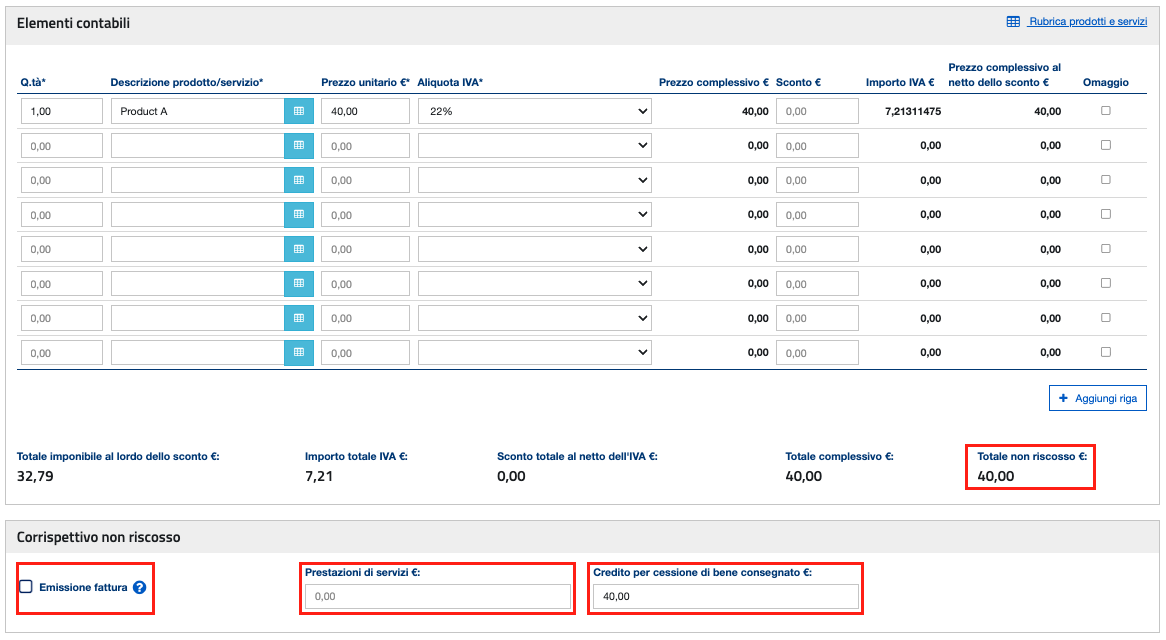
What to do when the payment is received?
For goods (GOOD), the initial receipt — issued with OUTSTANDING payment (uncollected) — is sufficient: the chargeable event for VAT purposes is already perfected at delivery, so no further document is needed when payment is received; it is enough to keep or reference the corresponding proof of payment.
For services (SERVICE), on the other hand, since VAT taxable event occurs upon collection of payment, the appropriate treatment may depend on how the initial document was issued and transmitted. To avoid any risk of double reporting, we strongly recommend confirming the correct approach with your tax advisor.
Note: fiskaly is not allowed to provide tax advice. For tax-related questions, contact your tax advisor, tax auditor, or lawyer.
Value calculations and decimal rounding
SIGN IT lite is based on the Italian Tax Agency’s “Documento Commerciale Online” (DCO) web procedure. This article describes how AdE calculates the values of the commercial document in this procedure.
The Italian Tax Agency relies on the following values to calculate everything else:
-
unit.quantity -
unit.price(VAT included) -
vat.percentage -
value.discount -
details.purpose, only for gift entries ("GIFT"). AdE excludes gift entries from the total amount due (Totale complessivo), but they still count towards the taxable amount and the VAT.
Entry-level values
-
unit.quantity: only 2 decimal places are allowed for this value. -
vat.amountandvat.inclusiveare rounded to the 8th decimal place. -
value.baseandvat.exclusiveare not mapped to the AdE portal, but we recommend computing them with the same rounding (8th decimal place).
| API Field | Definition | Formula |
value.base | Total amount of the entry (VAT excluded) before discounts, if any. | (unit.price.inclusive x unit.quantity) ÷ (1 + (vat.percentage ÷ 100)) Note: if you’re using a legacy version, unit.price is VAT included |
vat.inclusive | Total amount of the entry (VAT included) after discounts, if any. | (unit.price.inclusive x unit.quantity) - value.discount Note: if you’re using a legacy version, unit.price is VAT included |
vat.exclusive | Total amount of the entry (VAT excluded) after discounts, if any. This is the net taxable base on which VAT is calculated. | vat.inclusive ÷ (1 + (vat.percentage ÷ 100)) |
vat.amount | VAT amount | vat.inclusive - vat.exclusive |
Document totals level
-
total_vat.amount/totals.vat.amount(depending on the version used): AdE recalculates the value provided and overwrites it with the sum of the VAT amounts of all entries, gift entries included. AdE rounds this value (in the background) to the 8th decimal place. -
total_vat.inclusive/totals.vat.inclusiveandtotal_vat.exclusive/totals.vat.exclusive(depending on the version used): these fields are not forwarded to AdE, which calculates its own document totals directly from the entry values listed at the beginning of this article. -
payments[].details.amountandpayments[].details.discount: only 2 decimal places are allowed for these values.
Common warnings and errors
-
Validation WARNING
"Validation checks failed.. Reasons: Received total VAT amount XXX is not equal to Tax Agency computed total VAT amount XXX"What it means: the total VAT amount sent doesn’t match the sum of the entry VAT amounts calculated by AdE. The warning is non-blocking: the commercial document is accepted with the value recalculated by AdE (shown in the PDF rounded to 2 decimal places). -
Record transmission failures with validation ERROR
"Validation checks failed.. Reasons: La somma delle tipologie di pagamento non risulta uguale al Totale complessivo"What it means: AdE checks that the sum of all payments (Σ payments[].details.amount + Σ payments[].details.discount) matches the total amount due (Totale complessivo), which AdE calculates from the entries* *(Σ [(unit.price.inclusive × unit.quantity) − value.discount]), excluding gift entries.
Payload example
{ "content": { "type": "TRANSACTION", "record": { "id": "{{intentionId}}" }, "operation": { "type": "RECEIPT", "document": { "number": "INV-12346" }, "entries": [ { "type": "SALE", "details": { "concept": "GOOD" }, "data": { "type": "ITEM", "text": "Prod A", "unit": { "quantity": "1.00", "price": { "inclusive": "9.00", "exclusive": "8.18181818" } }, "value": { "base": "8.18181818", "discount": "1.00" }, "vat": { "type": "VAT_RATE", "code": "REDUCED_1", "percentage": "10.00", "exclusive": "7.27272727", "inclusive": "8.00", "amount": "0.72727273" } } }, { "type": "SALE", "details": { "concept": "GOOD" }, "data": { "type": "ITEM", "text": "Prod B", "unit": { "quantity": "2.00", "price": { "inclusive": "1.20", "exclusive": "0.98360656" } }, "value": { "base": "1.96721311", "discount": "0.05" }, "vat": { "type": "VAT_RATE", "code": "STANDARD", "percentage": "22.00", "exclusive": "1.92622951", "inclusive": "2.35", "amount": "0.42377049" } } } ], "breakdown": [ { "type": "VAT_RATE", "code": "REDUCED_1", "percentage": "10.00", "exclusive": "7.27272727", "inclusive": "8.00", "amount": "0.72727273" }, { "type": "VAT_RATE", "code": "STANDARD", "percentage": "22.00", "exclusive": "1.92622951", "inclusive": "2.35", "amount": "0.42377049" } ], "totals": { "vat": { "amount": "1.15104322", "exclusive": "9.19895678", "inclusive": "10.35" } }, "customer": { "type": "EXTERNAL" }, "payments": [ { "type": "CASH", "details": { "amount": "10.35" } } ] } }}Note: The payload above reflects the structure changes introduced with API version 2026-06-01. If you’re integrating against a legacy version: replace totals.vat field (at operation level) with the old total_vat (at document level), remove the breakdown field, and use the flat unit.price string format (inclusive only, e.g. “price”: “9.00”) instead of the { inclusive, exclusive } object shown here.
Single-purpose vouchers: issuance and redemption
When a single-purpose voucher is sold or issued, VAT is applied immediately because the nature of the goods or services and their applicable VAT treatment are already known. Taxation occurs at the time of issuance, not at redemption.
From a technical perspective, the correct approach for issuing and redeeming single-purpose vouchers with SIGN IT lite is as follows.
Note*: The following payloads reflect the structure changes introduced with API version 2026-06-01. If you’re integrating against a legacy version: replace totals.vat field (at operation level) with the old total_vat (at document level), remove the breakdown field, and use the flat unit.price string format (inclusive only, e.g. “price”: “100.00”) instead of the { inclusive, exclusive } object shown here.*
Voucher issuance
-
Assign the voucher a name in
entries[].data.text -
Include the applicable VAT in
entries[].data.vat
{ "content": { "type": "TRANSACTION", "record": { "id": "{{intentionId}}" }, "operation": { "type": "RECEIPT", "document": { "number": "INV-123456" }, "entries": [ { "type": "SALE", "details": { "concept": "GOOD" }, "data": { "type": "ITEM", "text": "Voucher for service XYZ - Nr. 2345", "unit": { "quantity": "1", "price": { "inclusive": "100.00", "exclusive": "81.96721311" } }, "value": { "base": "81.96721311" }, "vat": { "type": "VAT_RATE", "code": "STANDARD", "percentage": "22.00", "exclusive": "81.96721311", "inclusive": "100.00", "amount": "18.03278689" } } } ], "breakdown": [ { "type": "VAT_RATE", "code": "STANDARD", "percentage": "22.00", "exclusive": "81.96721311", "inclusive": "100.00", "amount": "18.03278689" } ], "totals": { "vat": { "amount": "18.03278689", "exclusive": "81.96721311", "inclusive": "100.00" } }, "customer": { "type": "EXTERNAL" }, "payments": [ { "type": "CASH", "details": { "amount": "100.00" } } ] } }}Voucher Redemption
Sección titulada «Voucher Redemption»The payment type VOUCHER is not enabled in SIGN IT lite. However, from a technical perspective, it is possible to record the single-purpose voucher as a line-level discount.
Scenario 1 – Voucher covers part of the purchase
Example 1A €100 voucher used for the purchase of a €200 good → remaining €100 paid via another payment method.
-
Specify the good being purchased.
-
Include the applicable VAT in
entries[].data.vat -
Record the voucher as a discount at the entry level. As a result, VAT is computed solely on the residual taxable base (
vat.exclusive), net of the voucher amount. The VAT attributable to the voucher-covered portion was already settled at voucher issuance.
{ "content": { "type": "TRANSACTION", "record": { "id": "{{intentionId}}" }, "operation": { "type": "RECEIPT", "document": { "number": "INV-12345" }, "entries": [ { "type": "SALE", "details": { "concept": "GOOD" }, "data": { "type": "ITEM", "text": "Product XYZ", "unit": { "quantity": "1", "price": { "inclusive": "200.00", "exclusive": "163.93442623" } }, "value": { "base": "163.93442623", "discount": "100.00" }, "vat": { "type": "VAT_RATE", "code": "STANDARD", "percentage": "22.00", "exclusive": "81.96721311", "inclusive": "100.00", "amount": "18.03278689" } } } ], "breakdown": [ { "type": "VAT_RATE", "code": "STANDARD", "percentage": "22.00", "exclusive": "81.96721311", "inclusive": "100.00", "amount": "18.03278689" } ], "totals": { "vat": { "amount": "18.03278689", "exclusive": "81.96721311", "inclusive": "100.00" } }, "customer": { "type": "EXTERNAL" }, "payments": [ { "type": "CASH", "details": { "amount": "100.00" } } ] } }}Example 1B €100 voucher used for the purchase of a €90 good and a €20 good → remaining €10 paid via another payment method.
-
Specify the goods being purchased.
-
Include the applicable VAT in
entries[].data.vat -
Distribute the voucher as a line-level discount across the two entries, keeping each discount below the
unit.price.
Note: The AdE portal does not allow value.discount to be equal or higher than the total line amount (unit.price x unit.quantity), otherwise it returns a Validation Error. To avoid this issue, a possible technical representation for this example would be:
- For the €90 entry, enter €89.99 as
value.discount - For the €20 entry, enter €10.01 as
value.discount
{ "content": { "type": "TRANSACTION", "record": { "id": "{{intentionId}}" }, "operation": { "type": "RECEIPT", "document": { "number": "INV-12345" }, "entries": [ { "type": "SALE", "details": { "concept": "GOOD" }, "data": { "type": "ITEM", "text": "Product A", "unit": { "quantity": "1", "price": { "inclusive": "90.00", "exclusive": "73.77049180" } }, "value": { "base": "73.77049180", "discount": "89.99" }, "vat": { "type": "VAT_RATE", "code": "STANDARD", "percentage": "22.00", "exclusive": "0.00819672", "inclusive": "0.01", "amount": "0.00180328" } } }, { "type": "SALE", "details": { "concept": "GOOD" }, "data": { "type": "ITEM", "text": "Product B", "unit": { "quantity": "1", "price": { "inclusive": "20.00", "exclusive": "16.39344262" } }, "value": { "base": "8.18032787", "discount": "10.01" }, "vat": { "type": "VAT_RATE", "code": "STANDARD", "percentage": "22.00", "exclusive": "8.18852459", "inclusive": "9.99", "amount": "1.80147541" } } } ], "breakdown": [ { "type": "VAT_RATE", "code": "STANDARD", "percentage": "22.00", "exclusive": "8.19672131", "inclusive": "10.00", "amount": "1.80327869" } ], "totals": { "vat": { "amount": "1.80327869", "exclusive": "8.19672131", "inclusive": "10.00" } }, "customer": { "type": "EXTERNAL" }, "payments": [ { "type": "CASH", "details": { "amount": "10.00" } } ] } }}Scenario 2 – Voucher covers the entire purchase Example: €100 voucher used for the purchase of a €100 good → no additional payment required.
-
Specify the good being purchased.
-
Include the applicable VAT in
entries[].data.vat -
Record the voucher as a discount at the entry level.
Note: The AdE portal does not allow value.discount to be equal or higher than the total line amount (unit.price x unit.quantity), otherwise it returns a Validation Error. To avoid this issue, if the voucher covers the full line price exactly — as in this scenario —, you may use the following technical workaround to satisfy the portal’s validation:
- Add €0.01 to
unit.priceOR reducevalue.discountby €0.01 to create a small gap between the two values. - Then recover that cent by applying a €0.01 discount at payment level via
details.discount. This keeps the customer’s net amount correct while satisfying the portal’s validation.
{ "content": { "type": "TRANSACTION", "record": { "id": "{{intentionId}}" }, "operation": { "type": "RECEIPT", "document": { "number": "INV-12345" }, "entries": [ { "type": "SALE", "details": { "concept": "GOOD" }, "data": { "type": "ITEM", "text": "Product XYZ", "unit": { "quantity": "1", "price": { "inclusive": "100.01", "exclusive": "81.97540984" } }, "value": { "base": "81.97540984", "discount": "100.00" }, "vat": { "type": "VAT_RATE", "code": "STANDARD", "percentage": "22.00", "exclusive": "0.00819672", "inclusive": "0.01", "amount": "0.00180328" } } } ], "breakdown": [ { "type": "VAT_RATE", "code": "STANDARD", "percentage": "22.00", "exclusive": "0.00819672", "inclusive": "0.01", "amount": "0.00180328" } ], "totals": { "vat": { "amount": "0.00180328", "exclusive": "0.00819672", "inclusive": "0.01" } }, "customer": { "type": "EXTERNAL" }, "payments": [ { "type": "CASH", "details": { "amount": "0.00", "discount": "0.01" } } ] } }}Note: The €0.01 adjustment introduced to satisfy the AdE portal’s validation in Scenario 2 means that a small, non-zero VAT amount will be reported, even when the voucher fully covers the purchase. If this is undesirable, VAT_EXEMPTION can be used as a technical alternative to VAT_RATE, resulting in zero VAT reported. Either way, as this decision has VAT reporting implications, we recommend confirming the right approach with your tax consultant.
Please note: fiskaly is not allowed to provide tax advice. Please contact your tax advisor, tax auditor or lawyer for tax-related questions.
Multi-purpose vouchers: issuance and redemption
When a multi-purpose voucher is sold or issued, no VAT is applied. Taxation, if applicable, takes place only upon redemption, when the actual supply of goods or services determines the taxable base.
From a technical perspective, the correct approach for issuing and redeeming multi-purpose vouchers with SIGN IT lite is as follows.
Note*: The following payloads reflect the structure changes introduced with API version 2026-06-01. If you’re integrating against a legacy version: replace totals.vat field (at operation level) with the old total_vat (at document level), remove the breakdown field, and use the flat unit.price string format (inclusive only, e.g. “price”: “100.00”) instead of the { inclusive, exclusive } object shown here.*
Voucher issuance
-
Assign the voucher a name in
entries[].data.text -
Set
vat.type: VAT_EXEMPTIONandvat.code: NOT_SUBJECT
{ "content": { "type": "TRANSACTION", "record": { "id": "{{intentionId}}" }, "operation": { "type": "RECEIPT", "document": { "number": "INV-12345" }, "entries": [ { "type": "SALE", "details": { "concept": "GOOD" }, "data": { "type": "ITEM", "text": "Voucher XYZ", "unit": { "quantity": "1", "price": { "inclusive": "100.00", "exclusive": "100.00" } }, "value": { "base": "100.00" }, "vat": { "type": "VAT_EXEMPTION", "code": "NOT_SUBJECT" } } } ], "breakdown": [ { "type": "VAT_EXEMPTION", "code": "NOT_SUBJECT", "exclusive": "100.00" } ], "totals": { "vat": { "amount": "0.00", "exclusive": "100.00", "inclusive": "100.00" } }, "customer": { "type": "EXTERNAL" }, "payments": [ { "type": "CASH", "details": { "amount": "100.00" } } ] } }}Voucher Redemption
The payment type VOUCHER is not enabled in SIGN IT lite. However, from a technical perspective, it is possible to redeem a multi-purpose voucher by following the steps below.
-
Specify the
vatdetails that apply to the good or service provided. -
Record the voucher as a
discountat the payment level.
Scenario 1 – Voucher covers the entire purchase Example: €100 voucher used for a €100 purchase → no additional payment required
{ "content": { "type": "TRANSACTION", "record": { "id": "{{intentionId}}" }, "operation": { "type": "RECEIPT", "document": { "number": "INV-123456" }, "entries": [ { "type": "SALE", "details": { "concept": "GOOD" }, "data": { "type": "ITEM", "text": "Product XYZ", "unit": { "quantity": "1", "price": { "inclusive": "100.00", "exclusive": "81.96721311" } }, "value": { "base": "81.96721311" }, "vat": { "type": "VAT_RATE", "code": "STANDARD", "percentage": "22.00", "exclusive": "81.96721311", "inclusive": "100.00", "amount": "18.03278689" } } } ], "breakdown": [ { "type": "VAT_RATE", "code": "STANDARD", "percentage": "22.00", "exclusive": "81.96721311", "inclusive": "100.00", "amount": "18.03278689" } ], "totals": { "vat": { "amount": "18.03278689", "exclusive": "81.96721311", "inclusive": "100.00" } }, "customer": { "type": "EXTERNAL" }, "payments": [ { "type": "CASH", "details": { "amount": "0.00", "discount": "100.00" } } ] } }}Scenario 2 – Voucher covers part of the purchase Example: €100 voucher used for a €120 purchase → remaining €20 paid via another payment method (e.g. cash)
{ "content": { "type": "TRANSACTION", "record": { "id": "{{intentionId}}" }, "operation": { "type": "RECEIPT", "document": { "number": "INV-123456" }, "entries": [ { "type": "SALE", "details": { "concept": "GOOD" }, "data": { "type": "ITEM", "text": "Product XYZ", "unit": { "quantity": "1", "price": { "inclusive": "120.00", "exclusive": "98.36065574" } }, "value": { "base": "98.36065574" }, "vat": { "type": "VAT_RATE", "code": "STANDARD", "percentage": "22.00", "exclusive": "98.36065574", "inclusive": "120.00", "amount": "21.63934426" } } } ], "breakdown": [ { "type": "VAT_RATE", "code": "STANDARD", "percentage": "22.00", "exclusive": "98.36065574", "inclusive": "120.00", "amount": "21.63934426" } ], "totals": { "vat": { "amount": "21.63934426", "exclusive": "98.36065574", "inclusive": "120.00" } }, "customer": { "type": "EXTERNAL" }, "payments": [ { "type": "CASH", "details": { "amount": "20.00", "discount": "100.00" } } ] } }}Accounting consideration: The issuance of a multi-purpose voucher (MPV) should not be recognized as revenue, but rather as a liability toward the customer until the voucher is redeemed. Revenue is recognized only when the voucher is used and the related goods or services are provided. As this involves accounting considerations, we recommend reviewing it with your accountant to ensure the correct treatment and to avoid both the issuance and redemption being recorded as income.
Please note: fiskaly is not allowed to provide tax advice. Please contact your tax advisor, tax auditor or lawyer for tax-related questions.
Can I obtain the generated record PDF via API?
Yes — starting with SIGN IT API version 2025-08-12 and all subsequent versions, you can.
After a Record of type TRANSACTION is successfully created (state COMPLETED, mode FINISHED), you can retrieve the official AdE record PDF by calling the retrieveRecord endpoint with the compliance-artifact query parameter:
GET {{apiBaseUrl}}/records/{{recordTransactionId}}**?compliance-artifact**
The response includes the PDF as a Base64-encoded string at compliance.artifact.data. Once decoded, the document is rendered in its original A4 format.
Note: In the TEST environment, only a placeholder PDF is returned (see example below), and it does not reflect the actual submitted values. Real data will only appear in the LIVE environment.
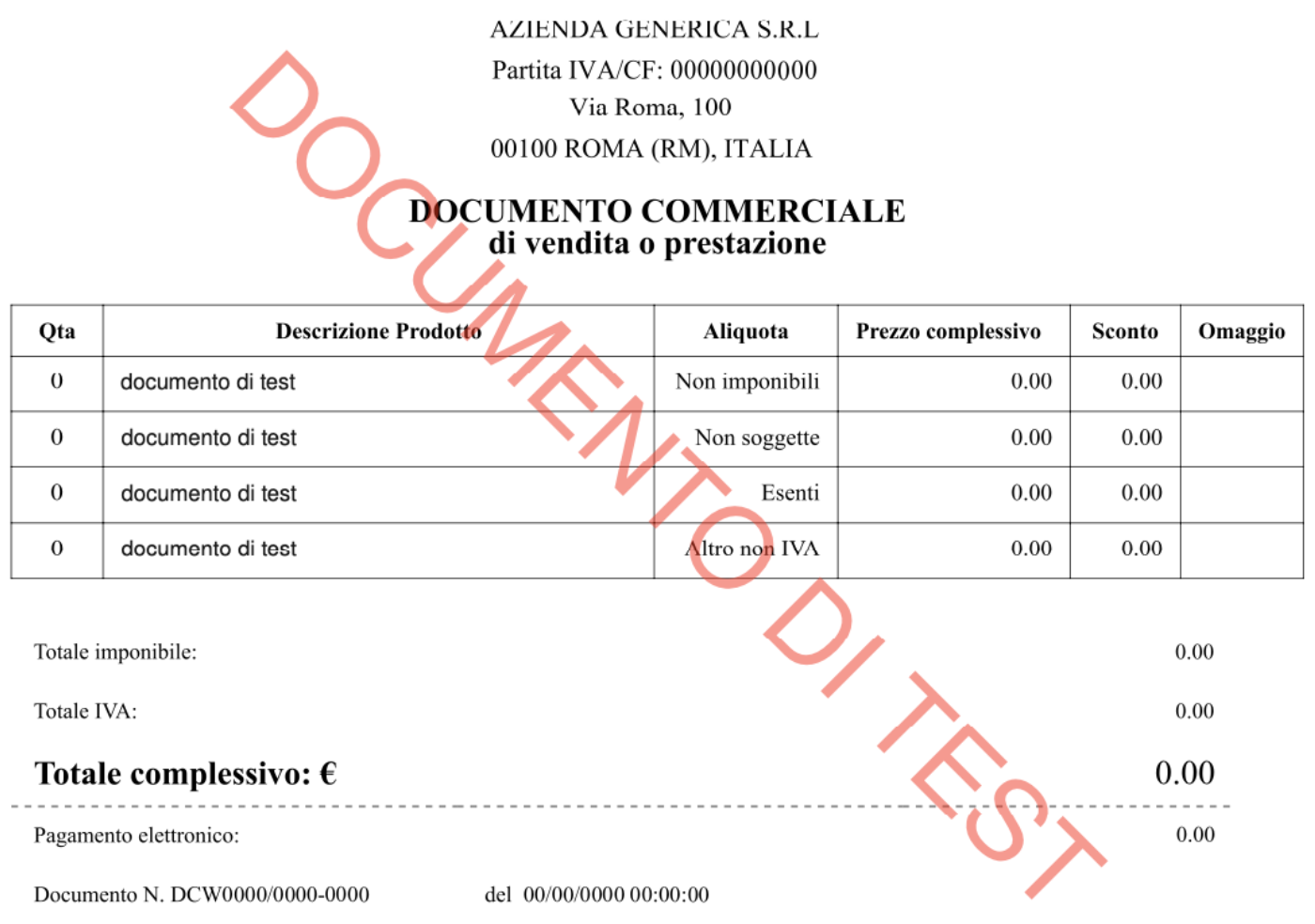
Tip: If you need to convert it to 80mm thermal printer format, you will need to handle the conversion on your side — some integrators do this using AI models (e.g. Claude).
What’s different from version 2024-10-31?
-
In version 2024-10-31: The record PDF is only available to the taxpayer via
compliance.urlreturned in the creation response after they log in to the “Fatture e Corrispettivi” portal with Fisconline credentials. -
In following versions: The record PDF is still available at
compliance.url, and can also be returned by retrieving the record with acompliance-artifactquery parameter. This makes it easier to store, print, or deliver the exact AdE-issued record, without requiring the taxpayer to log in to the “Fatture e Corrispettivi” portal.
How to report tips
From a technical perspective, tips are not subject to VAT and do not count as part of the taxable business revenue, provided they are voluntary and clearly separated from the payment for the good/service.
Technically, while cash tips do not need to be fiscalized, electronic tips require specific handling to ensure they are not mistakenly treated as taxable amount.
If a tip is included in the total card payment without being distinguished from the cost of the good/service, the entire amount will be treated as fiscal revenue (“corrispettivo”) and therefore subject to VAT.
To exclude the tip from VAT calculations, this distinction should be reflected in the fiscal document by submitting a separate line item (entry) of type SALE for the tip with:
-
a clear description, e.g.
"Voluntary tip" -
the appropriate VAT exemption (N2 - Not subject):
"VAT EXEMPTION" > "NOT SUBJECT"
Use case (at the restaurant) and payload below:
- Service total: 48 EUR
- Electronic tip: 2 EUR
{ "content": { "type": "TRANSACTION", "record": { "id": "{{intentionId}}" }, "operation": { "type": "RECEIPT", "document": { "number": "INV-12345" }, "entries": [ { "type": "SALE", "details": { "concept": "SERVICE" }, "data": { "type": "ITEM", "text": "Restaurant service", "unit": { "quantity": "1", "price": { "inclusive": "48.00", "exclusive": "39.34426230" } }, "value": { "base": "39.34426230", "discount": "0.00" }, "vat": { "type": "VAT_RATE", "code": "STANDARD", "percentage": "22.00", "exclusive": "39.34426230", "inclusive": "48.00", "amount": "8.65573770" } } }, { "type": "SALE", "details": { "concept": "SERVICE" }, "data": { "type": "ITEM", "text": "Voluntary tip", "unit": { "quantity": "1", "price": { "inclusive": "2.00", "exclusive": "2.00" } }, "value": { "base": "2.00", "discount": "0.00" }, "vat": { "type": "VAT_EXEMPTION", "code": "NOT_SUBJECT" } } } ], "breakdown": [ { "type": "VAT_RATE", "code": "STANDARD", "percentage": "22.00", "exclusive": "39.34426230", "inclusive": "48.00", "amount": "8.65573770" }, { "type": "VAT_EXEMPTION", "code": "NOT_SUBJECT", "exclusive": "2.00" } ], "totals": { "vat": { "amount": "8.65573770", "exclusive": "41.34426230", "inclusive": "50.00" } }, "customer": { "type": "EXTERNAL" }, "payments": [ { "type": "CARD", "details": { "amount": "50.00" }, "number": "****", "kind": "CREDIT" } ] } }}Note*: The payload above reflects the structure changes introduced with API version 2026-06-01. If you’re integrating against a legacy version: replace totals.vat field (at operation level) with the old total_vat (at document level), remove the breakdown field, and use the flat unit.price string format (inclusive only, e.g. “price”: “4800”) instead of the { inclusive, exclusive } object shown here.*
Please note: fiskaly is not allowed to provide tax advice. Please contact your tax advisor, tax auditor or lawyer for tax-related questions.
Difference between document.number and AdE progressive number
When creating a record of type TRANSACTION, the operation.document.number and operation.document.series fields refer to the taxpayer’s own internal document numbering system. These values must be generated by the taxpayer based on their specific business context and do not correspond to the progressive number returned by AdE in the API response.
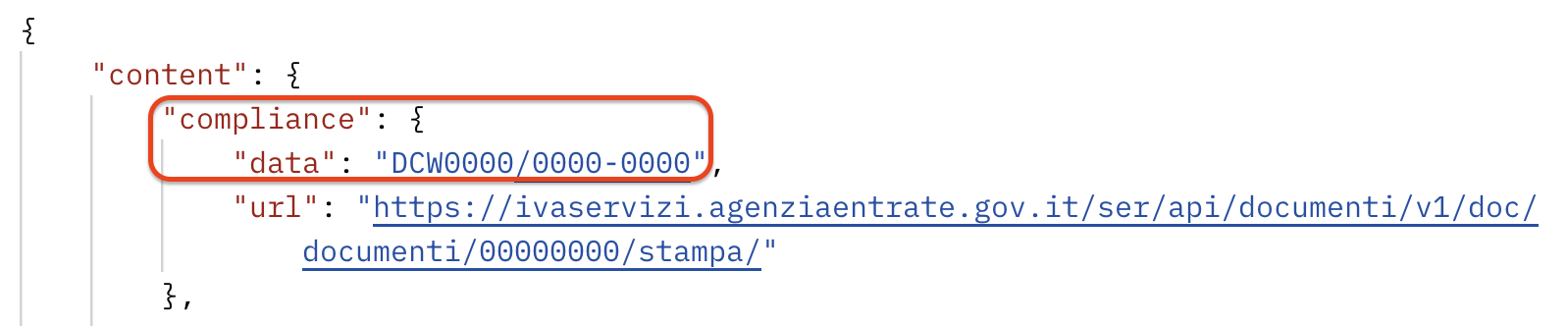
The Progressive Number (DCW/number) is a unique identifier automatically assigned by the Revenue Agency (Agenzia delle Entrate) when a document is successfully transmitted through the “Fatture e Corrispettivi” (Invoices and Fees) portal.
This number is included in the successful response after creating a Record of type TRANSACTION, and can be found in the compliance.data field.
When a customer requests the receipt, is it necessary to specify that it was issued through a cloud-based solution and not an RT?
Sección titulada «When a customer requests the receipt, is it necessary to specify that it was issued through a cloud-based solution and not an RT?»No, it’s not necessary to specify the issuing method on the receipt. The Progressive Number assigned by the Agenzia delle Entrate (DCW/number) is sufficient to uniquely identify and validate the receipt. This number confirms that the document was correctly submitted via the “Documento Commerciale Online” web procedure.
What data is provided in the compliant document response?
When you successfully create a record of type TRANSACTION using SIGN IT lite, the response includes:
-
compliance.data: The progressive number (DCW-number), generated by the Italian Revenue Agency (Agenzia delle Entrate) and used to uniquely identify the document. Note: If a lottery code is transmitted, it is appended to the progressive number, separated by a comma. Example: “DCW2026/1234-0001,NB7A1235” -
compliance.url: A link that enables the taxpayer to view and download the PDF document they have issued, after logging in to the AdE’s “Fatture e Corrispettivi” portal (Invoices and Receipts) using their credentials. Note: This is a private link and must not be shared with the end customer.
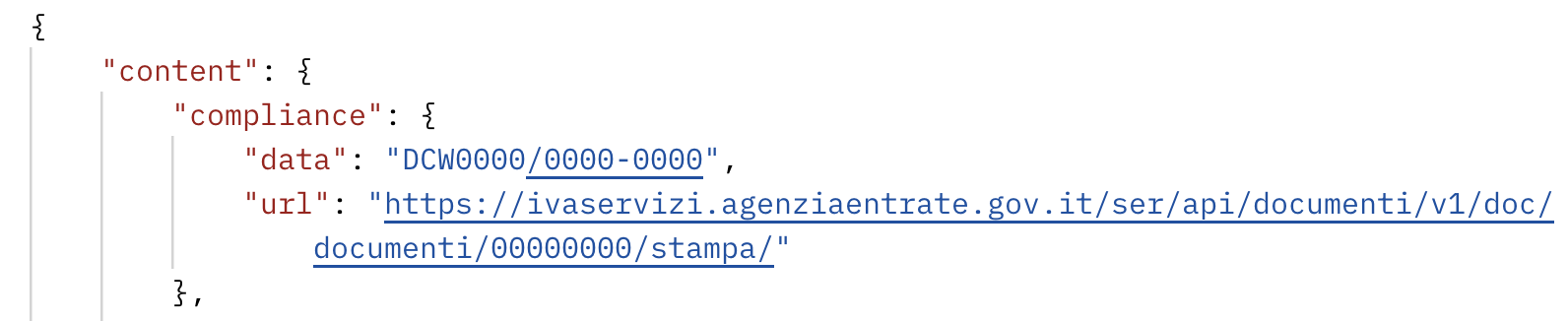
Note: In the TEST environment, the returned compliance values are placeholders only and do not refer to a real fiscal document.
Can the PDF be retrieved via API?
Sección titulada «Can the PDF be retrieved via API?»Yes. Starting with SIGN IT API version 2025-08-12, the official PDF document generated in the “Fatture e Corrispettivi” portal is available via API in compliance.artifact, with no portal login required. For details, see: Can I obtain the generated record PDF via API?
How to represent a complimentary item (GIFT)
When a merchant provides goods or services free of charge, tax authorities usually require the VAT to be calculated based on the original value of those goods or services. Therefore, such transactions must include all relevant VAT details, even if the customer is not paying for the product.
The correct way to represent a complimentary item in SIGN IT is as follows:
-
Enter the full price and VAT details at the entry-level, as if the item were sold at full value.
-
Indicate the item’s nature by setting the
entries[].details.purposefield to"GIFT"
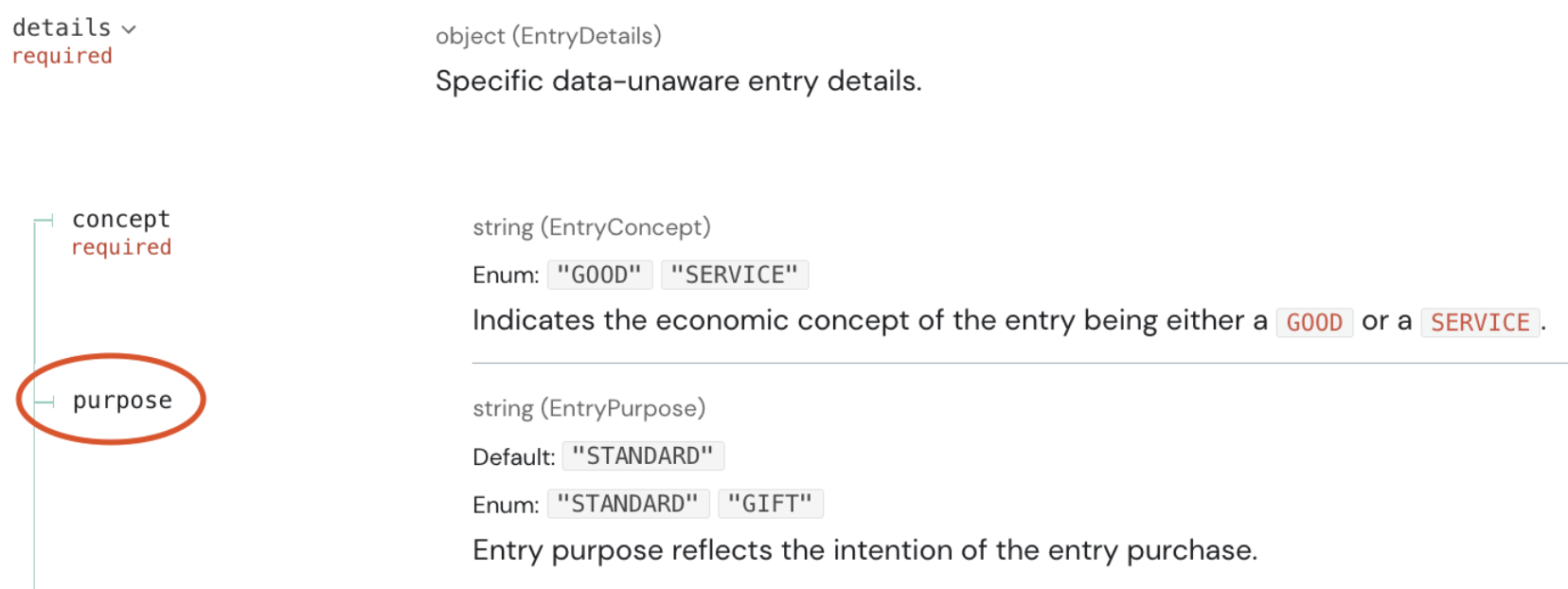
While partial discounts can be applied normally at the entry-level, a 100% discount must be represented as a GIFT. This ensures proper VAT handling and avoids compliance issues.
Below is an example representing an item offered free of charge ("GIFT").
{ "content": { "type": "TRANSACTION", "record": { "id": "{{intentionId}}" }, "operation": { "type": "RECEIPT", "document": { "number": "0001" }, "entries": [ { "type": "SALE", "details": { "concept": "GOOD", "purpose": "GIFT" }, "data": { "type": "ITEM", "text": "Caffè", "unit": { "quantity": "1.00", "price": { "inclusive": "1.20", "exclusive": "1.0909091" } }, "value": { "base": "1.0909091", "discount": "0.00" }, "vat": { "type": "VAT_RATE", "code": "REDUCED_1", "percentage": "10.00", "exclusive": "1.0909091", "inclusive": "1.20", "amount": "0.10909091" } } } ], "breakdown": [ { "type": "VAT_RATE", "code": "REDUCED_1", "percentage": "10.00", "exclusive": "1.0909091", "inclusive": "1.20", "amount": "0.10909091" } ], "totals": { "vat": { "amount": "0.10909091", "exclusive": "1.0909091", "inclusive": "1.20" } }, "payments": [ { "type": "CASH", "details": { "amount": "0.00" } } ] } }}Note*: The example above reflects the structure changes introduced with API version 2026-06-01. If you’re integrating against a legacy version: use the flat unit.price string format (inclusive only, e.g. “price”: “1.20”) instead of the { inclusive, exclusive } object shown here.*
How to integrate the Lottery Code in SIGN IT
At the moment, there are two types of lotteries in Italy: deferred and instant. Sign IT lite only supports the deferred lottery, while our full solution will support both types.
Consumers can get their personal lottery code on the official Receipt Lottery website and must provide that code to the merchant if they want to participate in the lottery. This is only allowed in case of cashless payments.
When creating a TRANSACTION record of type RECEIPT and CORRECTION in the SIGN IT createRecord endpoint, you can include the lottery code provided by the consumer in the customer.code field.
CANCELLATION records, this information is directly derived from the original receipt referenced by the cancellation document.
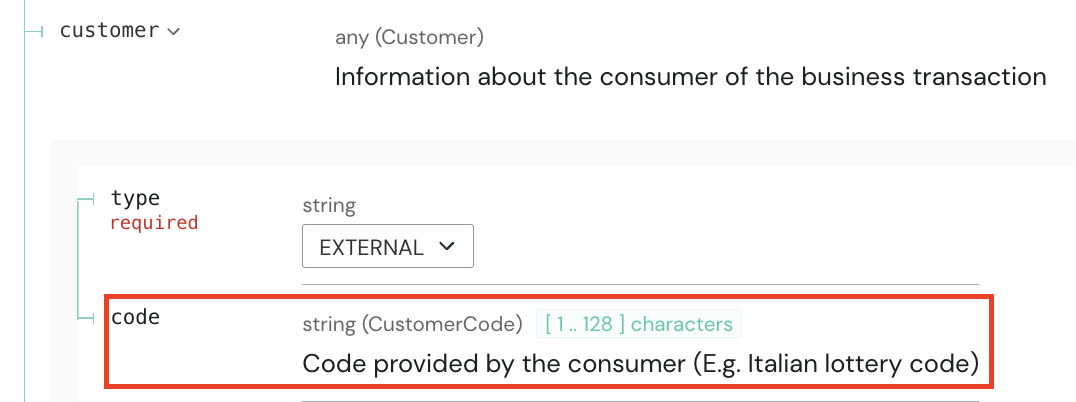
When a lottery code is transmitted, it is appended to the commercial document number (DCW) within the compliance.data, separated by a comma. Example: "DCW2026/1234-0001,NB7A1235"
In the official AdE PDF (retrievable via API), these values are displayed separately as:
Documento N.CODICE LOTTERIA DEL CLIENTE
In a future API version, we may introduce an improved compliance rendering mechanism.
For additional details and background information, refer to the “Receipt Lottery” section of the SIGN IT Guide.
Which VAT rates and treatments can be used?
This article provides a detailed mapping of VAT rates and VAT treatments applicable in Italy when using SIGN IT, including exemptions and cases outside the scope of VAT.
VAT_RATE
Sección titulada «VAT_RATE»vat.code | vat.percentage | Typical use cases |
|---|---|---|
STANDARD | 22% | Default rate for anything not expressly reduced |
REDUCED_1 | 10% | Tourism/hospitality, restaurants, construction works, domestic energy, some foods and pharmaceuticals |
REDUCED_2 | 5% | Certain social/care services, some essential goods, works of art |
REDUCED_3 | 4% | Staple foods, books and newspapers, first homes, aids for the disabled |
Note: the percentage value is internally pre-validated against the code value. In case of a mismatch between the provided value and the expected one (e.g. “STANDARD” with “10%” instead of “22%”), the record gets the state “REJECTED” with a validation error. Example: Validation error: invalid entries. Reasons: invalid rate percentage '10.00%' for code STANDARD, expected '22.00%'
VAT_EXEMPTION
vat.code | Natura Code | Description |
|---|---|---|
CAUSE_1 | N1 | Excluded ex art. 15 DPR 633/72 (Escluse ex art. 15 DPR 633/72) |
NOT_SUBJECT | N2 | Not subject (Non soggette) |
NOT_TAXABLE | N3 | Not taxable (Non imponibili) |
CAUSE_2 | N4 | Exempt (Esenti) |
CAUSE_3 | N5 | Marginal scheme (Regime del margine) |
CAUSE_4 | N6 | Other (Altro non IVA) |
Note: The AdE’s “Documento Commerciale Online” web procedure on which SIGN IT lite is based only accepts generic Natura codes (N1, N2, N3, N4, N5, N6) and does not support sub-codes (N2.1, N2.2, N3.1, etc.). For each VAT_EXEMPTION entry, the generic Natura code must therefore be used (e.g. N2, N3).
What to do if the card number is not stored?
If a card number has not been stored, you can simply use "****" in the number field.
Example:
"payments": [ { "type": "CARD", "details": { "amount": "100.00" }, "number": "****", "kind": "CREDIT" }]If the exact card kind is not known, either CREDIT or DEBIT can be used as a default value. The distinction has no fiscal impact: the AdE records both simply as electronic card payments.
Systems (1)
What to enter in the “producer” field if the POS is software-only?
Even if the POS (Point of Sale) does not include any hardware components, the API still requires both the producer and software fields to be filled out when creating the System.
In such cases, you can simply provide software-related information in the producer field as well:
-
The
typefield must always be set to"MPN". -
The
numberfield can contain a software identifier, such as a SKU or a unique internal code, to comply with the API requirements. -
In the
details.name, you can enter the name of the POS software.
Organizations (1)
How to add an additional level to your structure
Which SIGN IT API version are you on?
From SIGN IT 2026-02-03 onwards, the structure is: Organization::ACCOUNT → Organization::GROUP (required) → Organization::UNIT.
Up to SIGN IT 2025-08-12, the structure is: Asset::TENANT → Asset::GROUP (optional) → Asset::UNIT.
Scroll to the section that matches your integration below.
From SIGN IT 2026-02-03 onwards
By default, your integration needs your Organization::ACCOUNT and an Organization::GROUP (required) — both created via the fiskaly HUB — and Organization::UNITs representing each of your clients, created via the SIGN IT API.
In most cases, a single Group per country is sufficient (e.g. if you intend to support fiscalization in Italy and France, you may create one Organization::GROUP for Italy and one for France).
However, if your internal organization needs a further level of structuring —for instance, separating taxpayers by country, and then further by brand, region, or similar criteria— you can add an additional level by creating a sub-group (a Group nested inside another Group).
Account (main organization) | +-- Group ("France") | | | +-- Unit ("taxpayer 1") | +-- Group ("Italy") | +-- Sub-group ("Brand A") | | | +-- Unit ("taxpayer 2") | +-- Unit ("taxpayer 3") | +-- Sub-group ("Brand B") | +-- Unit ("taxpayer 4")**Note: **Currently, sub-groups can only be created via API. Support for creating sub-groups directly from the fiskaly HUB may be introduced in future releases. However, once created, sub-groups are already visible in the HUB.
Important: Once an Organization has been created, its placement in the structure cannot be changed. For example, a Unit created directly under the parent Group cannot later be moved under a Sub-group, and vice versa.
Step-by-step guide
- Call
createOrganizationwithtype: GROUP, authenticating with the bearer token of the parentGroup(the one created via the fiskaly HUB). TheGroupID is returned incontent.id
{ "content": { "type": "GROUP", "name": "name-your-sub-group-here" }}- Call
createOrganizationwithtype: UNIT, making sure to set the sub-group’s ID (from step 1) as theX-Scope-Identifierheader. This ensures the Unit is created directly under the Sub-group.
**Note: **If X-Scope-Identifier is not provided, the Organization::UNIT is created directly under the parent Group (the one created via the fiskaly HUB) by default, via the bearer token used.
Up to SIGN IT 2025-08-12
Sección titulada «Up to SIGN IT 2025-08-12»By default, your integration only needs your main organization (created via the fiskaly dashboard) and Asset::UNITs representing each of your clients (created via the SIGN IT API).
If your structure requires more flexibility, you can introduce an optional intermediate layer, Asset::GROUP, to organize multiple Asset::UNITs into logical groupings.
Tenant (main organization) | +-- Group (optional layer) | | | +-- Unit ("taxpayer 1") | +-- Unit ("taxpayer 2") | +-- Unit ("taxpayer 3") | +-- Unit ("taxpayer 4")Important: Once an Asset has been created, its placement in the structure cannot be changed. For example, a Unit created directly under the main organization (Tenant) cannot later be moved under a Group, and vice versa.
Step-by-step guide
- Call
createAssetwithtype: GROUP, authenticating with the bearer token of the main organization (the one created via the fiskaly Dashboard). TheGroupID is returned incontent.id
{ "content": { "type": "GROUP", "name": "name-your-asset-group-here" }}- Call
createAssetwithtype: UNIT, making sure to set theAsset::GROUPID (from step 1) as theX-Scope-Identifierheader. This ensures the Unit is created directly under the Group.
**Note: **If X-Scope-Identifier is not provided, the Asset::UNIT is nested directly under the main organization (Asset::TENANT) by default, via the bearer token used.
To learn more about the terminology and structure changes between versions, see: SIGN IT: New Resource Terminology.